

If you are unable to view other users’ timesheets, it is usually due to missing User Delegation access or required user roles. Follow the checks below to resolve the issue.
1. Check User Delegation Access
The most common reason you cannot see another user’s timesheets is that you have not been assigned the correct delegation permissions.
How to assign User Delegation:
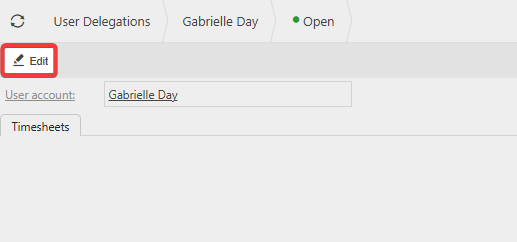
- Go to User Delegations.
- Drill into the name of the user who needs permission to view another user’s timesheets.
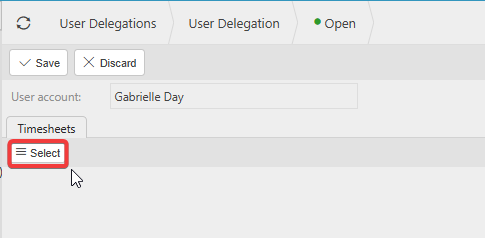
- Click Edit, then Select.
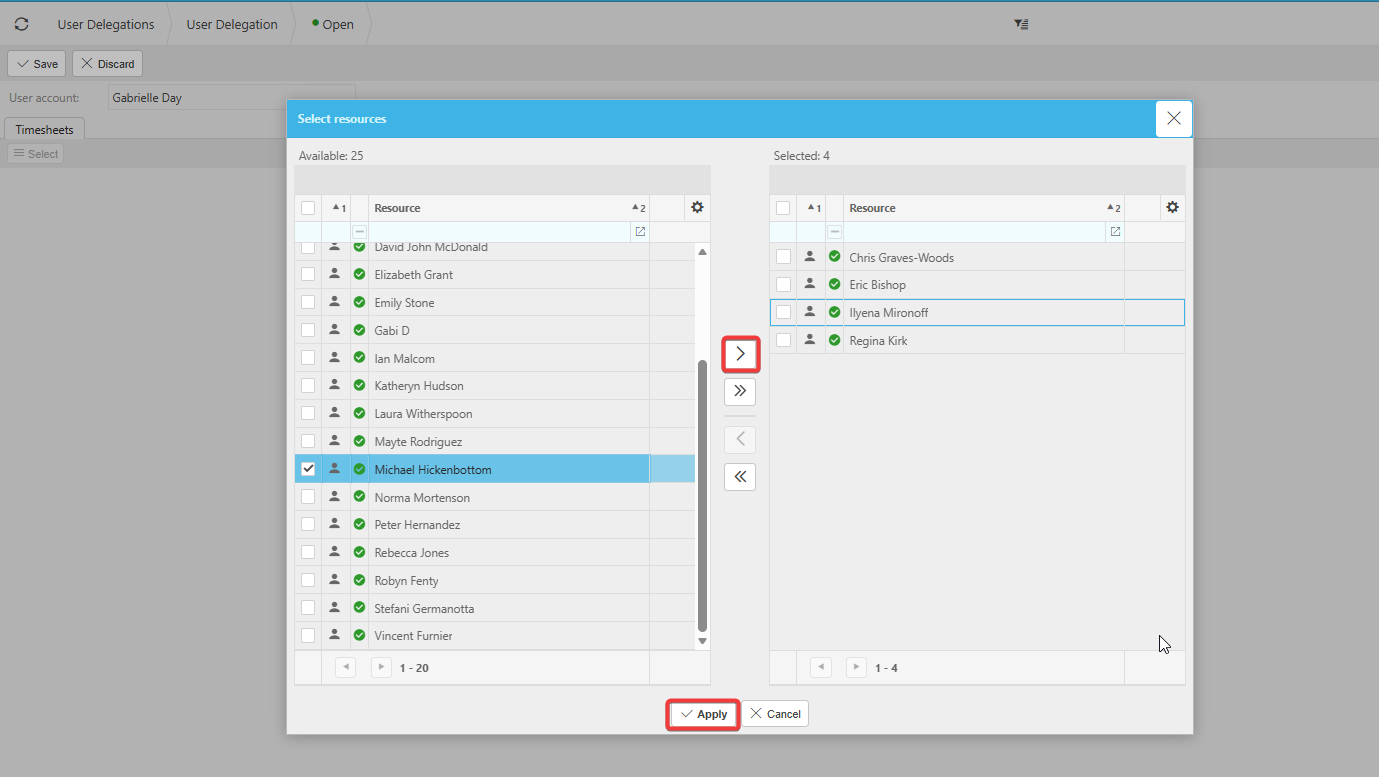
- In the window that opens, choose the Resource you want to grant visibility for.
- Click Apply, then Save.
The user you are granting delegation access to does not need to be set up as a resource.
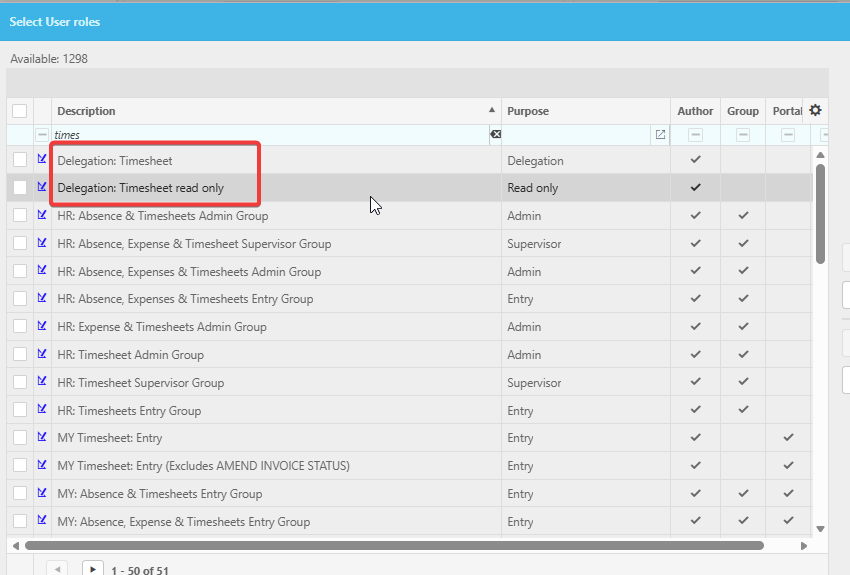
However, they must have the appropriate user role for Timesheet Management to appear in the User Delegation list.
Check required user roles
Additional user roles may be required depending on the level of access needed.
These roles must be assigned either:
- directly on the User Account, or
- via a User Group.
Without the correct roles, the user may not be able to view, edit, or approve timesheets even if delegation is set.
Cannot view Timesheets
Unable to see Timesheet
Permissions for viewing Timesheets
User Delegation
_______________________________________________________________________________________