

The best process would be to do this via a bulk payment.
There are a few things that need to be set up in your environment before this is possible.
1. Interco document types will first need to be unlocked. Navigate to Document types, search Interco, and unlock the Interco Receipt, Interco Receipt allocation, Interco Payment, Interco Payment allocation and Intercompany payment.
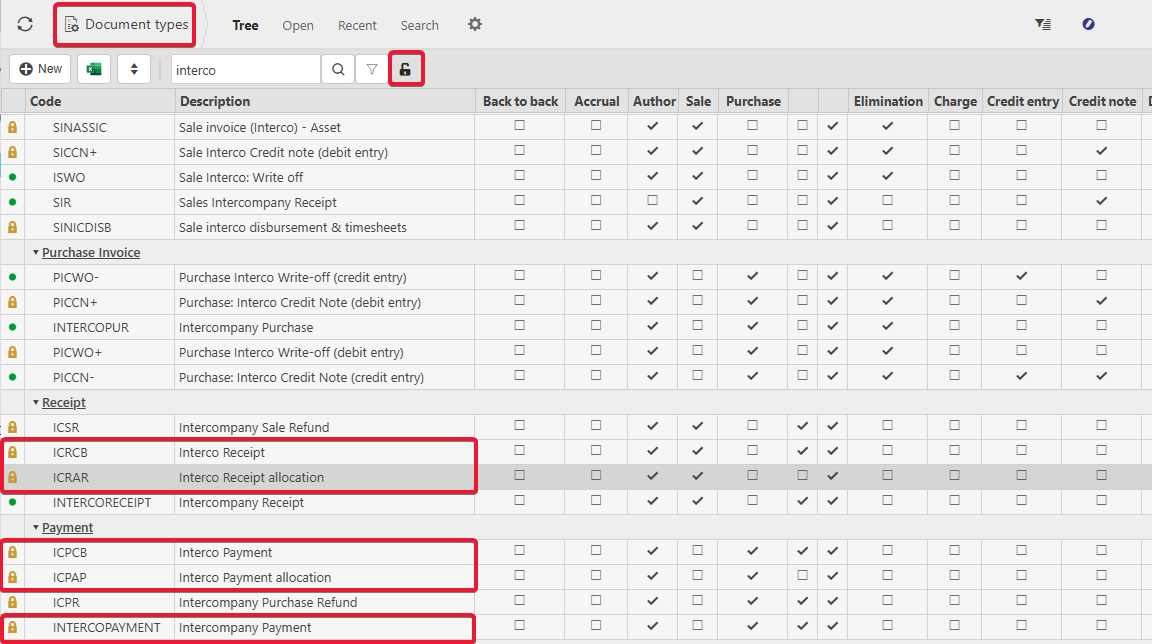
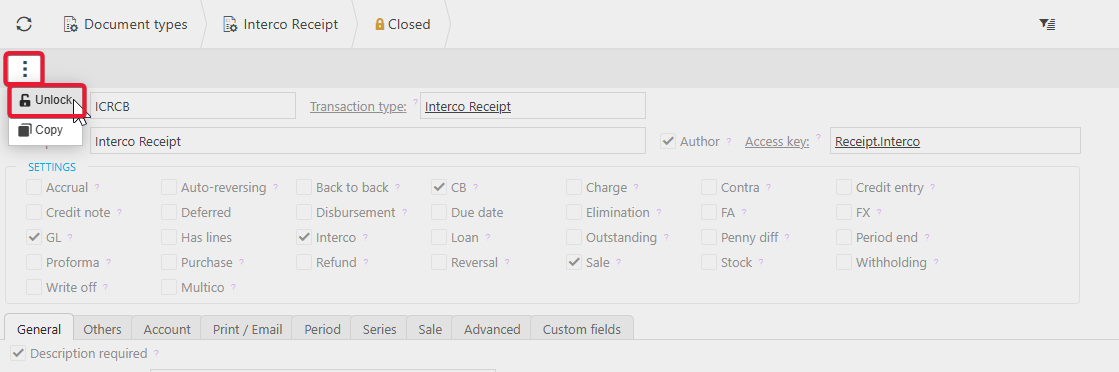
2. Drill into the first document type. Select the ellipsis and Unlock. Repeat this for all document types.
3. Then navigate to Environment defaults. Search Payment. In the Interco payment allocation and Interco payment, select the document types from the dropdowns.
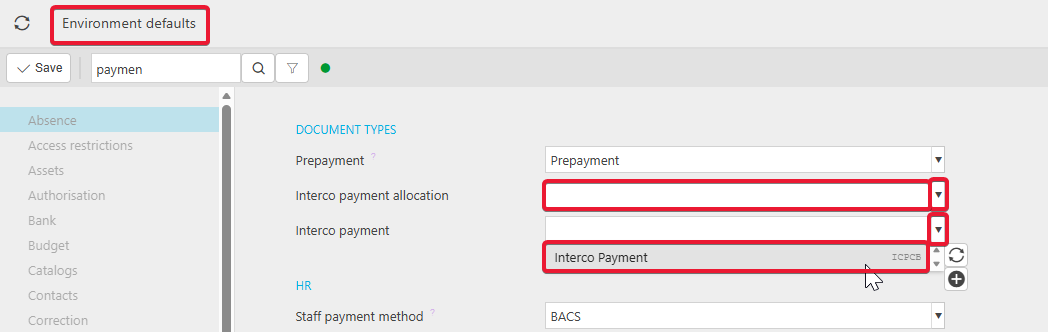
4. Next, search Receipt. In the Interco receipt allocation and Interco receipt, select the document types from the dropdowns. Save the changes.

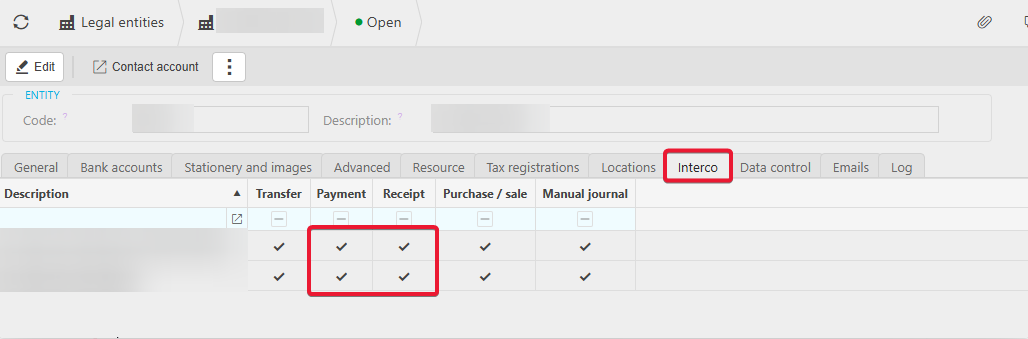
5. The Legal Entities also need to be set up to allow the payments. Navigate to Legal Entities and drill into the first one. In the Interco tab, ensure Payment and Receipt are ticked. If not, edit and tick these. This step will need to be repeated in all Legal Entities that you would like to move transactions between.
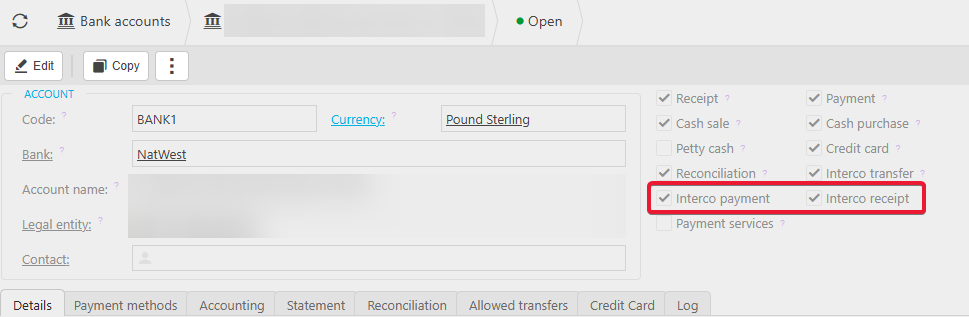
6. The bank accounts will also need to be set up to allow the transactions. Navigate to one of the bank accounts. Ensure the Interco payment and Interco receipt are ticked. If not, edit and tick these. Repeat this for any bank accounts where the funds are deposited/withdrawn for a different legal entity.
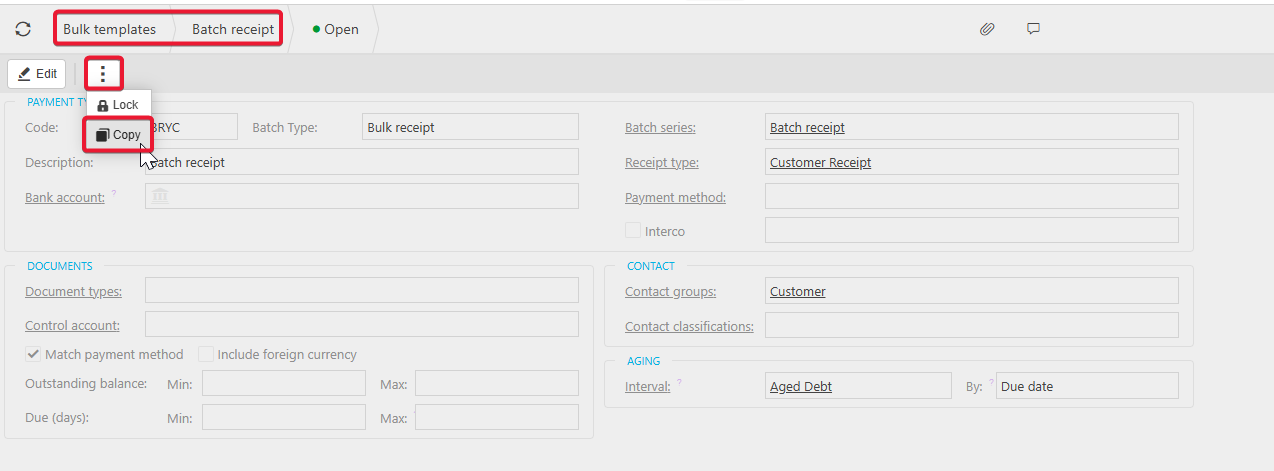
7. Next, we need to create a bulk template to use for the payments. The easiest way to do this is to copy an existing one if you already have one created. Navigate to Bulk templates, drill into Batch receipt, Select the ellipsis and Copy.
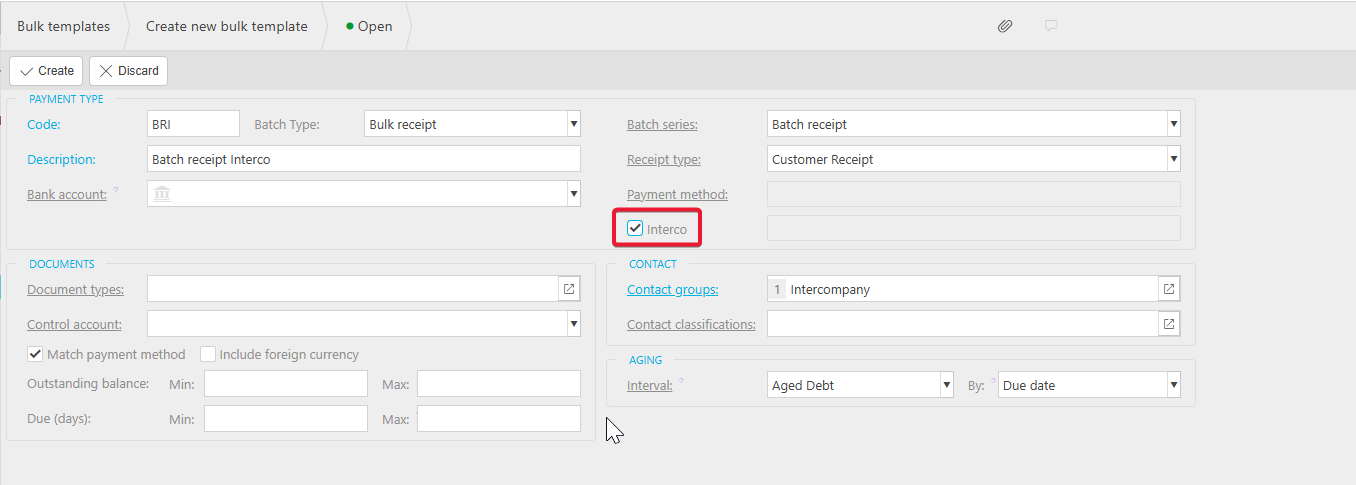
8. Enter the code, description and ensure the Interco is ticked. In the contact groups, remove customer and select Intercompany. Create.
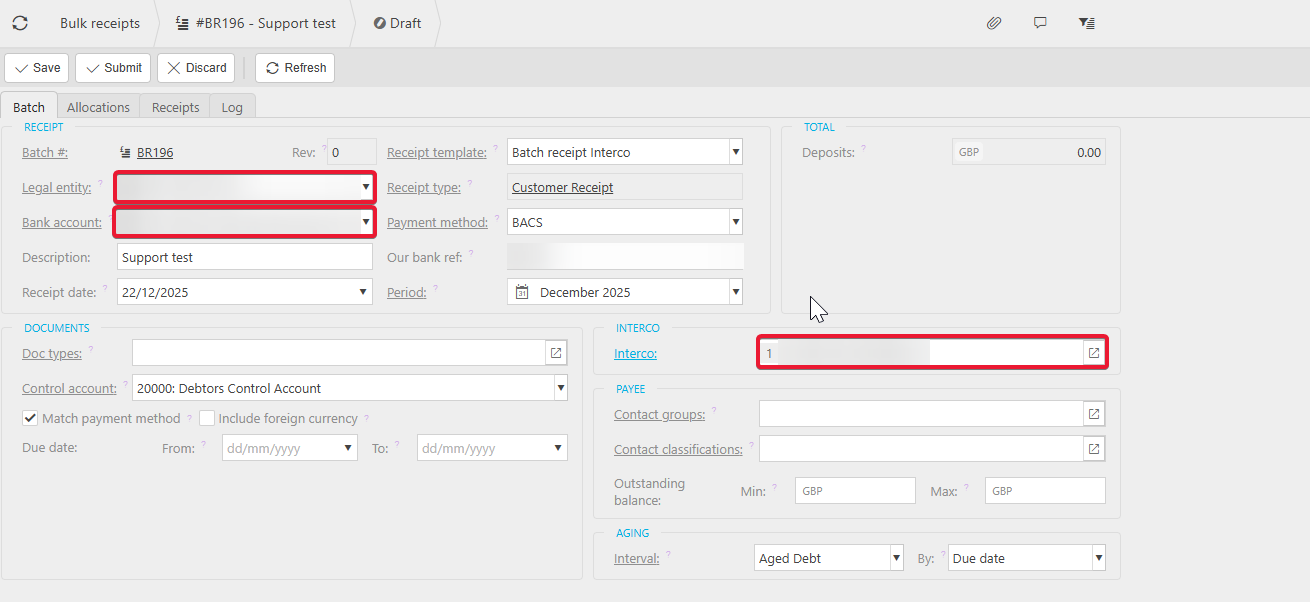
9. Now the setup is done, we can create the bulk receipt. Navigate to Bulk receipts and create a new bulk receipt. For the receipt template, select Batch receipt Interco from the dropdown. You will notice the receipt type is Customer receipt which is why we needed to enable the document type to allow interco. Select the Legal entity and bank account the funds were deposited into. Enter the other relevant details. In the interco section, select the Entity who's invoices you would like to pay.
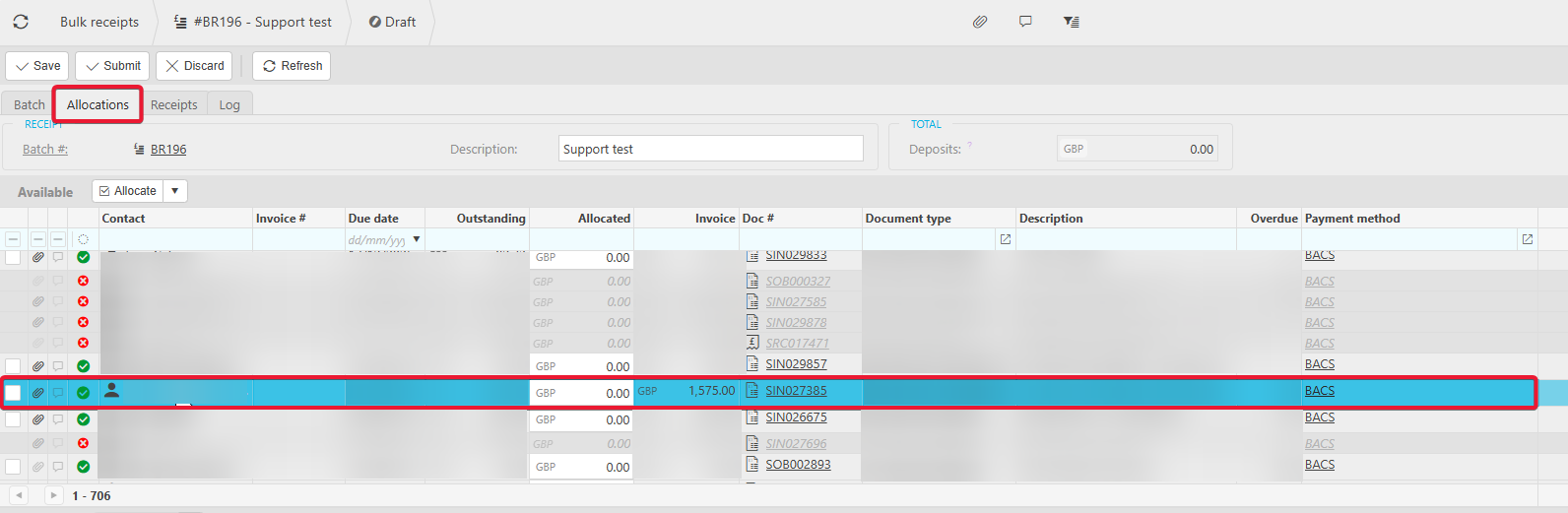
10. In the allocations tab, all the invoices available for allocation will be available for selection, including invoices raised under other Legal Entity.
Similar steps would also need to be taken for bulk payments, instead selecting payment versions of the Interco documents and bulk template.