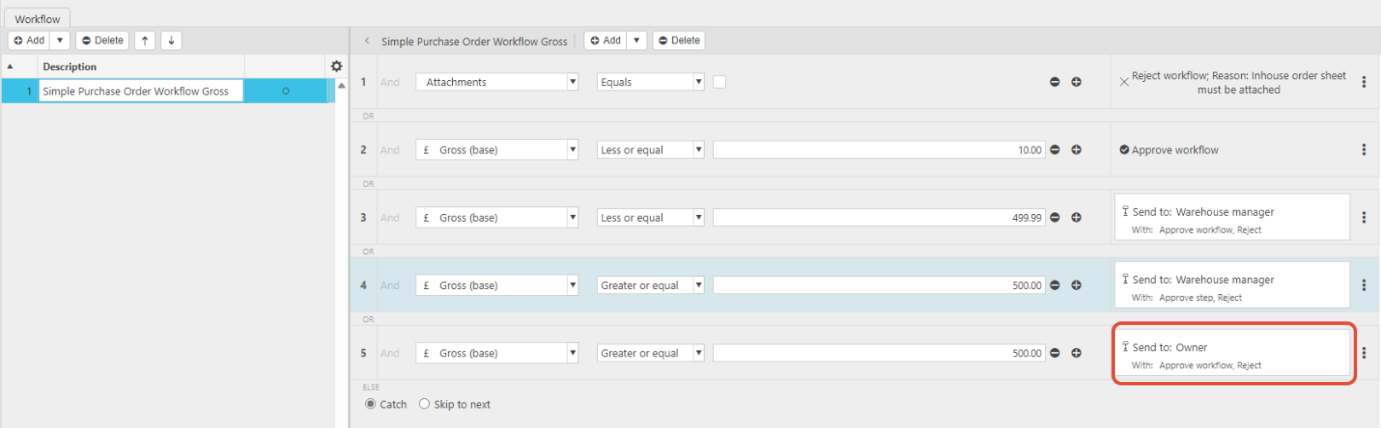
A split authorisation workflow allows a document - such as a Purchase Order - to pass through multiple levels of approval. This is useful when your process requires more than one person to sign off before the document is fully authorised.
In the example below, a Purchase Order raised by a staff member will go first to their manager and then to the Owner, depending on the workflow rules. We’ll also cover common issues and how to resolve them.
Workflow Scenario
To keep the example simple, we’ll refer to roles rather than names:
- Warehouse Worker – Order placer
- Warehouse Manager – First approver
- Owner – Final approver
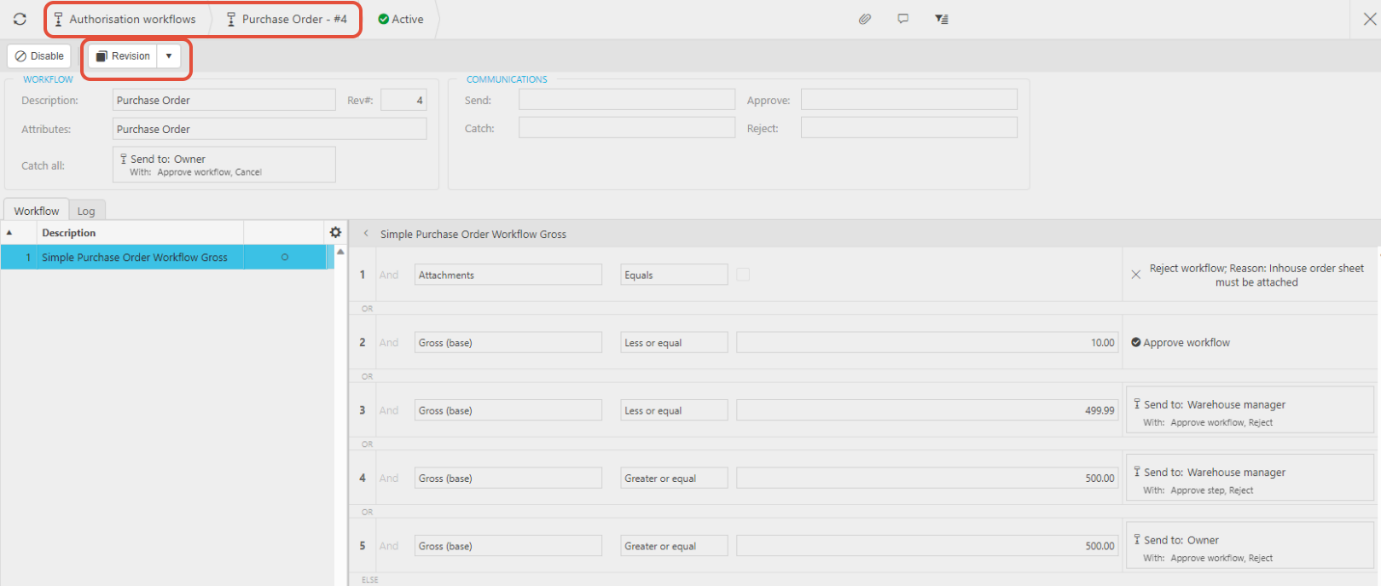
The workflow logic is as follows:
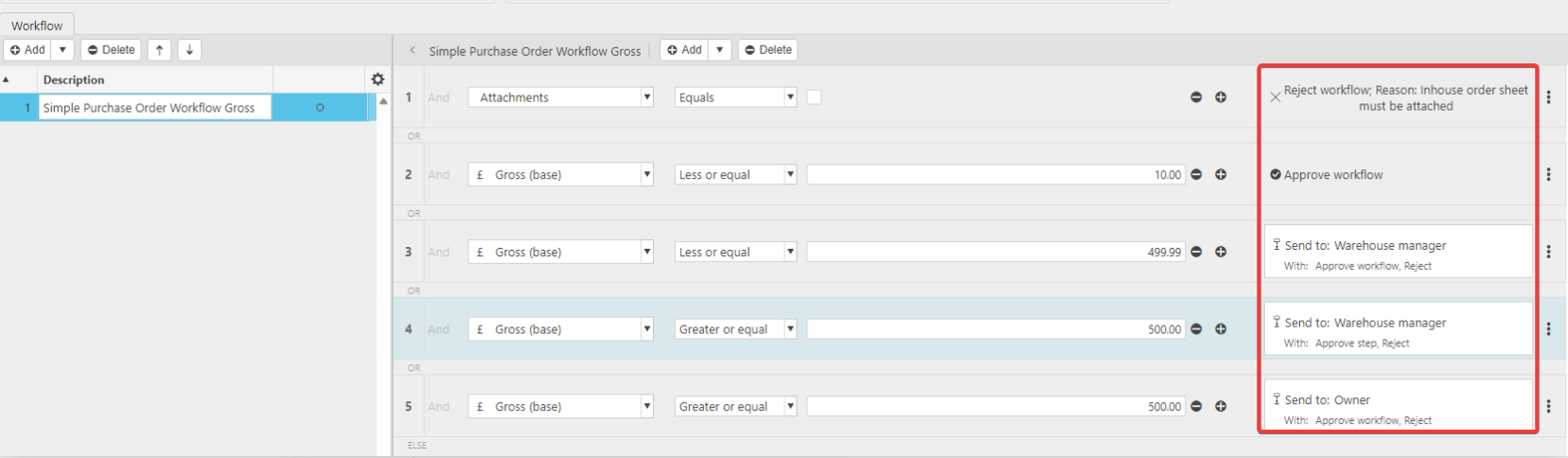
- If the PO has no attachment, it is rejected, and the submitter receives an email stating:
“Inhouse order sheet must be attached.” - If the PO has an attachment and is under £10, it is auto‑approved.
- If the PO is £10–£499.99 with an attachment, it is sent to the Warehouse Manager.
- If the PO is £500+ with an attachment, it goes to the Warehouse Manager first, then to the Owner for final approval.
Common Issues and How to Fix Them
Issue 1: The Approver Is Not Receiving Authorisation Emails
Symptoms
- The Warehouse Manager approves the PO.
- The workflow moves to the Owner step.
- The Owner does not receive an email notification.
Cause
The workflow step does not have a Send Communication action configured.
Fix
- Open the workflow.
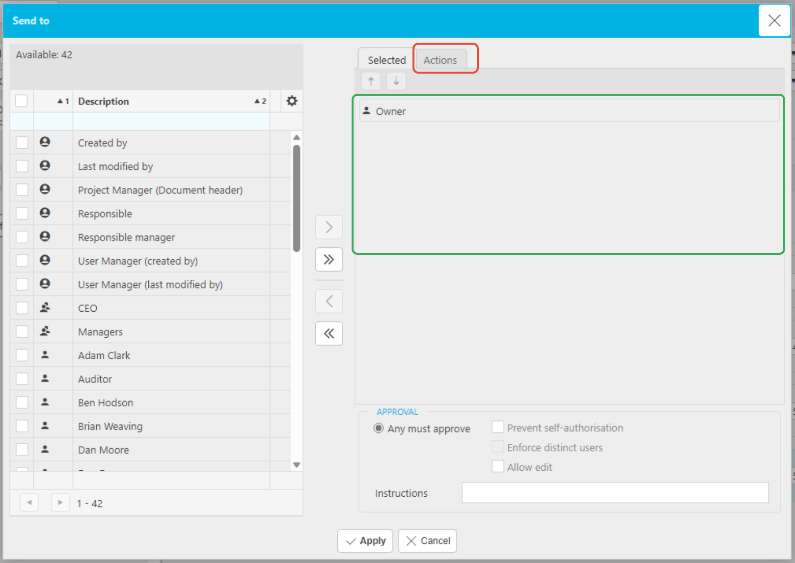
- Select the approval step where the email is missing (e.g., the Owner step).
- In the pop‑up window, confirm the correct user or group is selected.
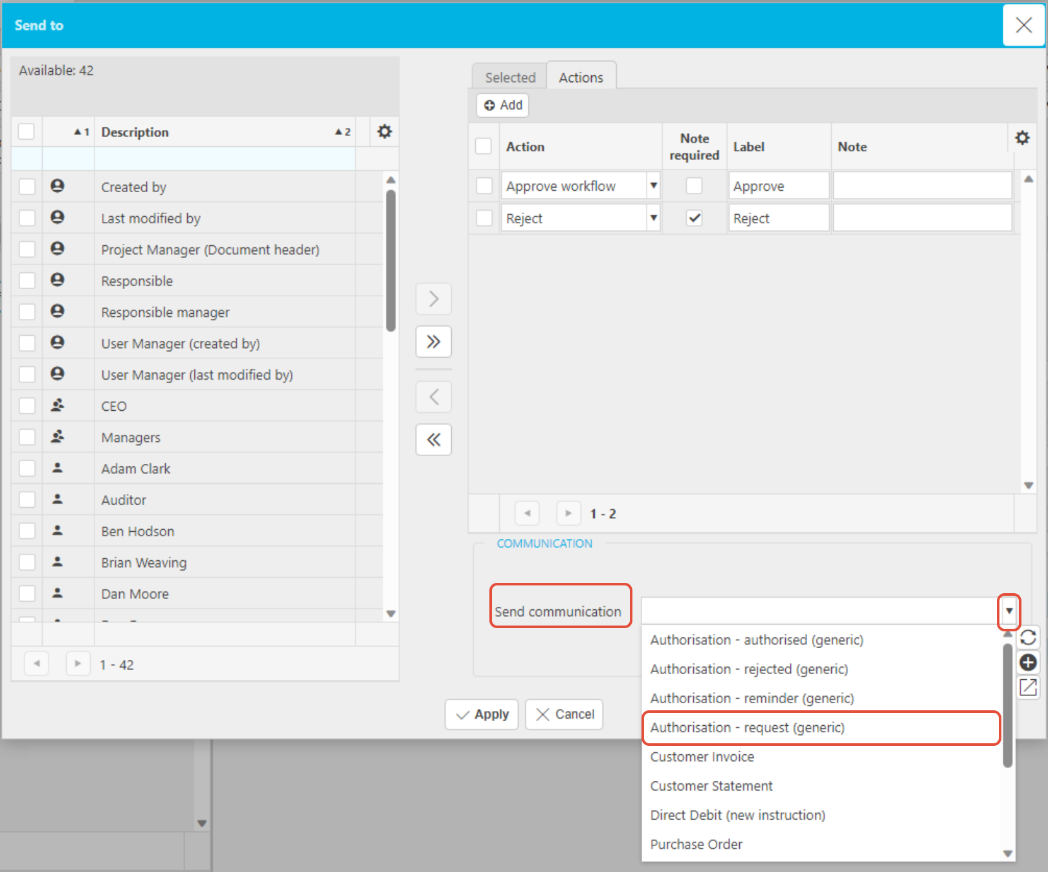
- Go to the Actions tab.
- Set Send Communication to Authorisation – Request (Generic).
- Click Apply.
This ensures the system sends an email when approval is required.
Issue 2: Workflow Exception Error
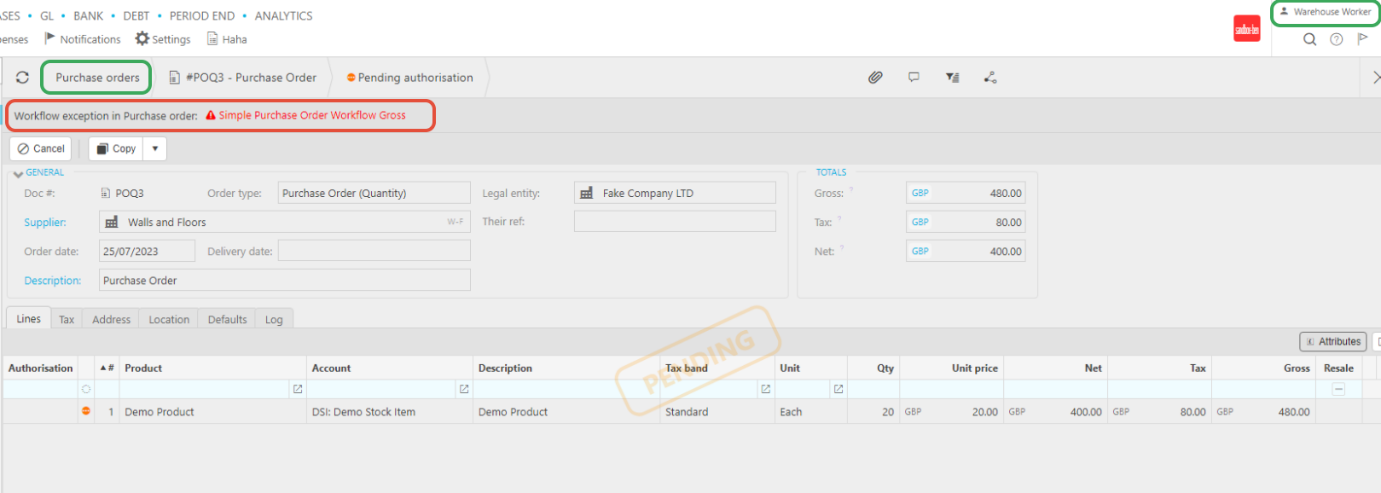
Example Error Message
“Workflow Exception in Purchase Order – Simple Purchase Order Workflow Gross”
Cause
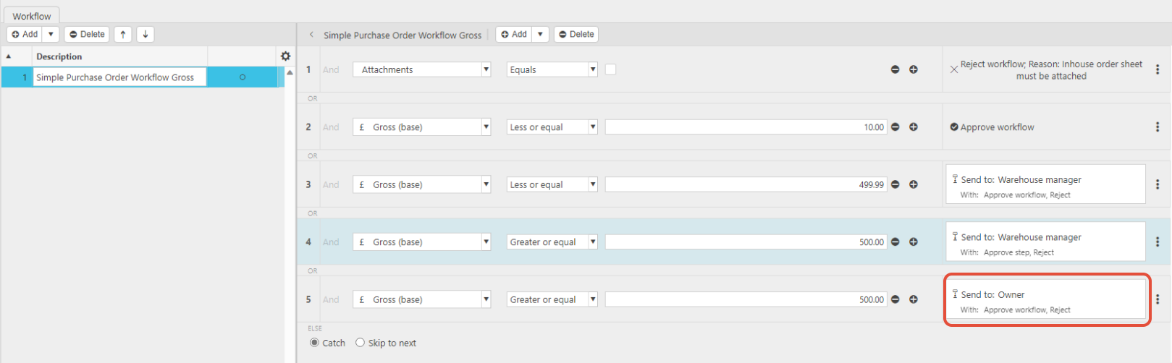
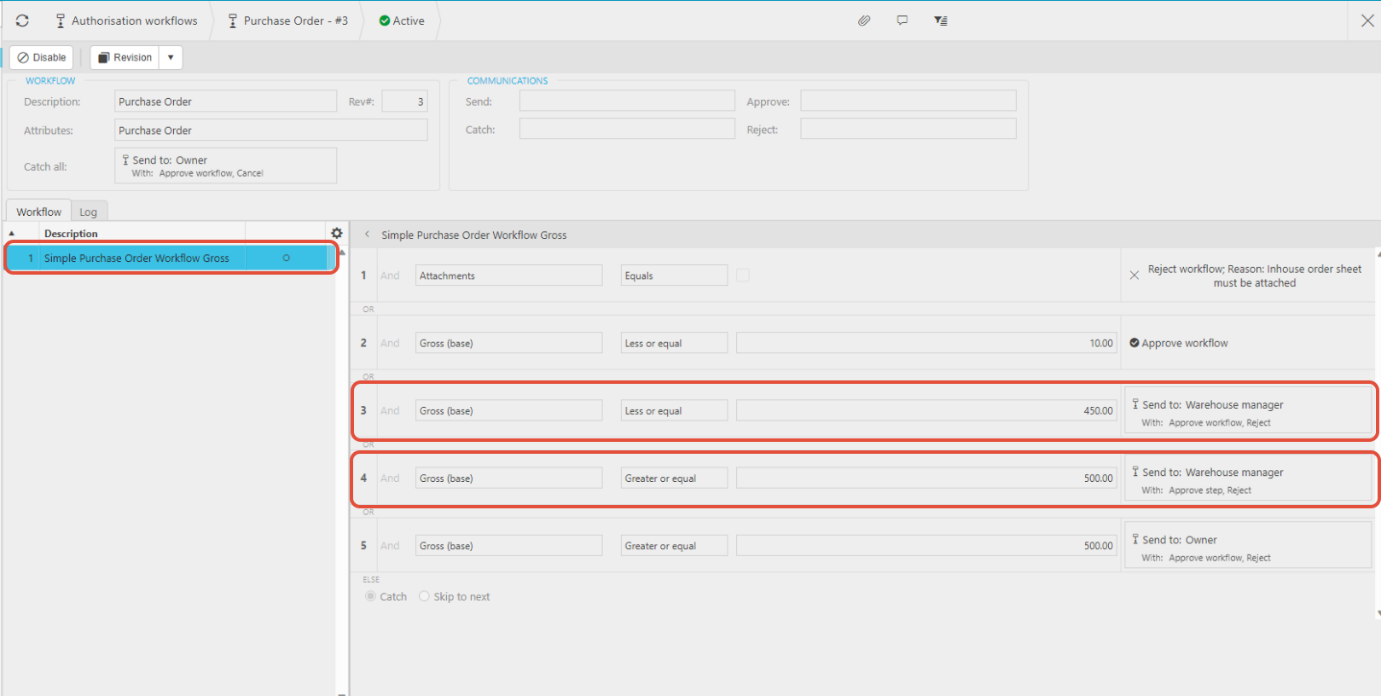
There is a gap in the workflow rules, meaning the PO value does not fall into any defined range.
In the example:
- Step 3 covers ≤ £450
- Step 4 covers ≥ £500
- There is no rule for £450.01–£499.99
Because no step handles this value range, the workflow throws an exception.
Fix
- Open the Purchase Order workflow.
- Identify the step referenced in the error message.
- Review the value ranges.
- Adjust the workflow so that all values are covered with no gaps.
Once the ranges are corrected, the workflow will route the PO correctly.
Issue 3: An Approver Is on Leave and a Stand‑In Is Needed
Scenario
The Owner is away for a week, but POs over £500 still need approval.
Fix
- Open the workflow and click Revision.
- Select the approval step where the Owner is assigned (e.g., “≥ £500”).
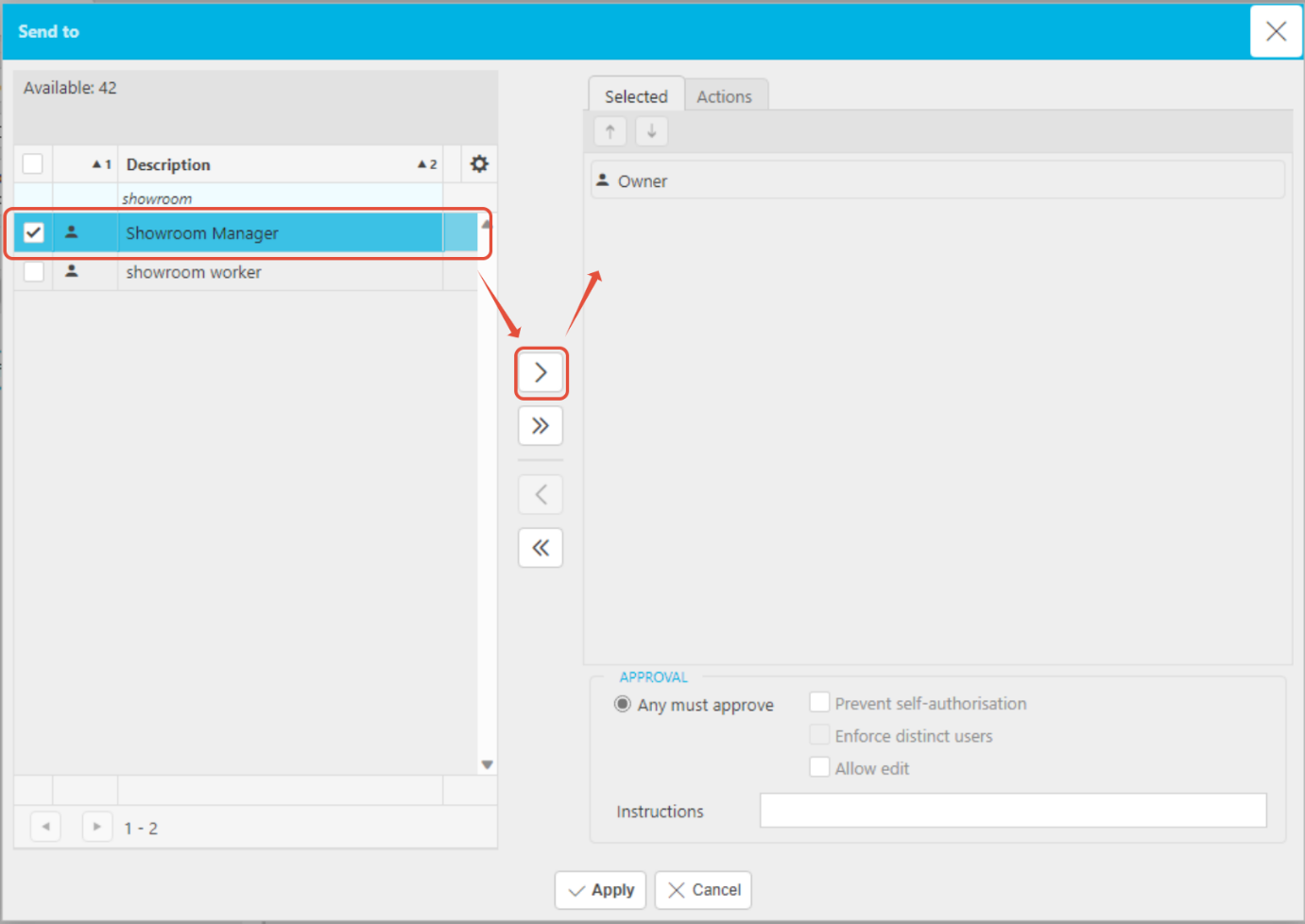
- In the pop‑up window, search for the stand‑in approver (e.g., Showroom Manager).
- Move them to the Send To list using the arrow button.
- Click Apply.
You do not need to remove the Owner—either person can approve the step.
When the Owner returns, repeat the process to remove the temporary approver.