

The existing MFA link to iplicit will need to be removed, so that the new link to the new device can be established. This will need to be done by your internal iplicit system admin if you do not have access to the user accounts screen.
Please follow the below steps to reset the users MFA:
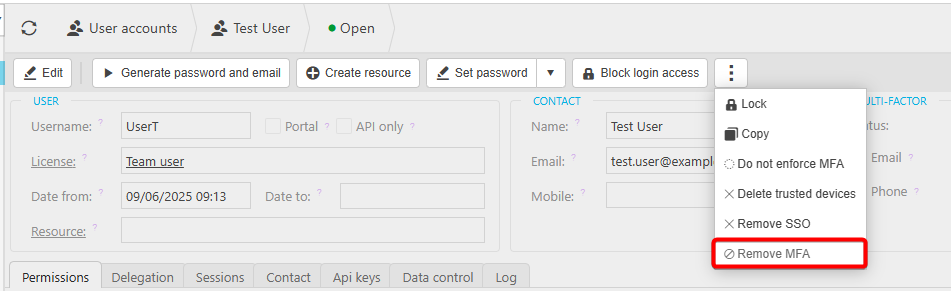
1. Navigate to User Accounts, and double click into the user's name.
2. Click the ellipses and select Remove MFA. This will prompt a window asking to confirm if you wish to disable MFA and trusted devices for the user.
3. Click yes to close the window, and ensure that the MFA Status Required box is ticked.
The user will now have the ability to setup a new MFA on their new device at next login.

If the user still can successfully log in and wants to change their MFA or trusted devices, they can do so by clicking their name in the top right corner of the screen and selecting the security option found on the dropdown menu that appears.
