

You can configure Multi-Co to allow a single Manual Journal to complete postings across multiple legal entities via an Intercompany account, using the Multi-Co document type.
To enable this functionality, you'll need to complete the following steps:
Unlock Multi-Co Journal in your settings
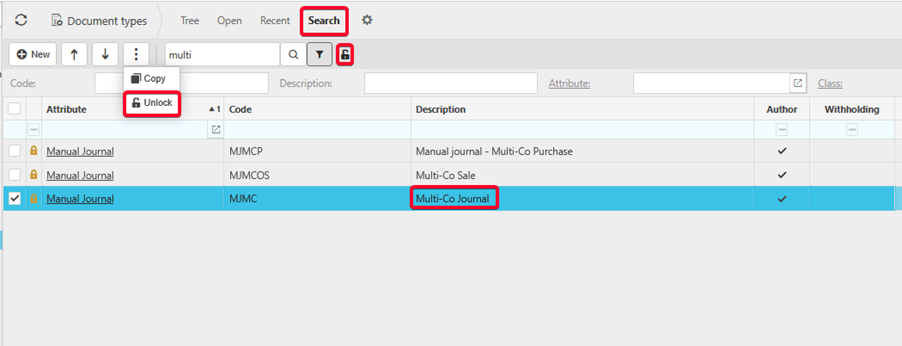
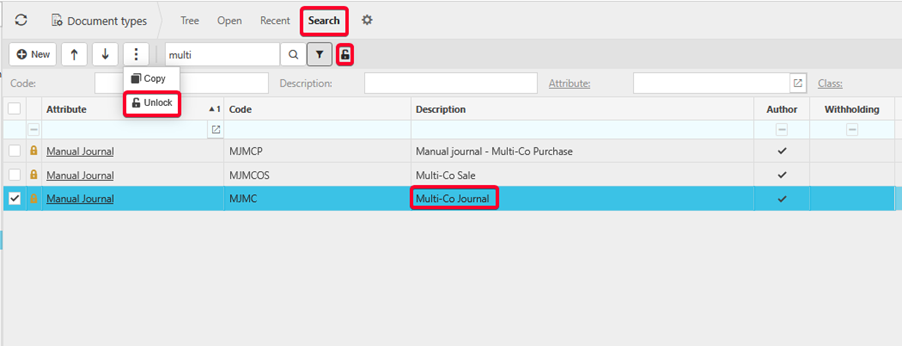
Navigate to Document Types, click the Search tab and then click the green dot to view locked documents. Search for multi and find the Multi-Co Journal document. Click the ellipsis and then click Unlock:
Set the Document Series to Manual Journal
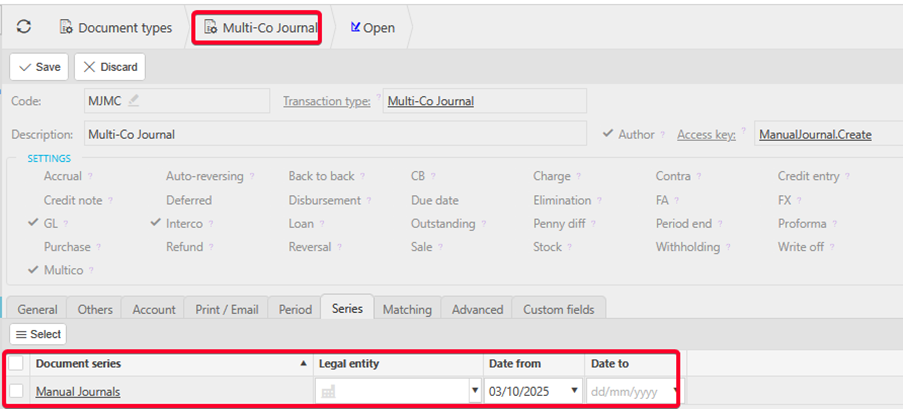
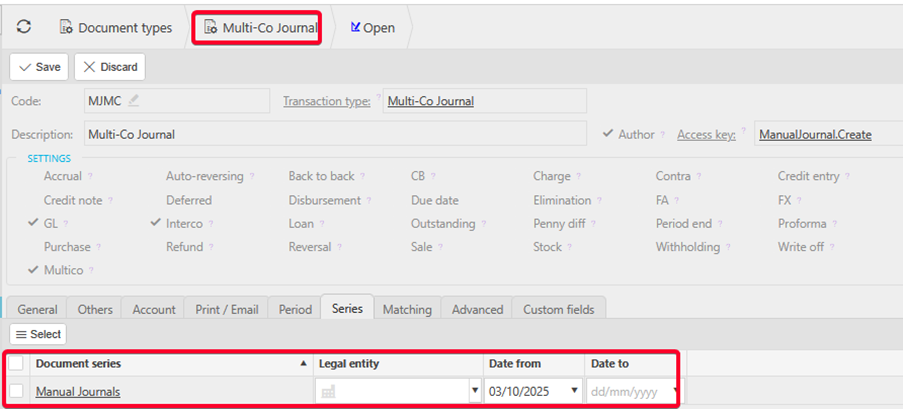
Navigate to the unlocked Multi-Co Journal document type, and link the Manual Journal document series:
Tick the Template checkbox
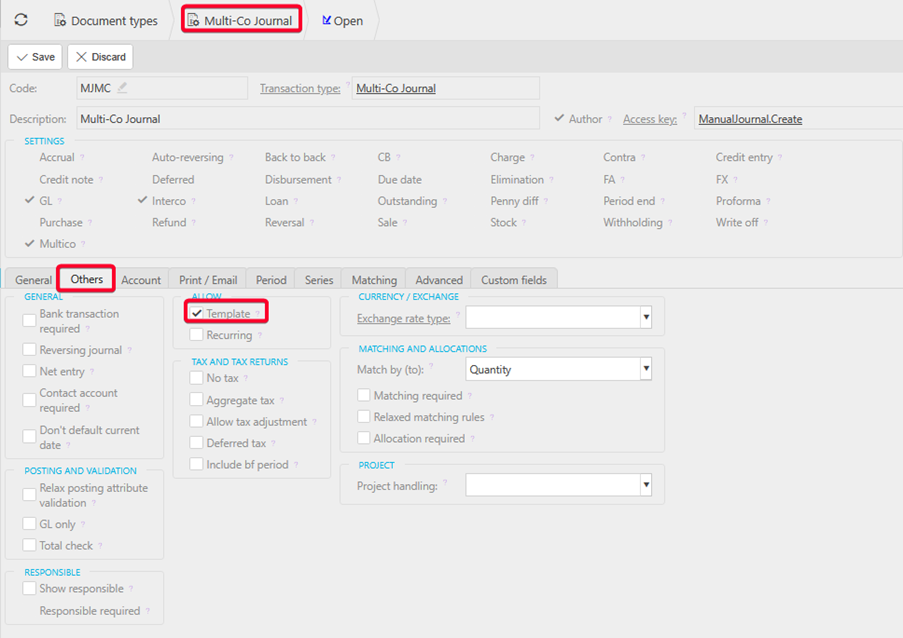
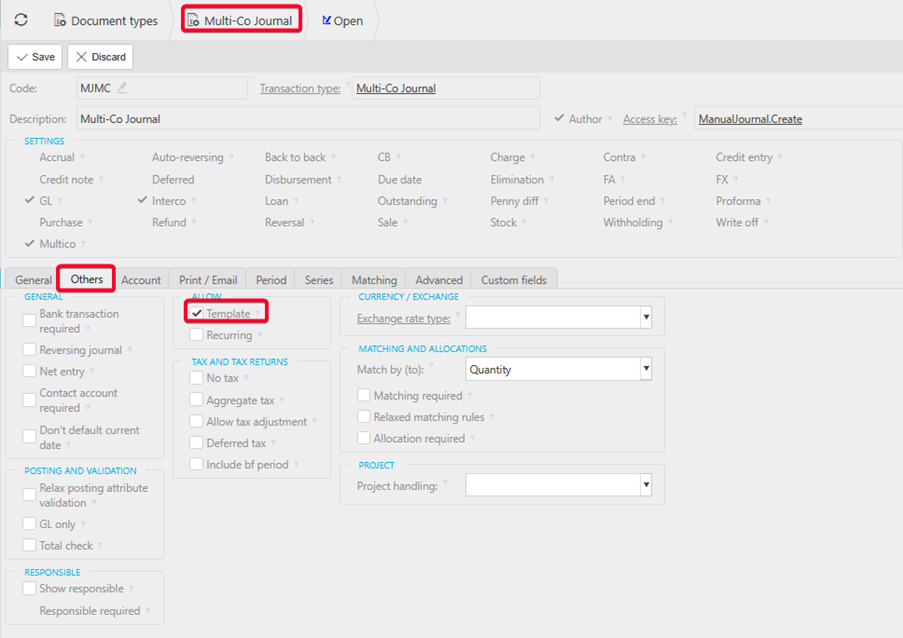
Underneath the Others tab, tick the Template checkbox:
Set up an Intercompany Balances account:
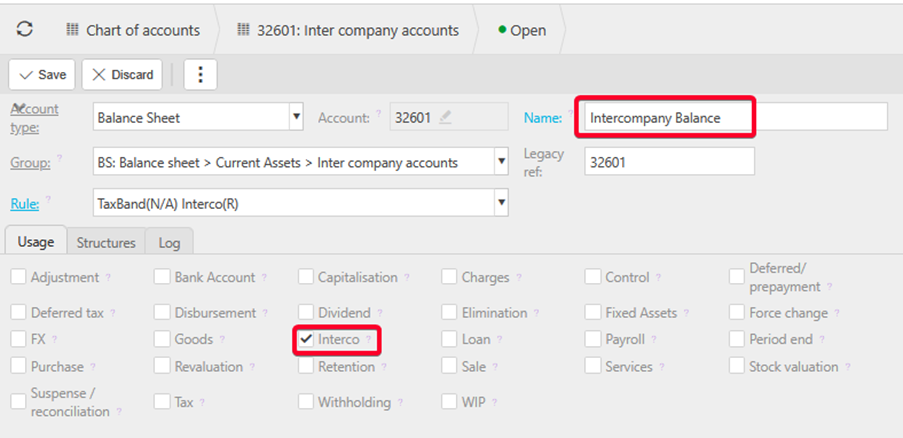
This account will be used to move balances from the legal entity creating the manual journal, to the destination legal entities.
This is a balance sheet account that requires the Interco usage box to be ticked, and a chart of account rule requiring the Interco attribute.
Note: This account requires the Intercompany attribute. If not already created, a new chart of account rule will need to be created requiring Tax Band and InterCo attributes.
Configure the Multi-Co Journal account default
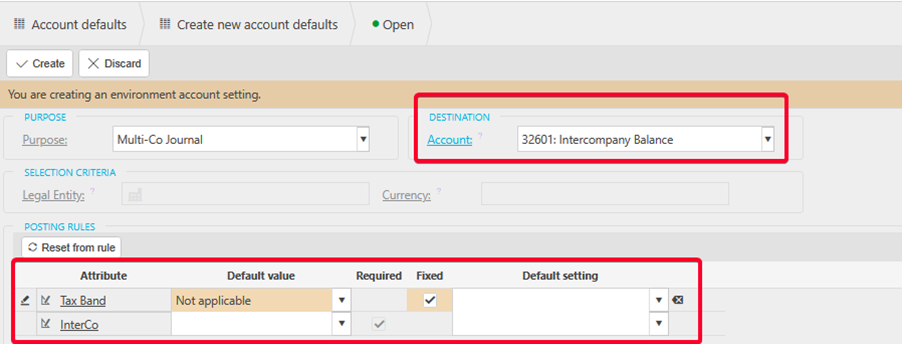
Navigate to Account Defaults, and search for Multi-Co Journal. Open this account default, and amend the Destination dropdown to the newly created Intercompany Balance account:
Create the Multi-Co Journal automation
This is already available within iplicit - you just need to choose the correct automation type in order to create the corresponding manual journals for each legal entity.
Navigate to Automations, click New, and enter the settings shown below:
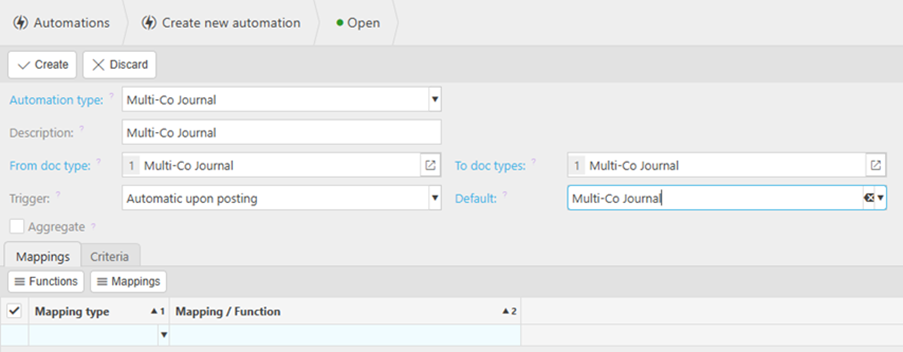
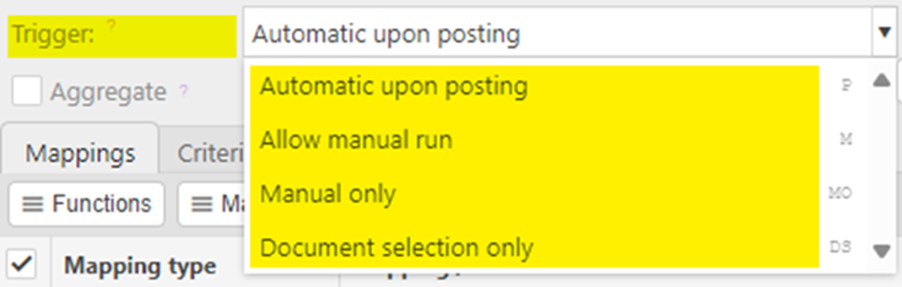
The Trigger defines when the automation will be run. For example, Automatically upon posting means the automation will automatically run for the selected documents upon posting into the General Ledger:
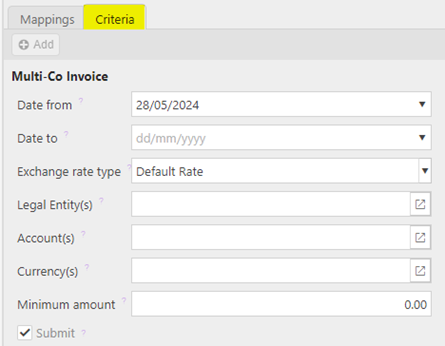
Amongst other options, the Criteria tab allows you to choose whether the document will automatically be submitted for authorisation. If unticked, the documents created via automation will be left in a draft state for manual review:
To ensure proper posting across entities, all accounts used in Multi-Co Journals must use a Chart of Account rule that includes the Interco attribute as optional , as shown below:
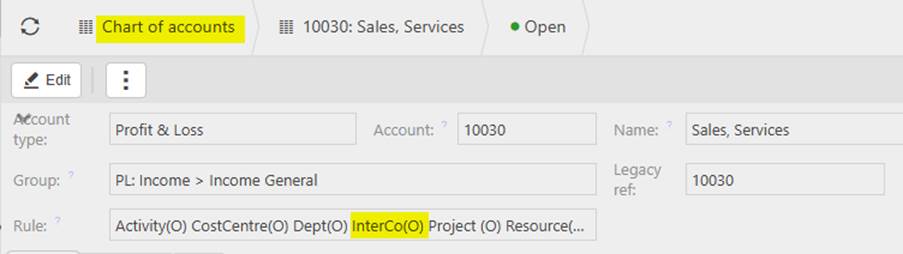
You can update existing Chart of Account rules to include the Interco attribute as optional, which will allow those accounts to be used for Multi-Co journal entries.
You can configure Multi-Co to allow a single Manual Journal to complete postings across multiple legal entities via an Intercompany account, using the Multi-Co document type.
To enable this functionality, you'll need to complete the following steps:
Unlock Multi-Co Journal in your settings
Navigate to Document Types, click the Search tab and then click the green dot to view locked documents. Search for multi and find the Multi-Co Journal document. Click the ellipsis and then click Unlock:
Set the Document Series to Manual Journal
Navigate to the unlocked Multi-Co Journal document type, and link the Manual Journal document series:
Tick the Template checkbox
Underneath the Others tab, tick the Template checkbox:
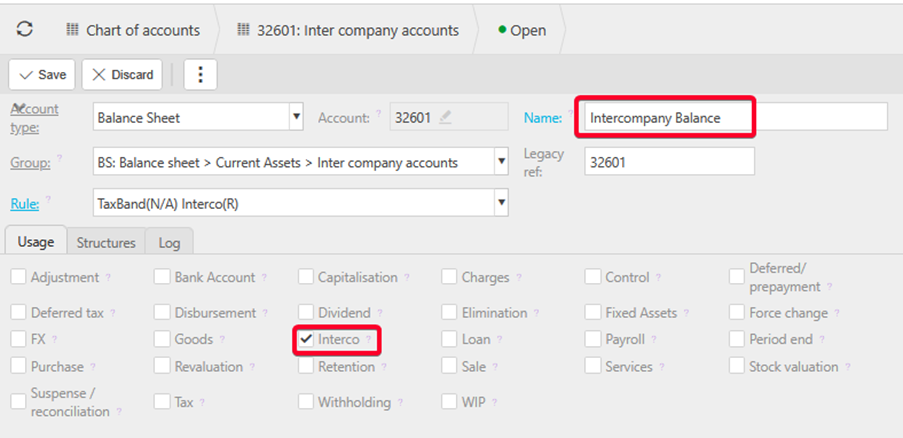
Set up an Intercompany Balances account:
This account will be used to move balances from the legal entity creating the manual journal, to the destination legal entities.
This is a balance sheet account that requires the Interco usage box to be ticked, and a chart of account rule requiring the Interco attribute.
Note: This account requires the Intercompany attribute. If not already created, a new chart of account rule will need to be created requiring Tax Band and InterCo attributes.
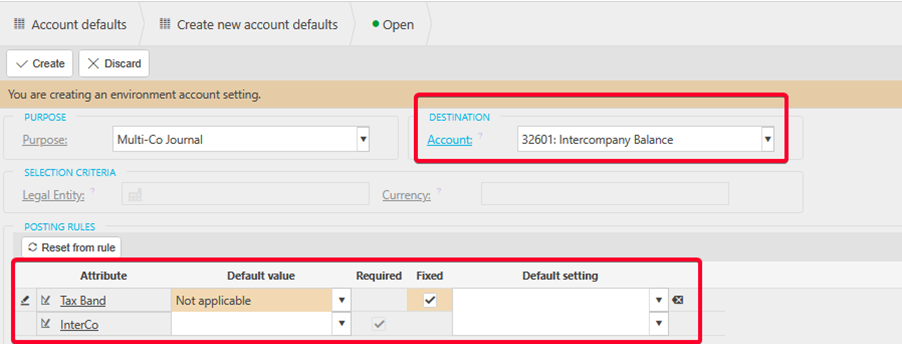
Configure the Multi-Co Journal account default
Navigate to Account Defaults, and search for Multi-Co Journal. Open this account default, and amend the Destination dropdown to the newly created Intercompany Balance account:
Create the Multi-Co Journal automation
This is already available within iplicit - you just need to choose the correct automation type in order to create the corresponding manual journals for each legal entity.
Navigate to Automations, click New, and enter the settings shown below:
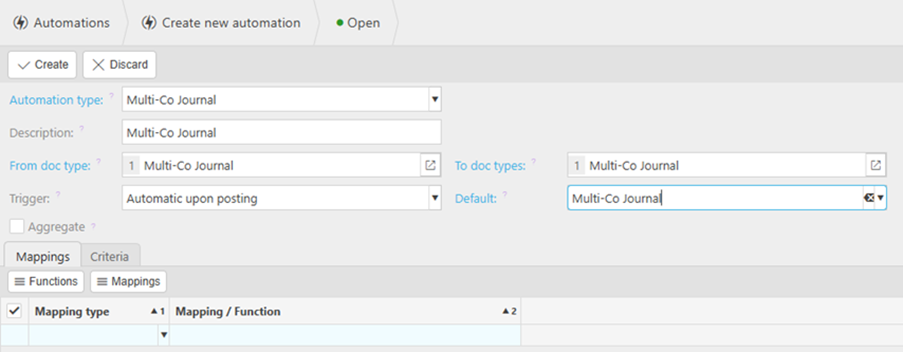
The Trigger defines when the automation will be run. For example, Automatically upon posting means the automation will automatically run for the selected documents upon posting into the General Ledger:
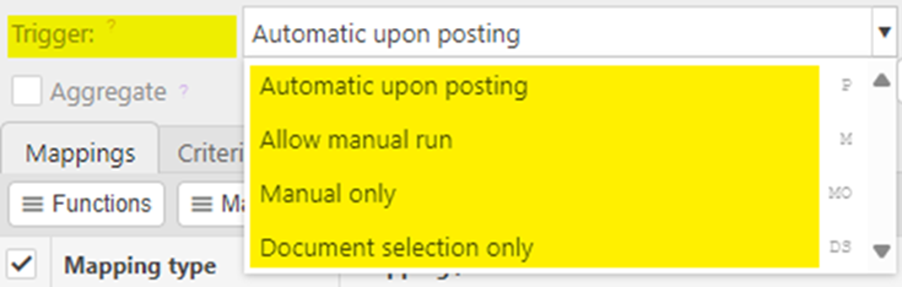
Amongst other options, the Criteria tab allows you to choose whether the document will automatically be submitted for authorisation. If unticked, the documents created via automation will be left in a draft state for manual review:
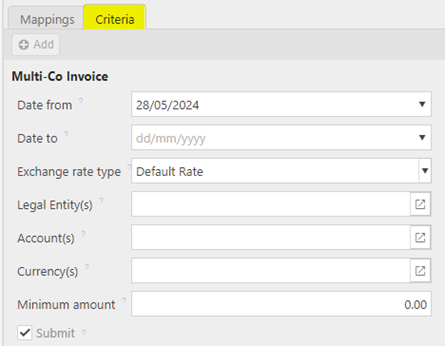
To ensure proper posting across entities, all accounts used in Multi-Co Journals must use a Chart of Account rule that includes the Interco attribute as optional , as shown below:
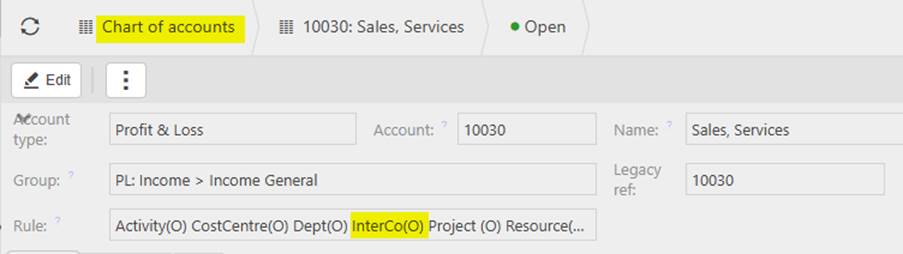
You can update existing Chart of Account rules to include the Interco attribute as optional, which will allow those accounts to be used for Multi-Co journal entries.
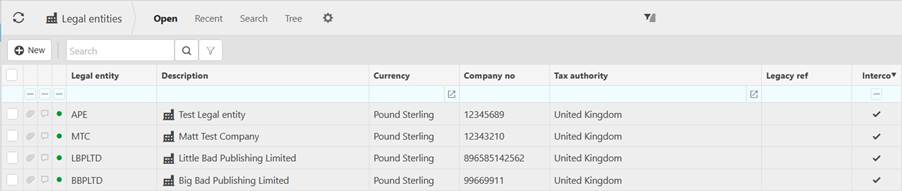
Now that your Multi-Co document types, accounts, and Chart of Account rules are configured, the next step is to enable Intercompany (InterCo) functionality for each legal entity you plan to use with Multi-Co journals.
Navigate to Legal Entities:
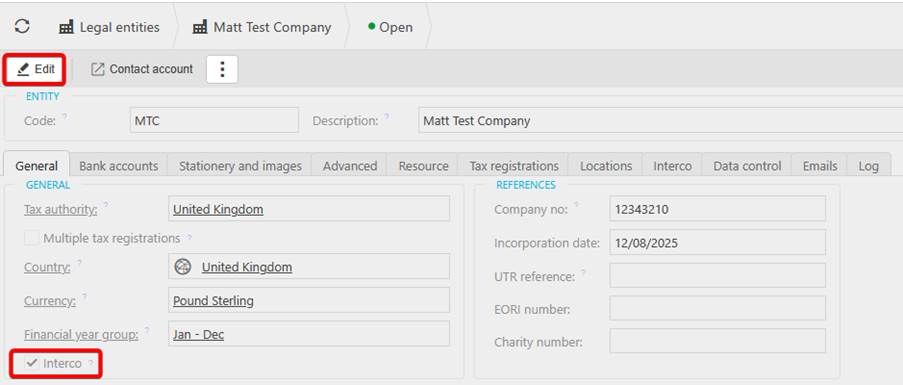
Select the legal entity you wish to enable for Interco transactions and click Edit. Underneath the General tab, ensure Interco is ticked:
Next, under the Interco tab, click Select, and choose the Legal Entities that this Legal Entity is allowed to post Intercompany transactions against, then click Apply:
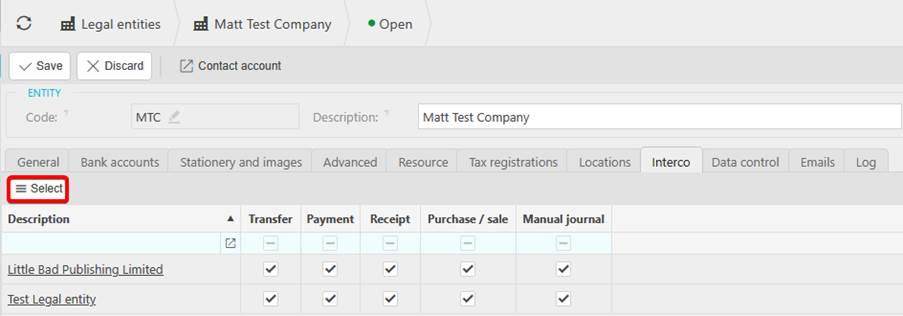
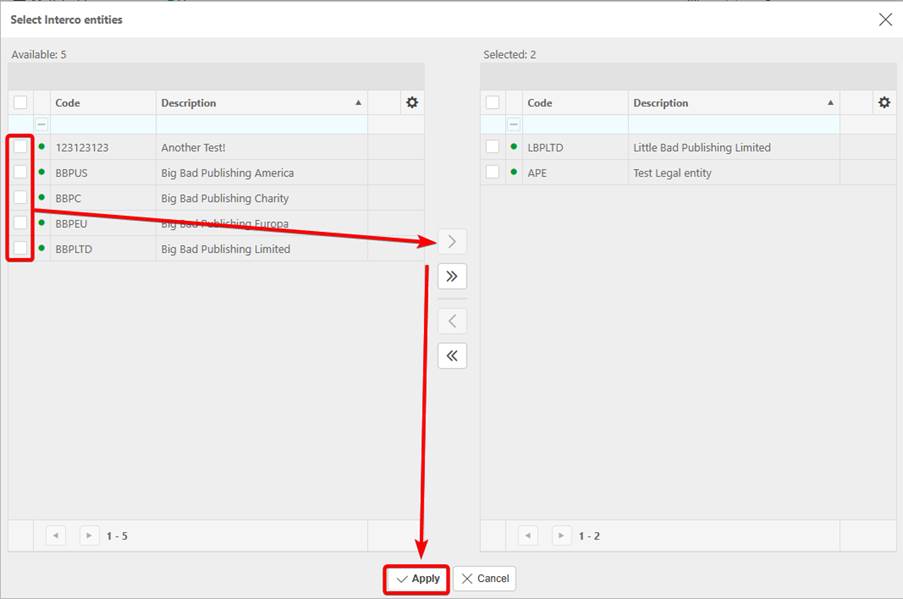
Once the required legal entities have been selected, the relevant boxes can be ticked for whether the legal entity can do transfers, payments, receipts, purchases/sales and manual journals with the legal entity currently being edited.
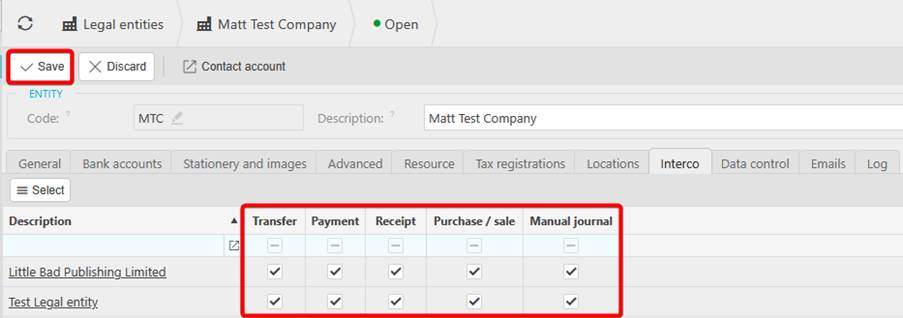
This process will need to be repeated for all legal entities.
Creating a Multi-Co Journal:
Navigate to Manual Journals, and click New. Create a Multi-Co Journal:
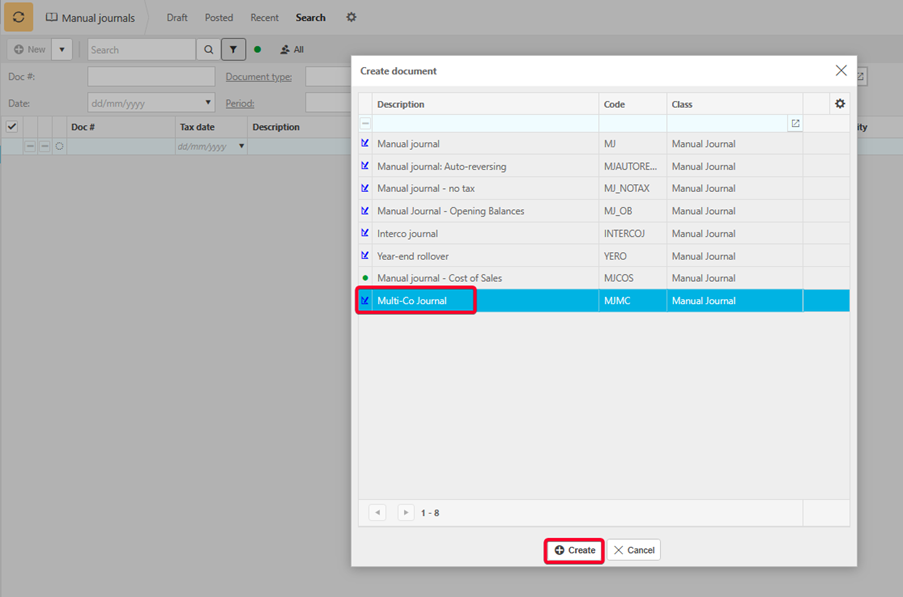
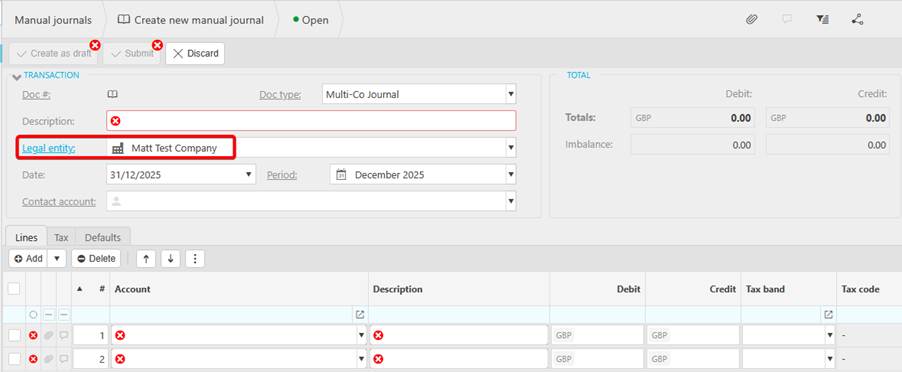
In the header of the journal, select the primary legal entity that will initiate the Multi-Co Journal:
Entering lines:
Account – This is a mandatory field which relates to the Chart of accounts code that this line is to be posted to.
Description: This is a mandatory field which will be pre-populated from the account record but can be amended if required.
Debit / Credit: Enter the appropriate values for each journal line.
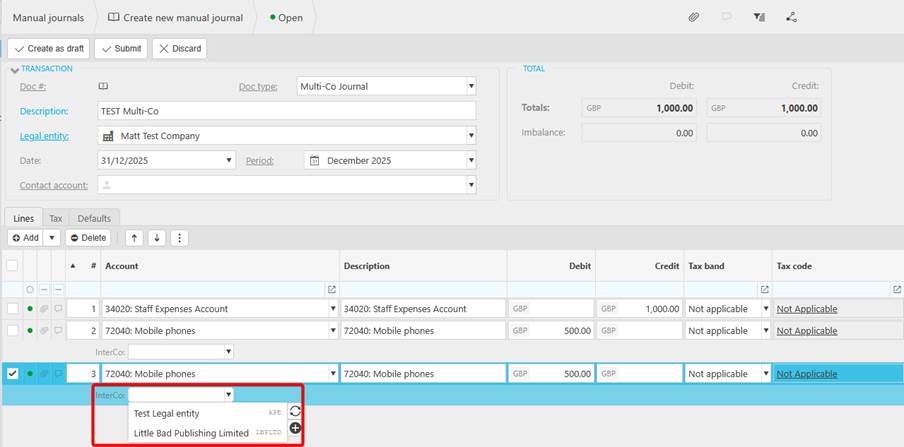
As this is a Multi-Co Journal, the Interco attribute will show.
- Leaving this attribute blank will assume the primary Legal entity entered in the main details above.
- A different Legal entity can be entered as this is a Multi-Co Journal.
Selecting a different legal entity for a journal line will generate the corresponding account movements within that entity.
Here's an example Multi-Co Journal created after completing the configuration steps outlined above:
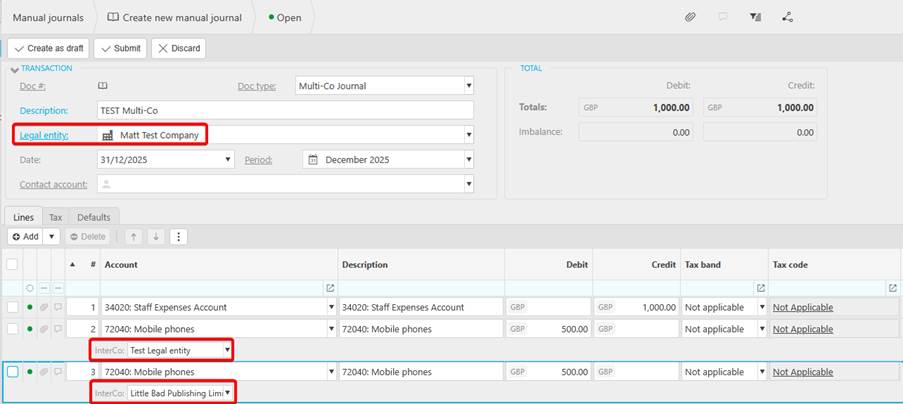
The primary legal entity selected is ‘Matt Test Company’. I’ve entered
- One credit line to an expenses Balance Sheet account for £1000
- Two debit lines to a ‘Mobile phones’ P&L account, each with a different Interco selected
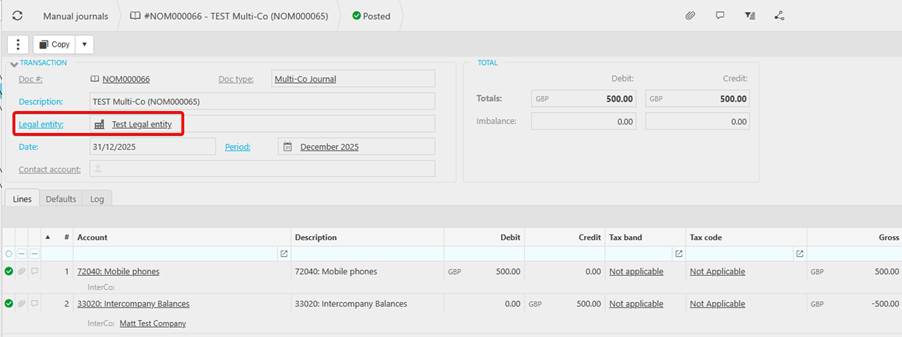
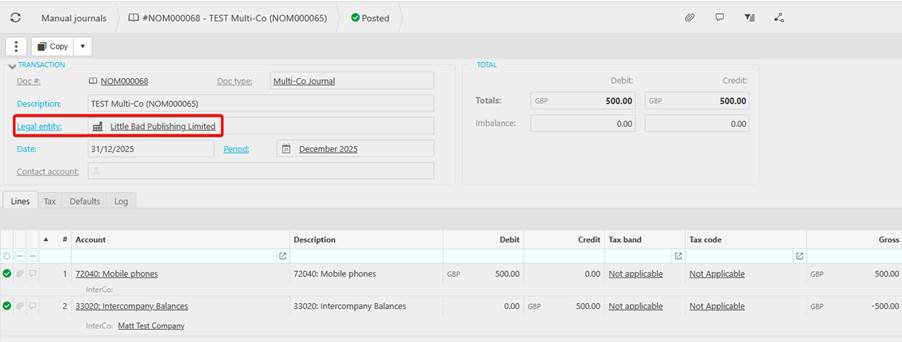
With automation enabled, iplicit automatically generated three Multi-Co Journals, each reflecting the appropriate account movements for the three respective legal entities involved in the Multi-Co Journal:

Test Company Multi-Co Journal: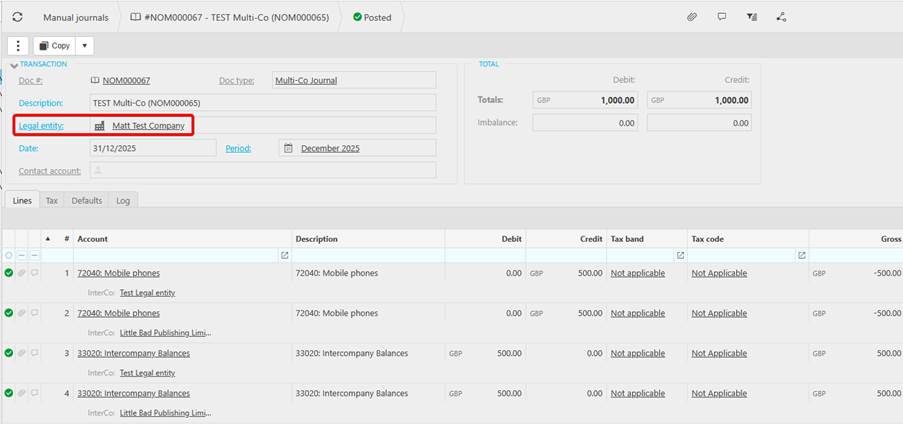
Test Legal Entity Multi-Co Journal:
Little Bad Publishing Limited Multi-Co Journal:
Multi company journal
Multi entity transaction
Cross company journal
Cross entity posting
_______________________________________________________________________________________