

This article covers moving a customer receipt from one customer account to another. The correct approach depends on whether the receipt has already been included in a bank reconciliation or VAT return.
Moving a customer receipt that hasn't been reconciled or included on a VAT return
If the receipt hasn't yet been matched in a bank reconciliation or submitted on a VAT return, amend it directly:
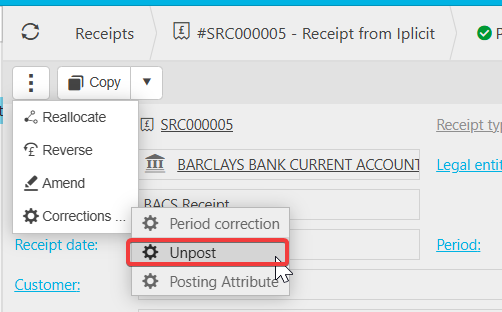
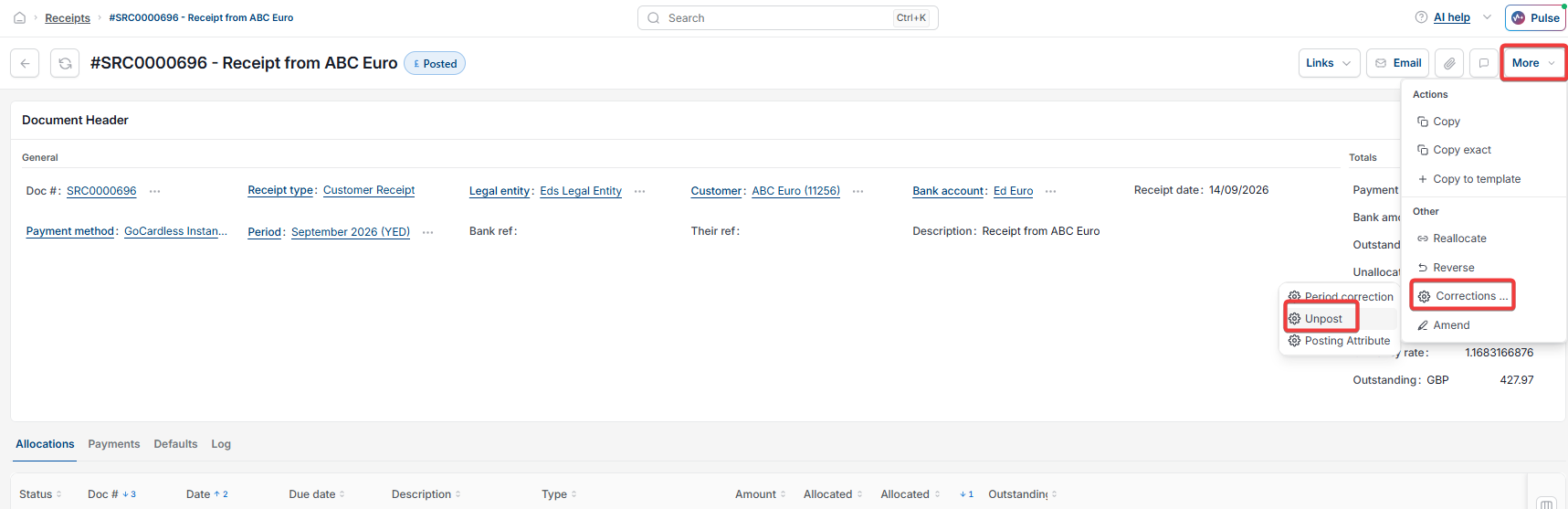
- Open the receipt. Depending on your screen, select the ellipsis or the 'More' menu, then select 'Corrections'
- Select 'Unpost'
- Update the customer account on the receipt
- Repost the receipt.
Moving a customer receipt that's already been reconciled or included on a VAT return
If the receipt can't be unposted because it's already been matched in a bank reconciliation or included on a submitted VAT return, use this approach instead:
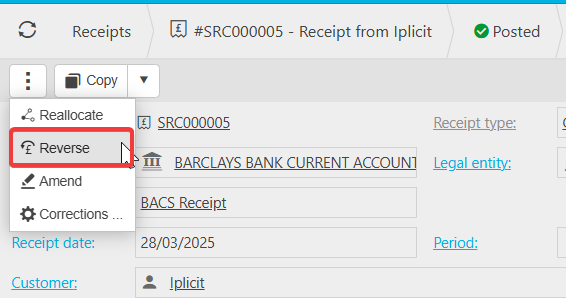
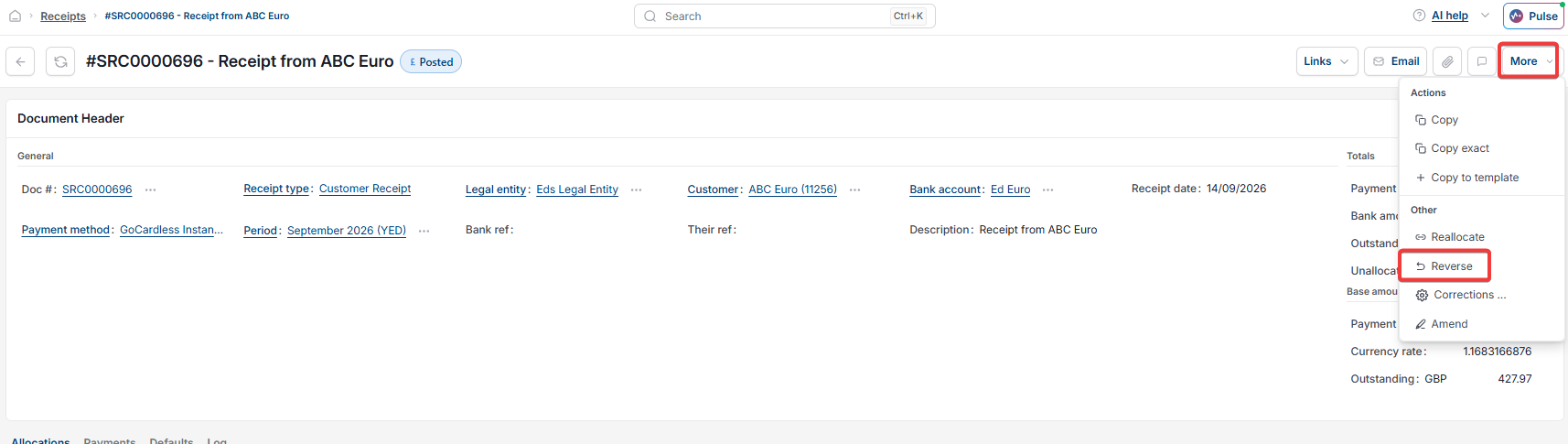
- Open the receipt. Depending on your screen, select the ellipsis or the 'More' menu, then select 'Reverse'
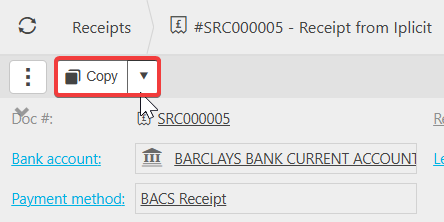
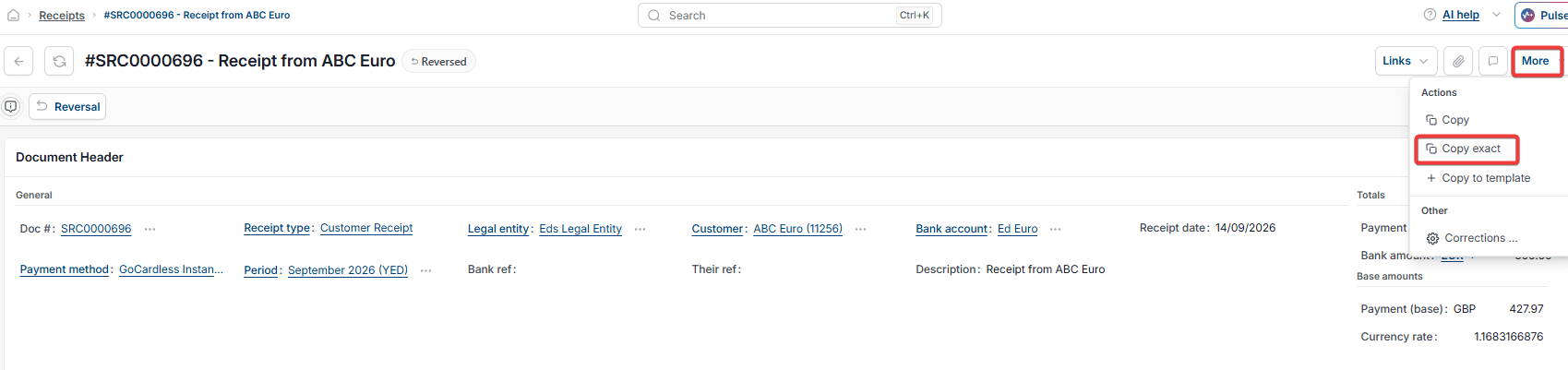
- Depending on your screen, select the drop-down next to 'Copy' or the 'More' menu, then select 'Copy exact'
- On the copy, amend the customer account
- Repost the corrected receipt.
This keeps the audit trail intact while correctly reallocating the receipt to the right customer.
Move customer receipt
Change customer on a receipt
Reallocate receipt to different customer
Reverse and repost customer receipt
Amend customer account on receipt