

If your organisation has recently changed its email domain as part of a rebrand, any email accounts used within iplicit will need to be updated or reauthorised. There are two approaches you can take:
- Reauthorise the existing email account, or
- Add the new email account to iplicit, depending on your organisation’s requirements going forward.
When updating email details in iplicit, we recommend reviewing and updating the following three areas:
- Email Accounts
- Communication Setup
- Each Legal Entity’s Contact Account
1. Updating Email Accounts
- Navigate to Email Accounts.
- Select New.
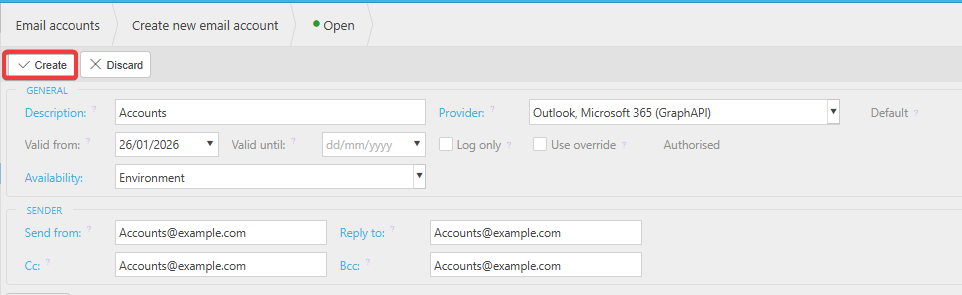
- Enter the updated email details.
- Click Create.
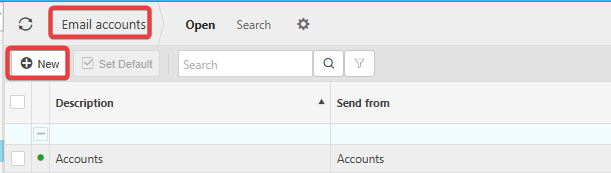
Please note you will need to update your default if you have added a new email account, this can be done from the main email account screen by highlighting the account you wish to be your default and selecting Set Default.

2. Updating Communication Setup
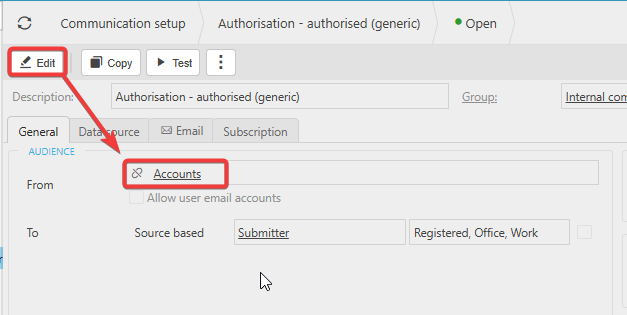
- Go to Communication Setup.
- Open each communication template you need to amend.
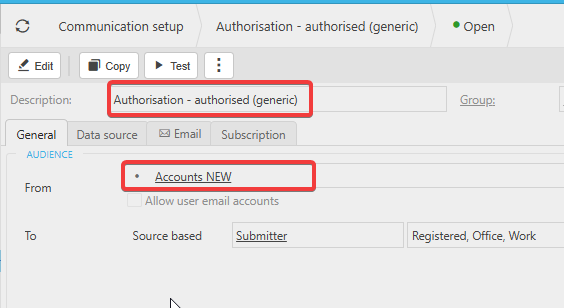
- Click Edit and update the email address as required.
- Save your changes.
3. Updating Legal Entity Contact Accounts
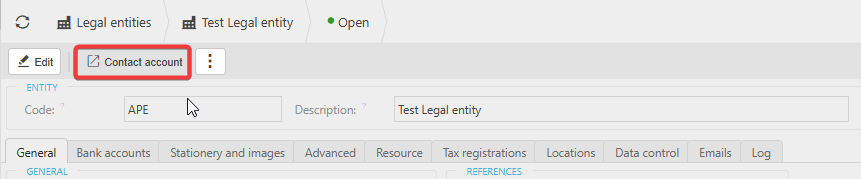
- Navigate to Legal Entities.
- Open each Legal Entity you need to update.
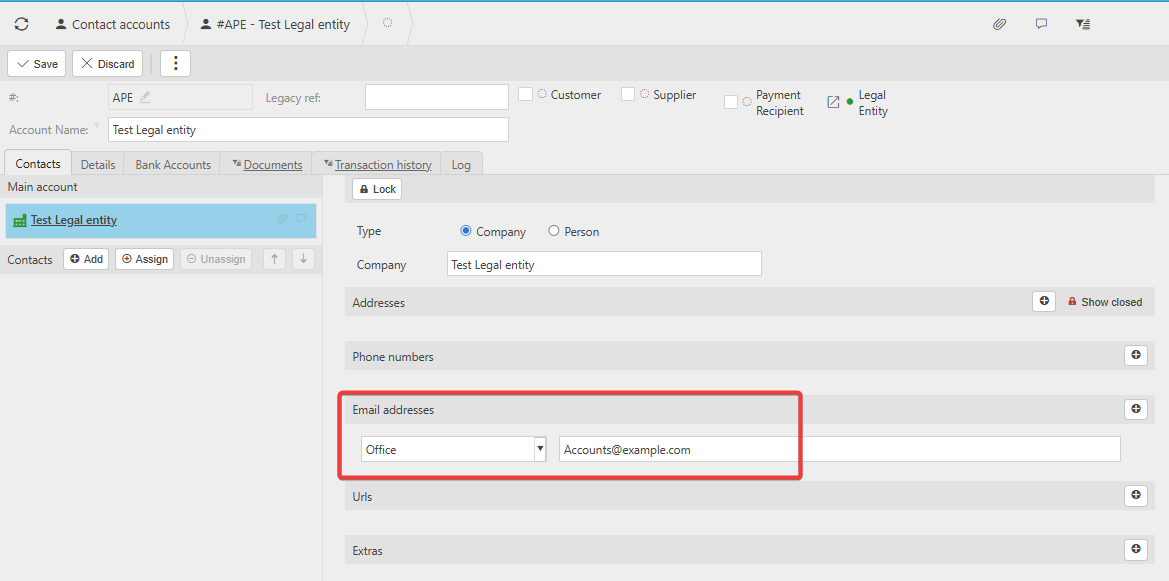
- Select Contact Account to open the associated contact record.
- Update the email address and save.
Once these changes have been made, emails will send out as expected.
Change email
Update our email accounts
Authorise Email
Authorize Email
Re-authorise Email
Re-authorize Email
_______________________________________________________________________________________