

If your intercompany invoices are not automatically generating the corresponding transaction (e.g., sale to purchase or vice versa), there are a few key areas to check to ensure the automation is correctly configured.
1. Check the Automation Setup
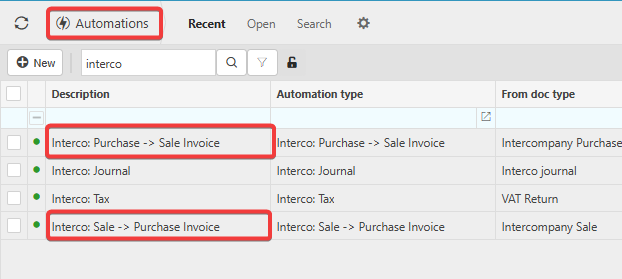
- In the top-left search bar, type “Automations”.
- Then search for “Interco”.
- Look for:
- Intercompany Sale to Purchase
- Intercompany Purchase to Sale
- If they don’t exist, you’ll need to create them from scratch.
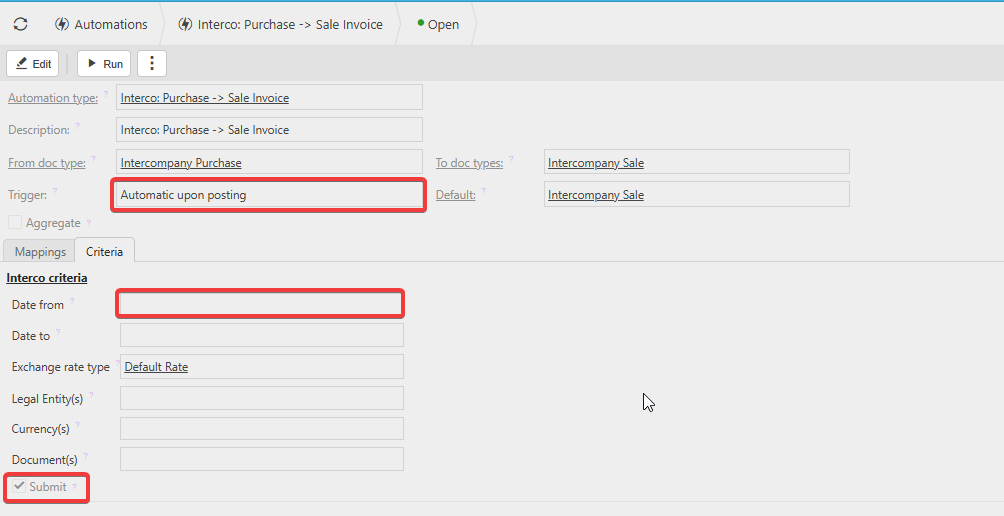
Make sure:
- The trigger is set to Automatic upon posting.
- The criteria have a blank or backdated “Date From”.
- The Submit option is ticked.
2. Check Account Defaults
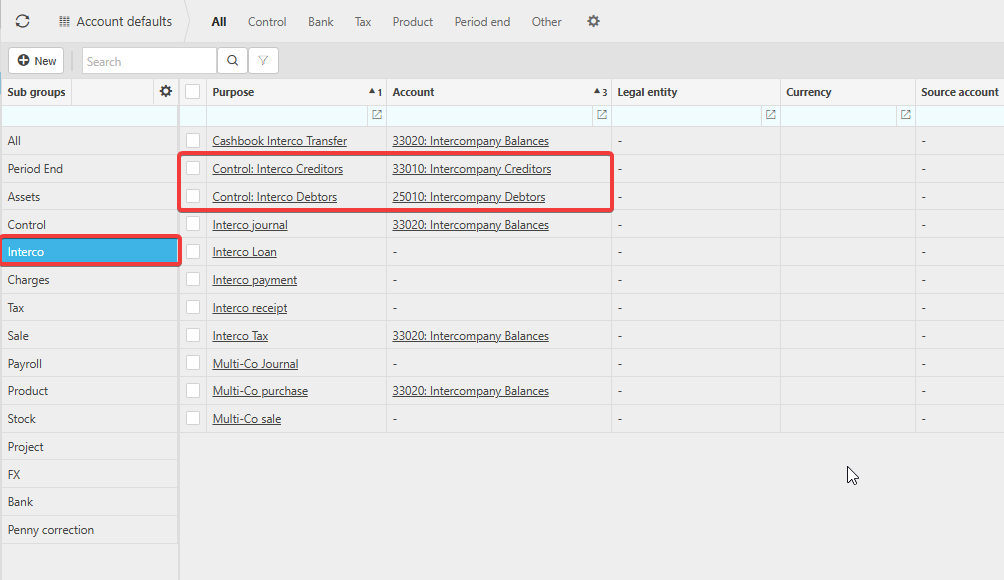
- Search for “Account Defaults”.
- Go to the Control section.
- Ensure the following are mapped:
- Control Intercompany Creditors
- Control Intercompany Debtors
- These mappings are essential for journal posting.
3. Check Document Types
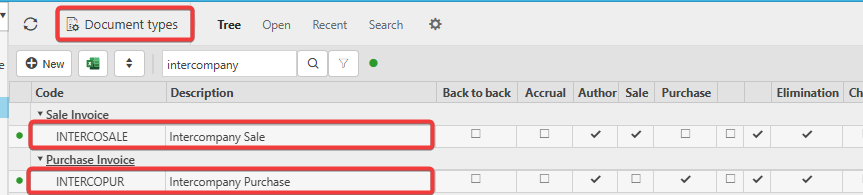
- Search for “Document Type”.
- Unlock the view to see all document types.
- Search for:
- Intercompany Sale
- Intercompany Purchase
- For each:
- Ensure they are unlocked.
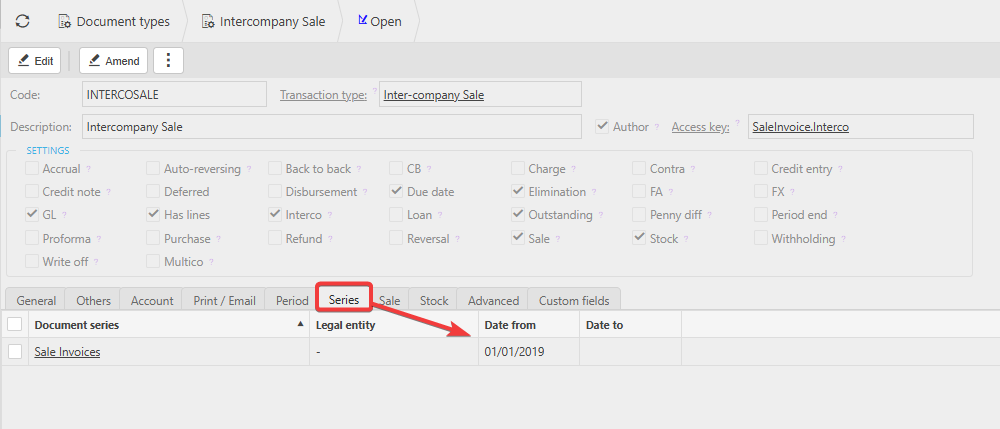
- Double-click to open and check that a Series is assigned.
- The Series Date should be backdated or at least earlier than the invoice date.
Once these areas are correctly configured, your intercompany invoices should automatically generate the corresponding transaction.
Customer search terms
Intercompany Automations
Intercompany posting
Interco transactions
_______________________________________________________________________________________