

You can use the Manual Journal Interco Tax process to split VAT return values across multiple legal entities. This is done using a dedicated GL account and an automation that creates the journal for you.
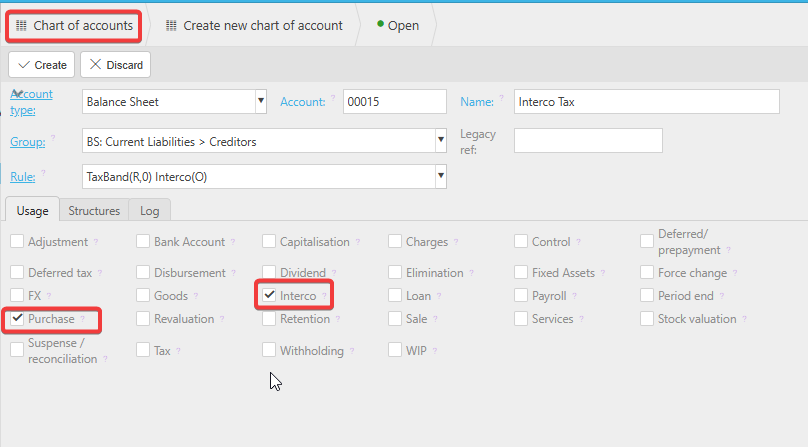
1. Create an Intercompany Tax GL Account
Set up a new GL account that will be used solely for intercompany tax postings.
- This account is only used as a temporary posting point.
- It should not hold a balance once all journals are completed.
2. Add Account to Account Defaults
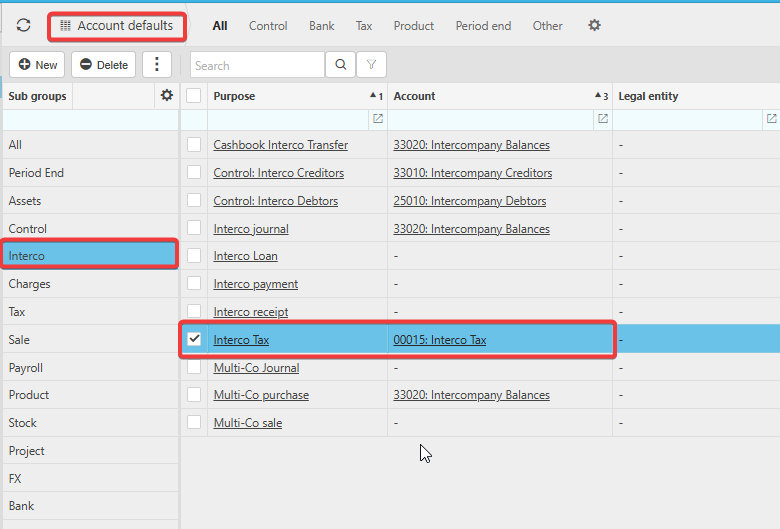
Once the Interco Tax GL account has been created, you’ll need to add it to your Account Defaults so the system knows which account to use when generating the Interco Tax journal.
How to do this:
- Navigate to Account Defaults
- Find the Interco section
- Locate the Interco Tax purpose
- Select the new GL account you created and assign it to this purpose
This ensures the automation posts to the correct account when the Interco Tax journal is generated.
3. Unlock the Document Type
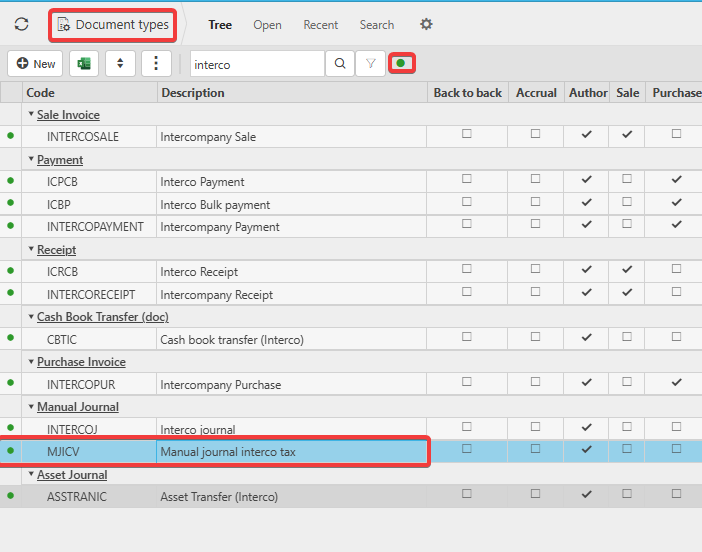
- Go to Document Types and locate:
- Locate the Document Type: Manual journal interco tax
- If the document type is locked, click the green dot at the top of the screen to reveal locked documents
- Unlock the document type so it can be edited and used by the automation
4. Check the Document Series
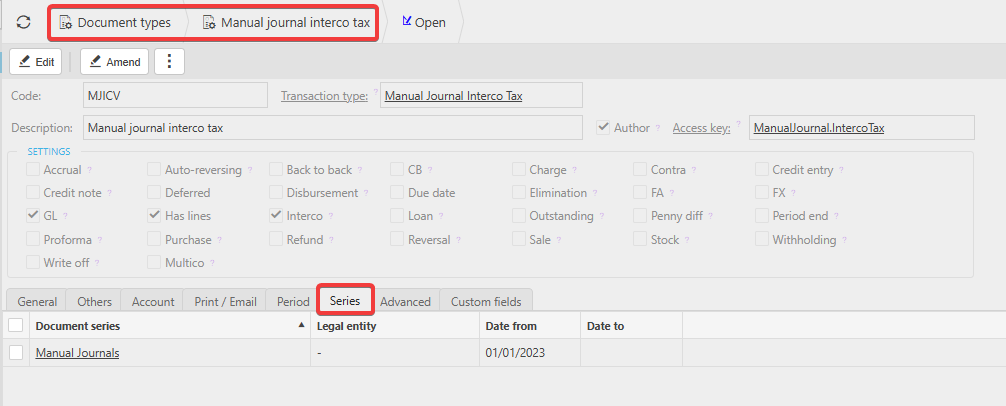
While you are in the Manual journal interco tax document type, go to the Series tab and make sure a Document Series is assigned.
- If a series is already selected, no further action is needed
- If it is blank, choose an existing series or create one and assign it
This ensures the system can generate the journal when the automation runs.
4. Create the Automation
Navigate to Automations and select New.
Configure the automation as follows:
Automation Setup
- Choose VAT Return as the from document type.
- Choose Manual journal interco tax as the document type to be created.
- Select the Trigger:
Manual – runs only when you choose to trigger it.
Criteria Tab
- Add any filters you require (e.g., legal entity, tax period).
- Tick Submit if you want the journal to be automatically submitted rather than left in draft.
This ensures the journal is created consistently each time a VAT return is processed.
Additional Help
You can find more detailed guidance in the user guide: