

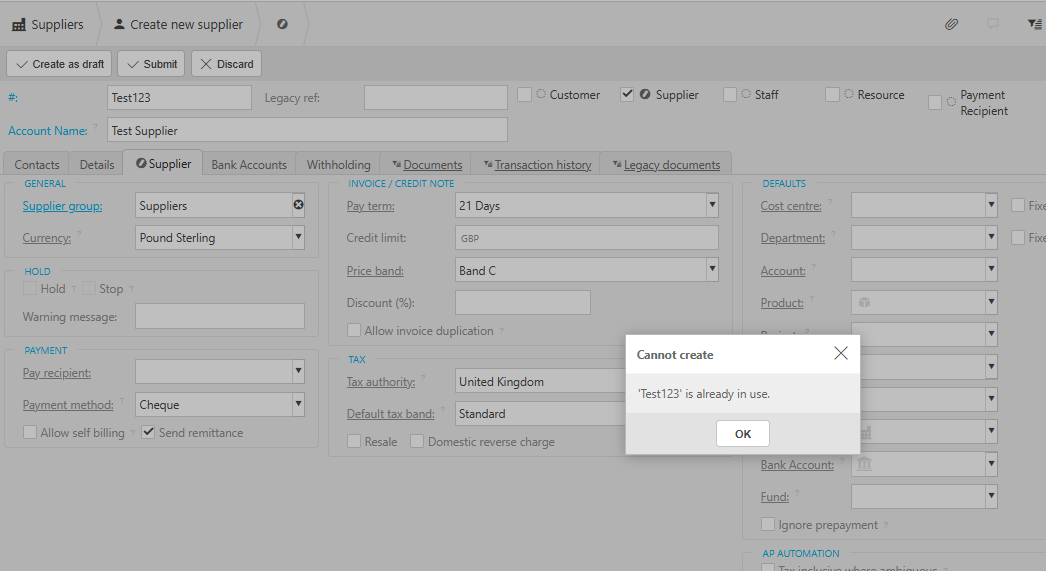
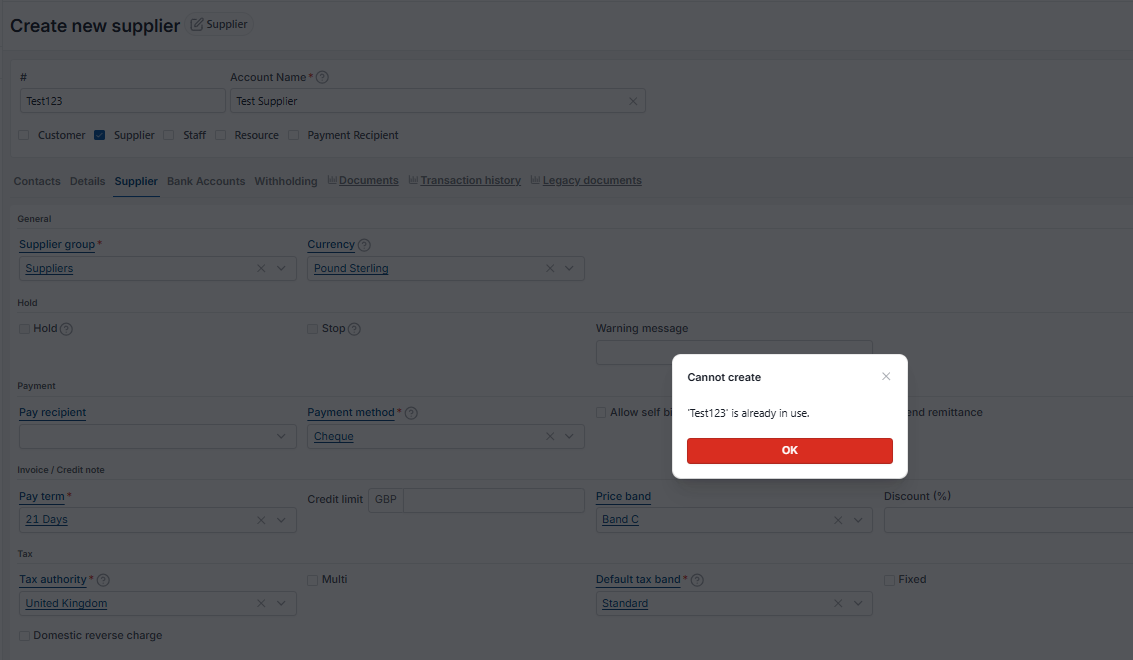
This article covers supplier accounts in the Purchase Ledger. When you delete a supplier and try to recreate it using the original code, iplicit blocks you with a message saying the code is already in use. This is because deleting a supplier does not delete the underlying Contact account – it only removes the supplier flag. This article explains why this happens and the recommended way to resolve it.
Why the supplier code is blocked
When you delete a supplier in the Purchase Ledger, iplicit does not delete the account itself. It only unticks the 'Supplier' option on the underlying Contact account. The Contact account, and the code attached to it, still exists in the system.
This means the original supplier code is still in use by the Contact, which is why iplicit prevents you from creating a new supplier with the same code.
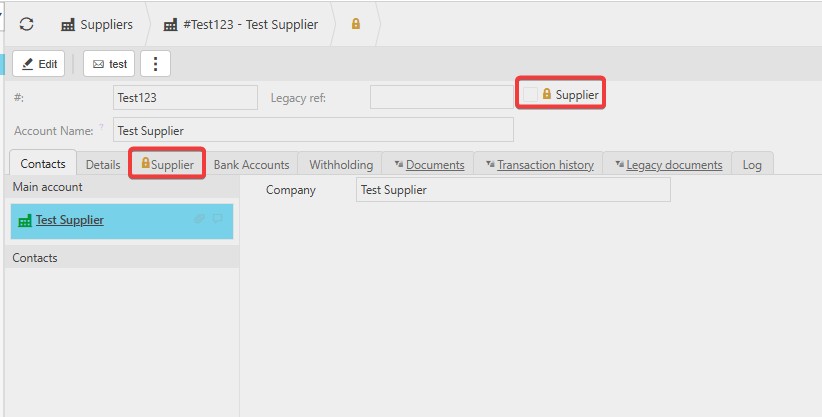
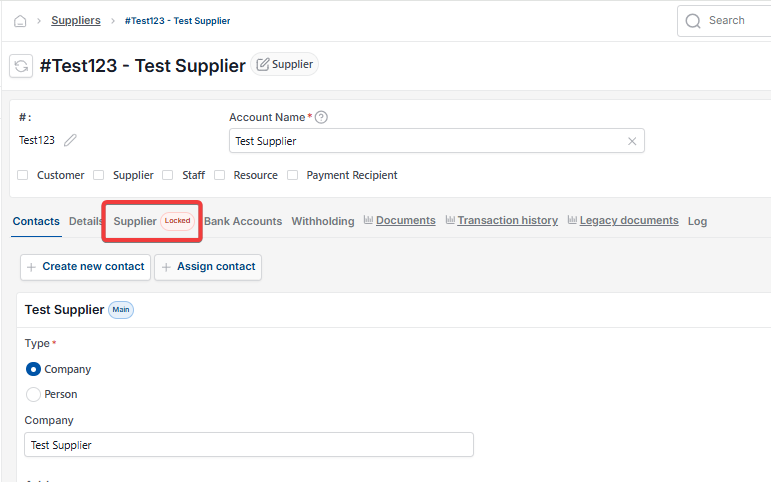
To confirm this, navigate to 'Contact accounts' and filter by the supplier code. You'll see the Contact account is still there, with the supplier details intact, but the 'Supplier' column is unticked.
Recommended approach: lock the old contact and use a new supplier code
The safest way to resolve this is to leave the original Contact account in place and create the new supplier under a different code. This protects every document already linked to the old Contact – purchase orders, invoices, payments and historical reporting all stay intact.
Follow these steps:
- Navigate to 'Contact accounts' and open the original Contact
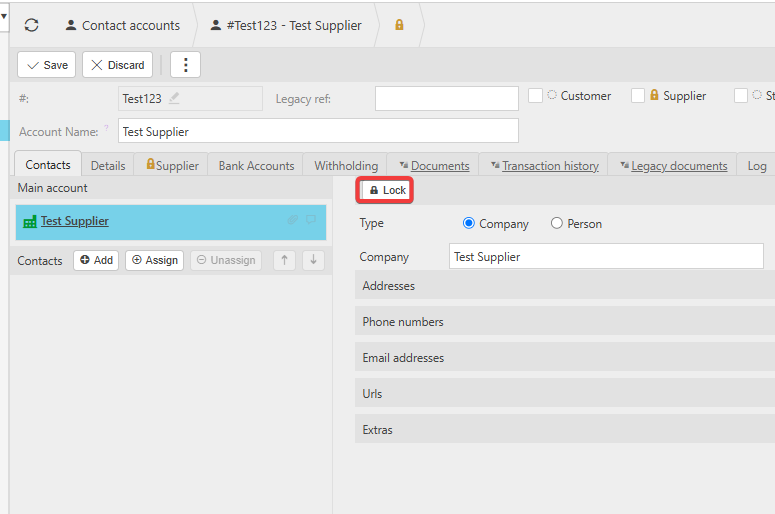
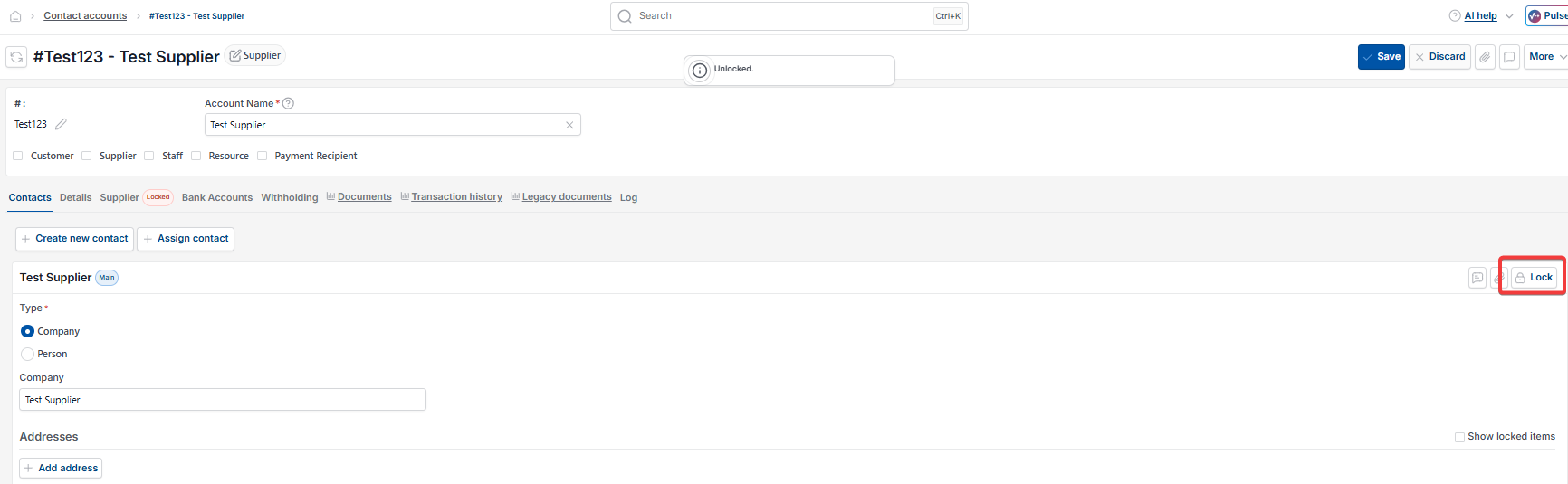
- Set the Contact status to 'Locked' so it cannot be used on new transactions
- Return to the Purchase Ledger and create the new supplier using a different code.
Using a new code keeps the audit trail clean and prevents any risk of broken links between documents and Contact accounts.
When you can reuse the original supplier code
The original code can only be reused safely if there is no history attached to the Contact account. If the Contact has any purchase orders, invoices, payments or other documents linked to it, deleting the Contact will break those links.
If you have confirmed the Contact has no history and you still want to reuse the original code, you'll need to delete the Contact account first. See 'How to delete a contact account in iplicit' for the steps and the checks to run before you delete.
Supplier code in use
Delete a customer or supplier
Delete contact account
Duplicate supplier
Duplicate customer