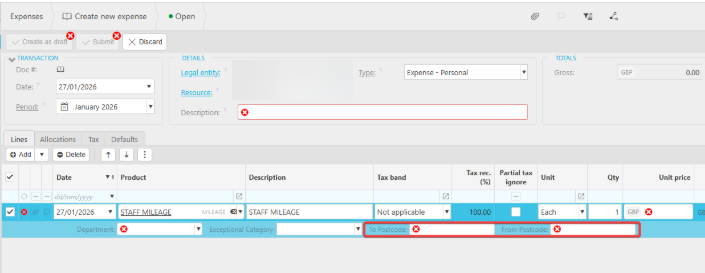
If you want users to enter postcodes when submitting mileage expenses, you can do this by creating Custom Attributes and adding them to the relevant Chart of Account rule. Once configured, the postcode fields will appear automatically on the expense entry screen.
1. Create New Attributes
- Go to Attributes → New.
- Create a new attribute for the postcode field.
- It is best practice to use the prefix “X_” (e.g., X_StartPostcode, X_EndPostcode) so custom attributes are easy to identify.
- Repeat this step for each postcode field you want to capture
2. Add the Attributes to the Relevant Rule
- Open the Chart of Account Rule used for mileage claims.
- Add the new attributes to the rule.
- Mark them as Required if you want to enforce postcode entry.
Important Note
If the rule is shared across multiple accounts, adding attributes will affect all accounts using that rule.
If this is not desired, create a new rule specifically for mileage and assign the account to that rule instead.
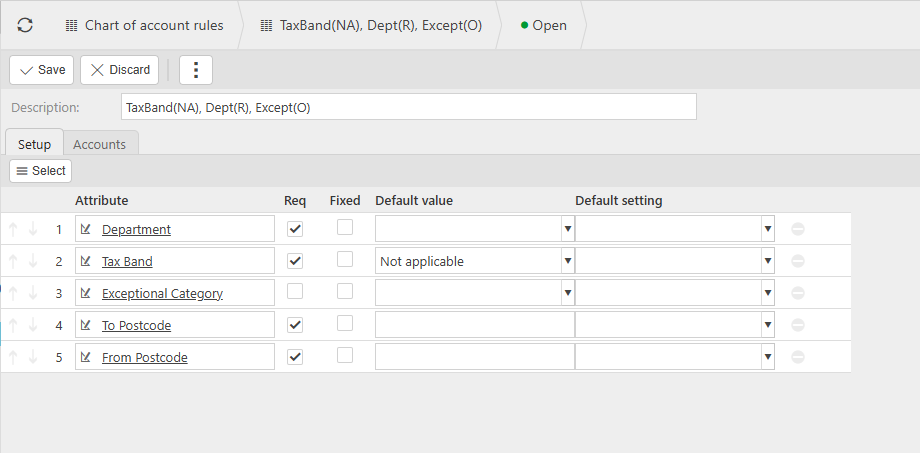
3. Apply the Rule to the Mileage Account
Ensure the mileage expense account is assigned to the rule containing your new attributes.
Once this is done, the postcode fields will appear when submitting a mileage claim.