

This article covers duplicate lines on the bank side of the Unmatched tab in Bank Reconciliation, and how to remove the duplicated transaction.
Why duplicate lines appear in bank reconciliation
Duplicate lines on the bank side of the Unmatched tab usually mean the same transaction has entered iplicit more than once. This can happen for a few reasons:
- A bank feed provider has sent the same transaction twice, so it appears twice on the bank statement and twice in the bank reconciliation
- A bank statement file, such as a CSV, has been imported more than once, duplicating every transaction in that file
- A transaction has been entered manually as well as imported, so both versions appear in the bank reconciliation.
How to remove a duplicate transaction from bank reconciliation
- Search for Bank Transactions using the search bar
- Use the filters to find the duplicated transaction
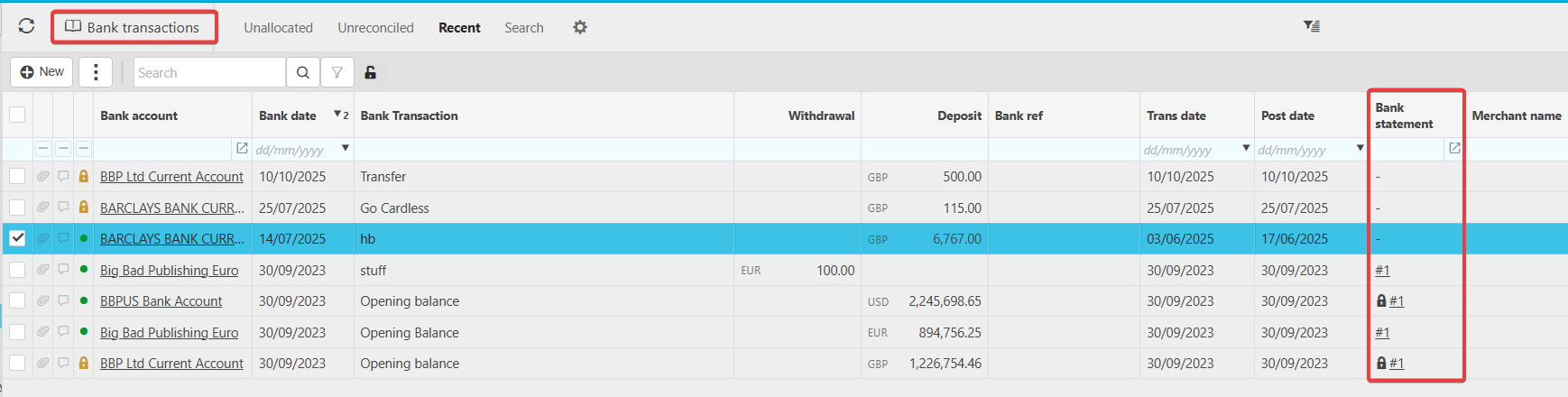
- Check the Bank Statement column - if the transaction is assigned to a statement, the statement reference is shown; if it is blank, the transaction is not assigned to a statement and can be deleted directly from the Bank Transactions screen
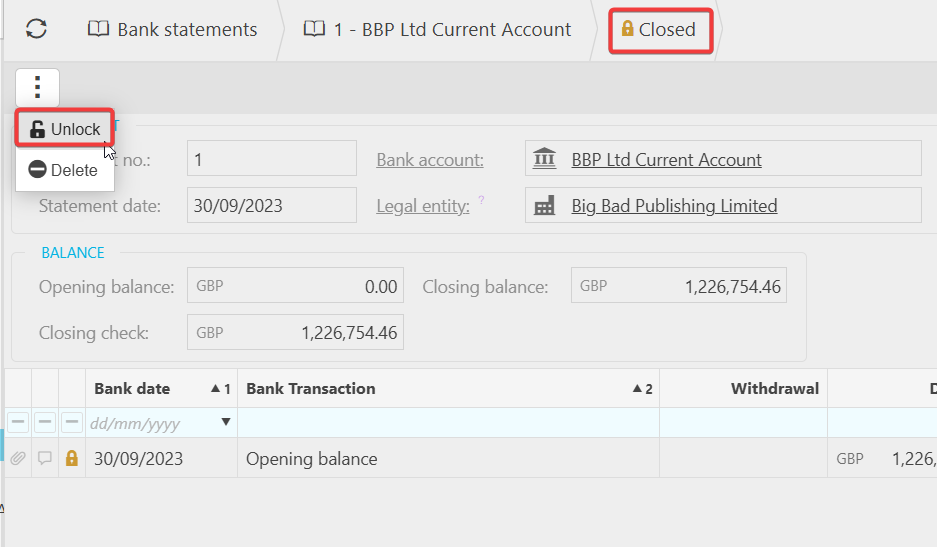
- If the transaction is assigned to a statement, navigate to that statement and unlock it if it is locked
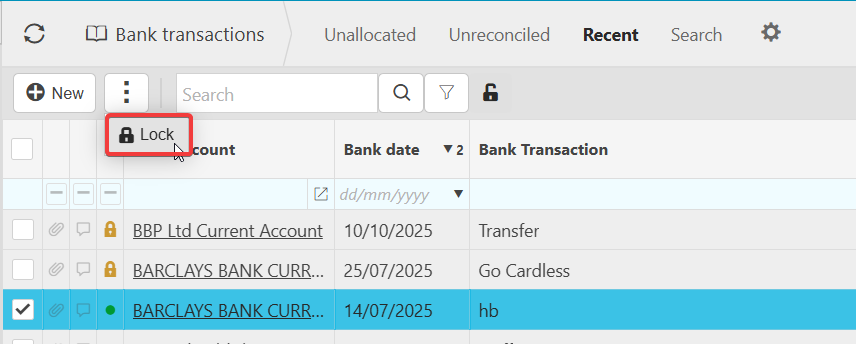
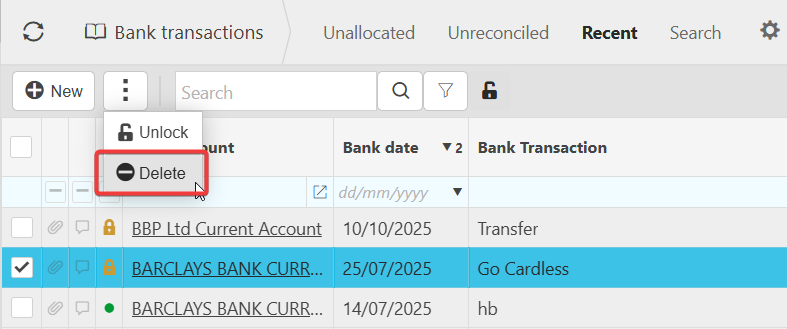
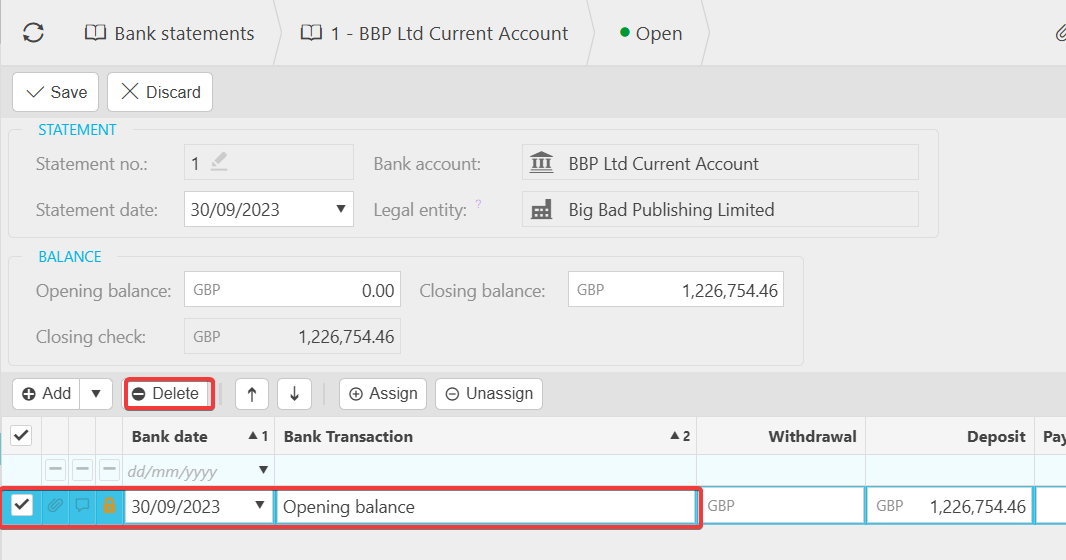
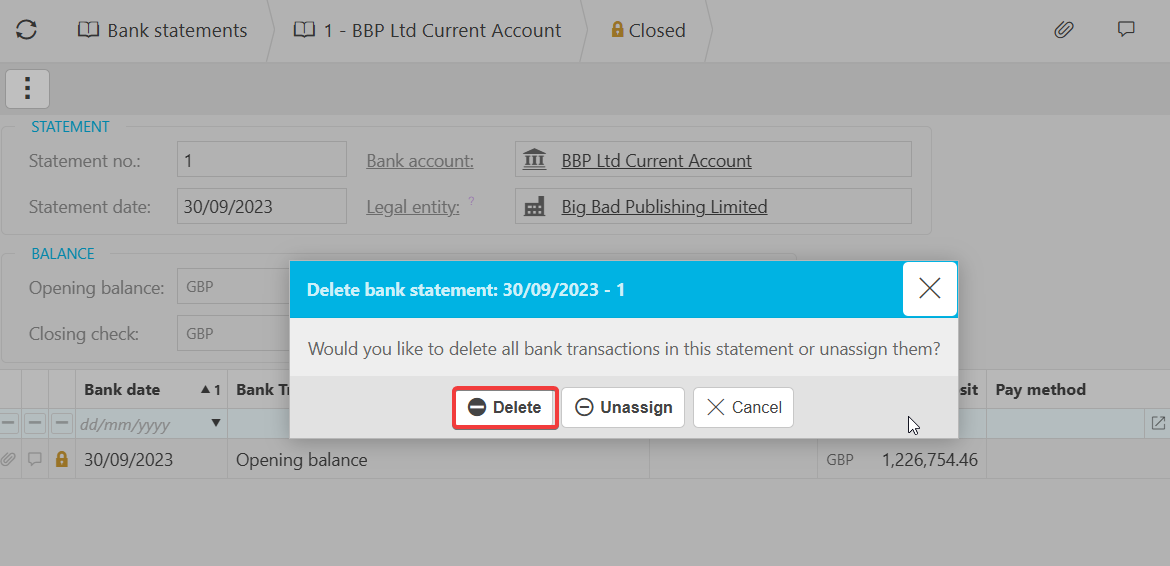
- Highlight the duplicated transaction and select 'Delete' - do not select 'Unassign'
- If the duplicated transaction is the only one on the statement, delete the statement itself, using 'Delete' rather than 'Unassign'.
Deleting the transaction from the statement automatically removes it from the bank reconciliation.
From Transactions Screen:
From Statements Screen:
If your bank account uses Bank Feeds
- After deleting the duplicated transaction from the statement, go to Bank Feeds
- Locate the same transaction - it now appears grey instead of green
- Highlight it and select 'Ignore in statements'.
This prevents the transaction from being re-imported into future statements, so it does not reappear in bank reconciliation.
If transactions are missing rather than duplicated, this may also be caused by bank feed timing - see 'How to manually add missing transactions to a populated bank statement'.
Duplicate transactions bank reconciliation
Duplicate lines unmatched tab
Double transactions bank statement
Delete duplicate bank transaction
Identical transactions bank feed