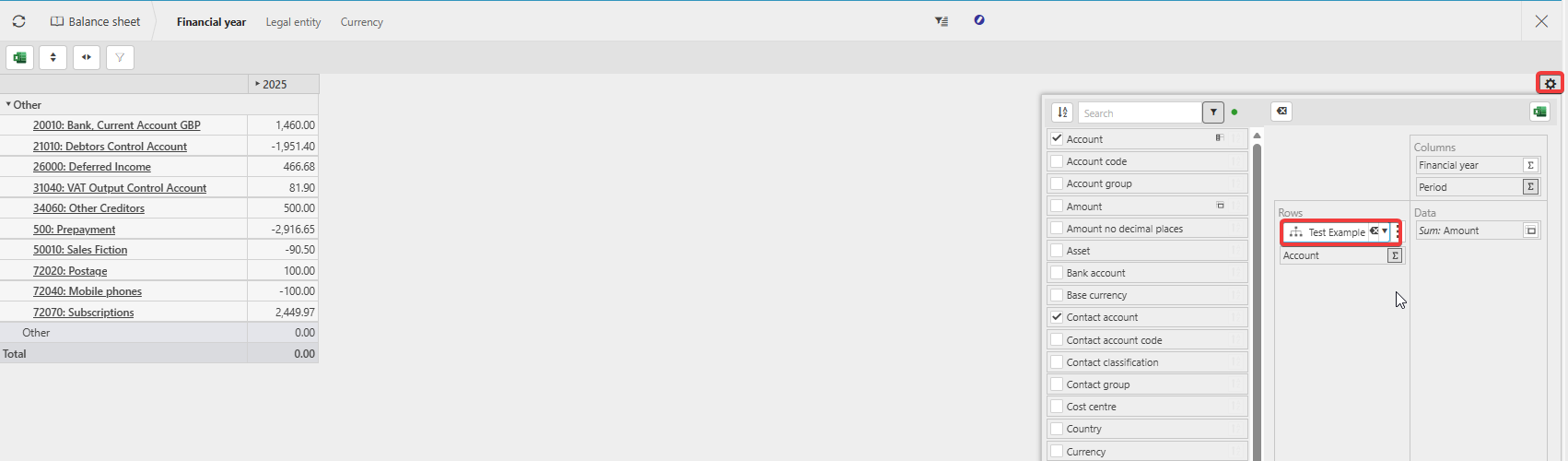
Dynamic Account Structures (DAS) allow you to create customised layouts for how account balances are displayed in enquiries such as the Balance Sheet or Profit & Loss. Each structure is made up of groups and sub‑groups that you assign accounts to.
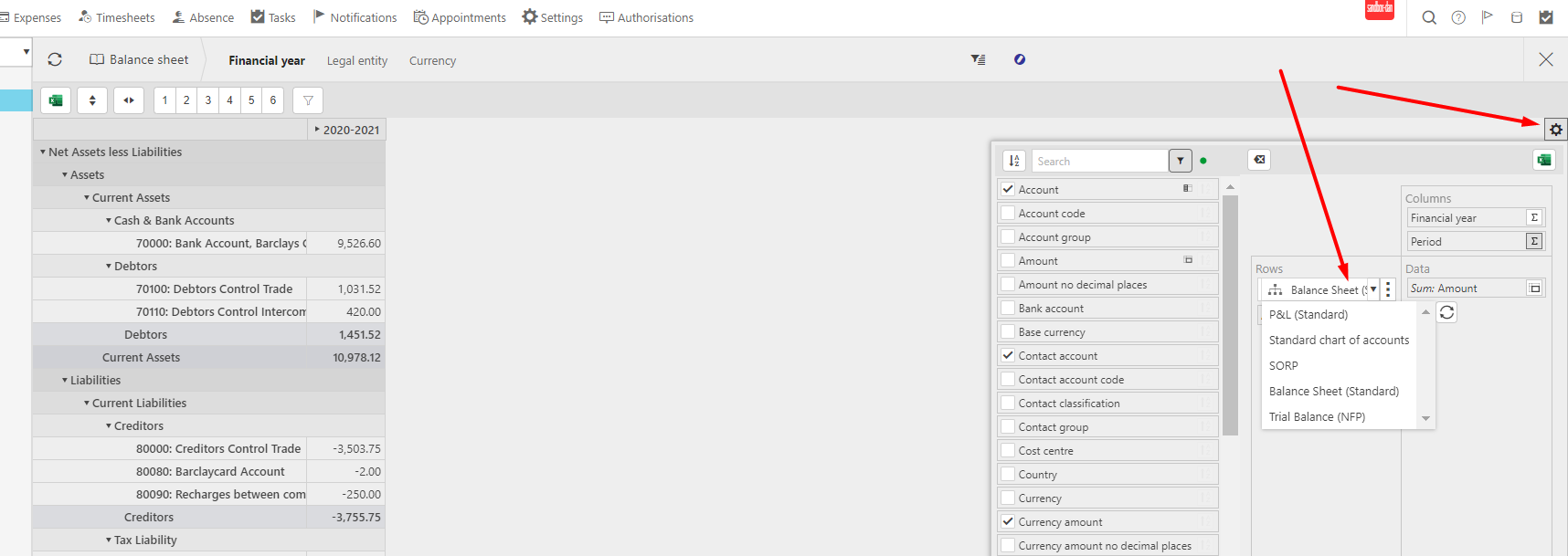
Follow the steps below to create a new Dynamic Account Structure.
1. Create a New Dynamic Account Structure
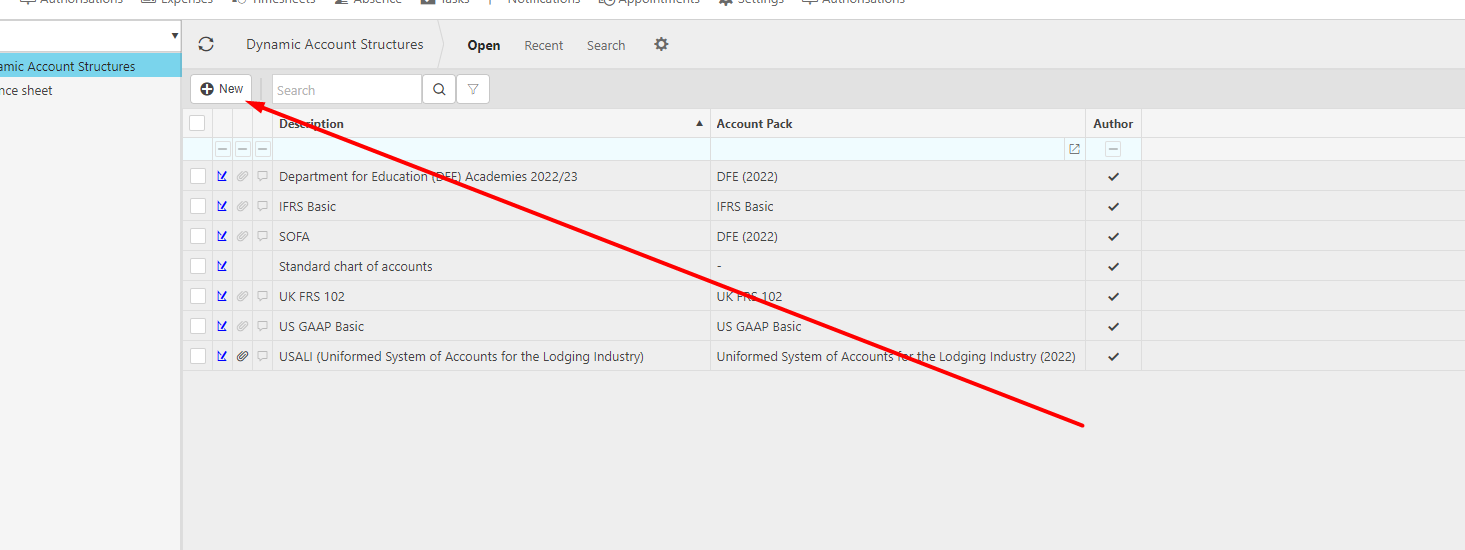
- Go to Dynamic Accounting Structures.
- Select New to create a fresh structure.
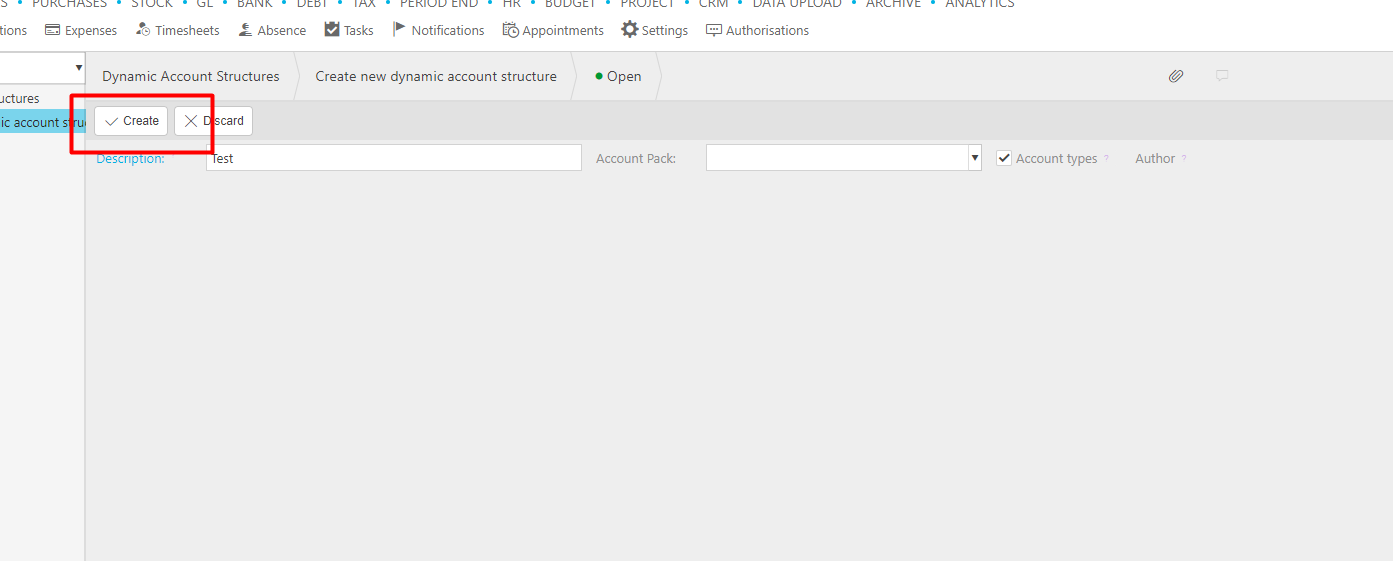
- Add a description and code and press Create
2. Add a DAS Grouping
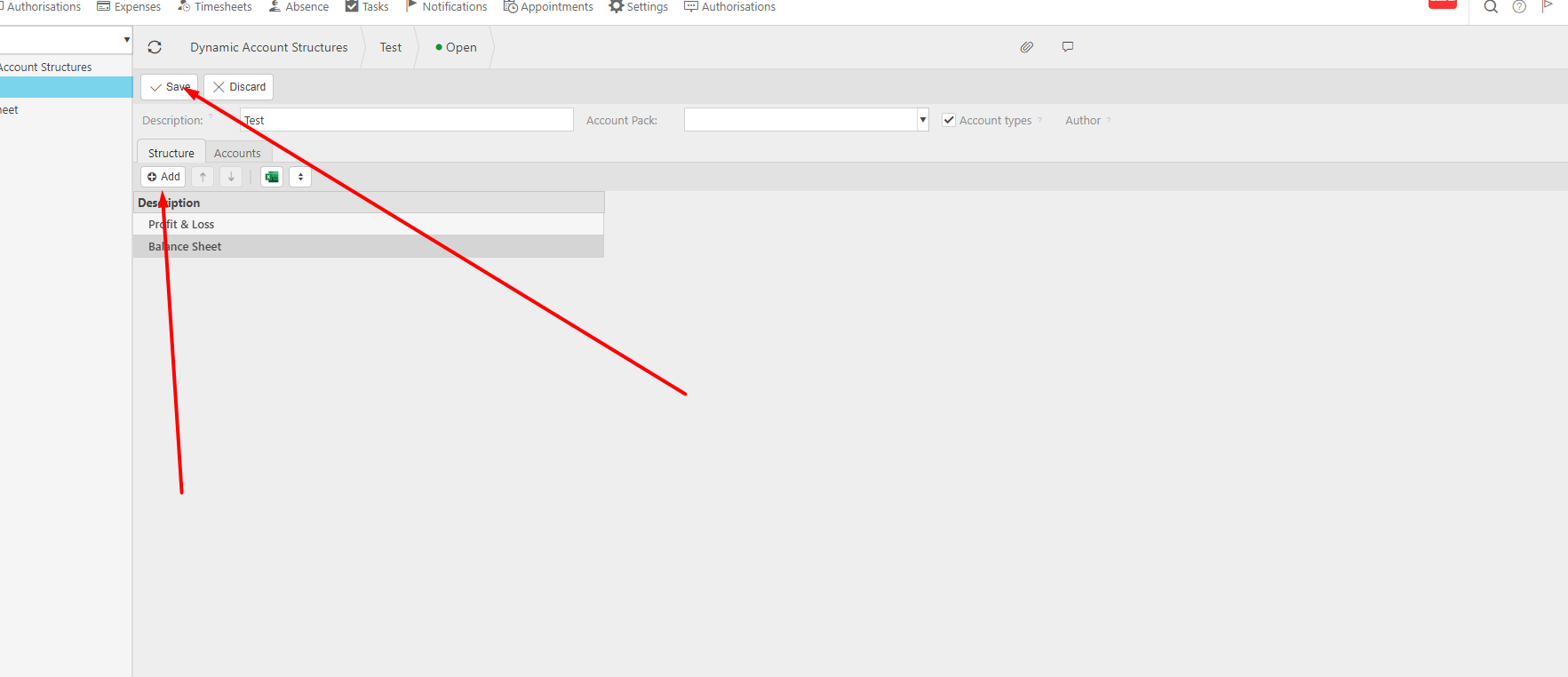
- Open your new structure.
- Click Edit, then Add.
This creates a new grouping within the structure.
You will see the new group appear in the layout panel.
3. Define the Group Details
For each group:
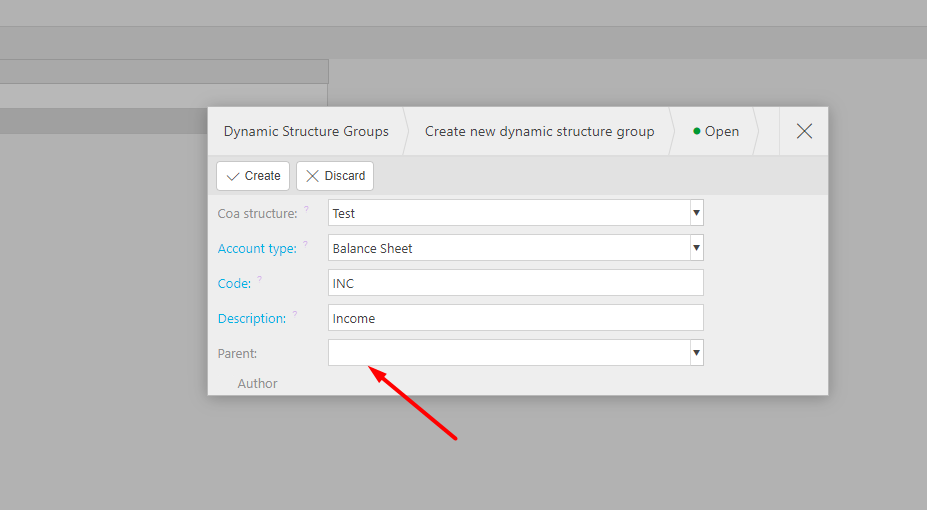
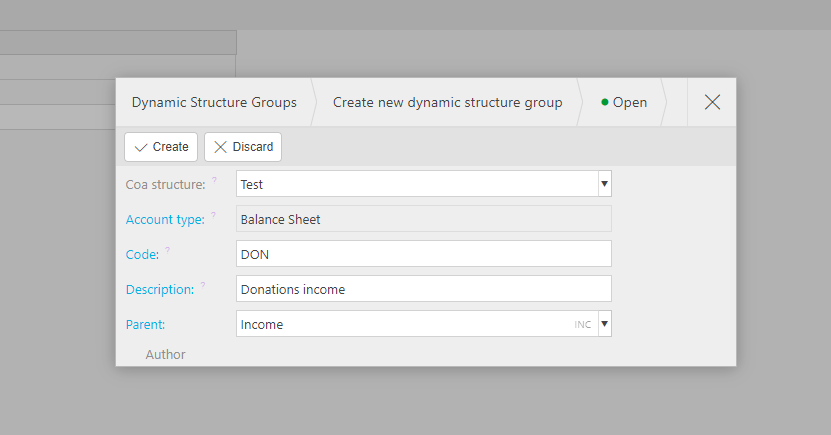
- Enter a Code
- Enter a Description (this is what will display on the Balance Sheet or other enquiries)
- Leave Parent blank if this is a top‑level group
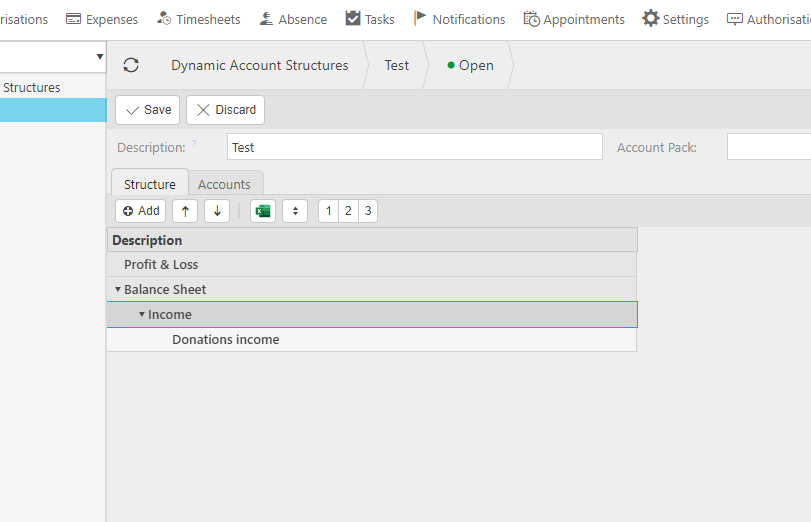
- If you need sub‑groups, repeat the process and assign the appropriate parent group
This allows you to build a hierarchy that reflects how you want your accounts displayed.
4. Add Accounts to the Groups
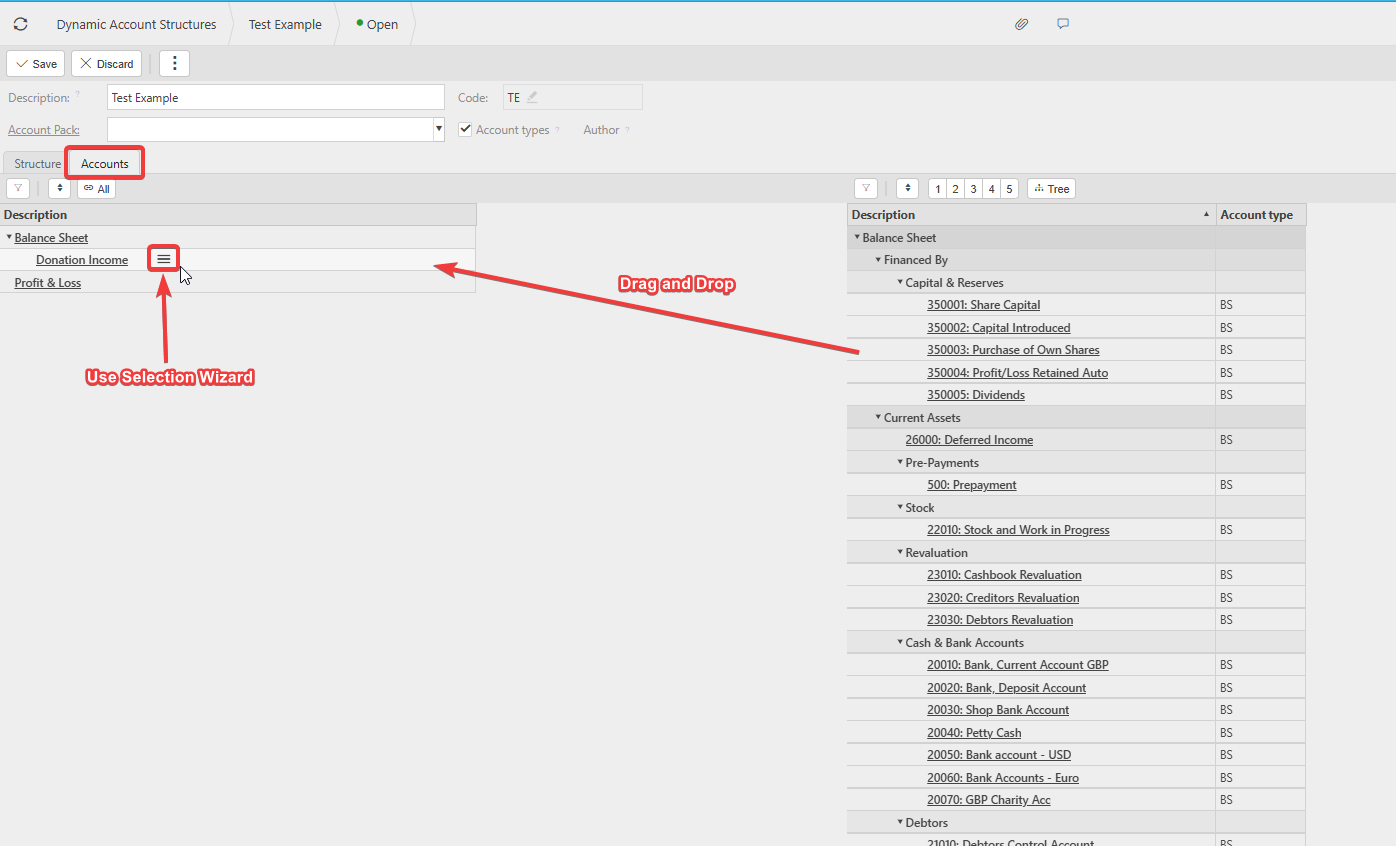
Navigate to the Accounts tab.
You can add accounts in two ways:
Option A: Drag and Drop
- Drag accounts from the right‑hand list into the relevant group on the left.
Option B: Selection Wizard
- Hover over a group
- Click the three‑line menu
- Choose Selection Wizard
- Select the accounts you want to include
This makes it easy to assign multiple accounts at once.
5. Save and Use the Structure
Once all groups and accounts are set up:
- Click Save.
- Open the relevant enquiry (e.g., Balance Sheet).
- Select your new Dynamic Account Structure from the available options.
Your customised layout will now be applied.