

This article covers email sending failures in iplicit caused by Microsoft's deprecation of legacy authentication for Microsoft 365 email integrations. It applies to any organisation whose email account in iplicit still uses an older authentication method rather than GraphAPI, and it covers moving to GraphAPI and resending emails stuck in the 'Communication log'.
Why emails stop sending in iplicit after Microsoft's authentication change
Microsoft has deprecated older, basic authentication methods and now enforces modern authentication standards across its services. This is a change made by Microsoft, not by iplicit, but it directly affects any email account in iplicit still configured to use the older method. If your organisation's IT team has not yet moved the iplicit email integration onto GraphAPI (sometimes called Microsoft Graph API), emails sent from iplicit will fail.
Setting up GraphAPI for email accounts in iplicit
Your internal IT team needs to complete this setup, since it involves configuration in your Microsoft tenant as well as in iplicit.
- Configure GraphAPI in your Microsoft tenant for the iplicit integration – for example, under a name such as 'iplicit Outlook'
- Add a new email account in iplicit using GraphAPI, replicating the previous account's settings where applicable
- Rename the deprecated email account – for example, by adding a suffix such as '_old' – so it's clearly distinguished from the new one
- Set an expiry date on the deprecated account to prevent it being used again – for example, 18/09/2025
- Authorise the new email account within iplicit
- Set the new account as the default for sending emails
- Send test emails to confirm delivery is working.
Additional Microsoft 365 permissions to check for email accounts in iplicit
- Confirm every email account used in iplicit has the correct 'Send on behalf of' permission configured in Microsoft 365
- Check whether your organisation's setup needs additional permissions, such as delegated access or mailbox visibility, as this varies between organisations
- If you use shared mailboxes or service accounts, confirm they support GraphAPI and modern authentication before relying on them.
Resending failed emails from the Communication log in iplicit
Emails that failed under the old authentication method will not resend correctly using the same settings, so they need to be regenerated from the original source document under the new GraphAPI setup rather than simply resent. This includes emails already marked as 'Sent' on the 'Communication log' screen, which also need regenerating from the source document once the new setup is in place.
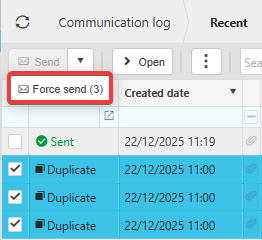
- Navigate to the 'Communication log' and check whether the affected emails now show as 'Duplicate' rather than 'Sent'
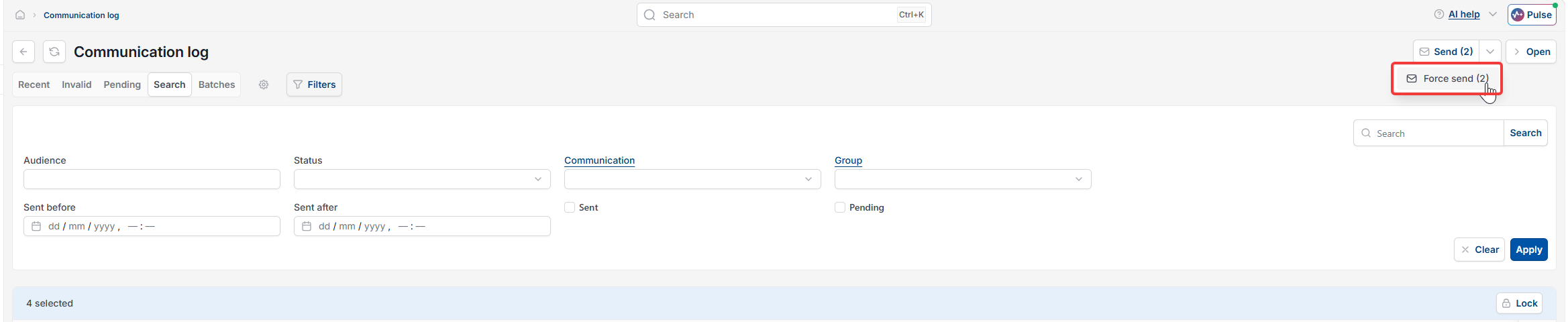
- Select the emails marked 'Duplicate'
- Select the force send option, shown next to 'Send' on the toolbar
- Confirm the emails now show as sent successfully.
Emails not sending GraphAPI
Microsoft basic authentication deprecated
Email integration broken Microsoft
Force send duplicate emails
Emails stuck as duplicate in communication log
Outlook 365 authentication error iplicit