

This article covers workflow exceptions in iplicit authorisation workflows – the process that sends documents such as invoices, orders and journals to the right approver. A workflow exception (sometimes called a catch-all or unmatched document) happens when a document doesn't match any step's criteria, so it's sent to the catch-all user instead of an approver.
How a workflow exception happens in an authorisation workflow
When a document is submitted to an authorisation workflow, iplicit checks it against each step's criteria in turn. Criteria include Legal Entity, document type, amount, department and other attributes. If the document matches a step, it goes to that step's approver. If it matches no step, iplicit can't tell who should approve it, so it sends the document to the catch-all user and flags it as a workflow exception.
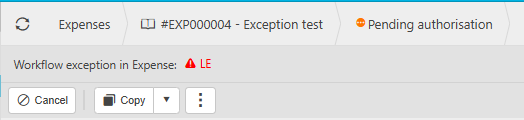
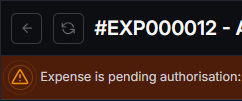
Why a workflow exception appears partway through an authorisation workflow
If a document hits an exception partway through the steps, a step is usually set to 'Catch' instead of 'Skip to next'. 'Catch' sends any unmatched document straight to the catch-all user at that step. 'Skip to next' lets the document move on to the next step to look for a match.
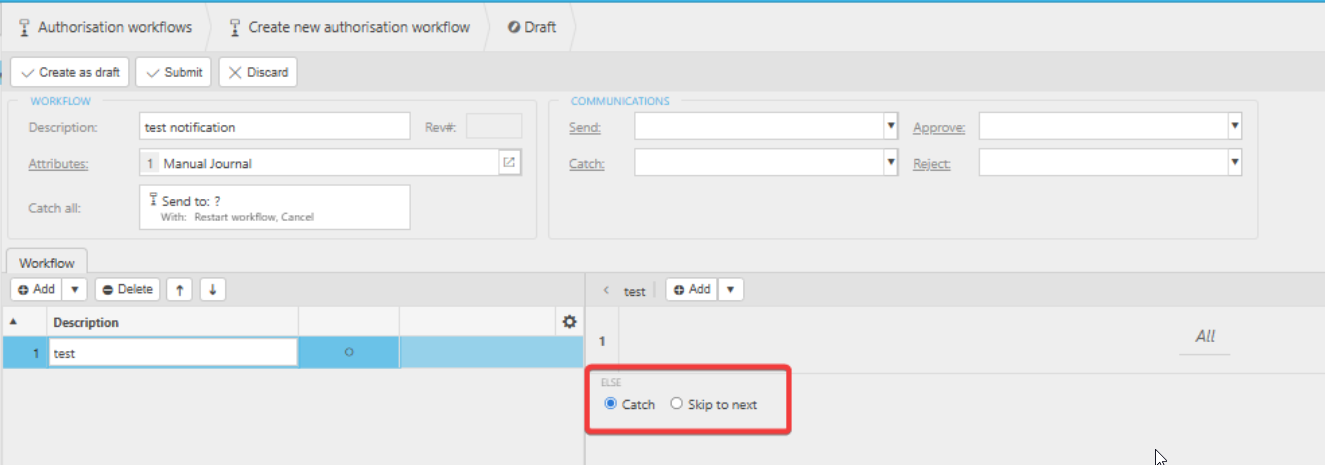
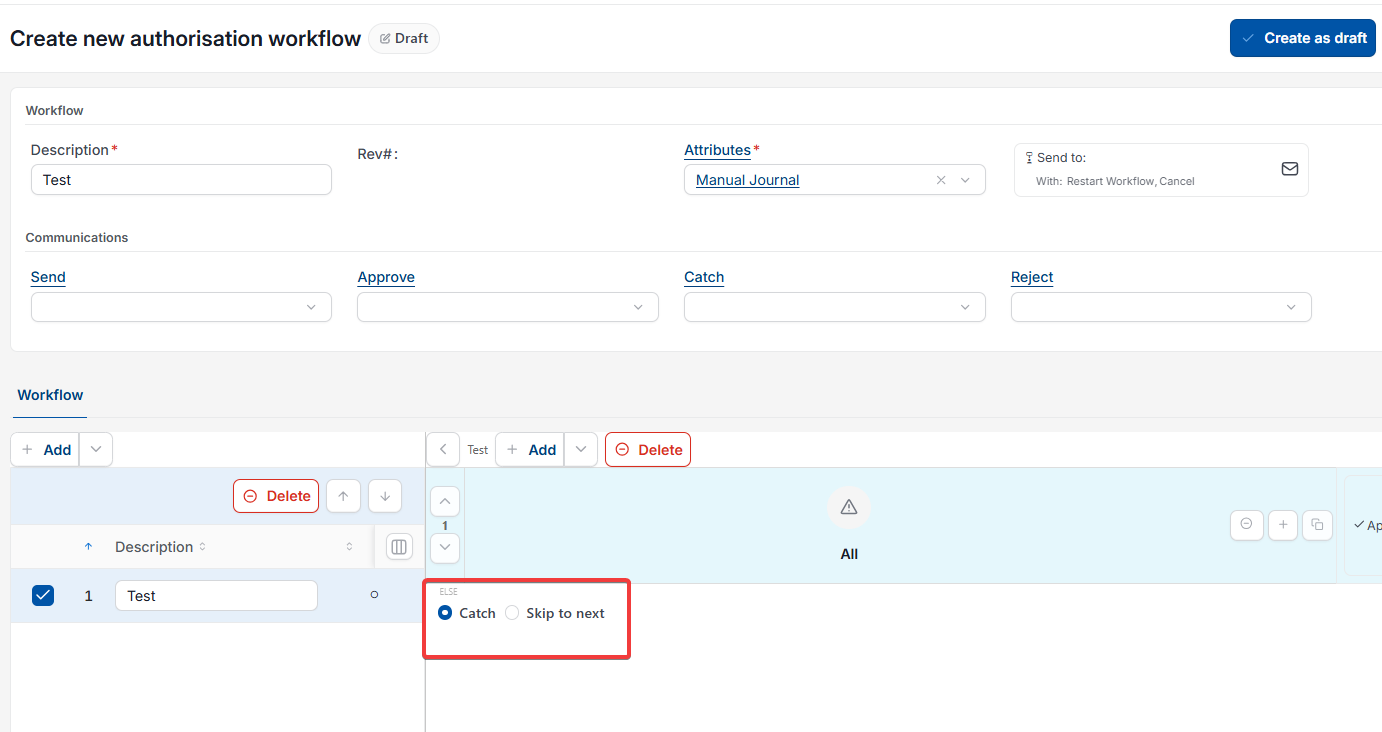
Why a workflow exception appears at the end of an authorisation workflow
If a document goes through every step without matching any of them, and the final step is set to 'Catch', iplicit sends it to the catch-all user when it reaches the end of the authorisation workflow.
Common reasons a document doesn't match any authorisation workflow step
These are the most common reasons a document doesn't match any step in an authorisation workflow:
- The document type isn't covered by any step, and there's no 'All' step
- The Legal Entity, cost centre, resource, department or other posting attribute isn't included in any step
- The document amount falls outside every step's range – for example, steps cover amounts under or over a set figure, but not the exact figure submitted
- The workflow checks header-level details only, but a step uses line-level (detail) criteria, so the document skips that step – see 'Should I set up an authorisation workflow at header level or line level'
- The document includes an attachment, but the matching step doesn't require one
- A recent change, such as a new department, document type or Legal Entity, hasn't been added to the step criteria yet.
Other combinations of criteria can also cause an exception, so check the rules set up on the specific authorisation workflow.
Resolving a workflow exception in an authorisation workflow
To stop documents going to the catch-all user, fix the authorisation workflow rather than the document:
- Open the authorisation workflow the document was submitted to
- Compare each step's criteria with the document – Legal Entity, document type, amount, department and any other attributes
- Find the value on the document that no step covers
- Add or change a step so it covers that value, or add an 'All' step for document types not listed elsewhere
- Check whether any step is set to 'Catch' when it should be 'Skip to next'
- Resubmit the document and confirm it goes to the right approver.
Workflow exception
Catch all user
Catchall
Catch-all
Skip to next
Authorisation workflow error
Document not routing
Document sent to wrong person
Workflow not matching
Authorization workflow exception