

This article covers forcing a document to be matched before it can be submitted, using the 'Matching Required' setting on the document type. This setting can be applied to any document type that supports matching, not just Purchase Orders, though it's most commonly used on Purchase Order document types such as 'Purchase Order (Amount)' (POAM) and 'Purchase Order (Quantity)' (POQ).
What the Matching Required setting does
Once enabled, 'Matching Required' stops a document being submitted until the required amount or quantity has been matched. Which one applies depends on the document type's own 'Match by (to)' setting, for example 'Amount' or 'Quantity'. It also stops additional items being added to the document once the match is complete.
How to enable Matching Required on a document type
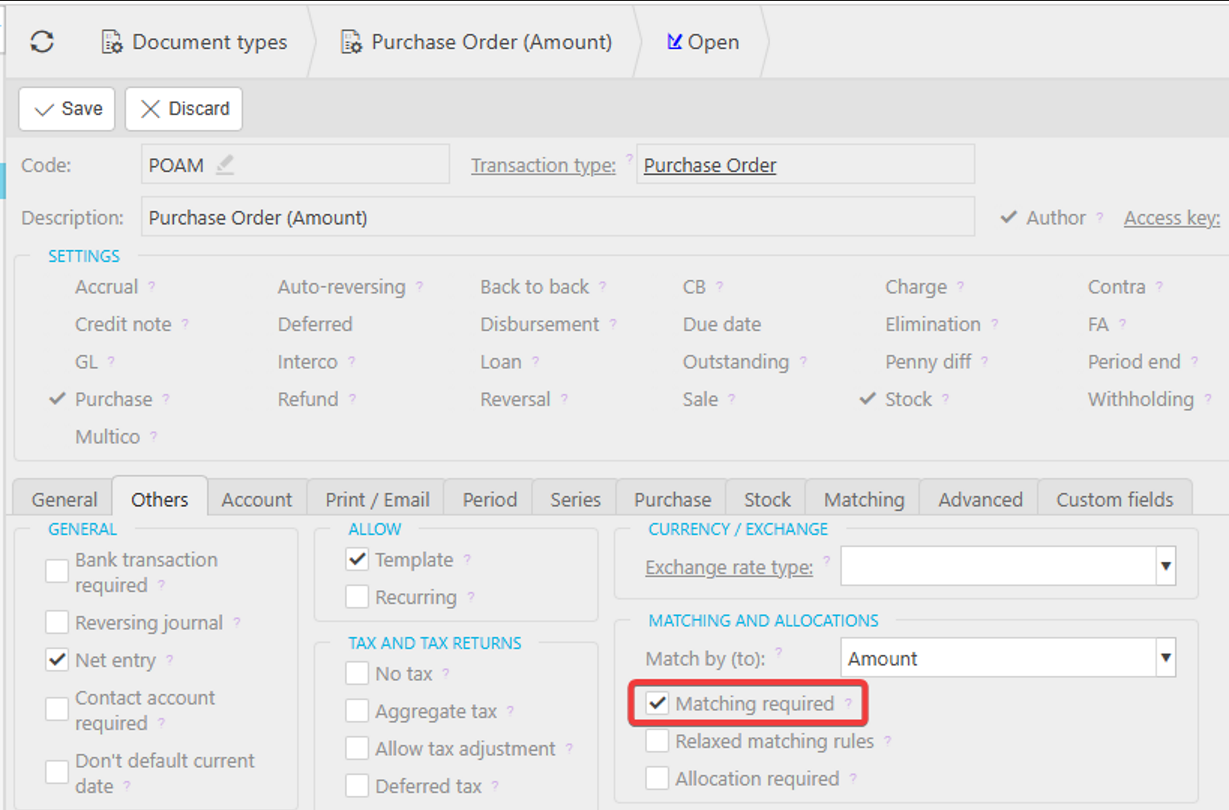
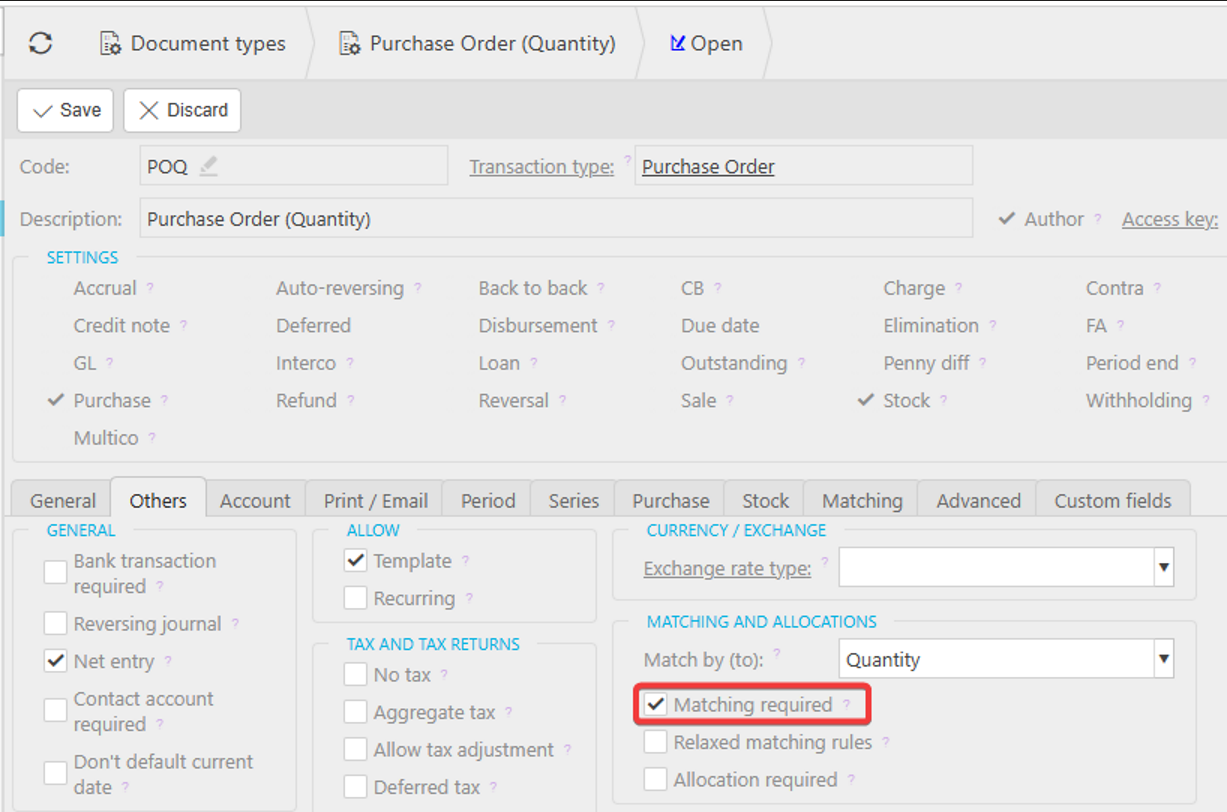
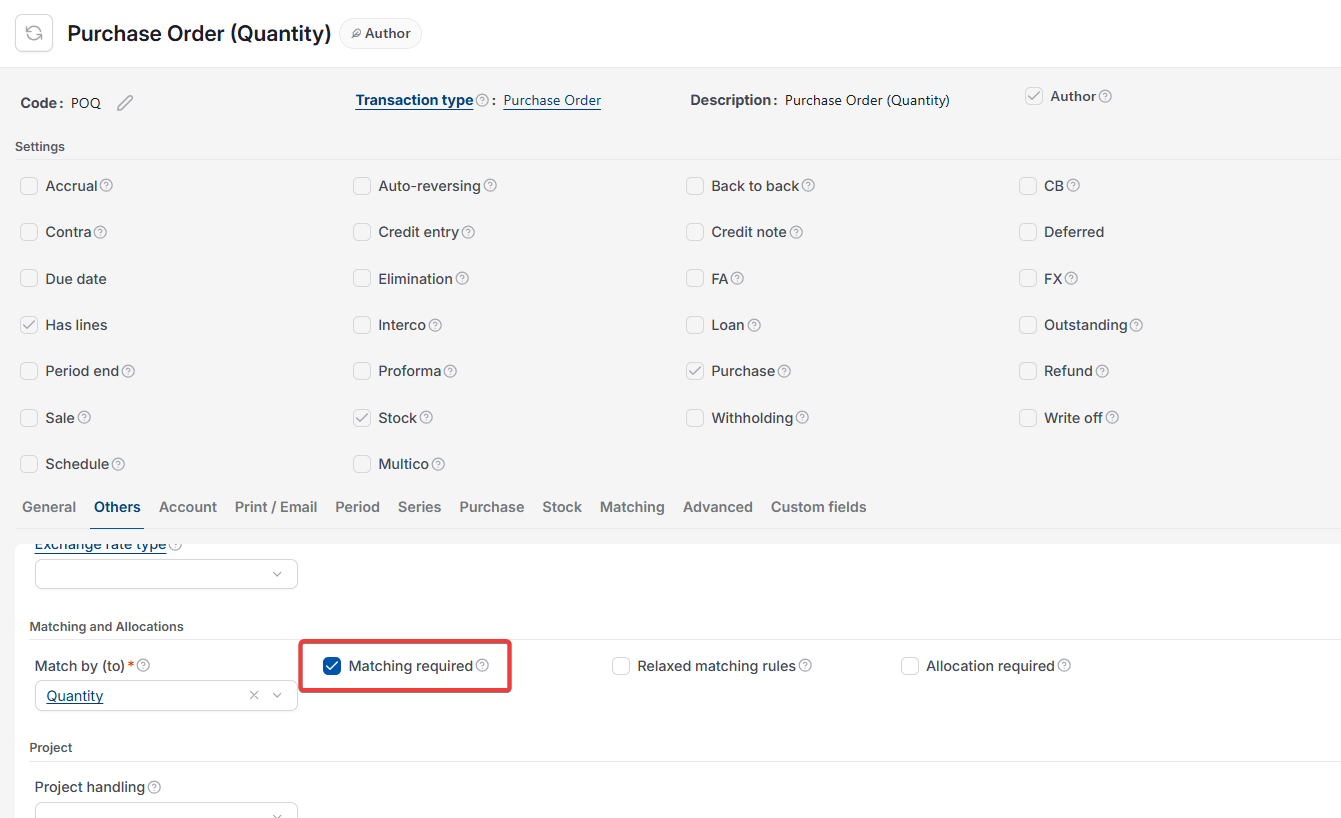
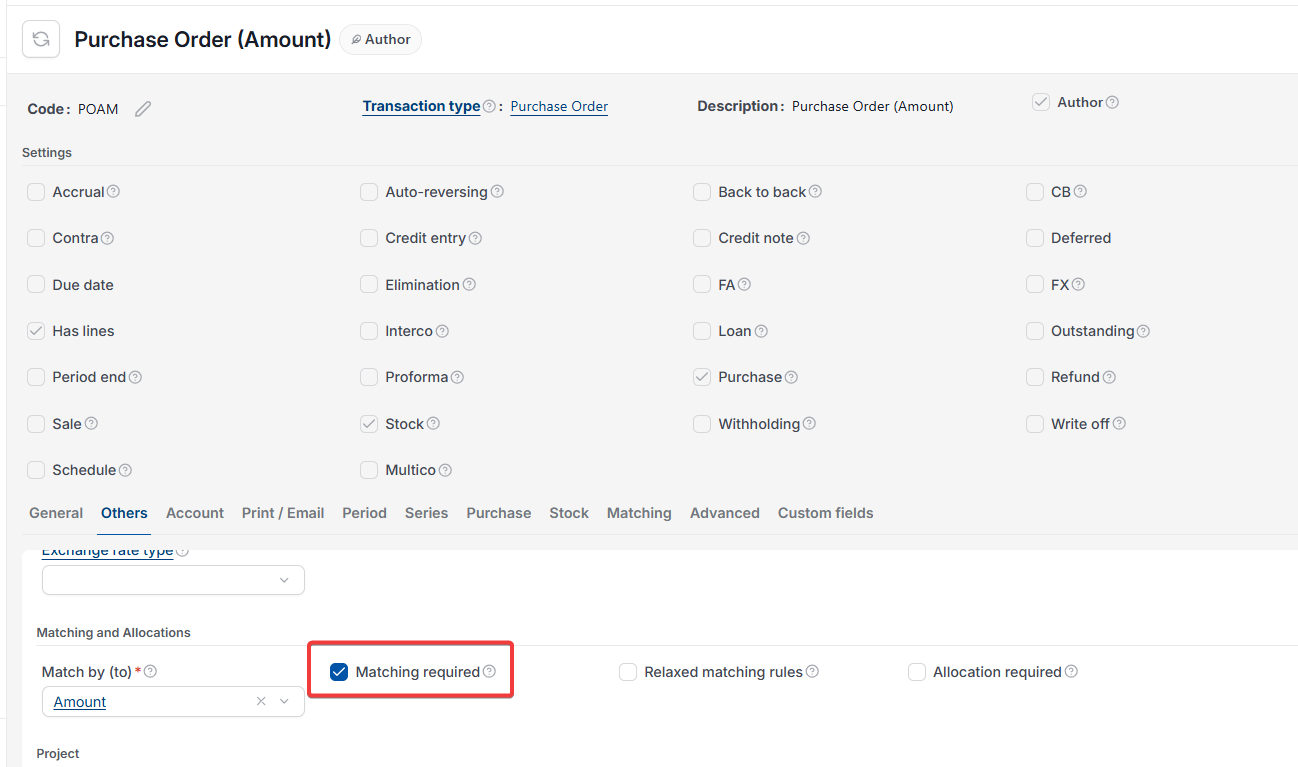
- Go to 'Document types' and open the relevant document type, for example 'Purchase Order (Amount)'
- Select 'Edit', then go to the 'Others' tab
- Under 'Matching and Allocations', tick 'Matching Required'
- Select 'Save'.
Repeat this for each document type you want to enforce matching on.
How do I enforce matching before a document can be submitted?
How do I make matching mandatory prior to document submission?
How can I ensure a document is matched before submission?
How do I configure matching requirements for document submission?
Matching Required tick box