

This article covers adding extra documents to customer invoice emails in iplicit, using the 'Attachment groups' screen and the 'Attachments' tab within 'Communication setup'. Follow it when you want a file – such as a logo, terms and conditions, or another supporting document – to go out automatically with a 'Sale Invoice' email (what most customers call a customer invoice).
Creating an attachment group for sale invoice emails
An attachment group tells iplicit which files are available to attach, and to which type of record. For sale invoice emails, you create the group against the 'Sale Invoice' record type.
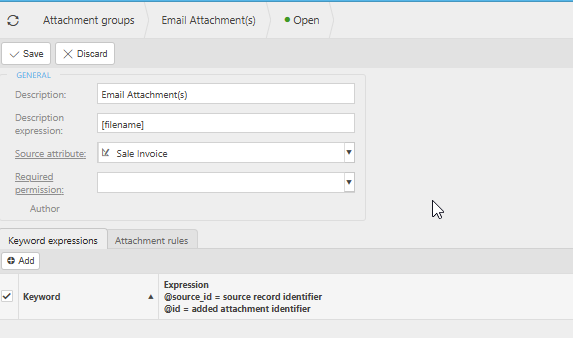
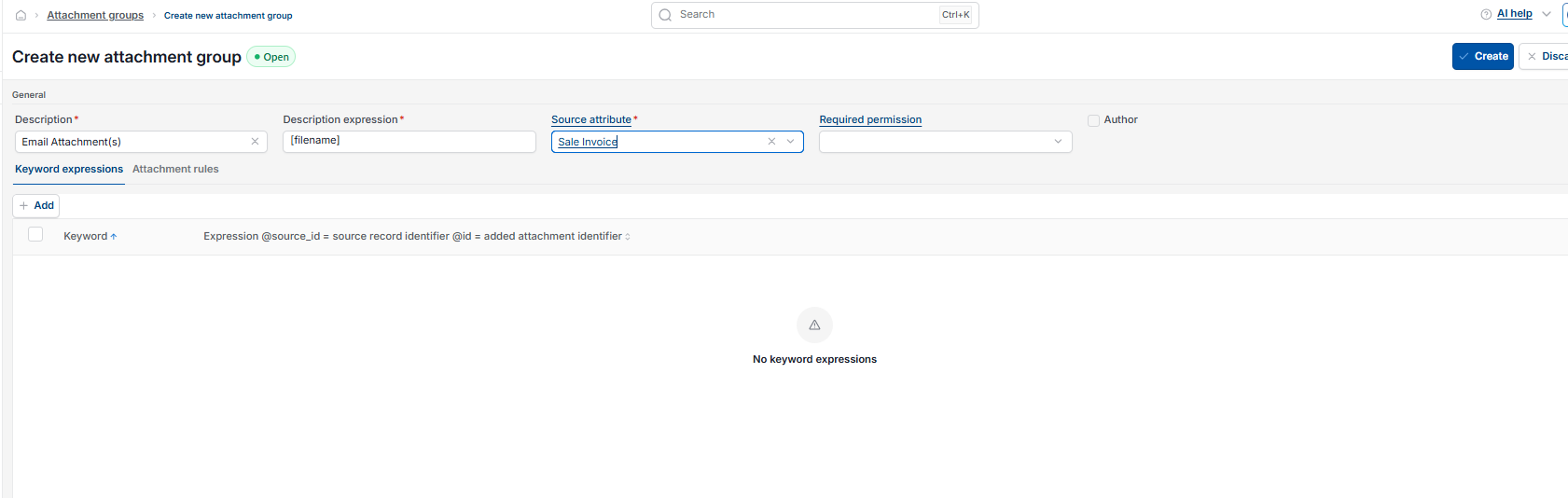
- Navigate to 'Attachment groups' and select 'New'
- Enter a 'Description' for the group – for example, 'Email Attachment(s)'
- In 'Description expression', enter '[filename]' so the attachment name matches the uploaded file
- Set 'Source attribute' to 'Sale Invoice' so the group is available on sale invoice records
- Leave 'Required permission' blank unless you want to restrict who can see this group
- Select 'Save'.
If you have other files that should be stored against a sale invoice but not sent to the customer, create a separate attachment group for those and do not link it to the communication in the next section.
Linking the attachment group to the customer invoice communication
Once the attachment group exists, it needs to be linked to the communication that emails the customer – in this case, the 'Customer Invoice' communication within 'Communication setup'.
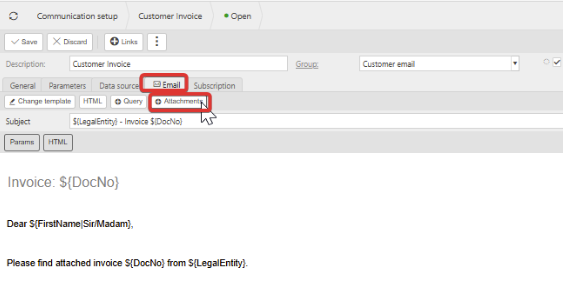
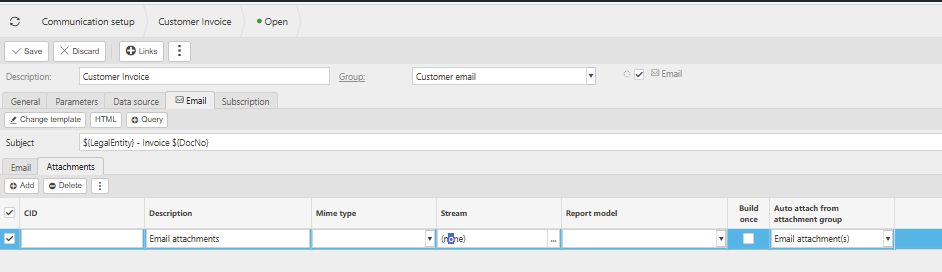
- Navigate to 'Communication setup' and open the 'Customer Invoice' communication (or whichever communication you use to send sale invoices)
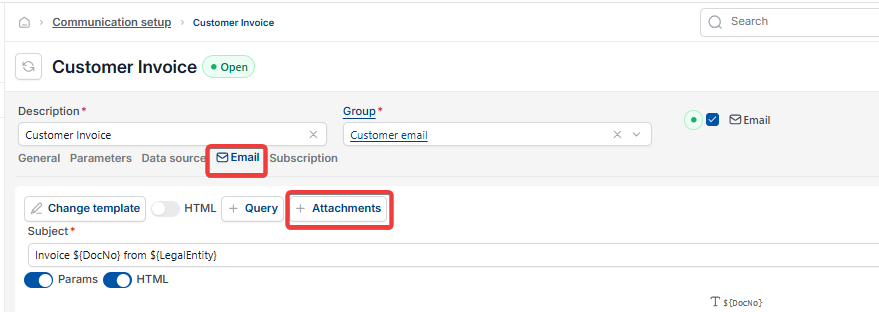
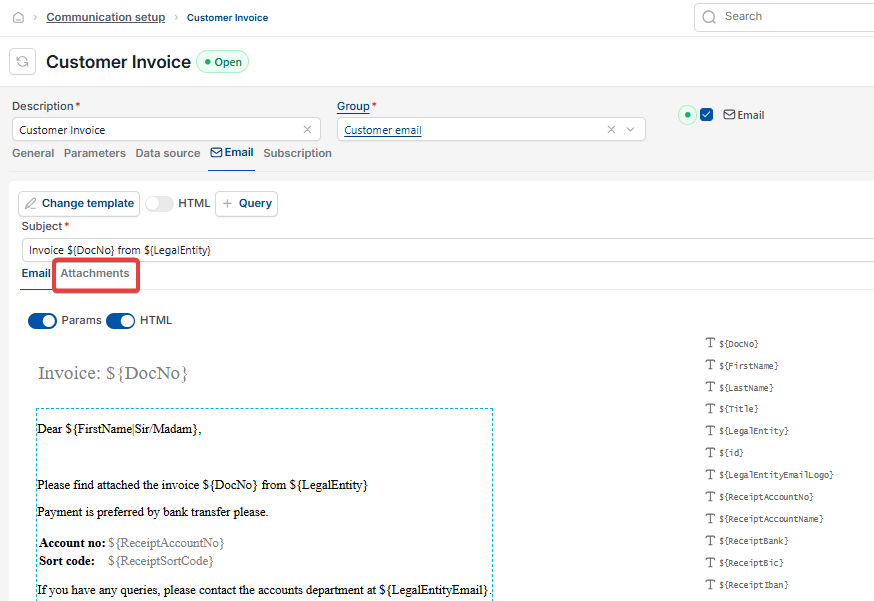
- Select the 'Email' tab
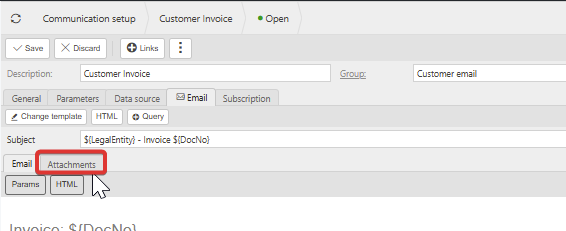
- Select 'Attachments' – this reveals a new 'Attachments' tab below the email body
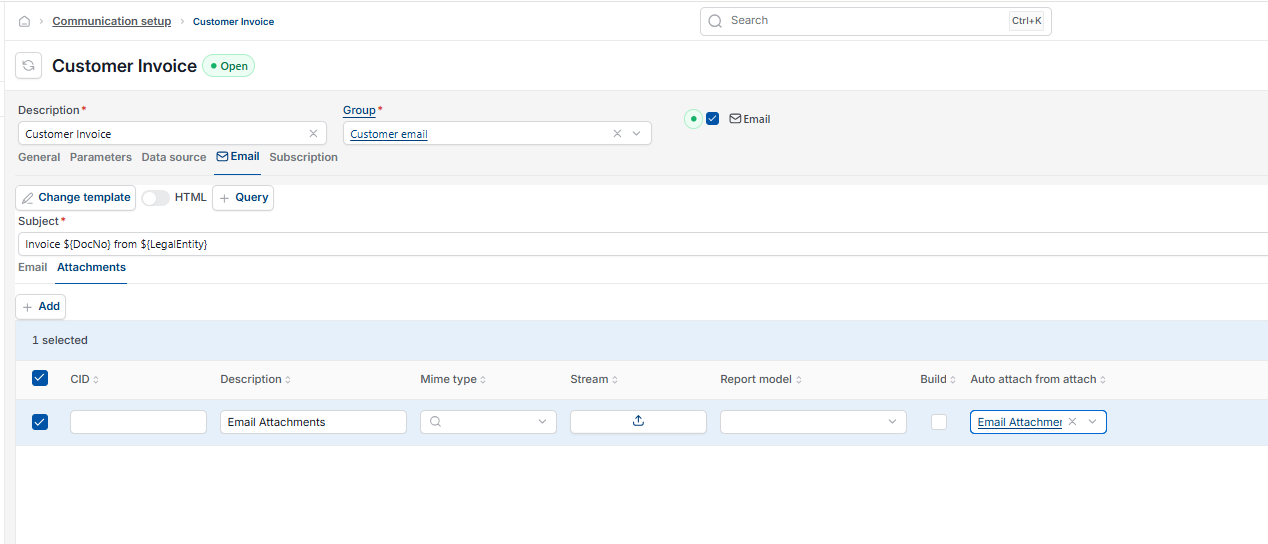
- On the 'Attachments' tab, select 'Add'
- Enter a 'Description' for the row – for example, 'Email attachments'
- Under 'Auto attach from attachment group', select the attachment group you created in the previous section
- Select 'Save'.
Attaching a file to an individual sale invoice
With the attachment group linked to the 'Customer Invoice' communication, you can now attach a file to any sale invoice before it is sent.
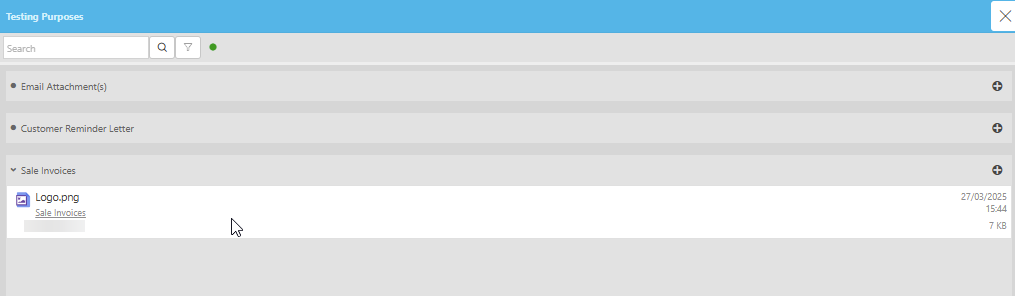
- Open the sale invoice you want to send
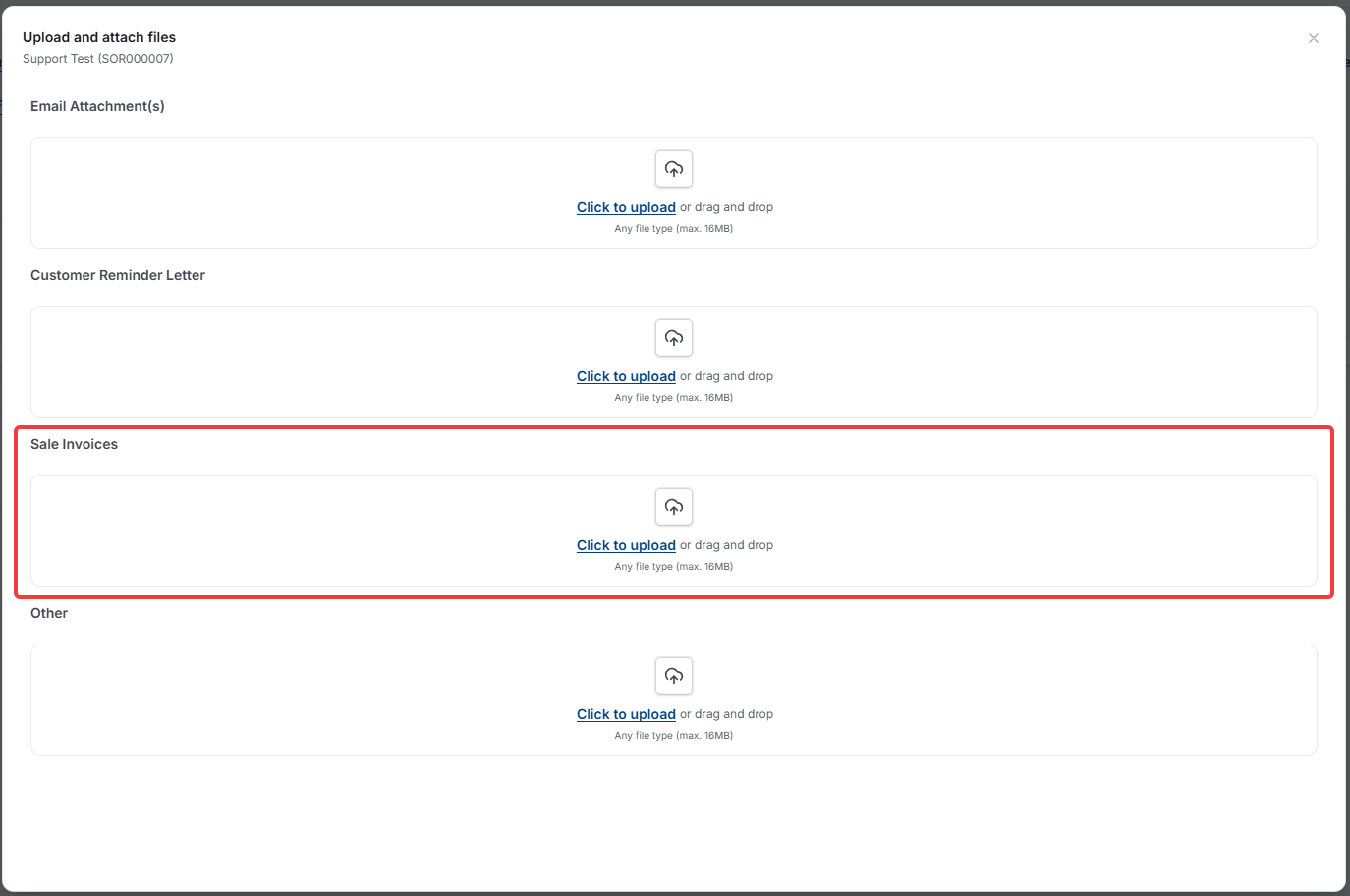
- Select the paperclip (attachment) icon
- Find the attachment group you created – for example, 'Sale Invoices' – and upload the file, such as a logo
- Send the invoice as normal.
iplicit includes the uploaded file automatically when the invoice email is sent to the customer.
Add attachment to invoice email
Attach file to customer invoice
Attachment group setup iplicit
How to email a logo with an invoice
Extra documents on sales invoice email
Send additional file with customer invoice