

There are various areas in iplicit where items can be locked or unlocked, such as bank statements, bank reconciliations, periods, and document types. The process for managing these locks is consistent across the system.
How to view locked items
- Navigate to the screen containing the item you want to lock or unlock.
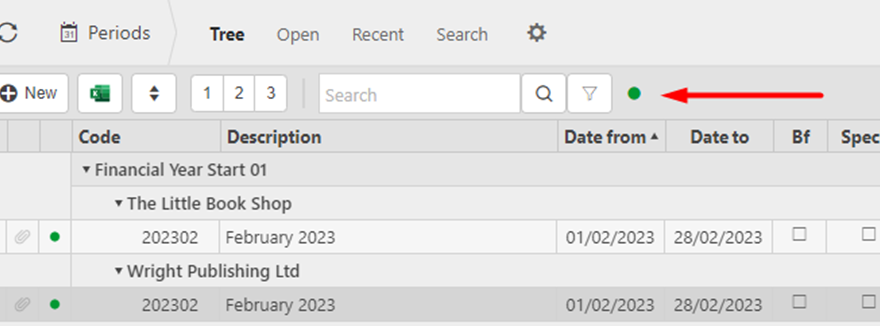
- At the top of the screen, next to the filter, you’ll see a green dot.
- Click the green dot to reveal the padlock icon and display all locked items within that screen.
How to unlock an item
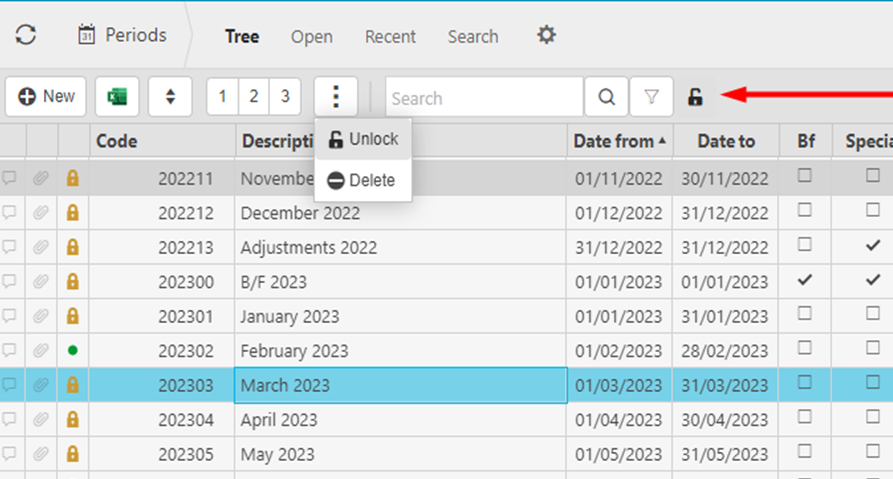
- Select the item you want to unlock by clicking on it.
- Click the ellipsis (three dots) to open the action menu.
- Choose Unlock.
- Once unlocked, the padlock icon on that line will change back to a green dot.
How to lock an item
To lock an item again, follow the same steps:
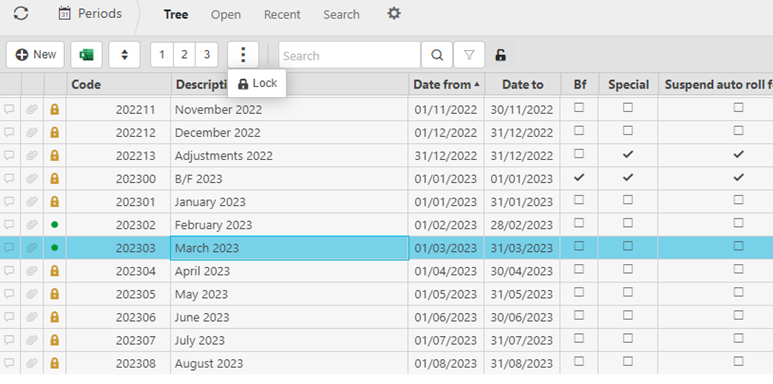
- Highlight the item.
- Open the ellipsis menu.
- Select Lock.
Permissions
If you do not see the lock/unlock options, your user permissions may restrict access to this feature. In this case, please contact your iplicit administrator or line manager for assistance.
Lock a period
Unlock a period
Lock a tax period
Unlock a tax period
Lock a project
Unlock a project
Lock a contact
Unlock a contact
Lock a user account
Unlock a user account
Lock an asset
Unlock an asset
Lock a department
Unlock a department
Lock a cost centre
Unlock a cost centre
Lock a supplier
Unlock a supplier
Lock a customer
Unlock a customer
Locking documents
Hidden documents
Expose hidden items
Hide documents
Padlock icon
How do I find abandoned documents
How do I find abandoned orders
How do I find abandoned invoices
How to find abandoned documents
How to find abandoned orders
How to find abandoned invoices
I can't see abandoned
_______________________________________________________________________________________