

This article explains how to add a field (e.g. "their reference") to an email letter communication (e.g. Reminder letters). The same steps apply to other fields available in the system and other types of email letter communications.
Step 1: Open Communication Setup
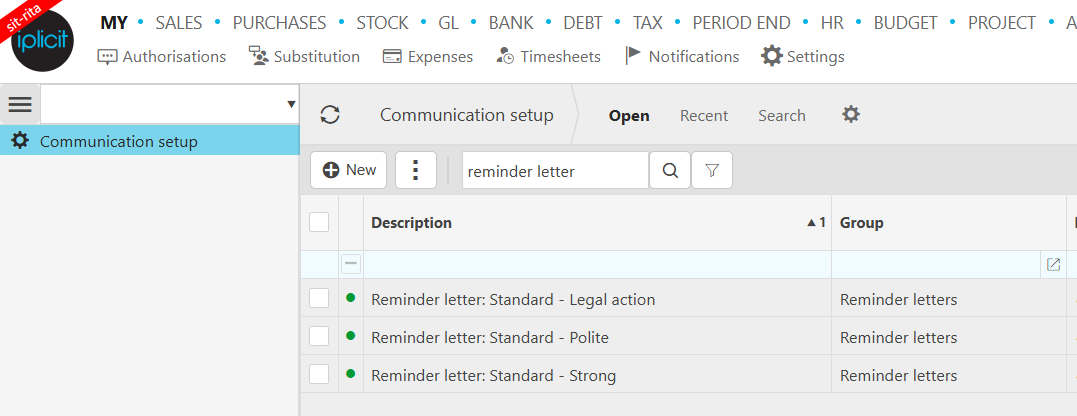
- Access Communication Setup.
- Locate the email letter you want to update, in this example a Reminder Letter.
- You’ll need to repeat this process for each letter communication where the field should appear.
Step 2: Add the Field to the Data Source
- Double-click the reminder letter to open it.
- Go to the Data Source tab.
- Click Edit.
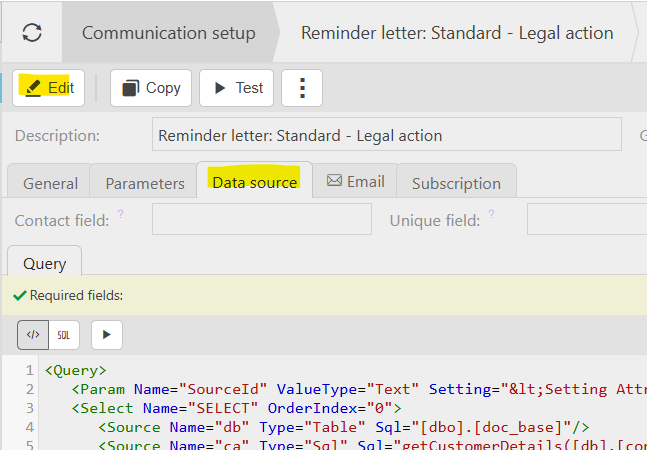
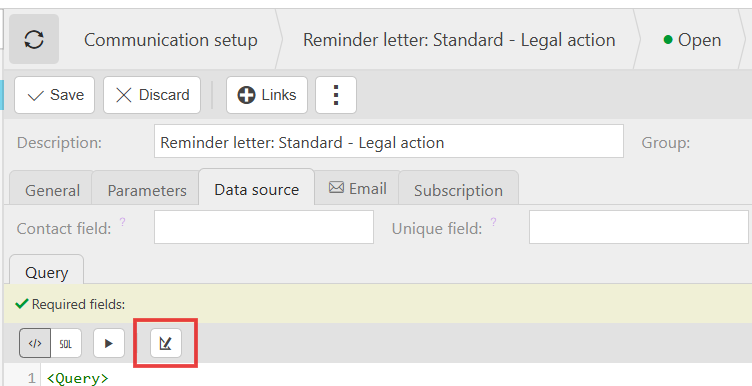
4. Then click the design button to open additional options.
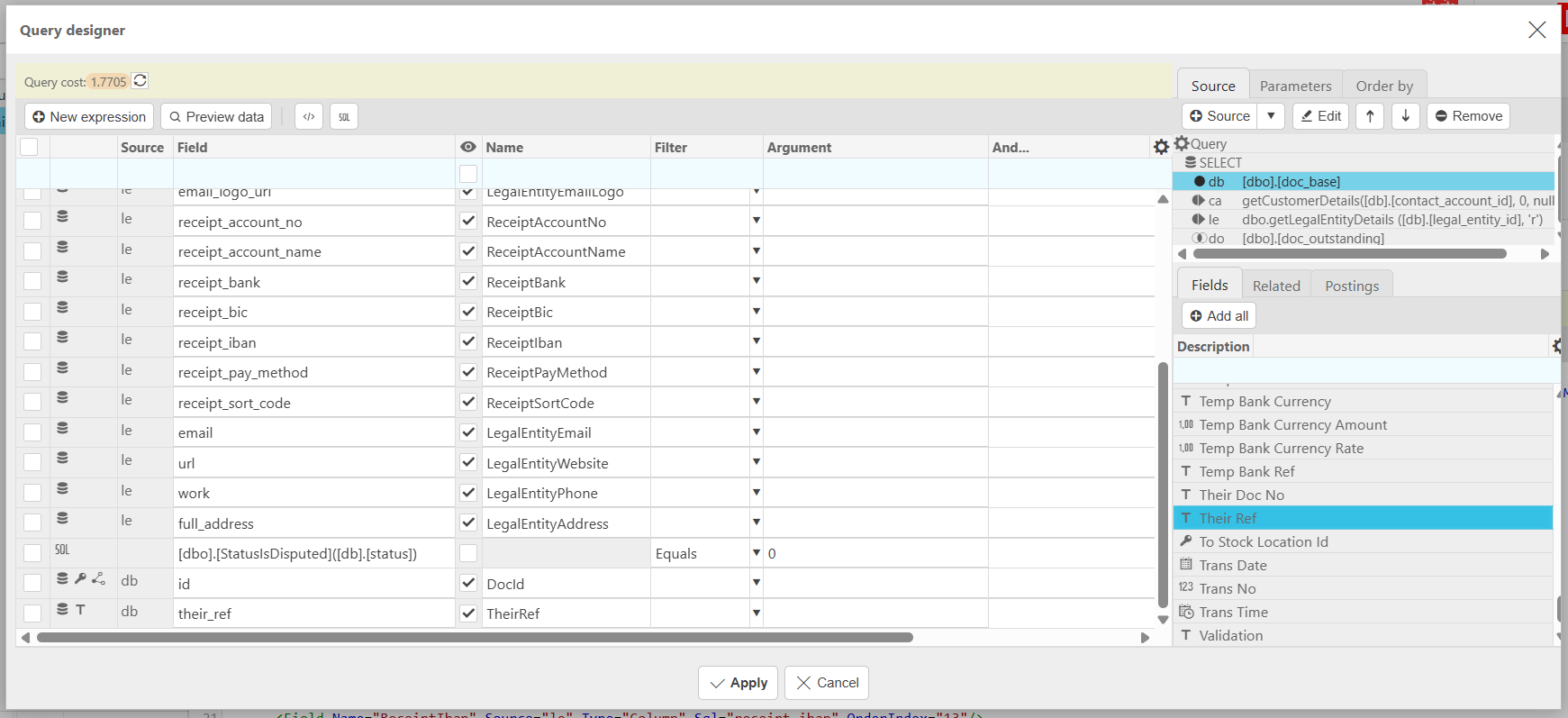
5. In the new pop up window:
- Click once on the Document Base option [doc_base].
- On the left, scroll through the alphabetical list below to find the field you want to add (e.g. "Their Reference").
- Double-click the field.
- On the right, scroll to the bottom of the table to confirm it has been added.
- Click Apply.
Step 3: Save and Refresh
- Save the changes.
- Close the communication window.
- Refresh iplicit on the communication setup section, to ensure the changes are applied.
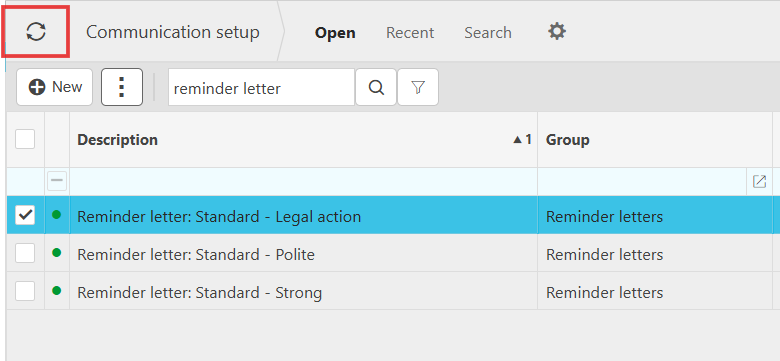
Step 4: Add the Field to the Email Text
- Reopen the communication you edited.
- Go to the Email tab.
- Click Edit.
- In the middle column, scroll to confirm the field is now available.
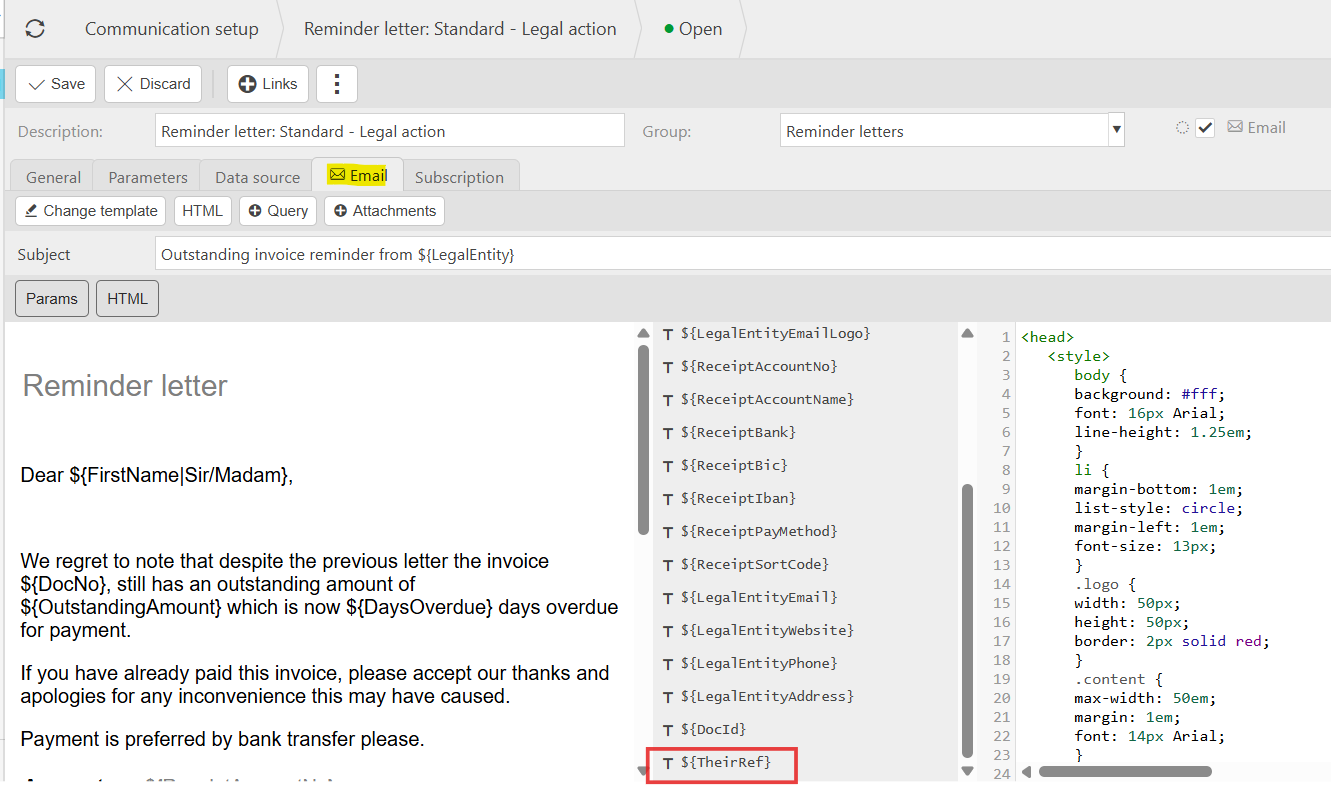
5. In the email body, navigate to the exact location where you want the field to appear:
- Type the field manually using the correct syntax.
- Ensure correct spelling, capitalization, and symbols
- You can add additional text or formatting around the field as needed for context.
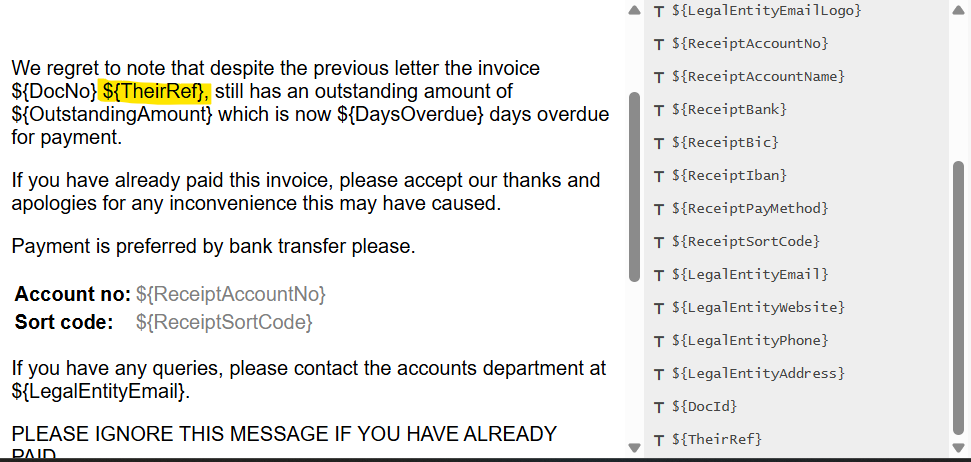
Step 5: Test the Communication
- Use the preview feature by clicking on the Test button.
- Enter a document number that contains the field data.
- Confirm that the field appears correctly in the preview.
- Adjust formatting if needed (e.g. adding a slash or separator).

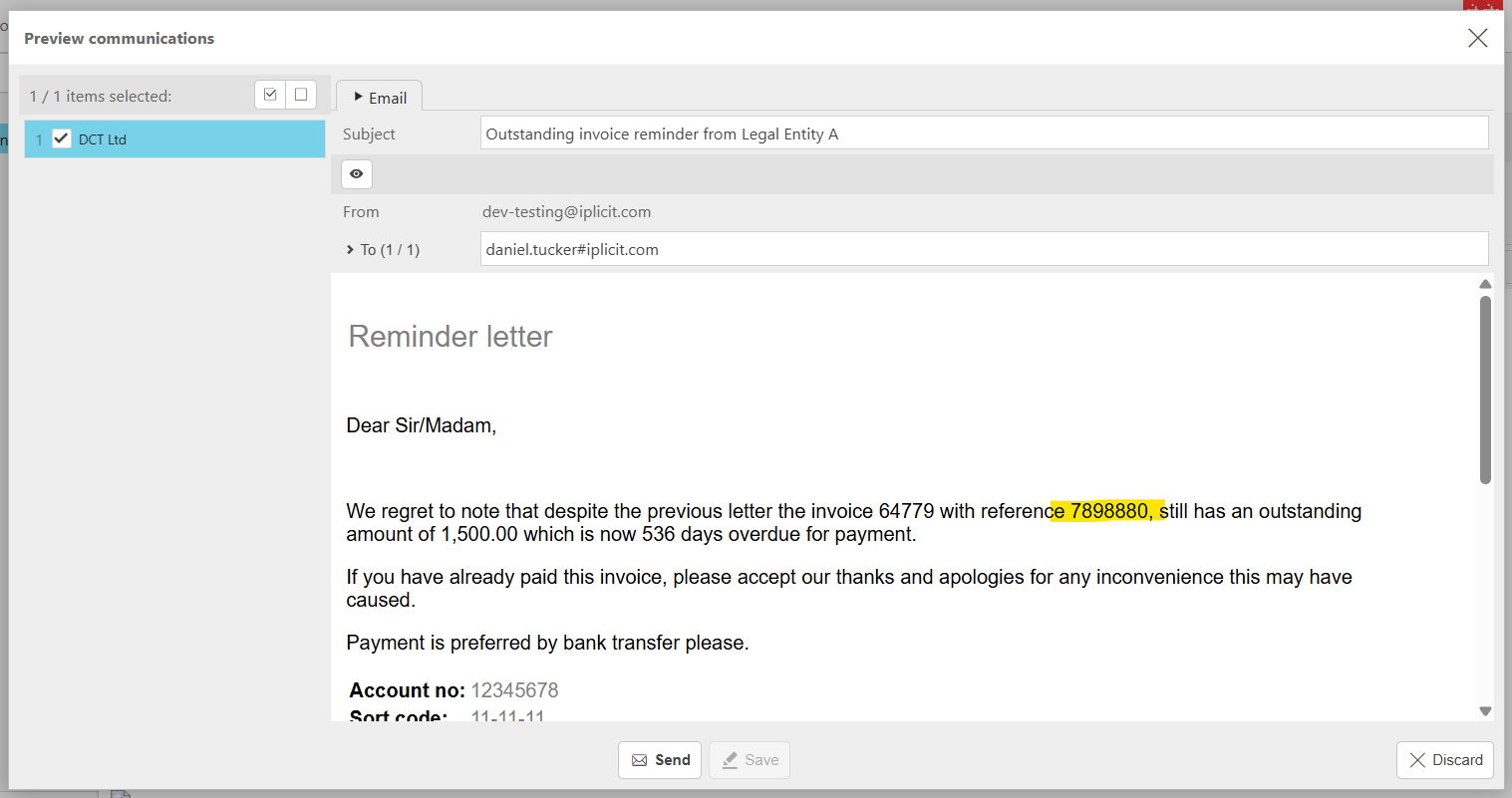
Additional Notes
- Always verify the field name and syntax before saving.
- You can repeat these steps to add other fields to communications.
- Testing helps ensure the field pulls correctly from the data source.
Customer search terms
How to add a text field to my communications
How to add a text field to my letters
How to add a text field to my emails
Adding an additional field to my communications
_______________________________________________________________________________________