

This article covers Data Access Control (DAC) specifically, for department and cost centre visibility. When you create a new department or cost centre in iplicit, it does not automatically appear to users, even those in a DAC group called 'All' or one that appears to cover everything. Access must be granted explicitly.
Why the new department or cost centre is hidden
Every new department or cost centre in iplicit is locked by default when it's created. This applies regardless of how broad a user's existing DAC access looks – a group named 'All' does not mean all future items are included automatically. You need to grant access to the new department or cost centre after creating it, using one of the two methods below.
Method one: adding the new department to an existing DAC group
Use this method if you want the new department or cost centre added to a DAC group that already exists – for example, a group that gives broad or 'all department' access.
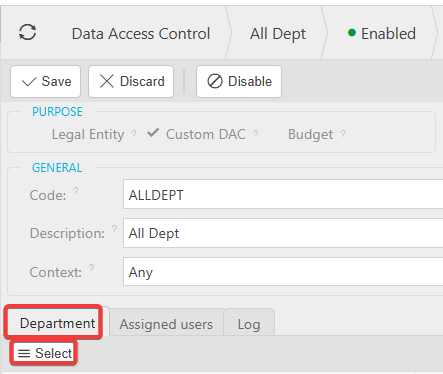
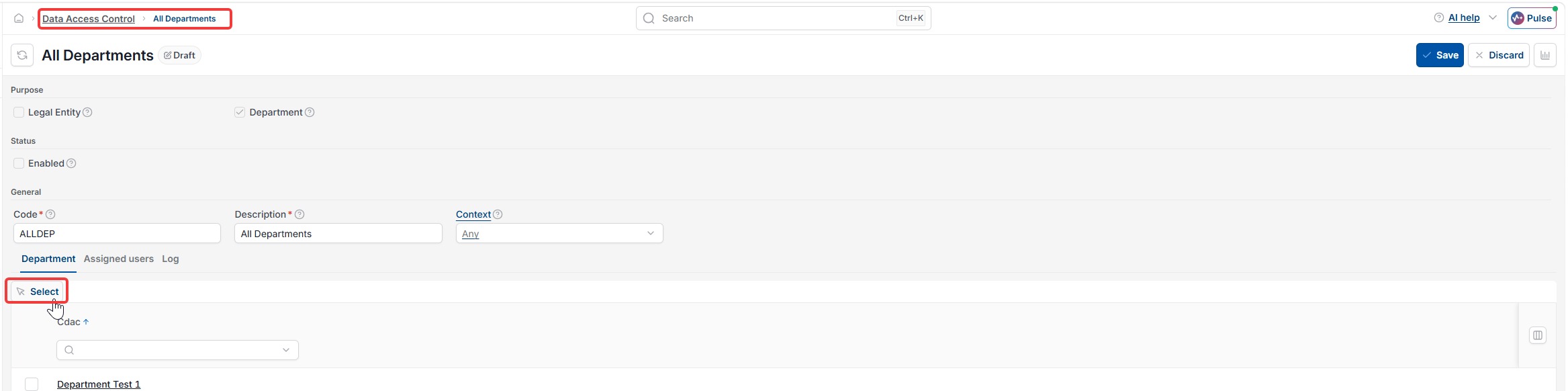
- Go to Data Access Control (DAC) and open the relevant group
- Select 'Edit'
- Go to the 'Department' tab (this may say 'Cost Centre' depending on what you're adding)
- Select 'Select'
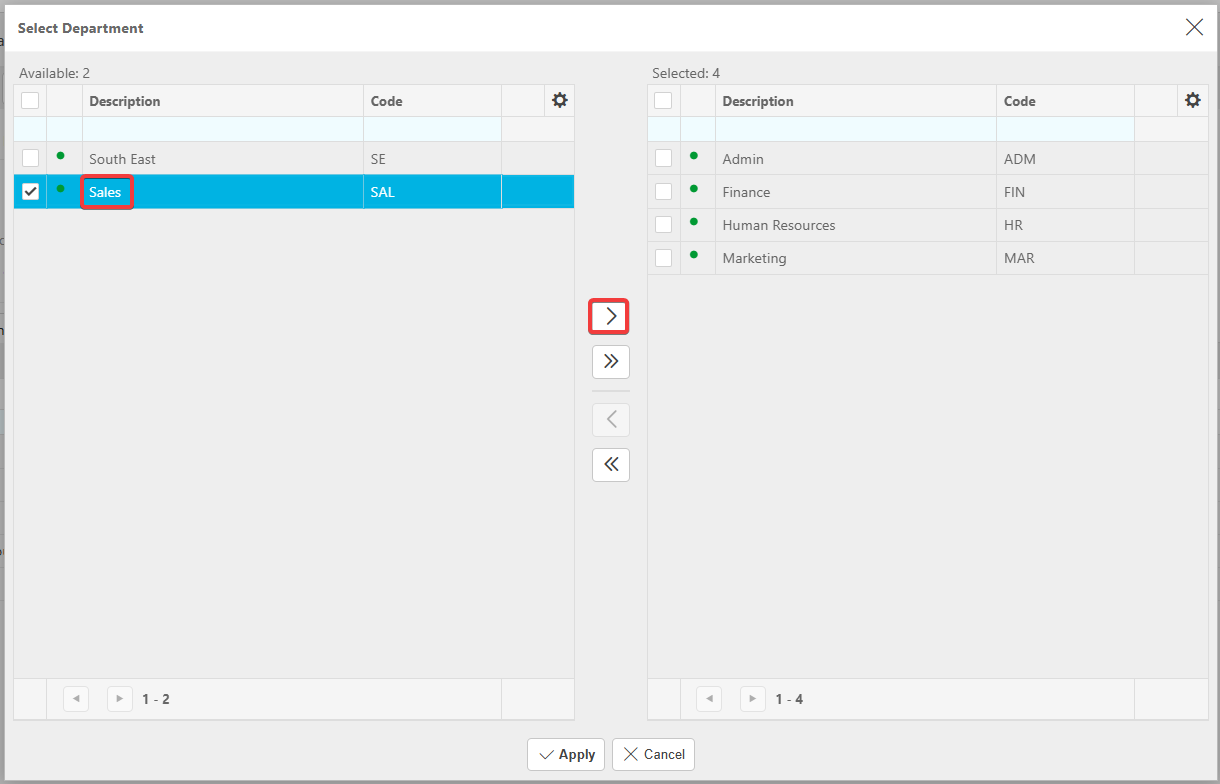
- Find the new department or cost centre in the available list and select it
- Use the arrow button to move it into the selected list
- Select 'Apply'
- Select 'Save'.
Method two: creating a new DAC group for the department
Use this method if you want to control access to this department or cost centre separately, rather than folding it into an existing group.
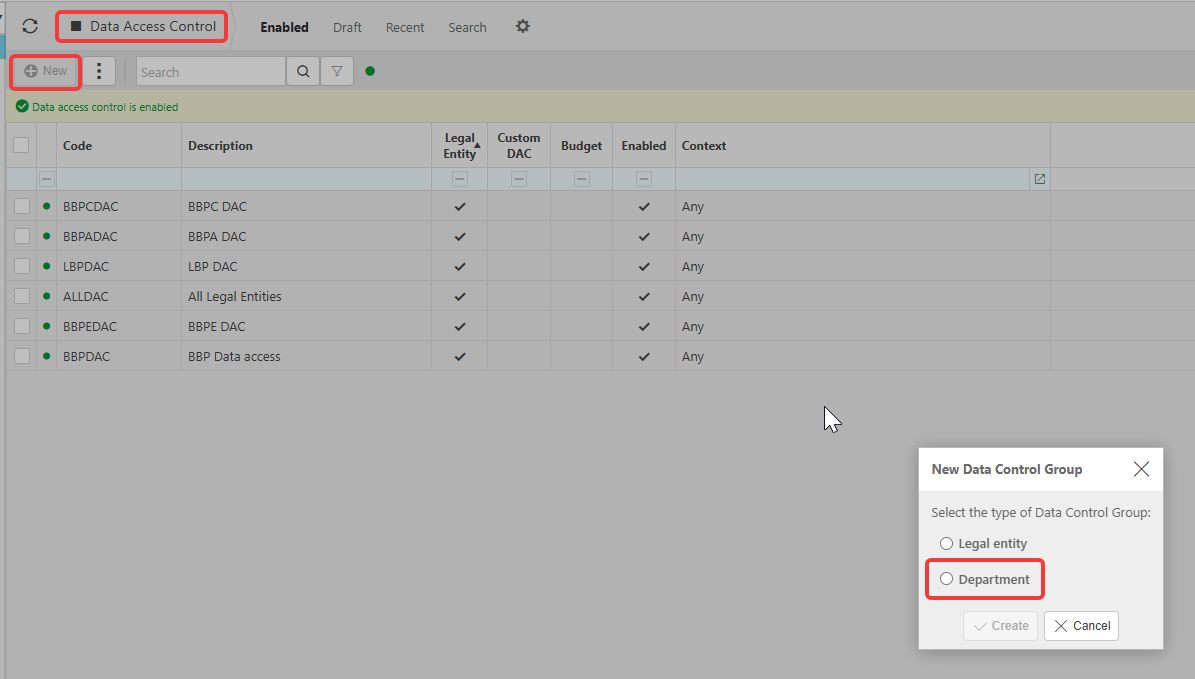
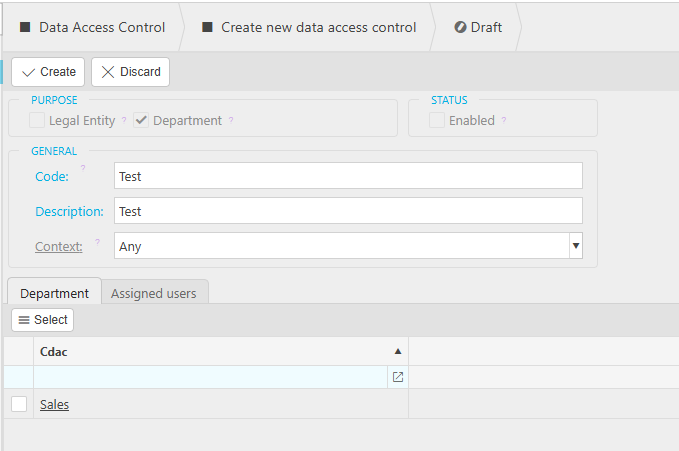
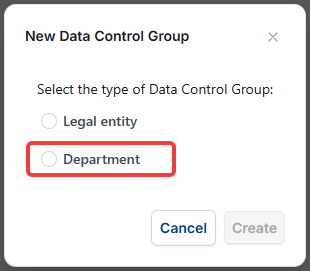
- In Data Access Control (DAC), select 'New'
- Select the attribute you need – for example, Department or Cost Centre
- Add a code and description for the group
- Go to the 'Department' or 'Cost Centre' tab and select the new item
- Go to the 'User' tab and select the users who should see this department or cost centre
- Select 'Create'.

After making the change
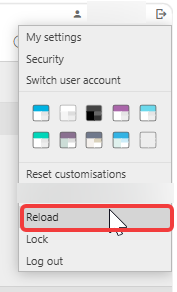
Changes to Data Access Control do not apply immediately. Users must select their profile icon and choose 'Reload' from the menu for the new department or cost centre to appear. Signing out and back in will also work, but 'Reload' is quicker.

Can't see new department
New cost centre not showing
DAC not updating
All DAC group missing department
User can't see new cost centre
Data Access Control new department