

There is no single fixed template for importing documents into iplicit. However, the same logical structure and approach applies regardless of the type of document you are importing.
Understanding the Import Template
The column headers in the import file should follow the standard iplicit format and should not be altered.
Although the required fields vary depending on the document type, the structure remains consistent:
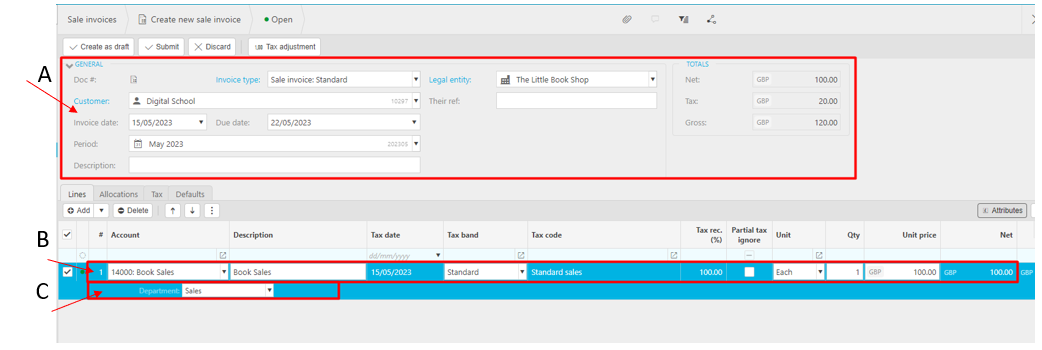
- Columns prefixed with
h.relate to header‑level information (highlighted A) - Columns prefixed with
d.relate to detail‑line information (highlighted B) - Columns prefixed with
d.post.relate to posting attributes, based on the nominal code’s Chart of Accounts rules (highlighted C)

Populating the Template
Most fields in the import file require unique identification codes that correspond to items within your iplicit environment.
Examples include:
- Document type code (e.g.,
SISTDfor Sales Invoice: Standard) - Contact account code (customer or supplier)
- Nominal account code
- Unit of measure (UOM)
- Tax band code
- Department code
Other fields - such as dates, descriptions, and currency values - are entered manually based on the requirements of the document.

Minimum Requirements for Importing
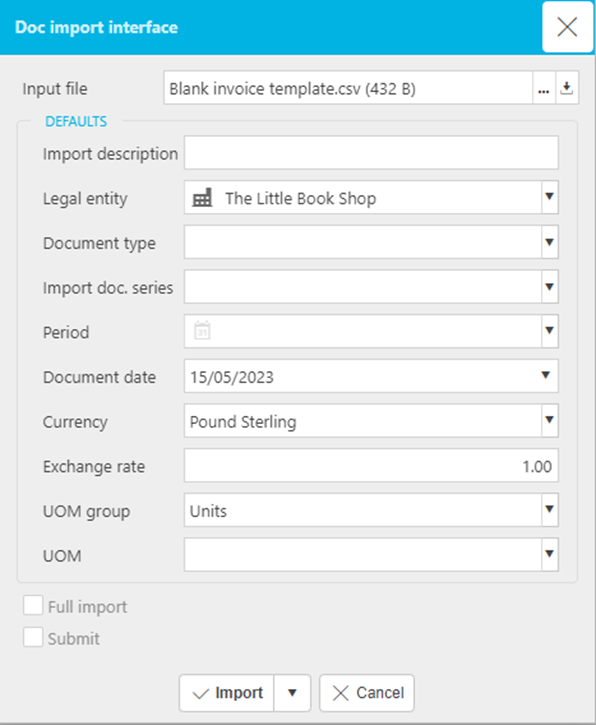
When using the import interface, iplicit will validate the file based on the values provided.
Some fields, such as Legal Entity or Currency, can be added to the template if required.
You may also choose to use Full Import, which:
- Assumes no errors are present
- Allows the import to be submitted and posted directly to the ledger
Use this option with caution, as any errors will prevent the import from completing.
Handling Import Errors
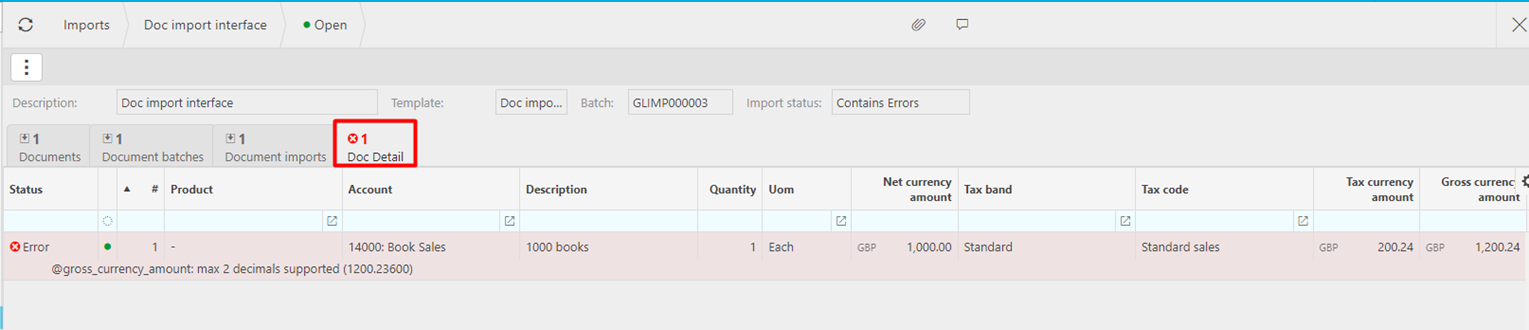
If an error occurs, iplicit will highlight:
- The tab where the error exists
- A description of the issue
Common examples include:
- Currency values with more than 2 decimal places (iplicit only supports 2)
- Incorrectly formatted dates
- Missing or invalid codes (e.g., nominal, tax band, contact)
If you attempted a Full Import and an error is detected, iplicit will display a general error message.
In this case, re‑run the import without Full Import ticked to view the detailed error information.
Where there is an error with an import it will show as highlighted which tab it affects and usually with description indicating the error.
In the example below the overall currency amount on the import was entered with more than 2 decimal places. This is an error as iplicit only supports values with 2 decimal places. Other errors may be incorrectly formatted dates or missing/incorrect value codes.
Important Considerations
1. Do not edit the column headers
Changing the header names will cause the import to fail.
2. Ensure codes match your environment
All codes used in the file must exist and be valid within your iplicit setup.
3. The file must be saved as a CSV
iplicit only accepts CSV format for imports.
No other file types are supported
4. Custom attributes can also be included in an import template
The column header must have the prefix post.X_
5. Custom fields can be included in an import template too
The column header must have the prefix h.ext.X_
Importing documents
Headers for importing
Import information
How to import
Import error
import templates
Import troubleshooting
_______________________________________________________________________________________