

This article covers adding bank details so they appear automatically on invoices and in the related invoice email communications. This is set up once on the legal entity, under its 'Bank accounts' defaults.
How to add bank details to a legal entity's defaults
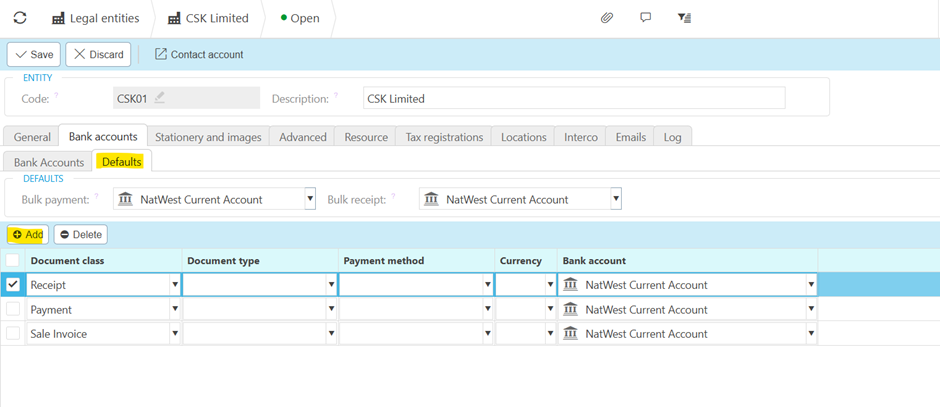
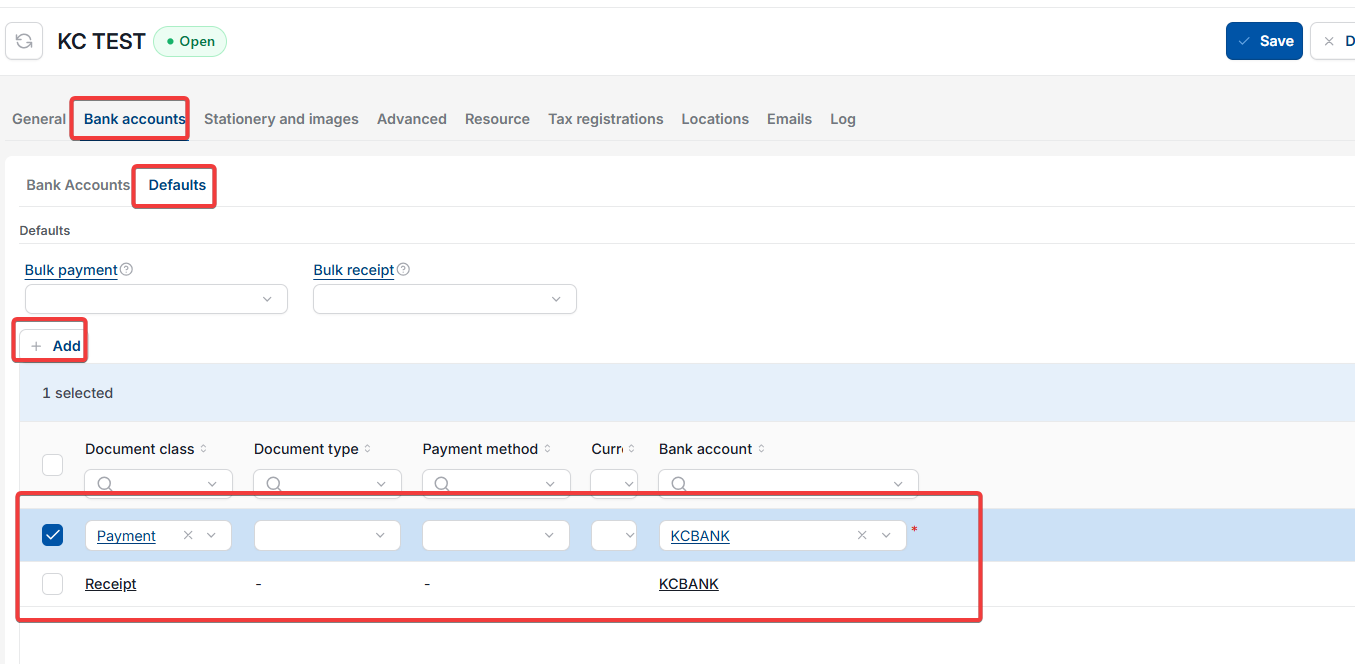
- Go to 'Legal entities' and open the relevant legal entity
- Select 'Edit'
- Select the 'Bank accounts' tab, then the 'Defaults' sub-tab
- Under the list of document classes, for example 'Receipt', 'Payment' or 'Sale Invoice', select or confirm the correct 'Bank account' for the row relevant to invoicing
- Select 'Save'.
Once saved, the bank details are pulled through automatically into both the invoice document and the email template when sending.
Screenshots for Legacy UI (before October 2026)
Screenshots for New UI (post October 2026)
Customer search terms
Bank details on invoice
Bank account defaults legal entity
Missing bank details invoice email
Add bank information to invoice