

Suppliers placed on Hold/Stop will still appear in the Batch Payment screen if they have outstanding invoices. This is expected behaviour: the system displays all items that are technically due for payment. However, if you attempt to generate the payment, iplicit will block the process and display an error because the supplier is on Hold/Stop. This ensures that no payment can be completed for a restricted supplier, even if their invoices appear in the list.
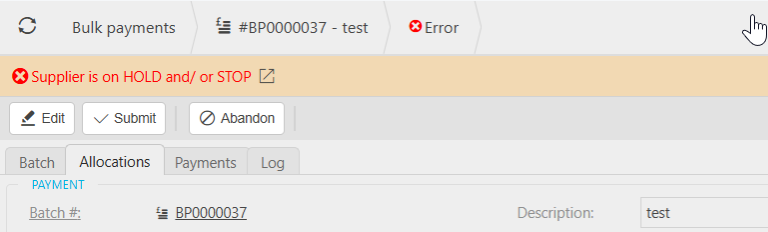
If you want suppliers on Hold/Stop to be completely excluded from appearing in the Batch Payment list, you can use Contact Classifications to filter them out. This method gives you more control over which suppliers appear in the batch process.
Important Note
If you use this method, you must update the supplier’s classification at the same time you apply or remove a Hold/Stop flag. This ensures the workflow remains accurate and no suppliers are missed.
1. Set Up Contact Classifications
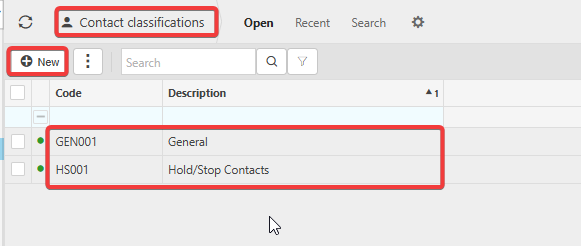
Create two classifications:
• General – assigned to all suppliers by default
• Hold/Stop – assigned only to suppliers currently on hold
How to set them up:
1. Navigate to Contact Classifications.
2. Create two classes: General and Hold/Stop.
3. Assign a unique code to each classification.
2. Assign Classifications to Supplier Accounts
You can update suppliers individually or in bulk.
Bulk Update Method
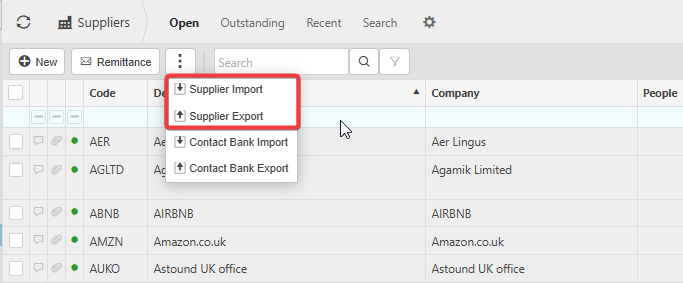
1. Go to the Suppliers screen.
2. Export the supplier list to Excel.
3. Add the appropriate classification code in the Classification column.
4. Import the file back into iplicit to update all supplier accounts.
This is the quickest way to apply classifications across your supplier base.

3. Use Classifications When Creating a Batch Payment
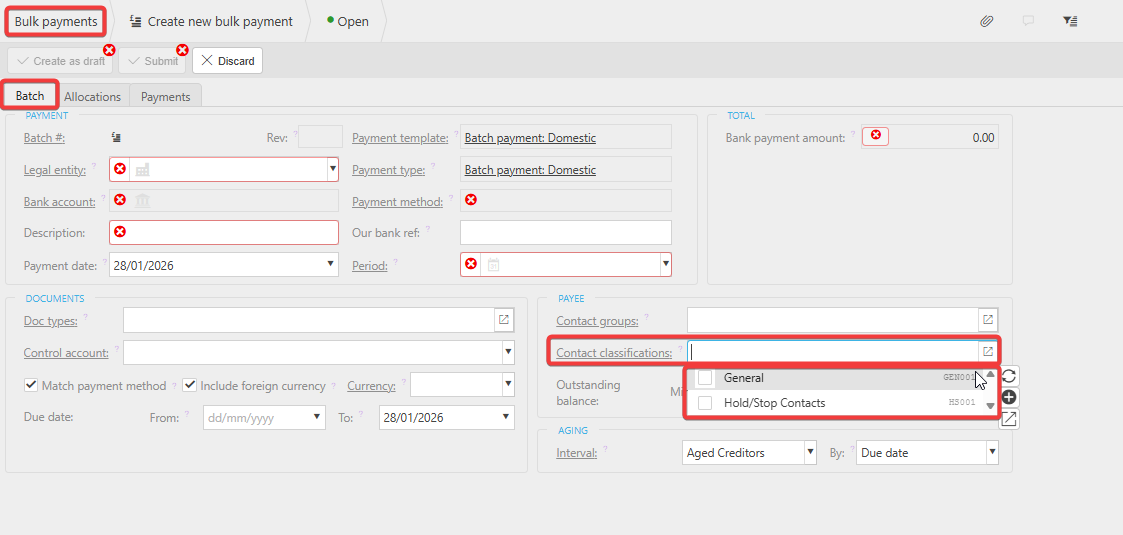
When generating a batch payment:
• Use the classification filters on the Batch Payment screen.
• Select only the classifications you want to include (e.g., General).
• Exclude the Hold/Stop classification so those suppliers do not appear at all.
This prevents Hold/Stop suppliers from showing in the batch list, even if they have outstanding invoices.
4. Ongoing Maintenance
Whenever you:
• Place a supplier on Hold/Stop, or
• Remove a supplier from Hold/Stop, you must also update their Contact Classification accordingly.
This ensures the filtering logic continues to work as intended.