

This article covers setting up a settlement discount, so iplicit automatically posts a discount to a chosen General Ledger code when a customer pays early or qualifies for a reduced amount. The setup spans several screens, so follow the steps in order.
Step one: create a settlement discount GL code
If you don't already have a General Ledger code for settlement discounts, create a new one and tick the following options:
- Adjustment
- Charges
- Sale.
This enables the code to be used correctly during receipt processing.
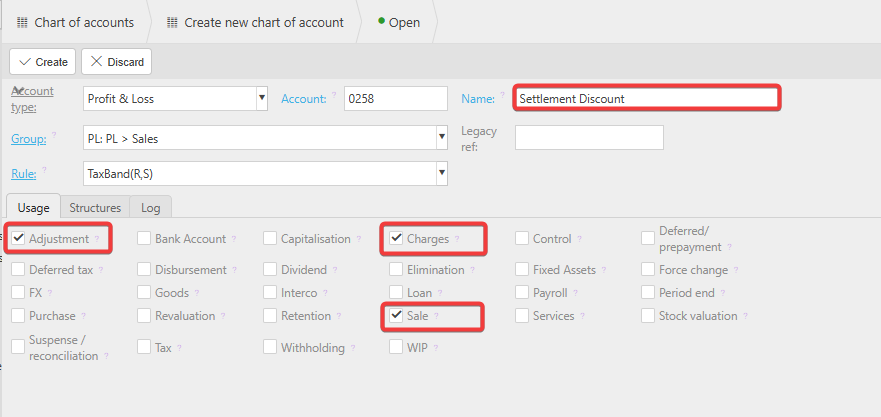
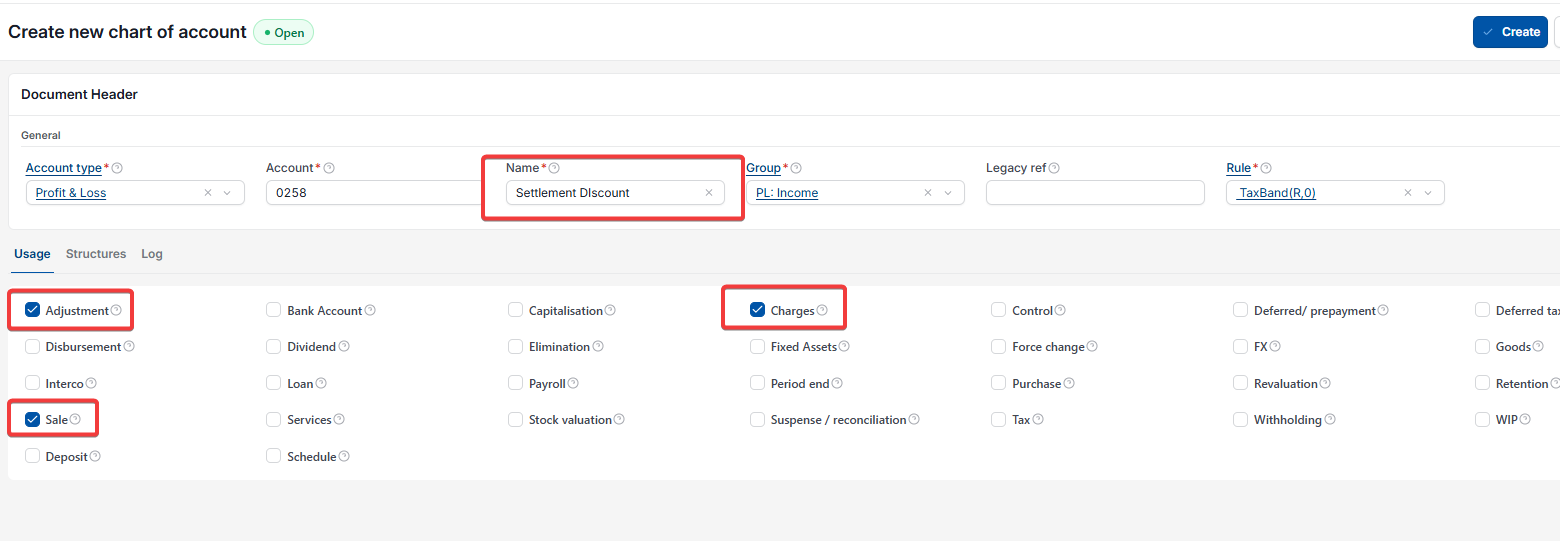
Step two: add the settlement discount GL code to Account Defaults
Go to 'Account Defaults', locate the 'Charges' section and add the settlement discount GL code you created in step one. This ensures all settlement discount postings go to the correct nominal.
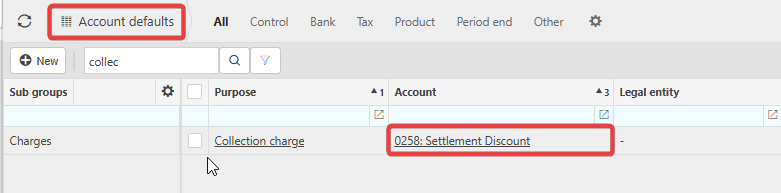
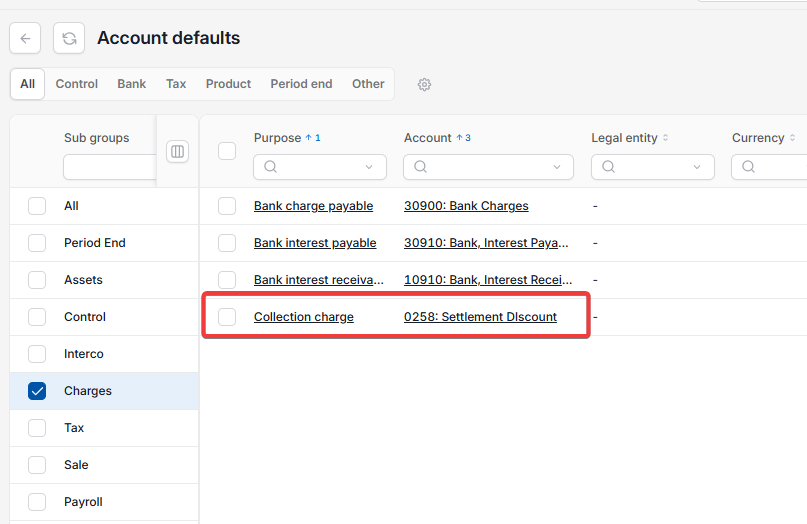
Step three: create a settlement discount Payment Method
Create a new Payment Method specifically for settlement discounts. Tick 'Charges', then add each discount percentage you want to offer, for example two per cent or five per cent. You can add as many discount options as needed. This Payment Method controls which discounts are available when processing receipts.
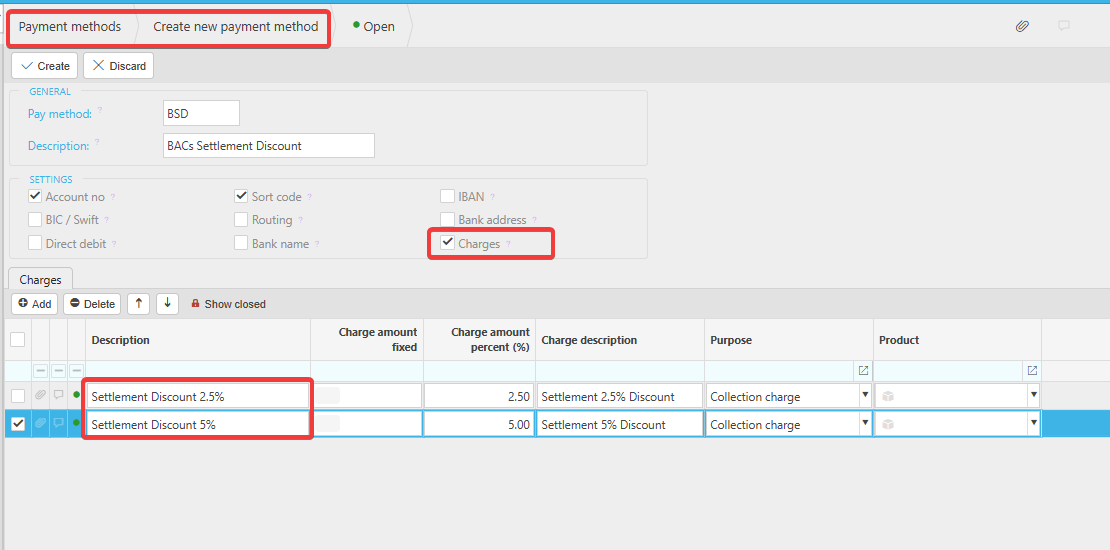
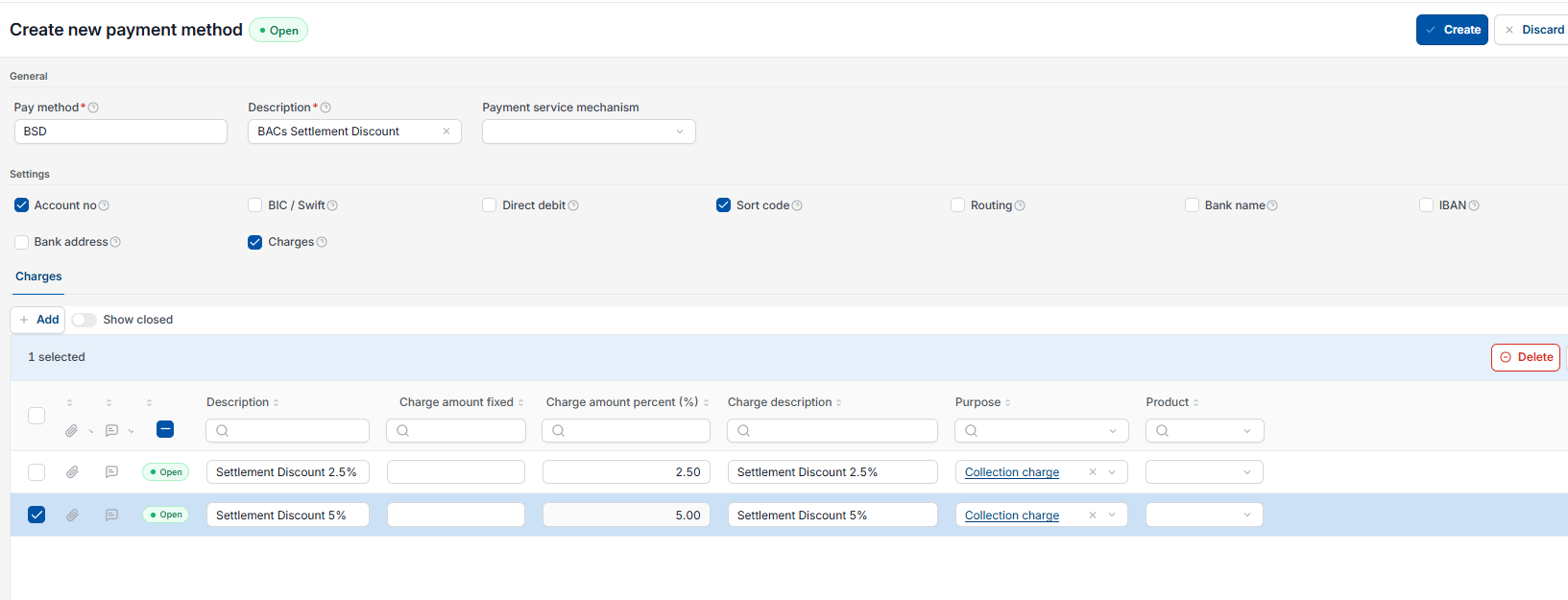
Step four: add the settlement discount Payment Method to the bank account
Go to the relevant Bank Account and add the new Payment Method under 'Receipts'. This ensures the discount options appear when receipts are created against this bank account.
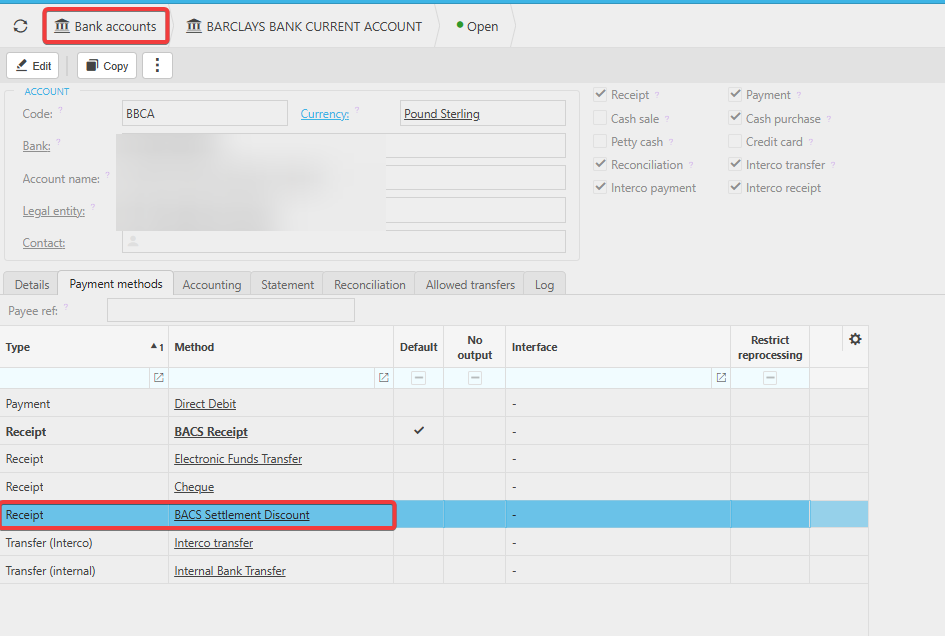
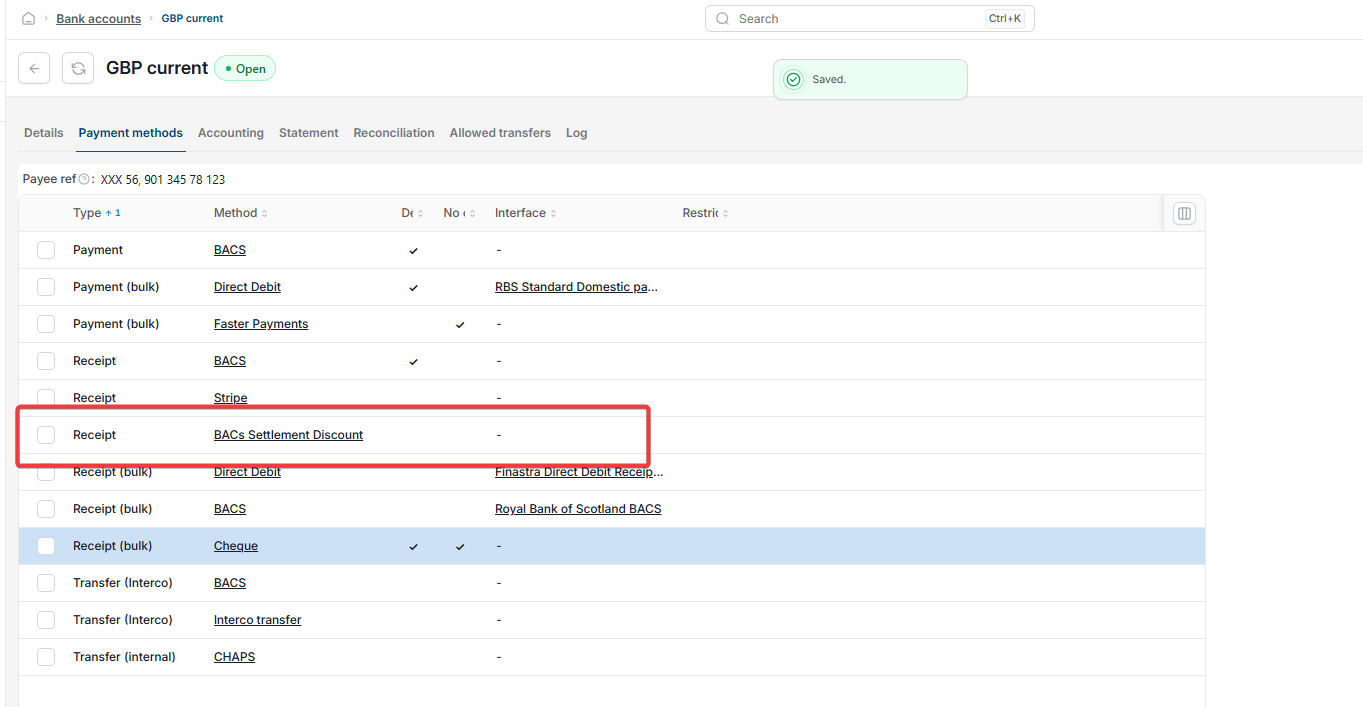
Step five: assign the settlement discount Payment Method to eligible customers
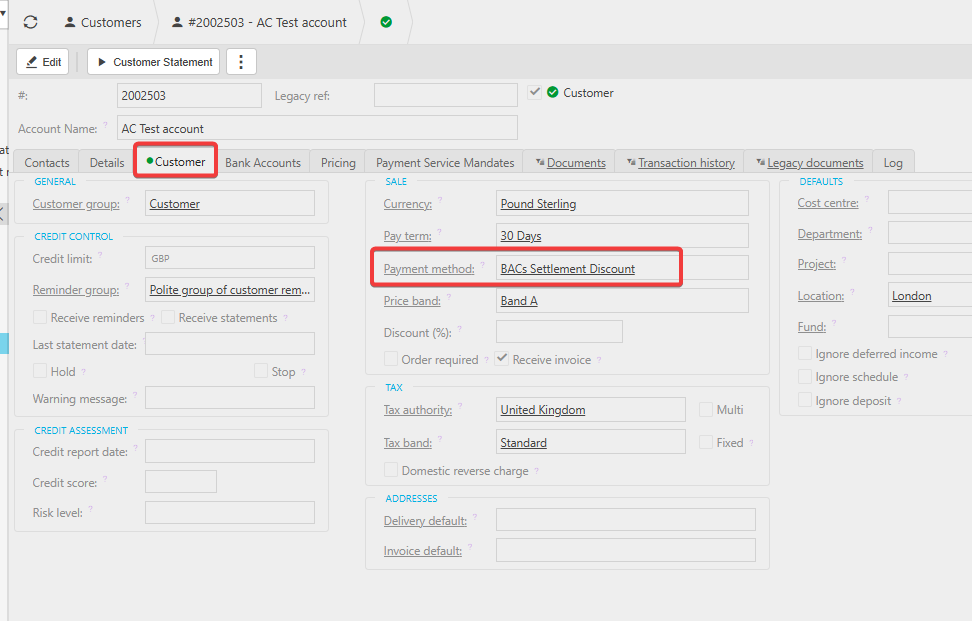
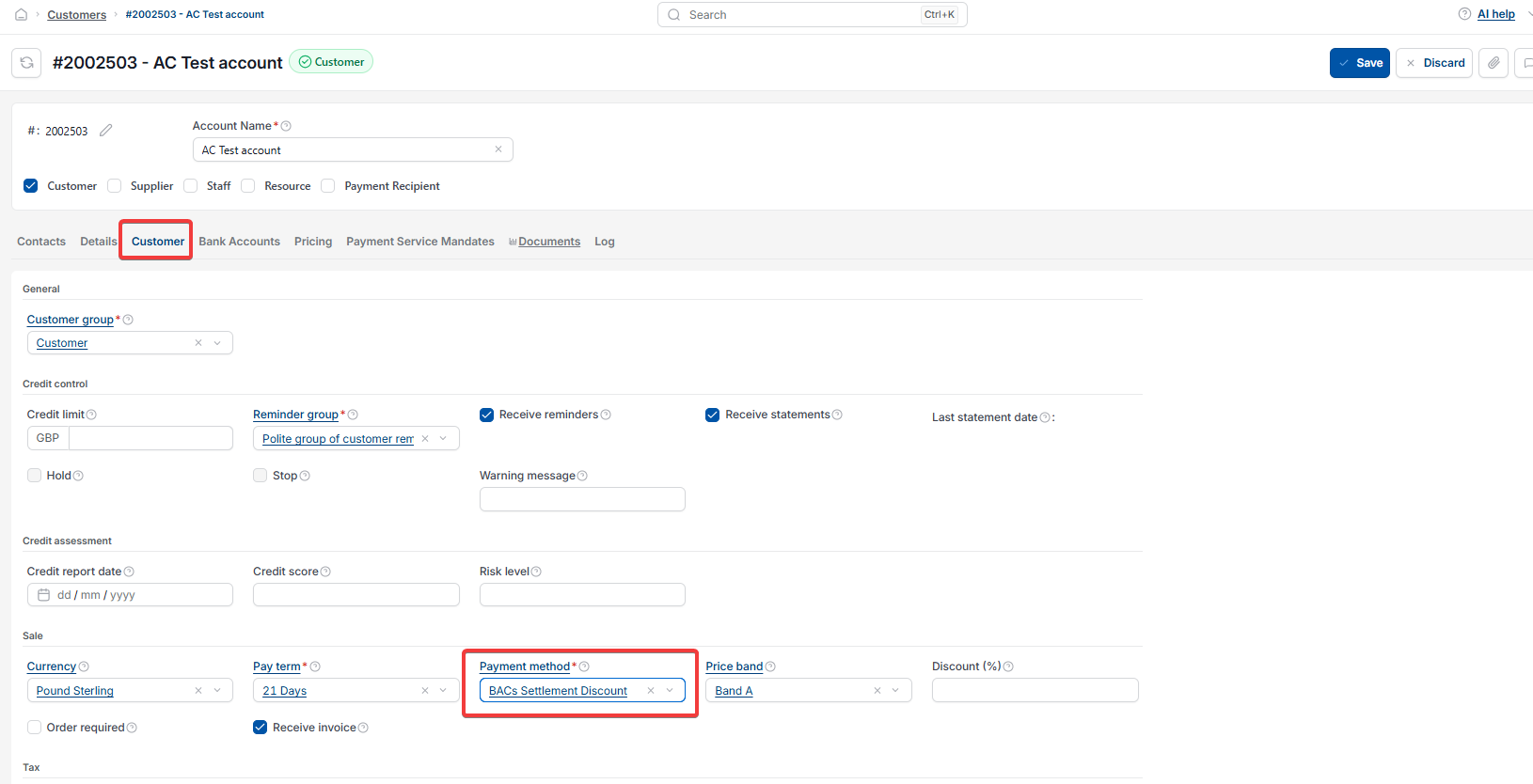
For each customer eligible for settlement discounts, open the customer record and update their Payment Method to the one you created in step three. This ensures the discount options appear automatically when processing their payments.
Step six: allow charges on the Customer Receipt document type for settlement discounts
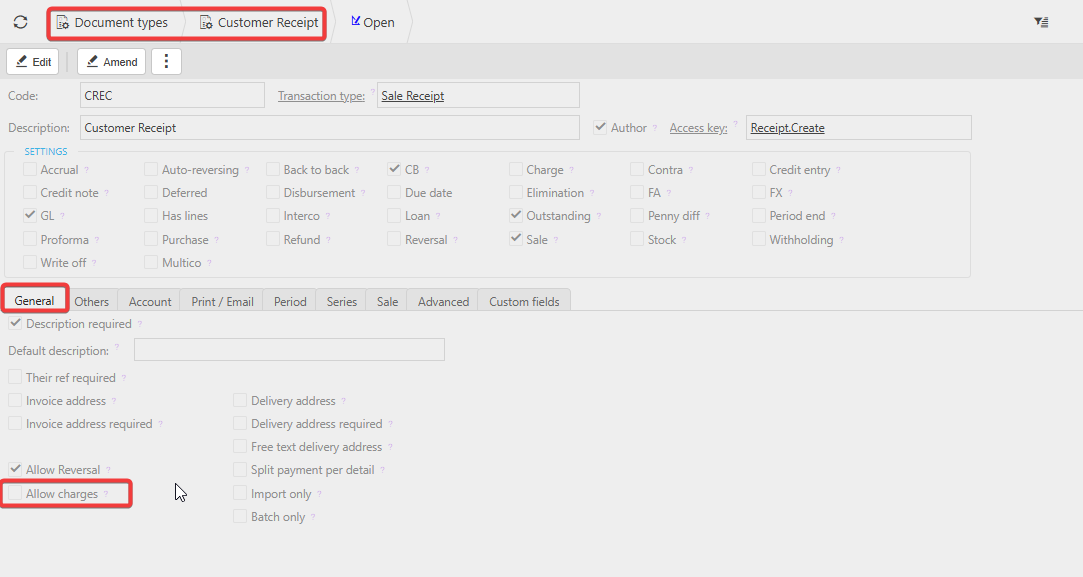
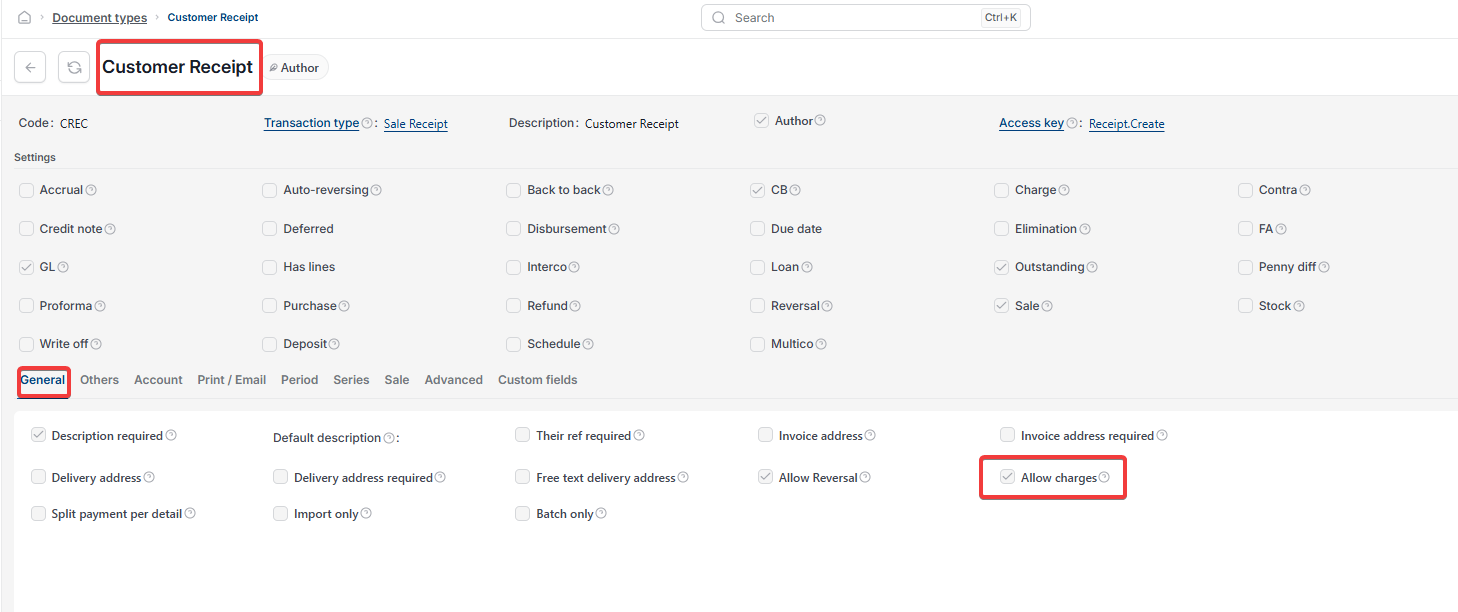
Open the 'Customer Receipt' document type, select the 'Others' tab and tick 'Allow Charges'. This allows the charges function to appear when creating a receipt.
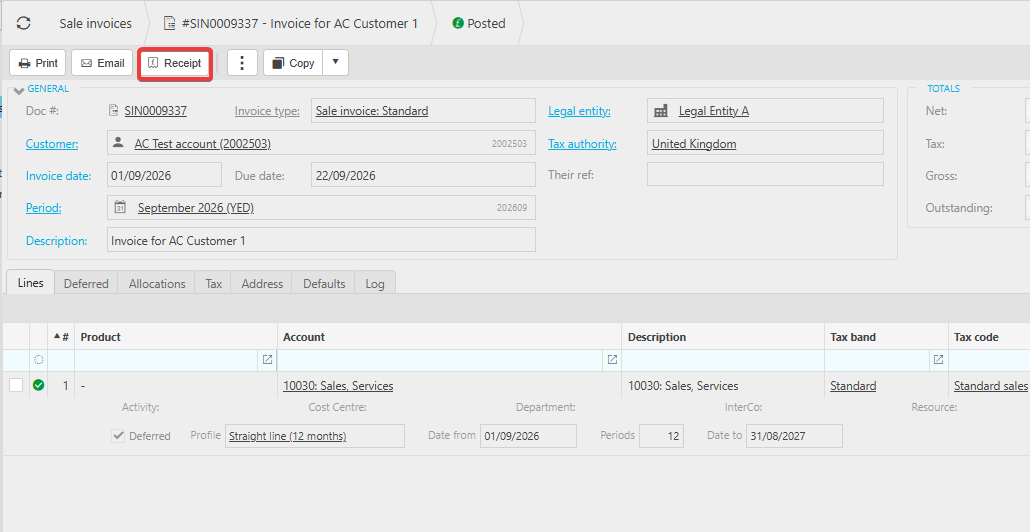
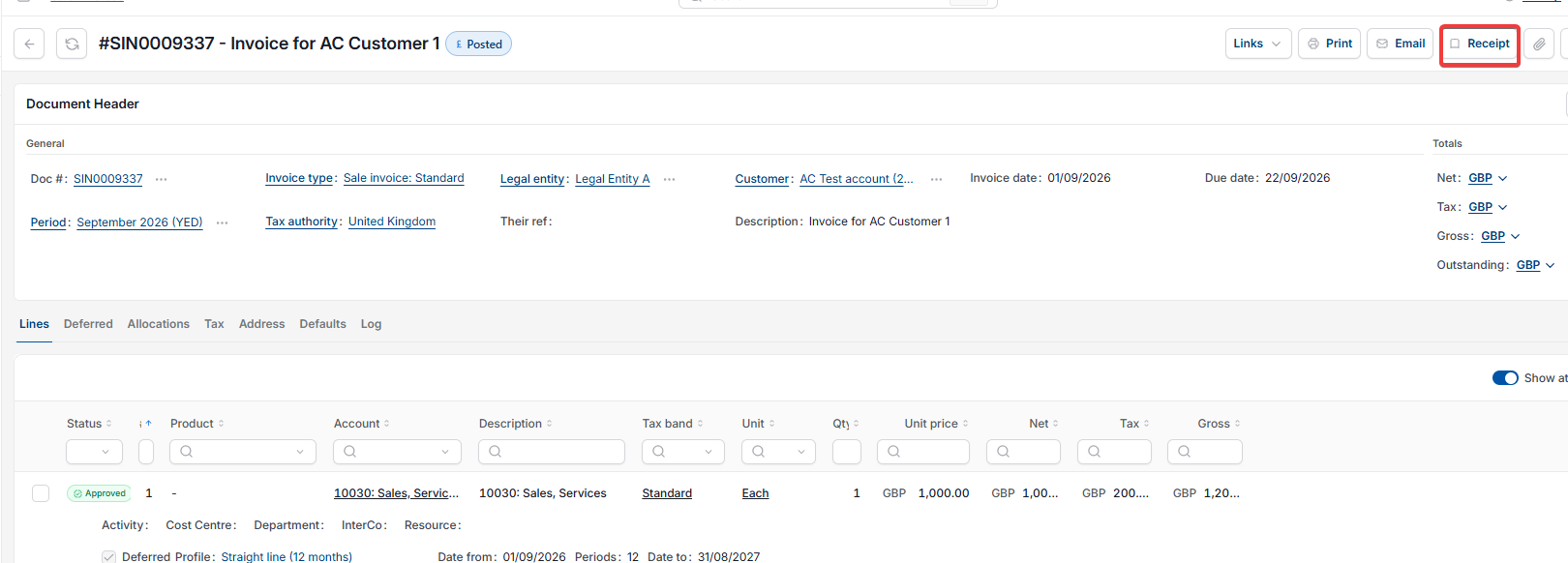
Step seven: create a receipt against the sales invoice
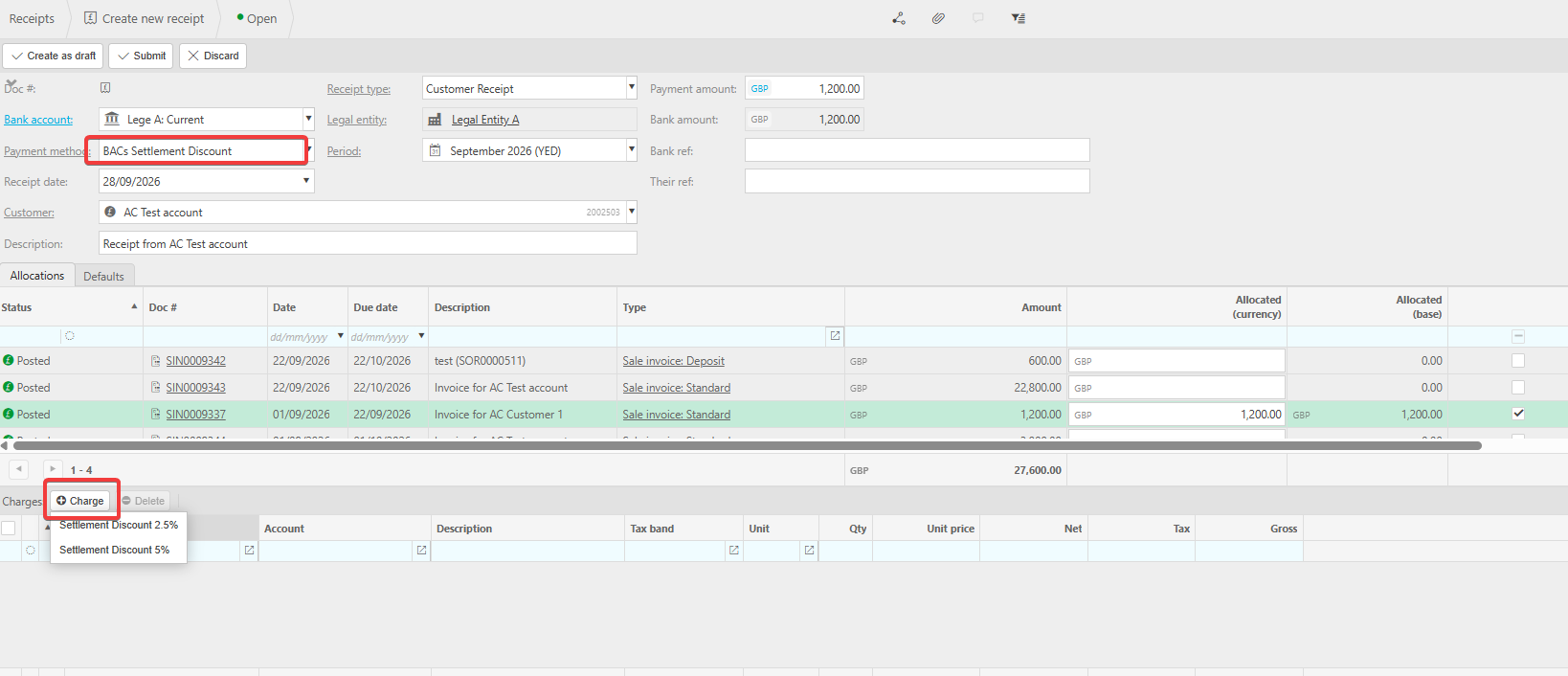
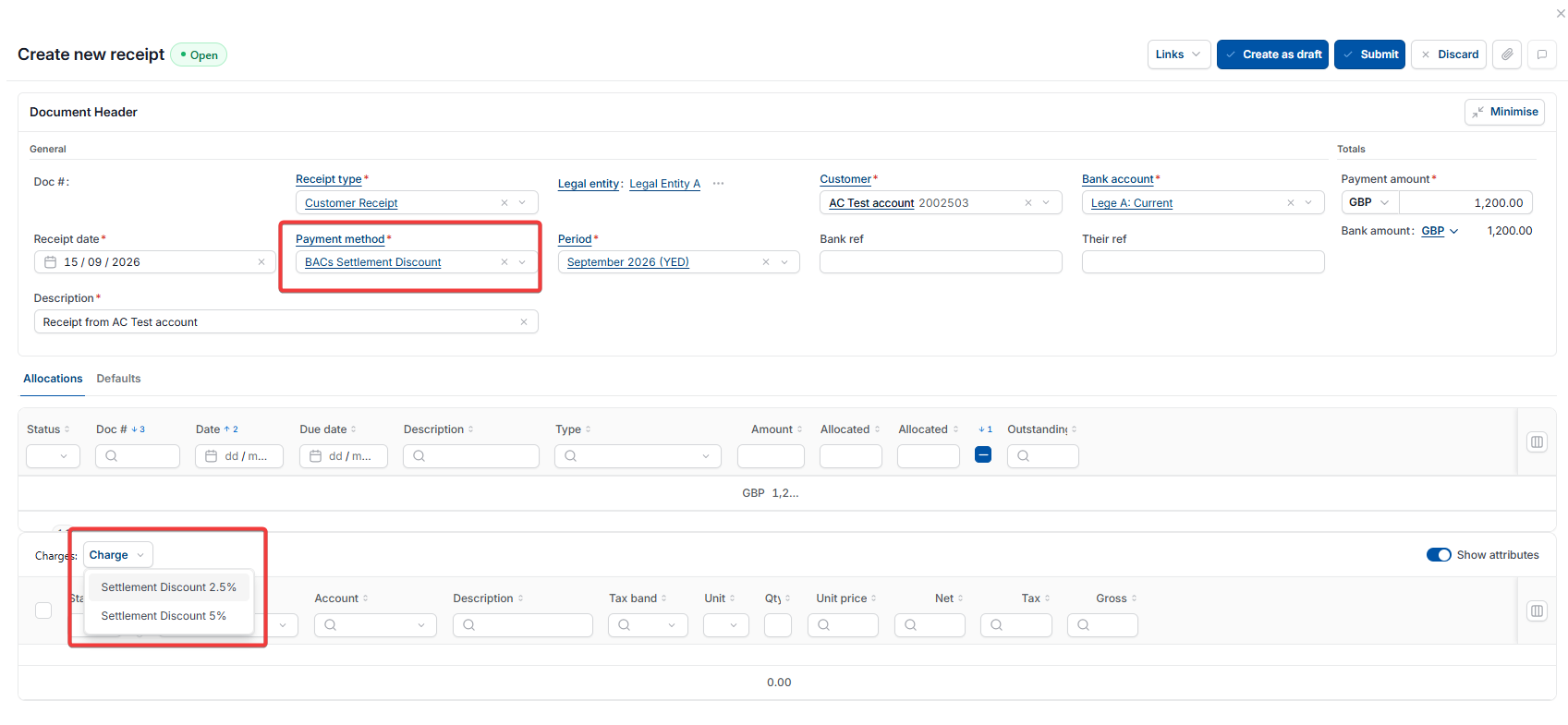
Open the relevant Sales Invoice and create a receipt. Select the bank account that has the new Payment Method assigned. A 'Charges' section now appears automatically on the receipt.
Step eight: apply the settlement discount
Select 'Charges', then select the settlement discount percentage you want to apply, for example five per cent. iplicit marks the invoice as paid in full and automatically posts the discount amount to the settlement discount GL code.
Step nine: review the settlement discount General Ledger movements
Once the receipt is posted, the settlement discount appears as a separate posting to the GL code created in step one, and the invoice shows as fully paid with the discount correctly accounted for.
Discount on receipts
Adding charges to receipts
Settlement discount
Early payment discount
Charges section receipt
Discount GL code