

Once deferred income has been posted, it cannot be unposted or amended directly.
To correct the posting, you must reverse the original document and then copy and recreate it with the correct details.
Follow the steps below to complete the process.
1. Unlock All Relevant Periods
Before reversing the document, ensure that all periods associated with the original posting are unlocked.
This prevents the reversal from failing due to locked periods.
2. Unallocate the Receipt
If a receipt is allocated to the document:
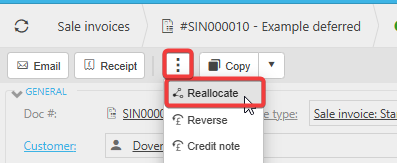
- Open the document.
- Click the three dots menu.
- Select Reallocate.
- Remove the allocation.
- Click Apply to save.
Once unallocated, the document becomes eligible for reversal.
3. Reverse the Document
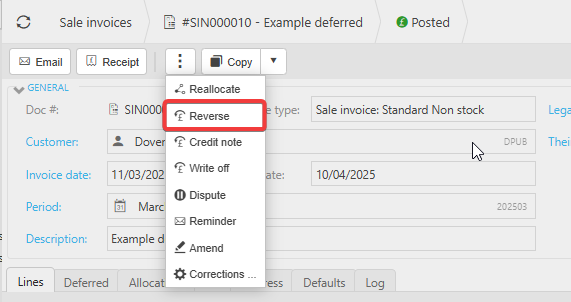
With the periods unlocked and the receipt unallocated, you can now reverse the document.
4. Copy the Original Document
After reversing:
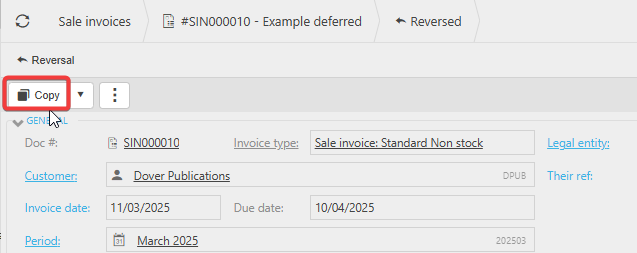
- Open the reversed document.
- Use the Copy function to duplicate it.
This saves time and ensures the new document contains the same details as the original, ready for correction.
5. Resubmit and Reallocate
- Submit the newly created document with required corrections.
- Reallocate the receipt to the new document.
6. Deferred Income Journals Repost Correctly
Once the receipt is reallocated, the system will generate the deferred income journals again.
These journals will now post into the correct periods, reflecting the updated document.
Amend deferred income
Changes to journals with deferred
Error on deferred income journal
_______________________________________________________________________________________