

To view notes against entries in the Aged Debt screen, a note must first be added to the relevant Contact within Credit Control.
1. Add a Note in Credit Control
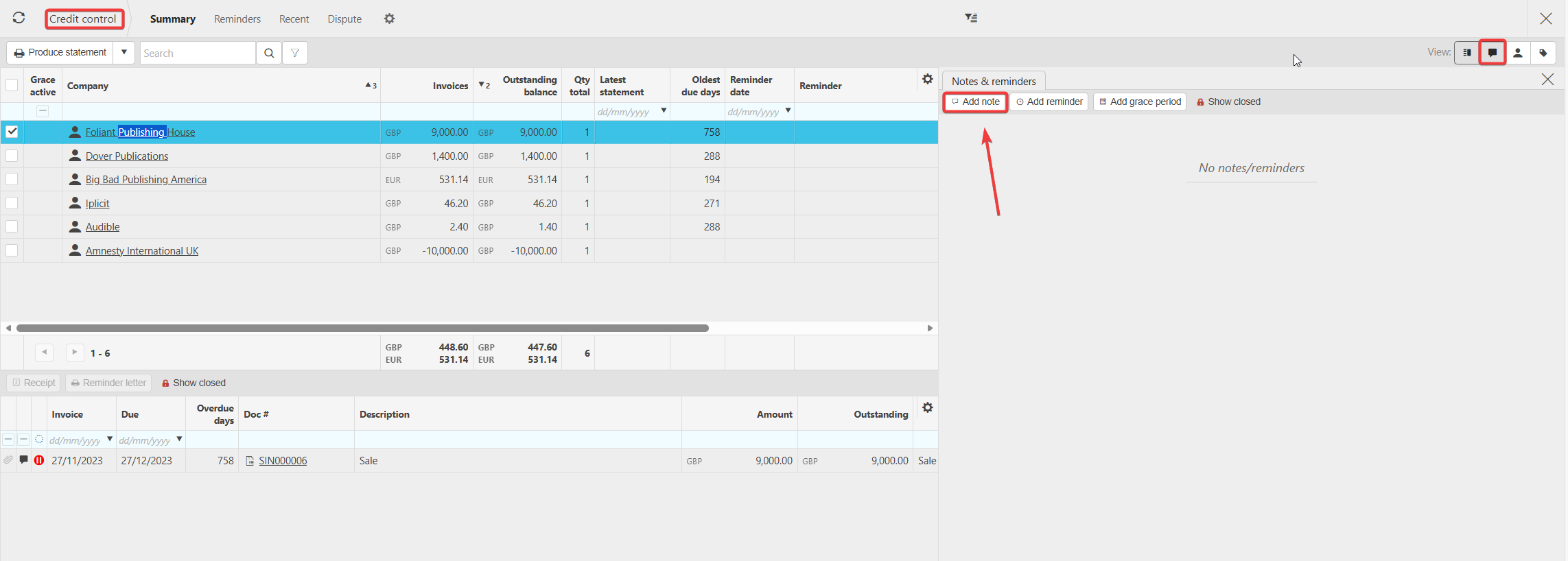
- Navigate to Credit Control.
- Select the Note icon.
- You will then be able to:
Add a Note
Add a Reminder
Add a Grace Period
View any locked notes already attached to the Contact
2. Create the Note
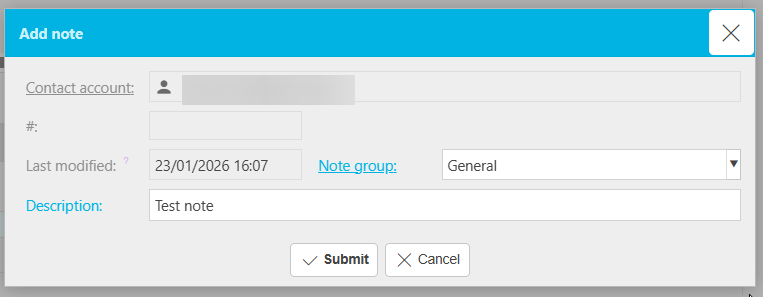
- Choose Add Note.
- Select the appropriate Note Group.
“Grace” is an authored (system) note group.
“General” is an example of a custom note group, depending on the setup.
- Enter your note description and save.
3. View the Note in the Aged Debt Screen
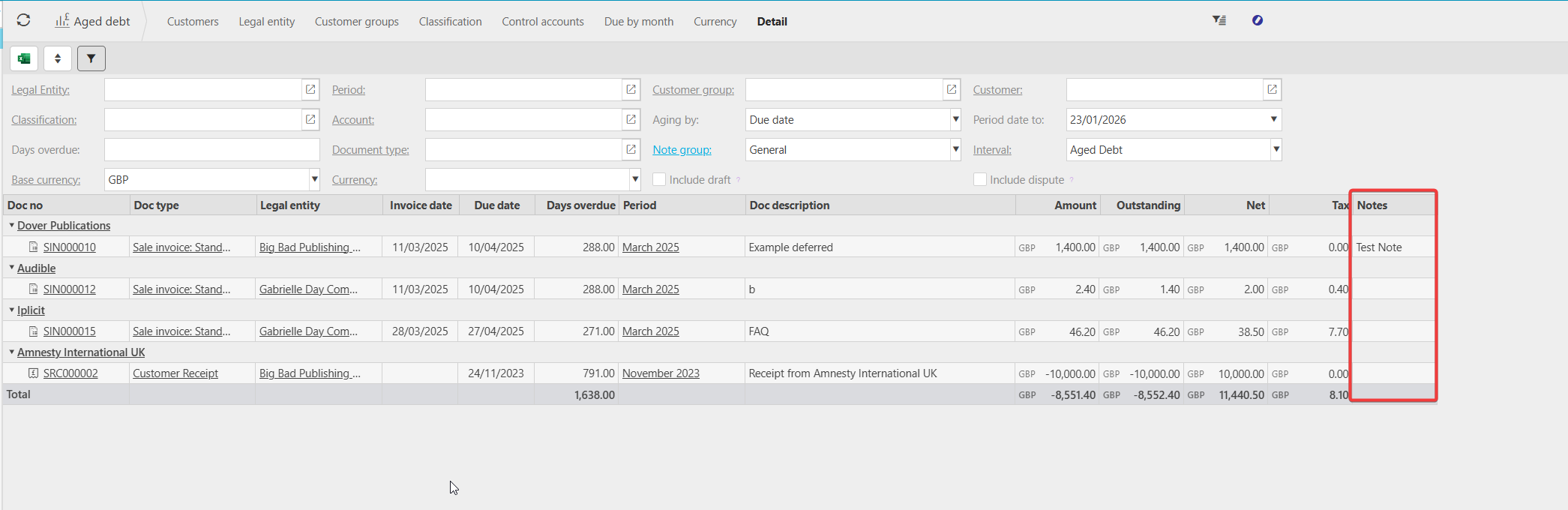
- Navigate to Aged Debt.
- Switch to the Detail tab.
- Use the cog function to expose the Note column.
- Notes linked to the selected Note Group will now appear against the relevant Contact entries.
Important
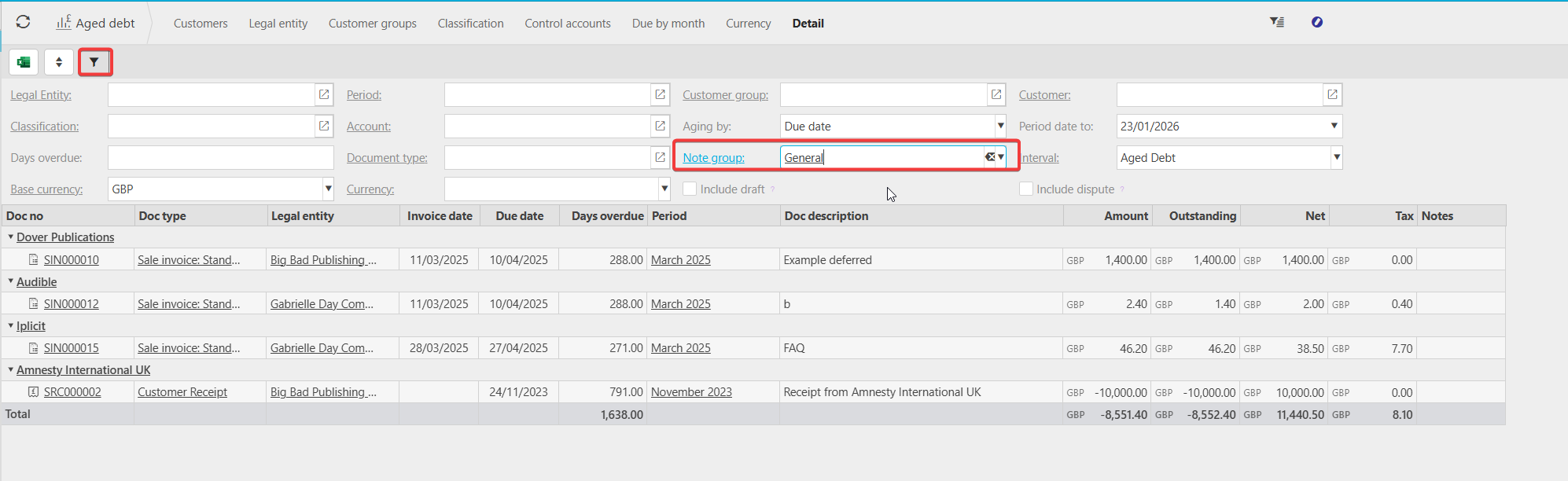
A Note Group must be selected in the header‑level filters of the Aged Debt screen.
If no Note Group is chosen, the Note column will remain blank even if notes exist.
Once a Note Group is selected, the corresponding note text will display.
Additional Information
- Note Groups determine which notes appear in reporting and enquiry screens.
- Custom Note Groups can be created depending on your organisation’s requirements.
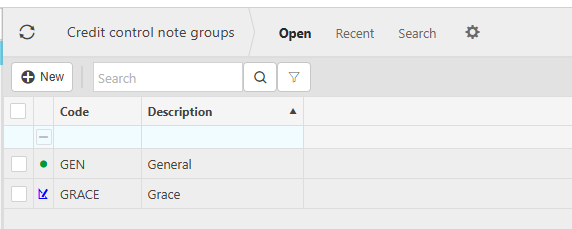
Note on debt screen
Credit control notes
Groups for notes
_______________________________________________________________________________________