

This article covers how to process a refund where the funds are received into the bank account of one legal entity but the credit notes being refunded sit in a different legal entity - sometimes called an intercompany refund or cross-entity refund.
There is no automated way to do this in iplicit. The recommended approach is a manual process using a cash journal deposit and a custom purchase invoice document type, which together balance the intercompany movement across entities and allow allocation to the credit notes.
The process relies on your intercompany payments account default. The custom document type step is essential - it must be a copy of the standard purchase invoice, renamed, specifically to avoid triggering multi-company purchase automation.
For standard intercompany payments and receipts (not refunds against credit notes), see 'How do I post a receipt received into the bank of one legal entity and allocate it to an invoice raised in a different legal entity?'.
Why this is a manual process
iplicit's automated intercompany functions handle payments and receipts between entities, but they do not handle refunds against credit notes raised in a different entity. The bulk payment and bulk receipt routes will not produce the correct postings for this scenario.
The workaround uses two manual postings to balance the intercompany movement:
- A cash journal deposit into the bank account of the entity that received the refund, posted to the intercompany payments account default
- A custom purchase invoice in the entity holding the credit notes, posted to the same intercompany payments account default and allocated to the credit notes.
Together, these two postings balance the intercompany position and clear the credit notes.
Step one: post a cash journal deposit to the receiving entity's bank account
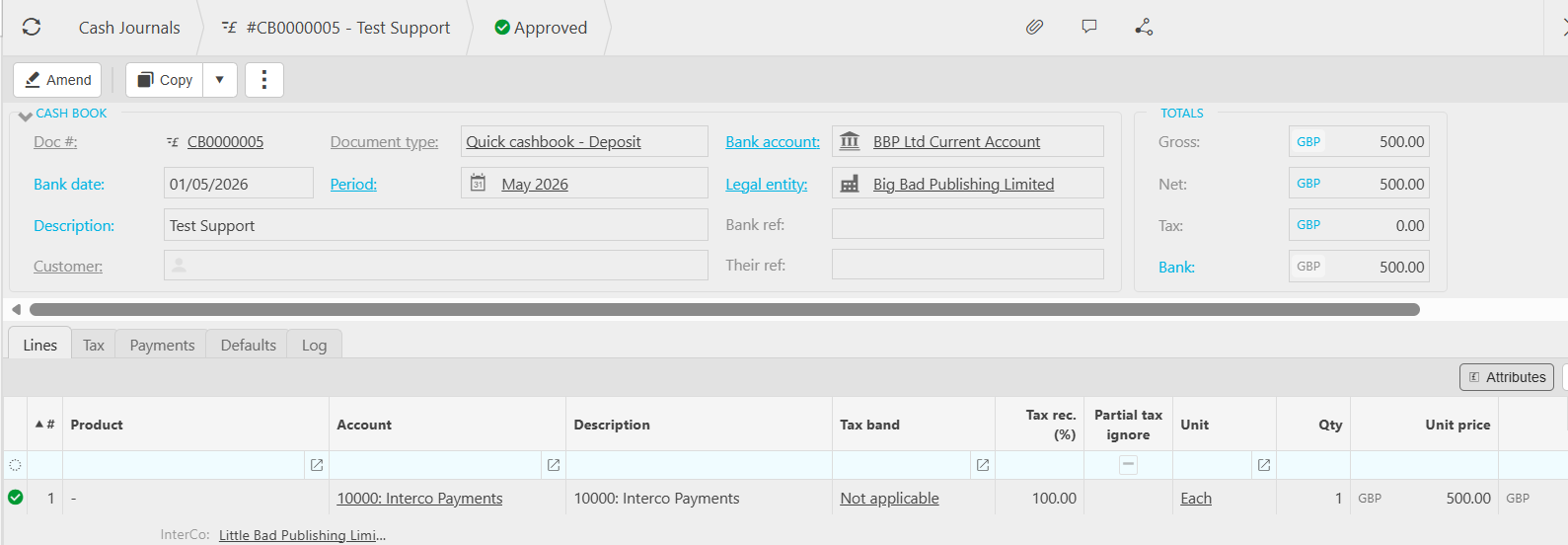
The first posting records the refund into the bank account of the entity that physically received the funds. The detail line uses your intercompany payments account default so the movement is correctly flagged as intercompany.
- Navigate to the cash journal entry screen for the legal entity whose bank account received the refund
- Create a new cash journal deposit
- Select the relevant bank account
- Enter the date, amount, and reference details
- On the detail line, select your intercompany payments account default. If you are unsure which account this is, check your account defaults or speak to an administrator
- Save and post the cash journal.
The funds are now recorded against the receiving entity's bank account, with the other side of the entry sitting in the intercompany payments account.
Step two: create a custom purchase invoice document type for intercompany refunds
A custom purchase invoice document type is required for the second posting. This is critical: using the standard purchase invoice document type will trigger multi-company purchase automation, which will create incorrect postings. The custom document type avoids this.
You only need to create the custom document type once. Skip this section if you have already created it for a previous intercompany refund.
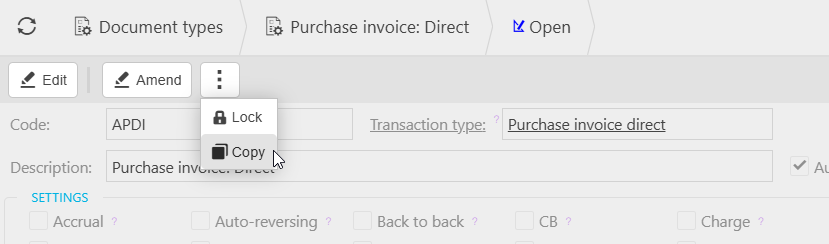
- Navigate to Document Types
- Locate the standard purchase invoice document type
- Copy the document type
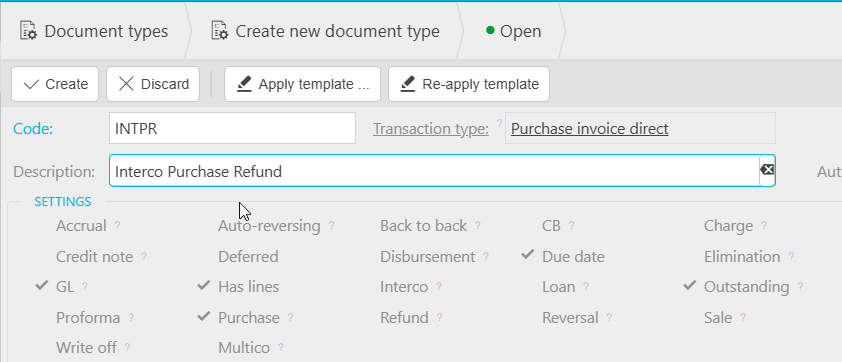
- Rename the copy 'Interco Purchase Refund' (or another name that clearly distinguishes it from the standard purchase invoice)
- Save the new document type.
The new document type will behave like a standard purchase invoice but will not trigger multi-company purchase automation, which makes it safe to use for the manual intercompany refund posting.
Step three: post a purchase invoice in the credit-note entity and allocate to the credit notes
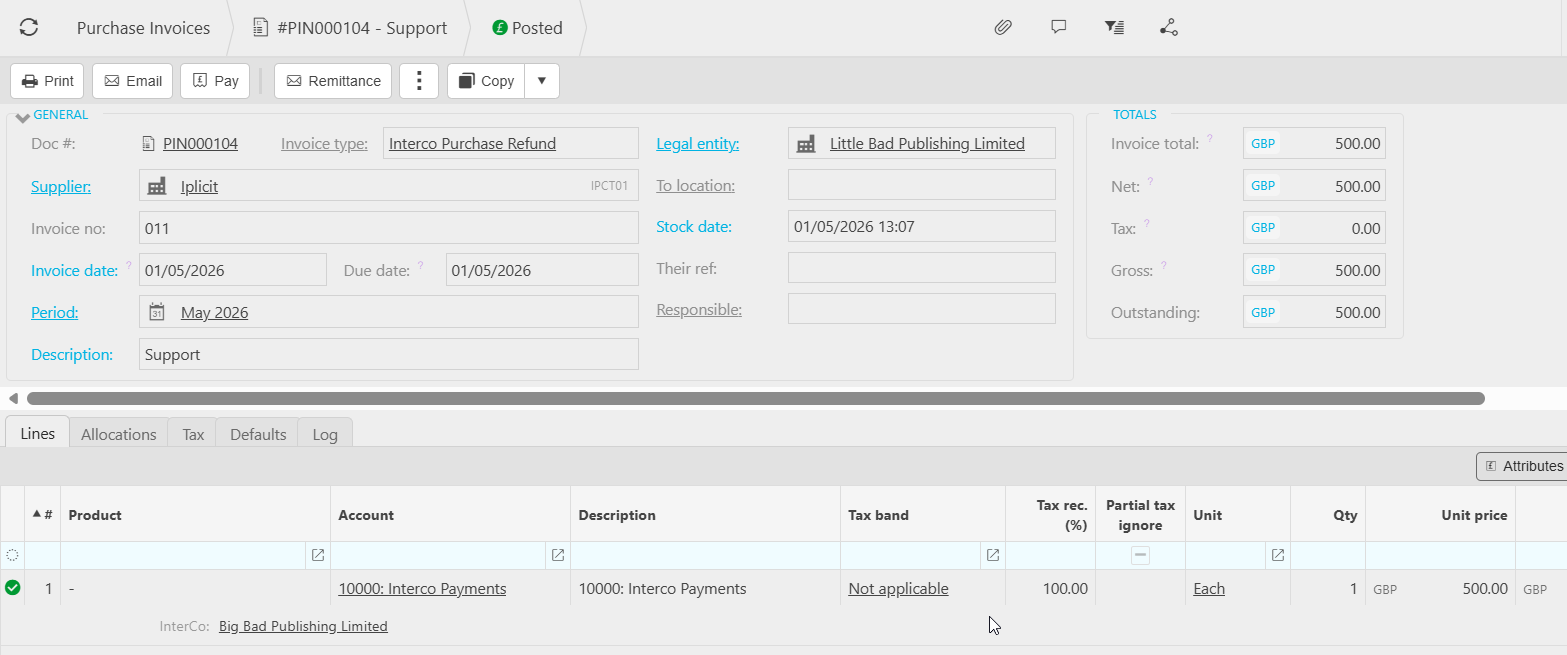
The second posting balances the intercompany movement and clears the credit notes. It uses the custom Interco Purchase Refund document type created in step two.
- Navigate to the relevant legal entity - the one holding the credit notes being refunded
- Create a new purchase invoice using the Interco Purchase Refund document type
- Enter the date, amount, and reference details so they match the cash journal posted in step one
- On the detail line, select your intercompany payments account default (the same account used in step one)
- Save and post the invoice
- Allocate the new invoice against the credit notes being refunded.
The intercompany movement is now balanced across the two entities, and the credit notes are cleared.
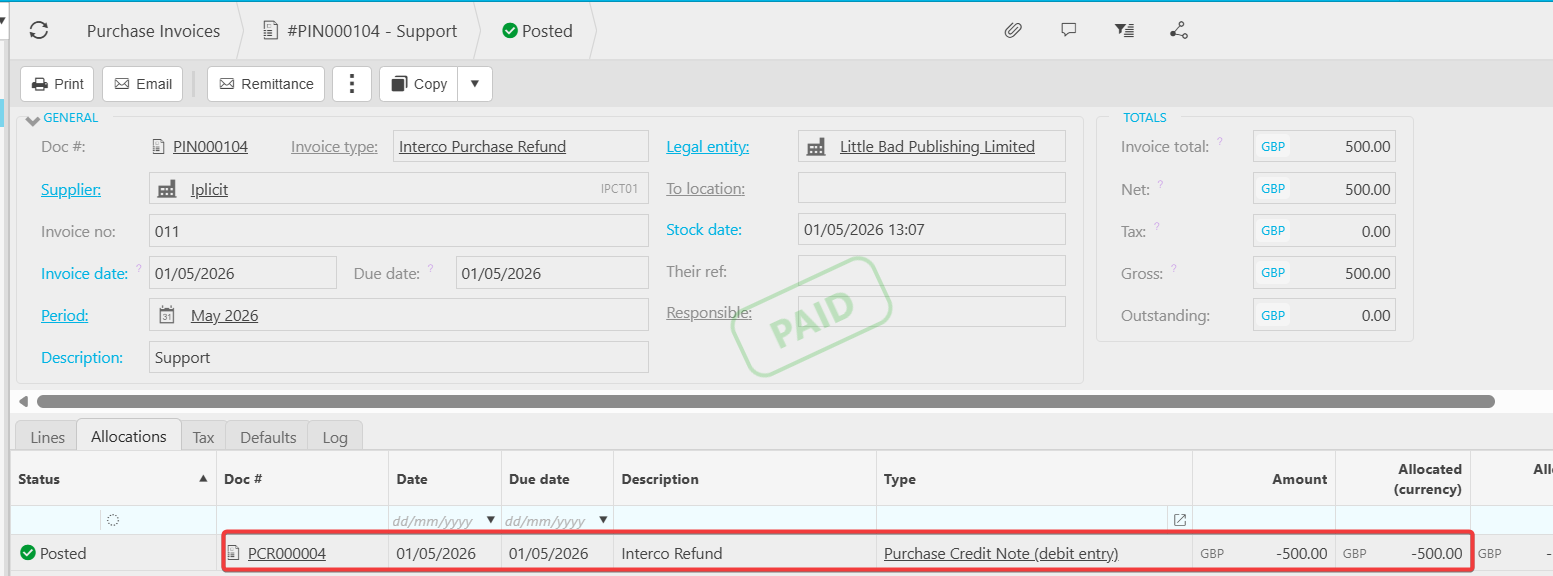
Why the custom document type matters
Using the standard purchase invoice document type for the step-three posting will trigger multi-company purchase automation. This creates additional automated postings that conflict with the manual cash journal in step one and result in incorrect intercompany balances.
- The custom Interco Purchase Refund document type is a copy of the standard purchase invoice but is not configured for multi-company automation
- Using it for the manual refund posting keeps the workaround clean and avoids automated postings firing alongside the manual ones
- The custom document type only needs to be created once and can be reused for any future intercompany refunds.
If you have already posted using the standard purchase invoice and the postings look wrong, contact iplicit support for guidance on correcting the entries.
When this process does not apply
This process is specifically for refunds against credit notes raised in a different legal entity to the one that received the funds.
- For standard intercompany payments and receipts (allocating funds to invoices, not credit notes), use the bulk payment or bulk receipt route. See 'How do I post a receipt received into the bank of one legal entity and allocate it to an invoice raised in a different legal entity?'
- For refunds within a single legal entity, use the standard refund process for that ledger
- For moving balances between legal entities outside of a refund context, see 'How can I move a balance from one legal entity to another?'.
Intercompany refund process
Credit note in one entity and refund in another
Interco refund
Intercompany credit note allocation
Cash journal interco refund