

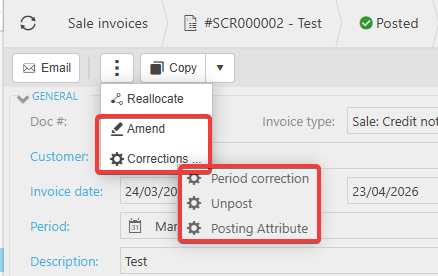
This article covers how to edit information on a posted document in iplicit. It applies across all posted document types, including purchase invoices, sales invoices, credit notes and journals. There are three levels of change available - header amendments, period corrections and posting attribute corrections - each accessed through the ellipsis menu at the top of the document. If the change you need falls outside these options, this article explains the alternative route.
Amending header details on a posted document in iplicit
Certain header-level fields on a posted document can be amended without unposting. To amend header details on a posted document in iplicit:
- Open the posted document
- Select the ellipsis button (…) at the top of the document
- Select 'Amend'
- A pop-up appears where you can edit the following fields:
- Description
- Due date
- Pay method
- Their reference
- Make your changes and save
These are the only header fields that can be amended directly on a posted document in iplicit.
Correcting the period on a posted document in iplicit
If the document was posted to the wrong period, you can correct this without unposting. To correct the period on a posted document in iplicit:
- Open the posted document
- Select the ellipsis button (…) at the top of the document
- Select 'Corrections'
- Select 'Period Correction'
- Update the period and save
Correcting posting attributes at detail level in iplicit
Posting attributes assigned at the detail line level can also be corrected on a posted document. To correct detail-level posting attributes in iplicit:
- Open the posted document
- Select the ellipsis button (…) at the top of the document
- Select 'Corrections'
- Select 'Posting Attribute'
- Amend the posting attributes on the relevant detail lines and save
What to do when a posted document needs other changes
If the change you need isn't covered by the amend or corrections options above, you need to unpost the document to make further edits.
To unpost a posted document in iplicit, select the ellipsis button (…) at the top of the document and choose the unpost option. Once unposted, make your changes and repost.
Before you unpost, check the following:
- If the document has allocated payments, you must unallocate these before you can unpost or reverse the document
- If the document is matched in a bank reconciliation, you cannot unpost it
- If the document is included on a VAT return, you cannot unpost it
If you cannot unpost the document because it is matched in a bank reconciliation or included on a VAT return, the alternative is to:
- Reverse the original document
- Copy the reversed document
- Make your amendments on the copy
- Post the amended copy
This creates a clear audit trail while allowing you to correct the information.
Edit posted document
Amend transaction
Posting correction
Edit description
Period correction