

This article covers resolving a document reversal that is stuck in 'Reversing' status within iplicit's General Ledger. This occurs when the reversal cannot post because the target accounting period is locked. It does not cover reversals that have already posted – a posted reversal is final.
Important: The steps below only apply while the reversal document is still pending and has not yet posted. Once a reversal has posted successfully, it cannot be abandoned, undone or edited. The only correction available on a posted reversal is a period correction – depending on your screen, select the three-dot menu or the 'More' menu, then 'Corrections' > 'Period Correction'.
Why a reversal gets stuck in iplicit
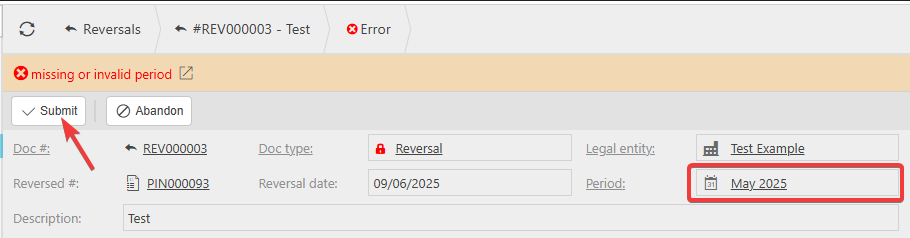
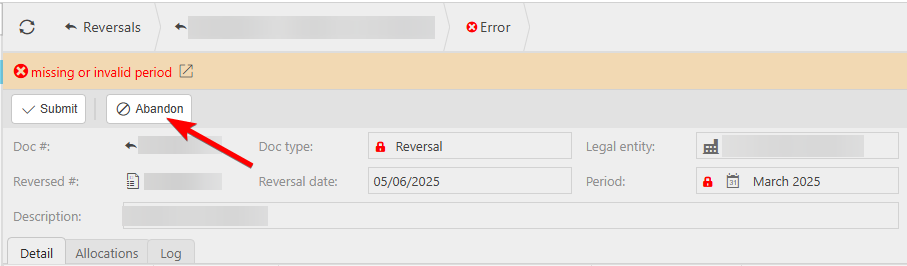
When a reversal document is pending in iplicit, the system attempts to post it into the accounting period shown on the reversal. If that period is locked – indicated by a red padlock symbol next to the period field – the reversal cannot complete. iplicit intentionally prevents posting to locked periods to protect the audit trail and maintain data integrity.
There are two ways to resolve this in iplicit:
- Unlock the original period and post the reversal there, or
- Abandon the pending reversal and repost it into a currently open period.
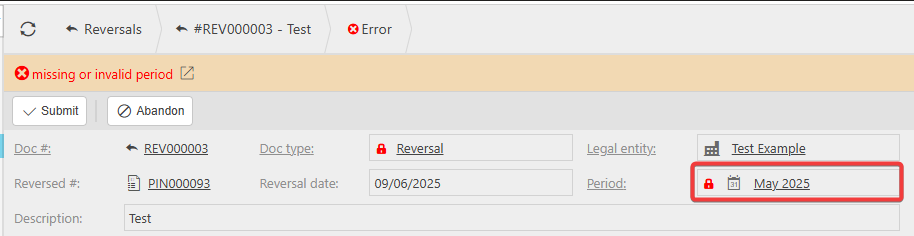
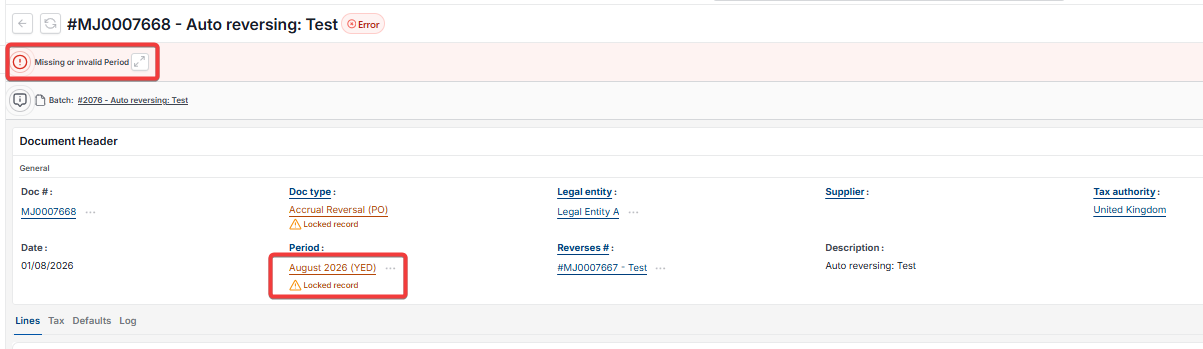
Option one: unlock the original period and post the reversal
Use this option when posting the reversal into the original locked period is the correct approach for your accounts.
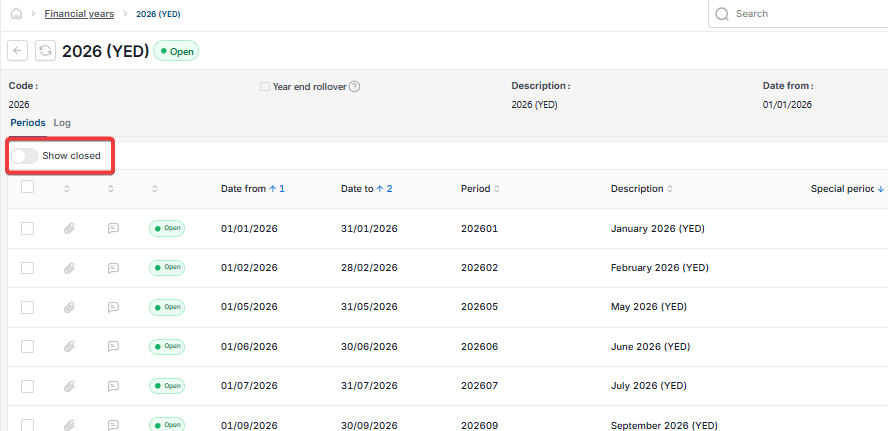
- Navigate to 'Financial Year' and double-click the relevant year
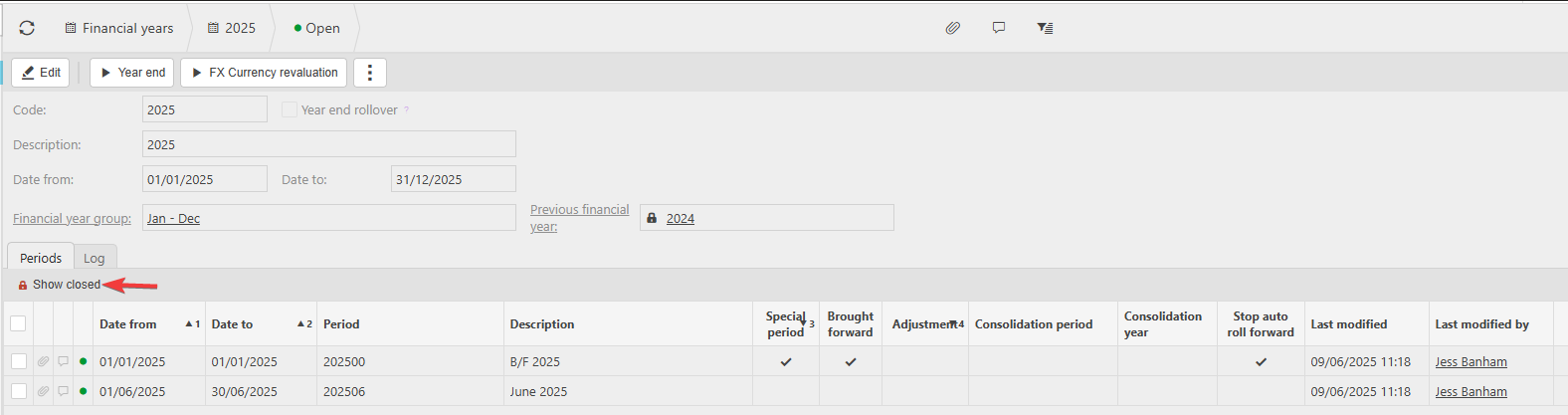
- Select 'Show Closed' to display locked periods
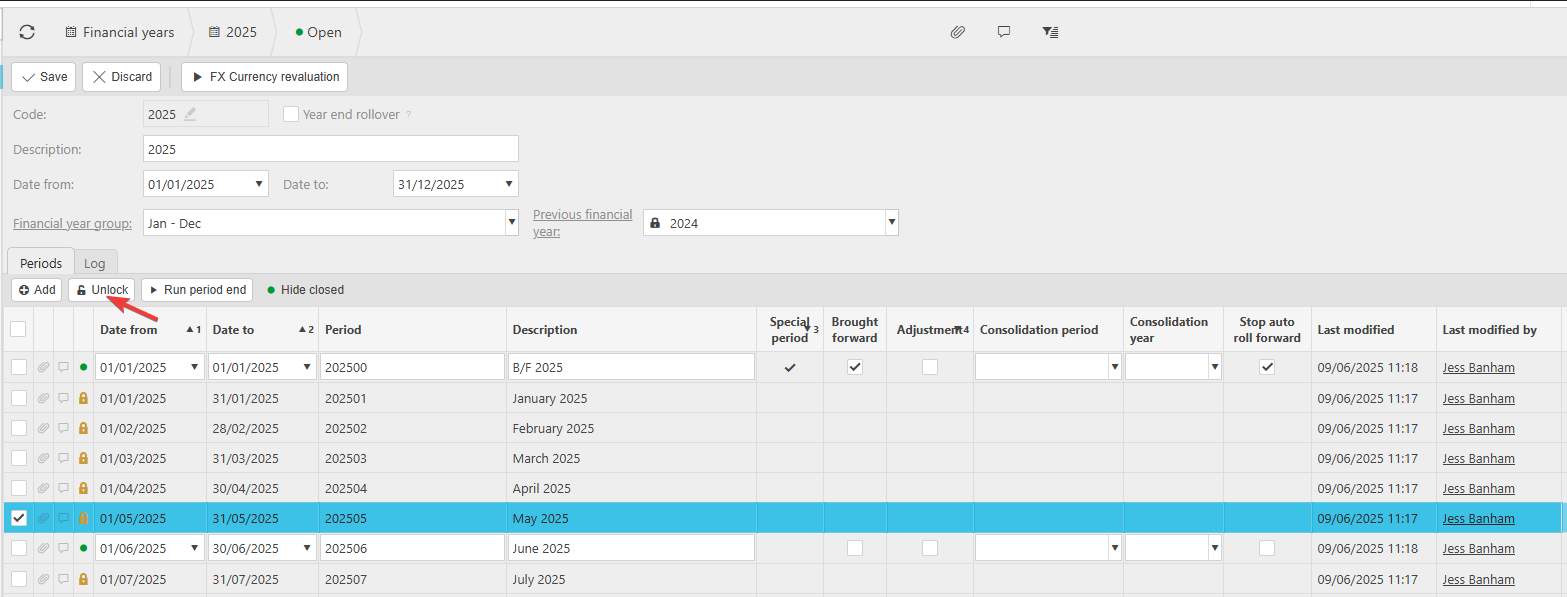
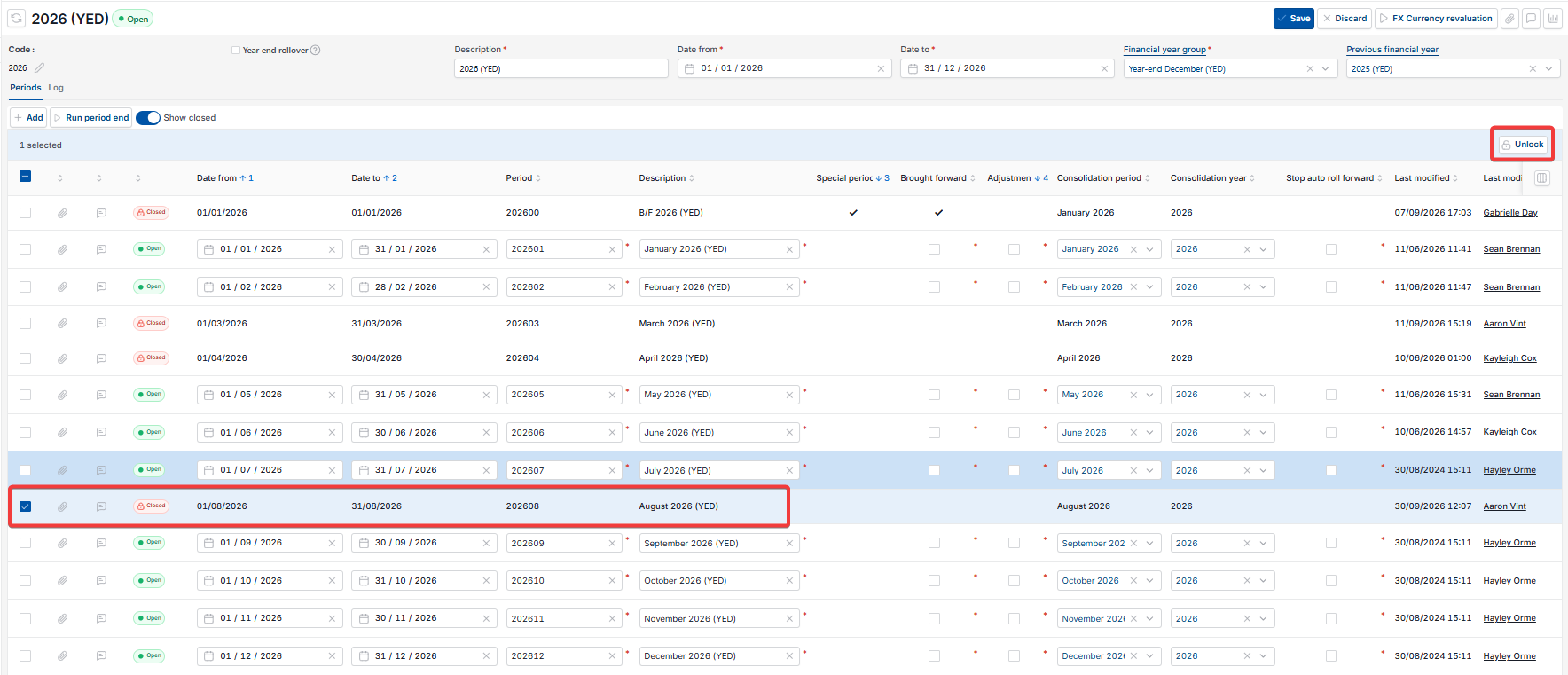
- Select the locked period to highlight it, then select 'Unlock'
- Select 'Save' and reload the page from within iplicit
- Navigate back to the document you are reversing and select the 'Reversal' button
- Confirm the red padlock is no longer showing on the period field
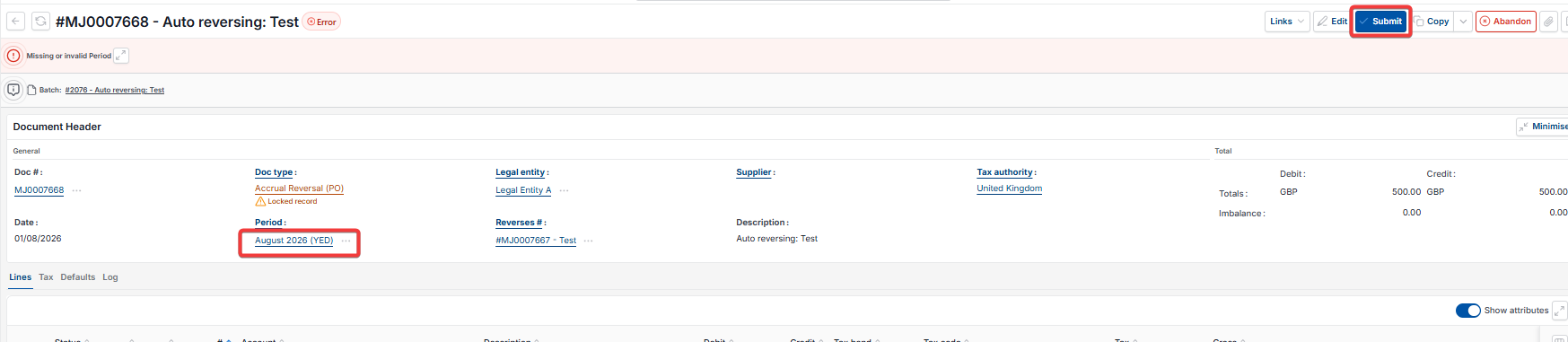
- Select 'Submit'. The reversal will post within a minute and the document will display a 'Reversed' stamp.
Option two: abandon the pending reversal and post into an open period
Use this option when you want to post the reversal into your current open period instead of the original locked period.
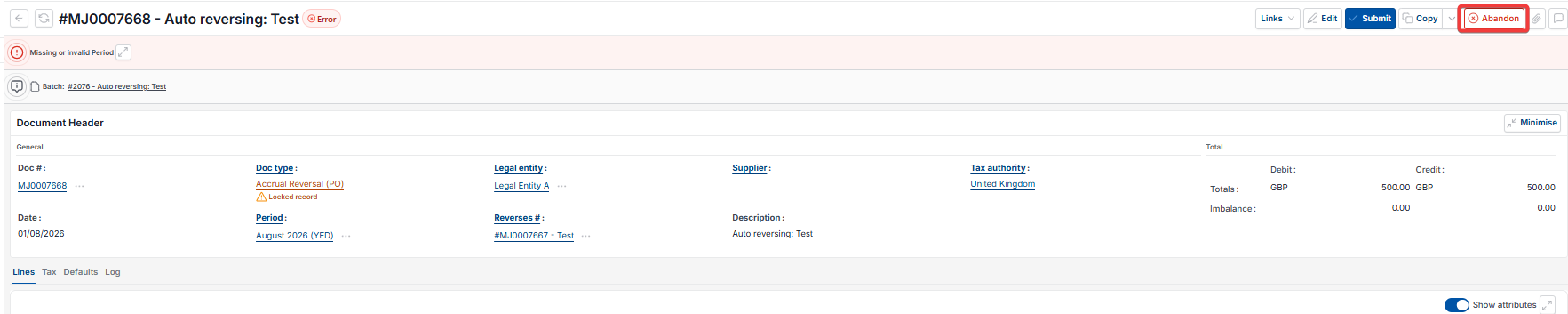
- Open the pending reversal document and select 'Abandon' to cancel the pending reversal
- Navigate back to the original document you wish to reverse
- Select the 'Reversal' button to start the reversal process again
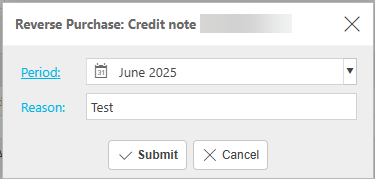
- In the reversal pop-up, the original period will show a red padlock. Hover over the padlock icon to confirm it indicates a locked period
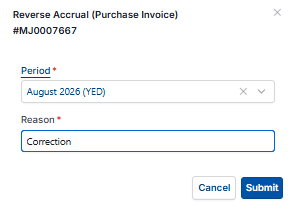
- Change the period field to the current open period
- Select 'Submit'. The reversal will post and the original document will be marked as 'Reversed'.
Confirming the reversal has posted
To confirm the reversal completed successfully in iplicit, navigate back to the original document and select 'Refresh'. The document status will show as 'Reversed' and display the 'Reversed' stamp. You can also open the reversal document directly to confirm it has a posted status.
Reversal stuck
Document reversing status
Cannot post reversal
Abandon reversal due to error
Change reversal period