

This article covers Google SSO in iplicit specifically - enabling Google as a provider, the Google Workspace side of setup, and how each user links their account. For SSO with Microsoft Entra ID, OneLogin, or SAML2, see 'Enabling SSO for iplicit login'. Google SSO has one important difference from other providers: there is no bulk-linking option, covered below.
Bulk linking is not available for Google SSO
Unlike Microsoft Entra ID or OneLogin, Google SSO in iplicit has no bulk-link, automated linking, or mass-import option. Each user must link their own iplicit account to their Google account individually, on their first login.
This is because Google SSO doesn't use a tenant ID, object ID, or SSO token in iplicit. When Google is selected as the provider, no additional fields appear in the environment setup. With no identifier to match users against, there's nothing for a bulk import to map.
In practice, this means:
- For a new iplicit environment, users link their account to Google individually the first time they log in
- For an existing environment switching on Google SSO, every existing user needs to log in via Google once to complete the link
- If bulk linking matters to your organisation, Microsoft Entra ID supports it and Google SSO doesn't
Enabling Google as an SSO provider in iplicit
To turn on Google SSO for your environment:
- Go to Environment defaults
- Find the 'Single sign-on (SSO)' section
- Select Google in 'Enabled SSO providers'
- Select 'Apply', then 'Save'
No further fields appear for Google. There's nothing else to configure on the iplicit side.

Configuring Google Workspace for third-party SSO
Google's own security settings must allow third-party SSO before any user can link their account. This is configured by your Google administrator, in Google Workspace, not in iplicit.
Ask your Google administrator to confirm:
- The Google Admin Console allows third-party SSO using user email accounts
- Any two-step verification policy your organisation enforces, since this applies during iplicit login too
The exact location of these settings varies by Google Workspace edition, so check Google's own documentation for where to find them.
How a user links their account on first login
Once Google SSO is enabled, each user links their iplicit account to Google the first time they log in through Google SSO:
- Go to the iplicit login page
- Log in using the email address and password already set up on the iplicit user account
- Complete any two-step verification prompts required by Google's own security policies
Once authenticated, the iplicit account links to the Google account automatically. This link is permanent - the user doesn't need to repeat this process on future logins.
How a user checks their Google link from their iplicit profile
To confirm a Google link is in place:
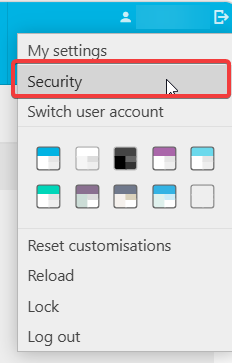
- Select the profile icon in the top right corner of iplicit
- Select 'Security'
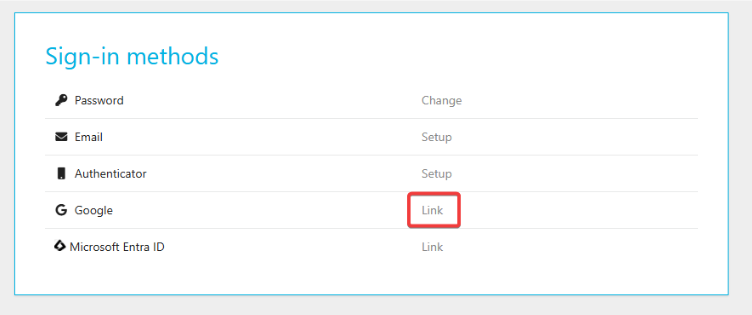
- Check the sign-in and MFA methods listed against the account
If Google appears as an active sign-in method, the link is complete. If it isn't listed, the link didn't finish on first login - the user can complete it from this screen, as long as Google is still enabled as an SSO provider in environment defaults.
Google SSO
Link Google account with iplicit
Enable Google login
Google single sign-on
Google Workspace login