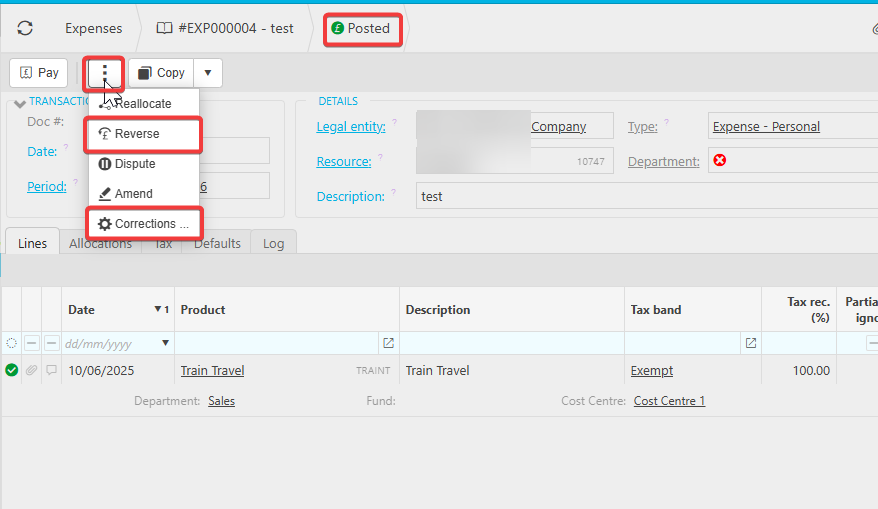
You can only delete an expense in iplicit when it's in draft status. If the expense has been posted, you need to return it to draft first. If it's been included in a VAT return or matched on a bank reconciliation, deletion isn't possible - you'll need to reverse it instead.
Deleting a draft expense
- Open the expense you want to remove.
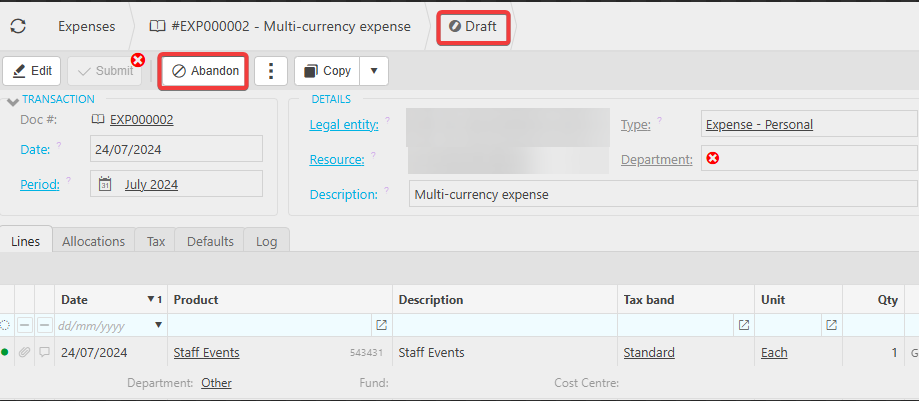
- Select 'Abandon' at the top of the screen.
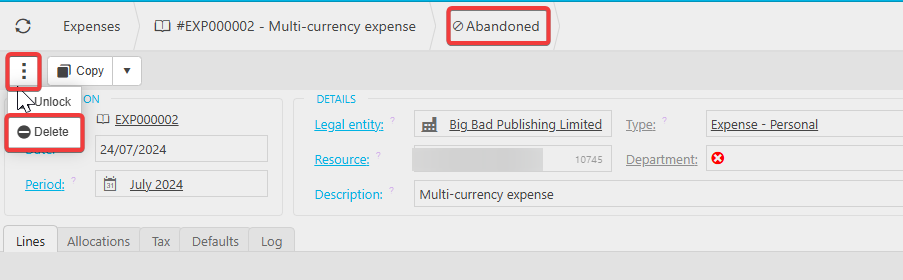
- Once abandoned, select the three-dot menu and choose 'Delete'.
Deletion is available for draft expenses only, so use it for genuine errors rather than routine corrections.
Deleting a posted expense
- Open the posted expense.
- Select 'Unpost' to return it to draft status.
- Follow the steps above to abandon and delete the expense.
When you can't delete an expense
If the expense has been included in a VAT return or matched on a bank reconciliation, you cannot unpost it. Instead:
- Open the original expense.
- Select 'Reverse' to create a reversing entry.
- Select 'Copy' to create a duplicate of the original.
- Make the necessary corrections to the copied expense and post it.