

You can set up custom fields against document lines, including Purchase Invoice lines, Sales Invoice lines, Journal lines, and other document types. To give the field a defined list of selectable options (rather than a free-text entry), you'll need to create a Custom Posting Attribute and link it to a catalog. The catalog holds the list of options, and the attribute is what appears as the field on the document line.
Step one – Create the Custom Posting Attribute
Set up the attribute itself first. This is the field that will appear on the document line.
For the full step-by-step, see: How to create Custom Posting Attributes
Step two – Create the catalog
The catalog provides the list of options the user will pick from when filling in the custom field on a document line.
- Navigate to Catalogs
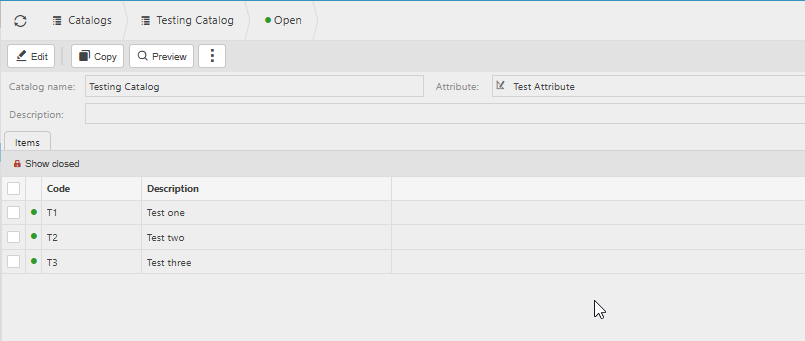
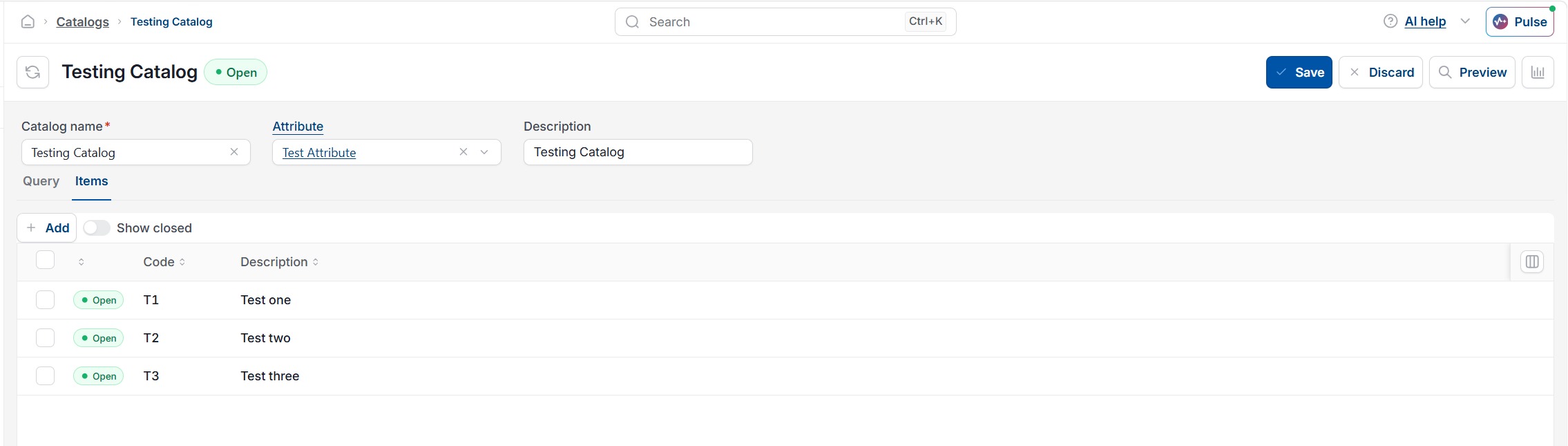
- Select 'New' and give the catalog a clear name that reflects its purpose and add the custom attribute
- Add each option you want available in the dropdown from within the items tab by clicking add, list the codes and descriptions
- Create the catalog.

Step three – Link the catalog to the attribute
Once both the attribute and the catalog exist, link them together so the field knows which list of options to display.
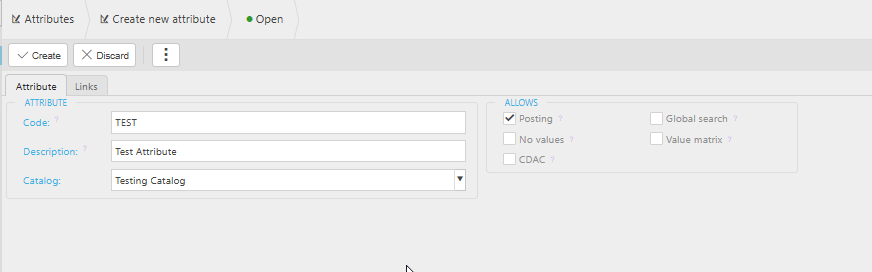
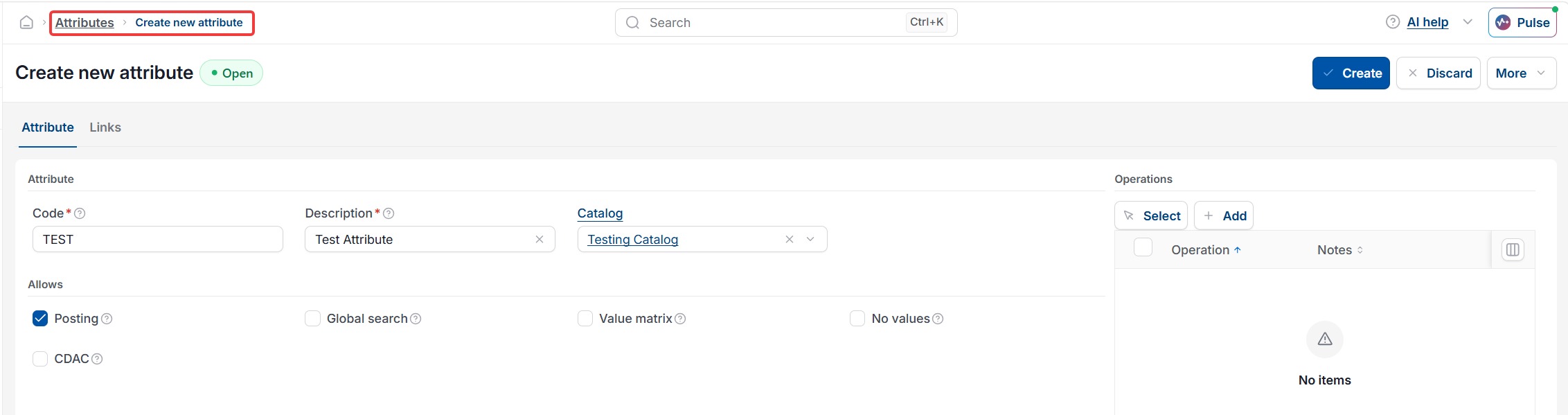
- Open the Custom Posting Attribute you created in step one
- Set the attribute to use the catalog you created in step two
- Save the attribute.
Step four – Apply the attribute to the Chart of Account rule or create a new one
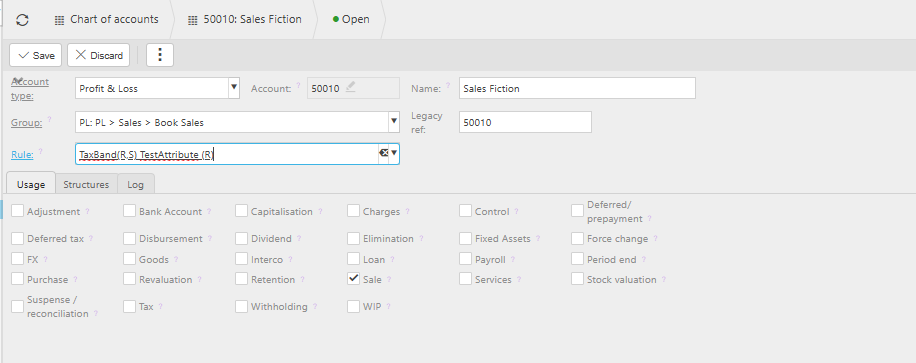
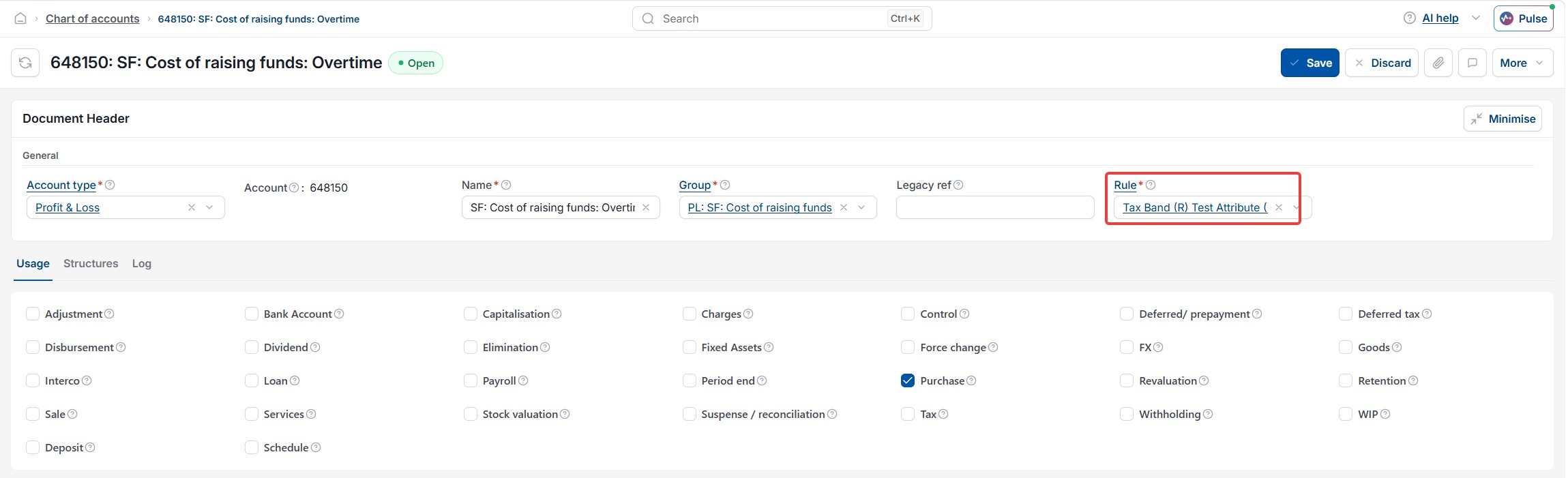
For the custom field to appear on a document line, the attribute must be set against the Chart of Account rule for the account being used on that line.
- Navigate to Chart of Accounts rules
- Set up a new rule or amend an existing one to allow the attribute to be required or optional for the accounts set against this rule
- Save the rule.
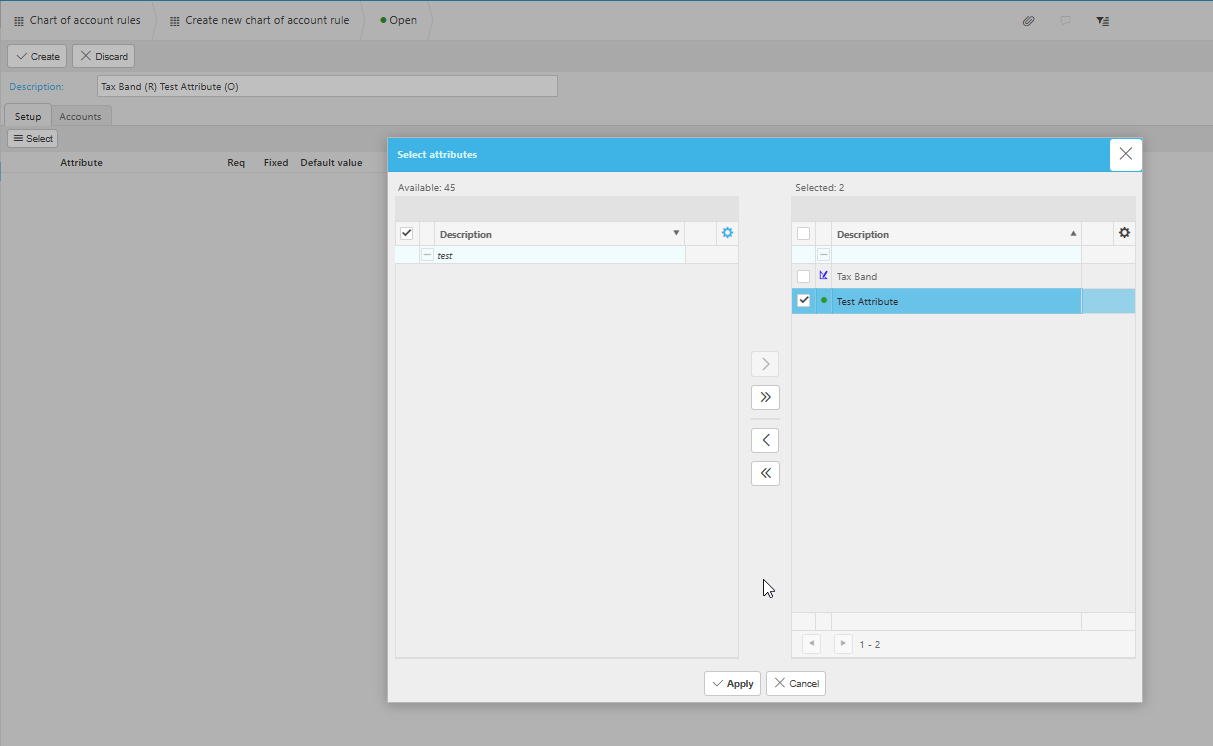
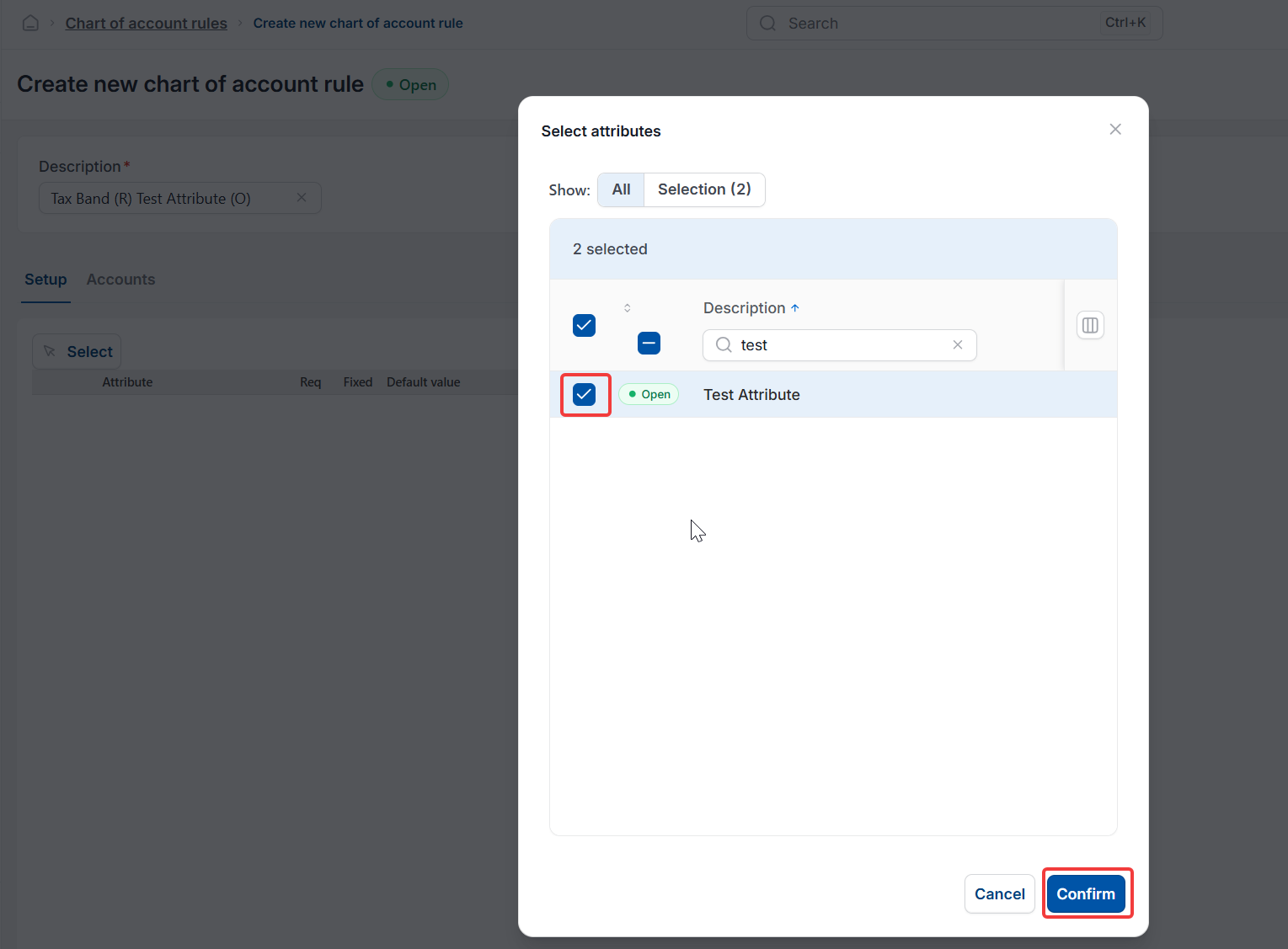
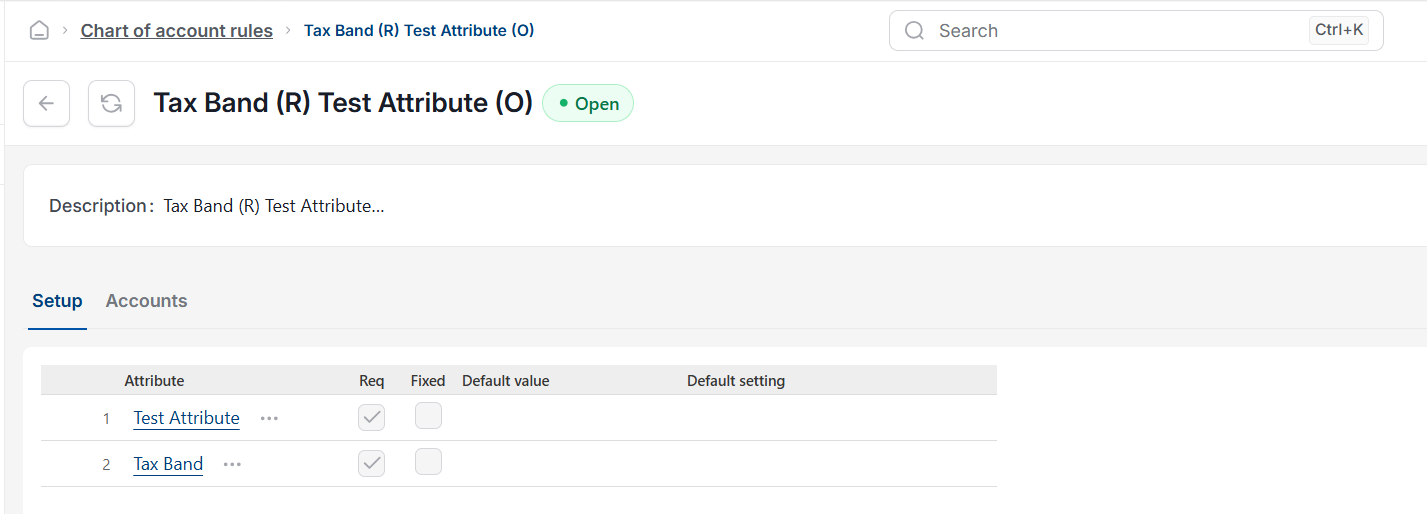
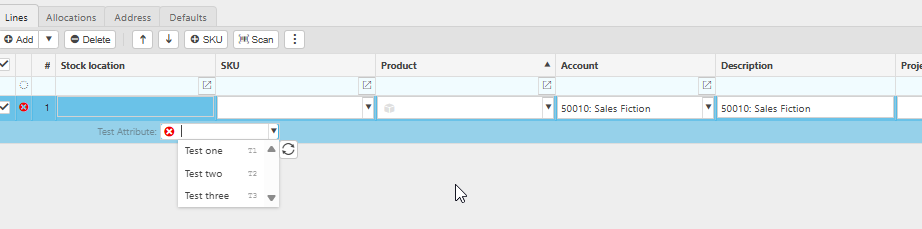
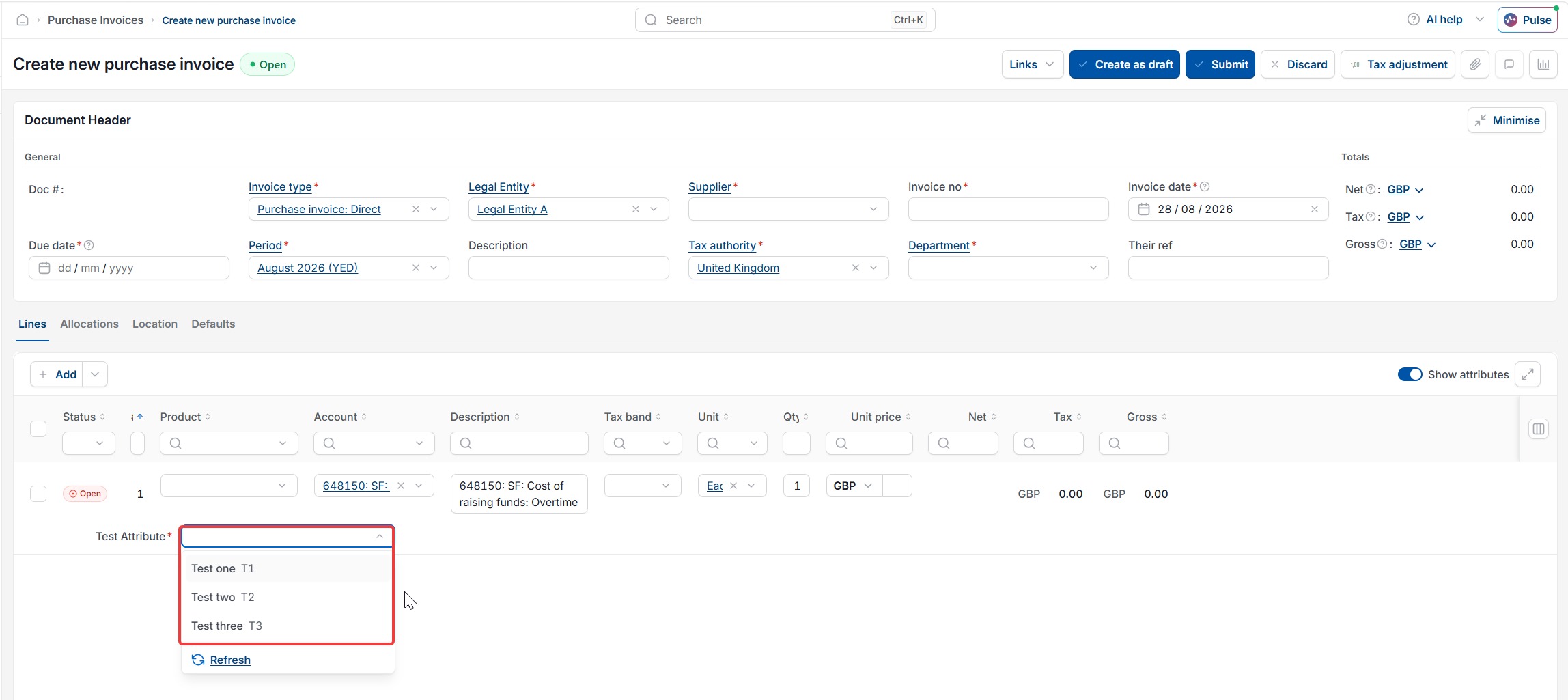
Once saved, any document line posted to a Chart of Account using this rule will display the custom field, and users can select from the catalog options when entering the line.
Things to know about custom posting attributes on document lines
- The custom field will only appear on document lines coded to a Chart of Accounts that has the attribute applied to their rules
- The same setup applies whether you're adding the field to Purchase Invoice lines, Sales Invoice lines, Journal lines, or other document types – the field appears wherever the relevant Chart of Account is used
- If you want a free-text custom field rather than a dropdown, you can skip the catalog steps. See 'How to create Custom Posting Attributes' for the standalone setup
- When creating the custom attribute, do not tick the 'No values' box, or the catalog values will not be available to select.
Custom list for detail lines
Custom fields on lines
Transaction custom fields
Line level custom reporting