

This article explains how to export a blank forecast template from iplicit's Budget module, populate it in Excel, and import the completed data back into the same forecast. Each export contains hidden budget key references unique to that specific forecast - you cannot reuse templates from previous periods or other forecasts.
If you need to create a budget or forecast before exporting, see How to create a budget and How to create a forecast.
Budgets | iplicit
Budget Forecasts | iplicit
Export a forecast template from the Budget module
Before exporting, ensure the forecast exists in iplicit. The export generates a template tied to that specific forecast's structure and periods.
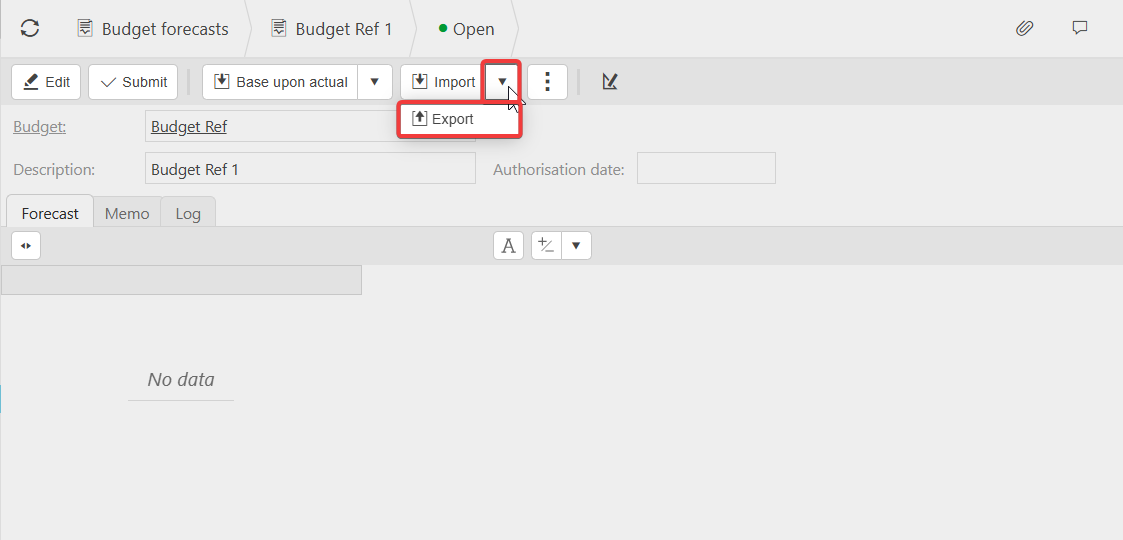
- Navigate to Budget forecasts
- Open the forecast you want to populate
- Select 'Export' to download the template as an Excel file
- Save the file locally - this is your working template for data entry.
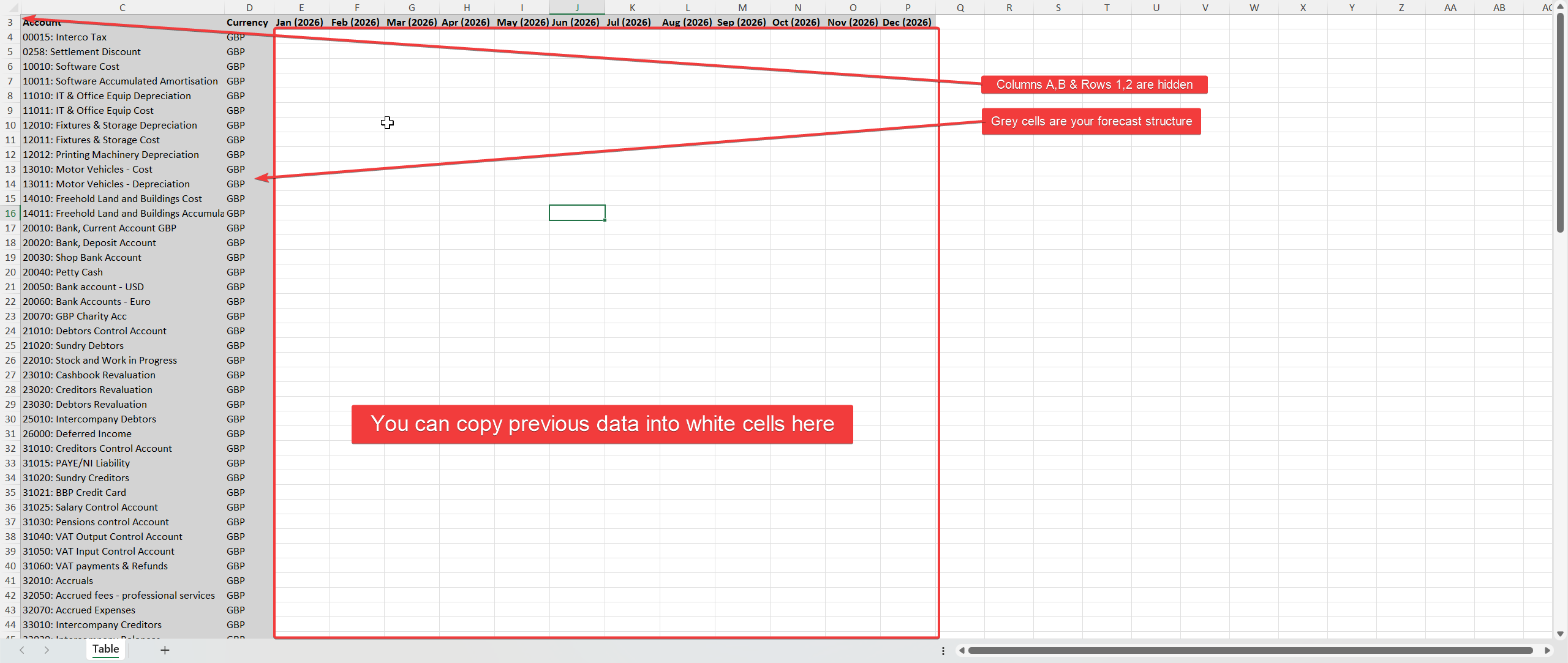
The exported Excel file contains your forecast structure with editable cells (white) for entering values, protected cells (grey) containing the base data and hidden cells containing the budget key reference specific to that budget forecast.
Understand the budget key reference in the forecast template
Each forecast export contains hidden budget key references embedded in the spreadsheet. These references link each row and column to the correct forecast record in iplicit.
Why this matters:
- The budget key references are unique to the specific forecast you exported from
- You cannot import a template exported from a different forecast or a previous year's template - the key references will not match
- Importing an old template will fail or produce incorrect data because iplicit cannot map the values to the current forecast structure.
What you can and cannot do:
| Permitted | Not permitted |
|---|---|
| Enter or paste values into white cells | Amend grey columns containing reference data |
| Copy values only from a previous year's template into the white cells of this year's export | Import last year's template file directly into this year's forecast |
| Update budget information within iplicit forecast | Delete, move, or unhide columns containing budget key references |
If you need to bring forward last year's forecast data, export a fresh template from this year's forecast, then copy the values (white cells only) from your previous spreadsheet into the new template.
Import the completed forecast template into iplicit
Once you have populated the white cells with your forecast data, import the file back into the same forecast.
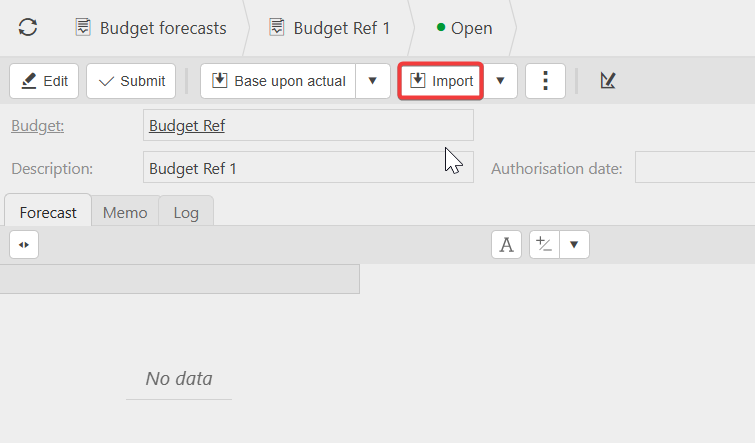
- Navigate to Budget forecasts
- Open the forecast you exported the template from - this must be the same forecast
- Select 'Import' and browse to your completed Excel file
- Confirm the import - iplicit validates the budget key references and populates the forecast with your data.
If the import fails, check that you are importing into the correct forecast and that the grey columns and hidden cells have not been modified.
Budget key reference
Importing budget forecast
New forecast with last years figures
Export budget template
Import budget template