

This article covers adding a custom field to a supplier or customer record. Custom fields are configured at group level – through Supplier Group or Customer Group settings – and apply to all accounts within that group. Custom fields are used for reporting purposes.
Adding a custom field to a supplier or customer group
The process is the same for both supplier and customer records. Custom fields are added through the relevant group settings, not directly on the individual account.
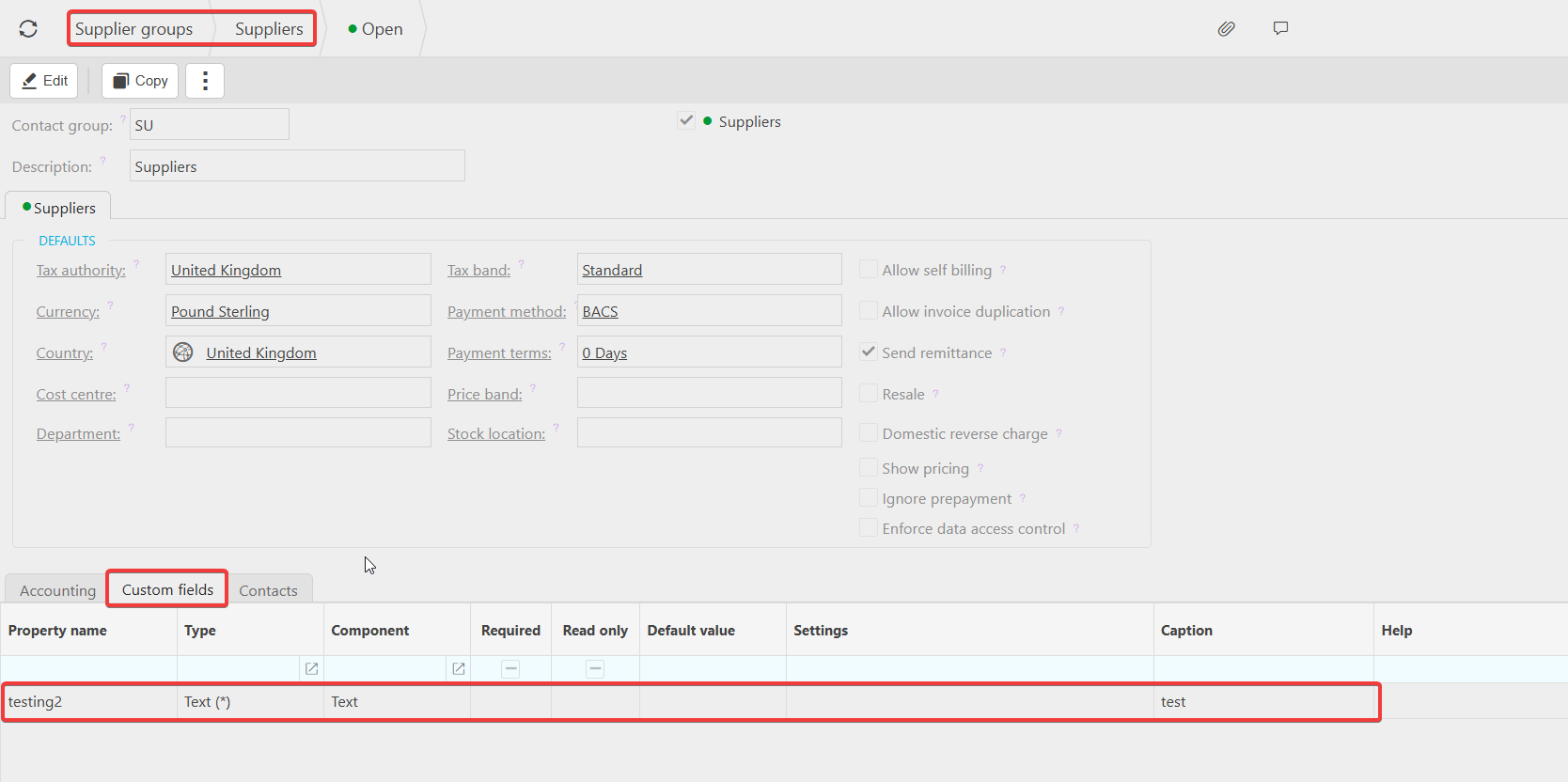
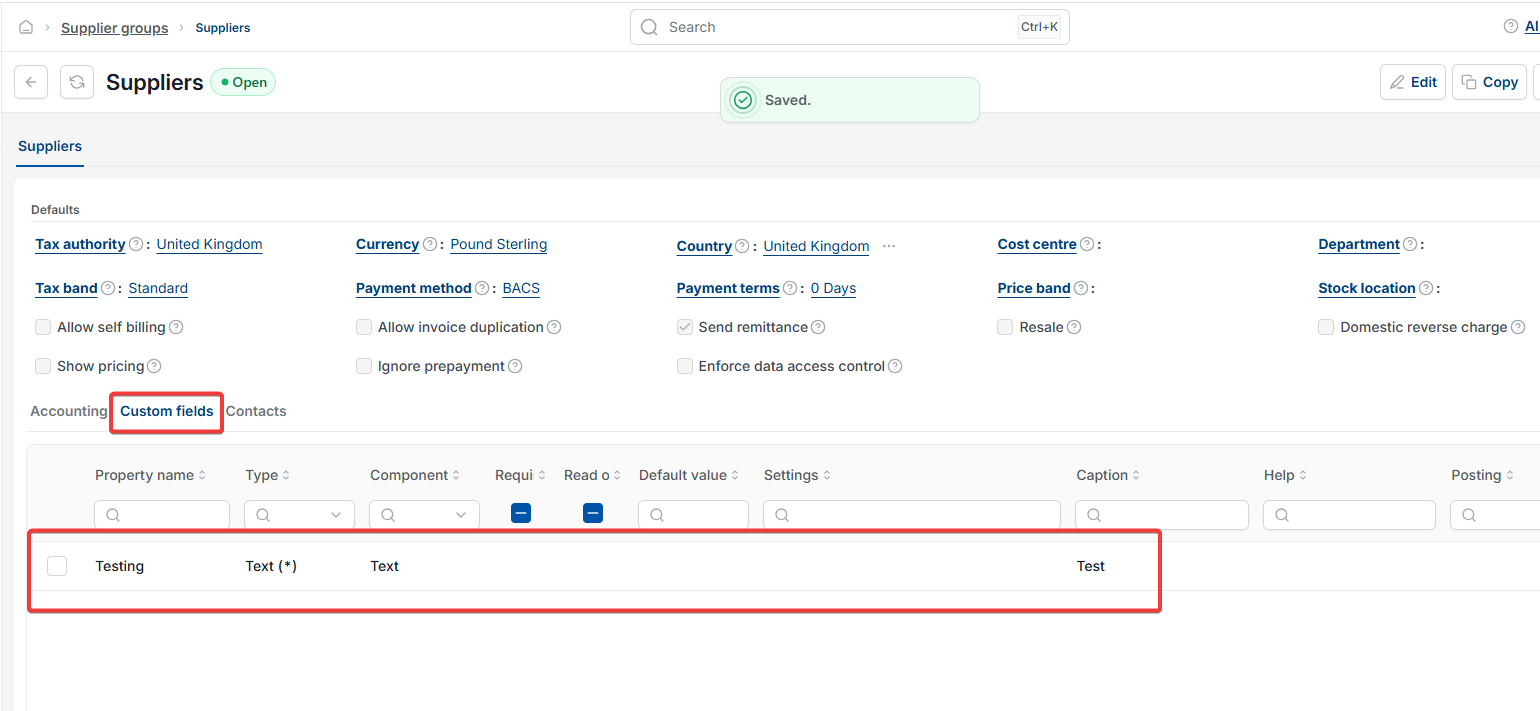
- Navigate to the relevant group settings – Supplier Groups or Customer Groups
- Locate the group you want to add the custom field to
- Open the group and select the 'Custom Fields' tab
- Select 'Add'
- Complete the following fields:
- Property name – enter a name that describes what the field captures
- Type – select the field type, for example text box, date, number or time
- Component – this typically reflects the type selected
- Required – tick this if the field should be mandatory when creating a new supplier or customer account in this group
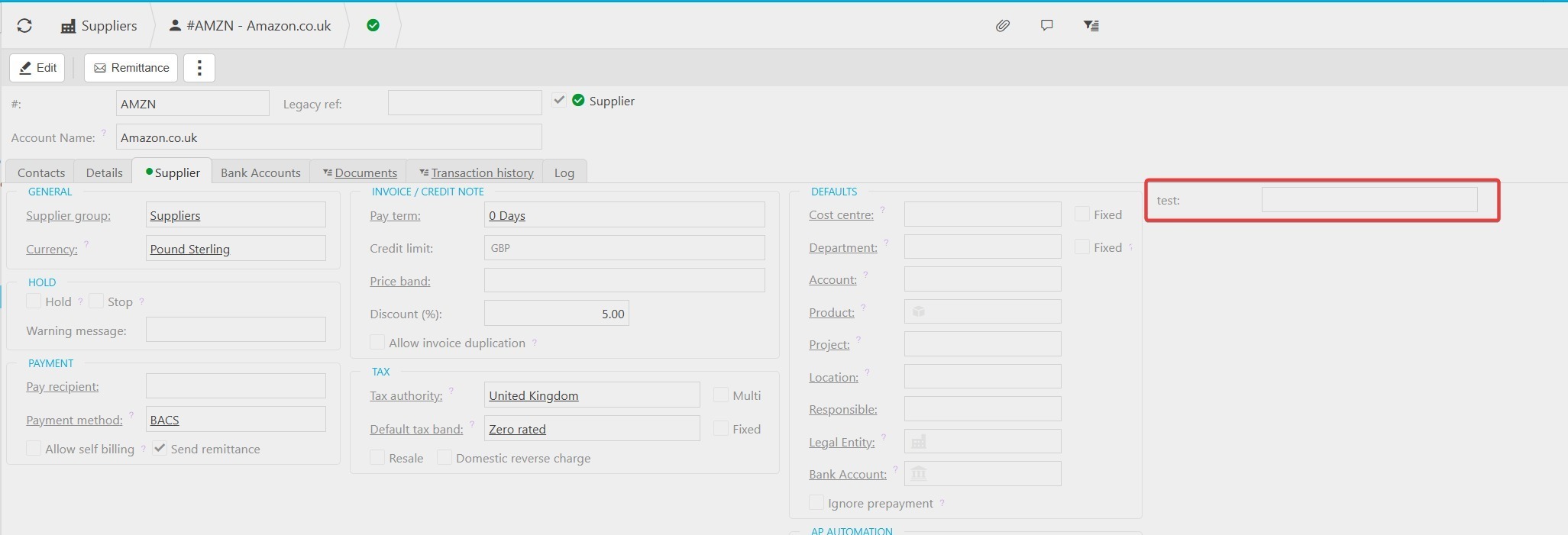
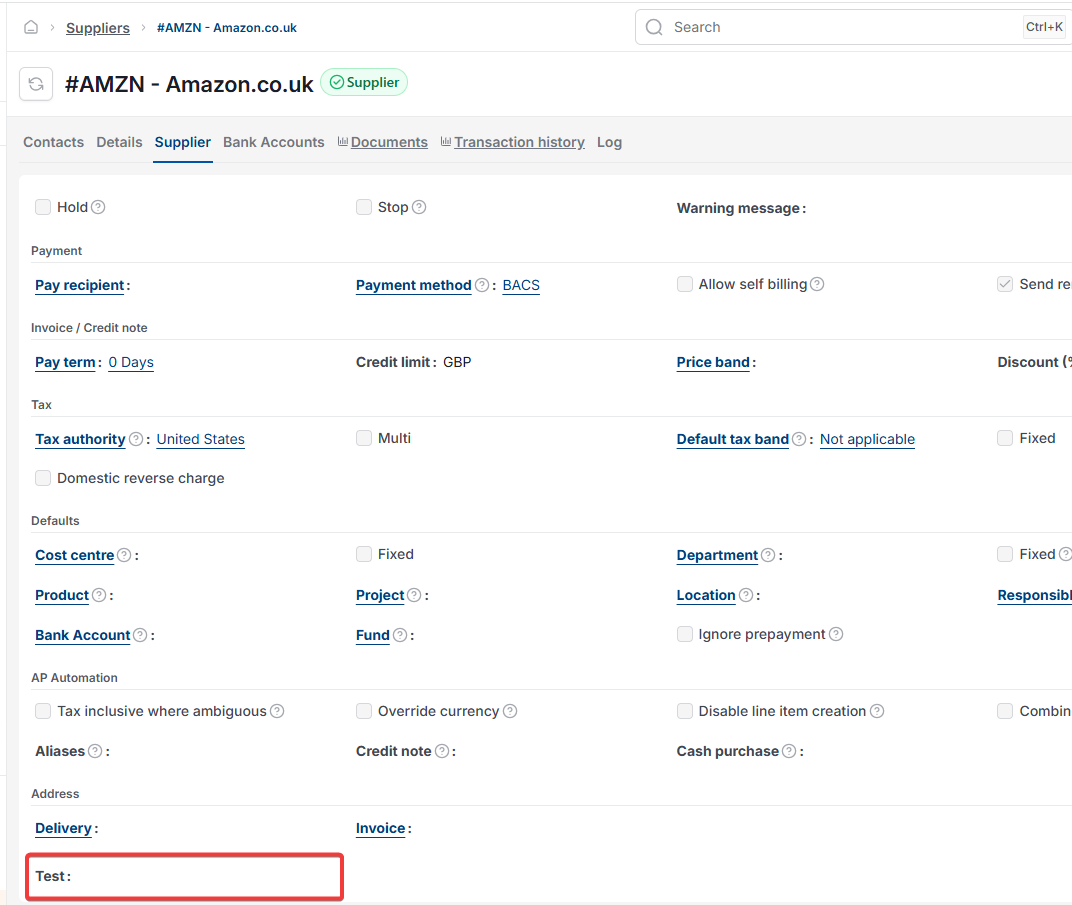
- Caption – enter the label that will appear on the account record
- Save the custom field
The custom field is now available on all supplier or customer accounts within that group.
About custom fields
Custom fields added to supplier or customer records are available for reporting purposes. They do not affect transaction processing or account behaviour.
Add custom field to supplier or customer
Custom field set up
Add field to customer
Add field to supplier