

This article covers how to receive a payment into the bank account of one legal entity and allocate it against an invoice raised in a different legal entity - sometimes called an intercompany receipt, cross-entity allocation, or paying an invoice raised in another entity. The same approach handles intercompany bulk payments, where one legal entity pays a supplier invoice raised against another entity.
The recommended way to do this is via an intercompany bulk receipt or bulk payment. Before you can run one, several configuration steps need to be completed once across document types, environment defaults, legal entities, bank accounts, and bulk templates. After that, intercompany bulk receipts and payments work much like standard bulk receipts and payments, with allocations available across legal entities.
This article covers the full process: setup, then running a bulk receipt, then running a bulk payment.
Unlocking the intercompany document types
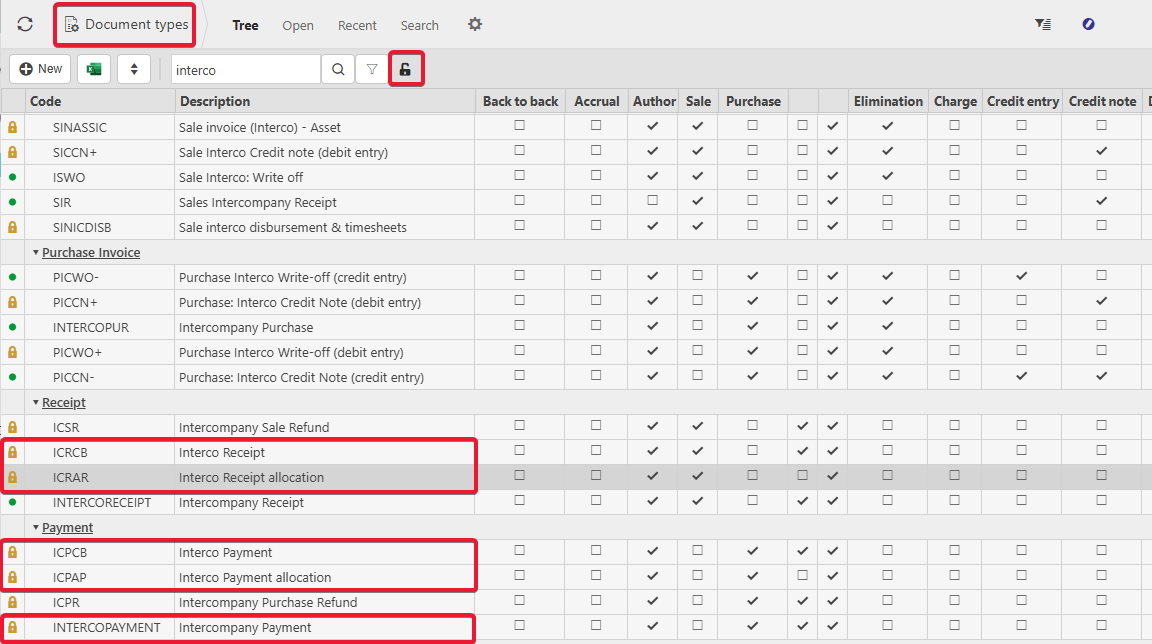
Five intercompany document types must be unlocked before any intercompany bulk receipt or payment can run.
- Navigate to Document Types and search 'Interco'
- The five document types to unlock are Interco Receipt, Interco Receipt Allocation, Interco Payment, Interco Payment Allocation, and Intercompany Payment
- Drill into the first document type, select the ellipsis, and choose 'Unlock'
- Ensure a document series has been assigned to each document type within the series tab once unlocked
- Repeat for each of the remaining four document types.
All five must be unlocked. If any are still locked, the corresponding intercompany bulk action will not be available.
Setting the intercompany document types in environment defaults
Once the document types are unlocked, environment defaults need to be told which document type to use for each intercompany action.
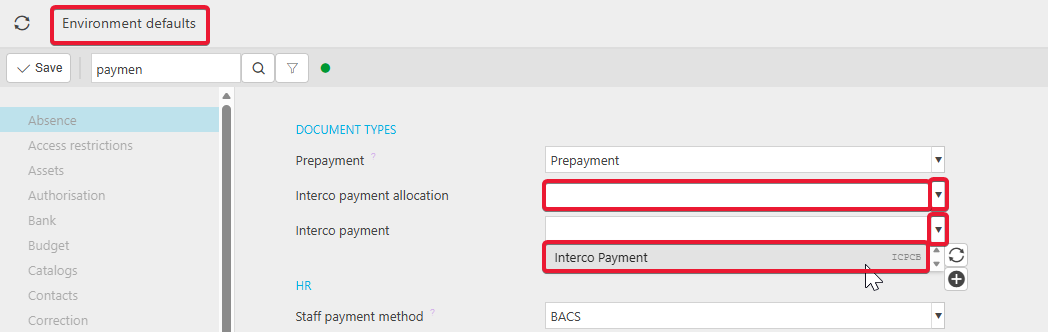
- Navigate to Environment Defaults
- Search 'Payment'
- Select the unlocked Interco Payment Allocation and Interco Payment document types from the relevant dropdowns
- Search 'Receipt'
- Select the unlocked Interco Receipt Allocation and Interco Receipt document types from the relevant dropdowns
- Save the changes.
Without this step, iplicit knows the document types exist but does not know which to use when an intercompany bulk receipt or payment is created.
Enabling intercompany on each legal entity
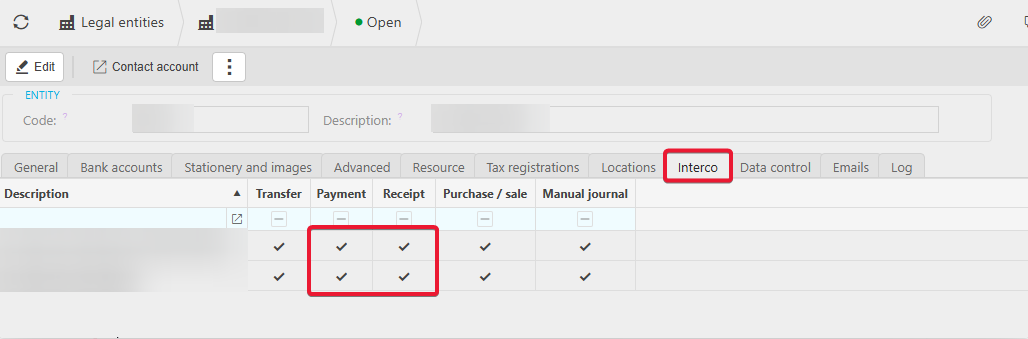
Each legal entity that will send or receive intercompany funds needs to be flagged for intercompany payments and receipts. This is set per legal entity - missing one will block transactions involving that entity.
- Navigate to Legal Entities and drill into the first relevant entity
- Open the 'Interco' tab
- Confirm 'Payment' and 'Receipt' are ticked. If not, edit and tick both
- Save the changes
- Repeat for every legal entity that will be involved in intercompany bulk receipts or payments.
If you only enable some entities, intercompany bulk receipts and payments will work between enabled entities only.
Enabling intercompany on each bank account
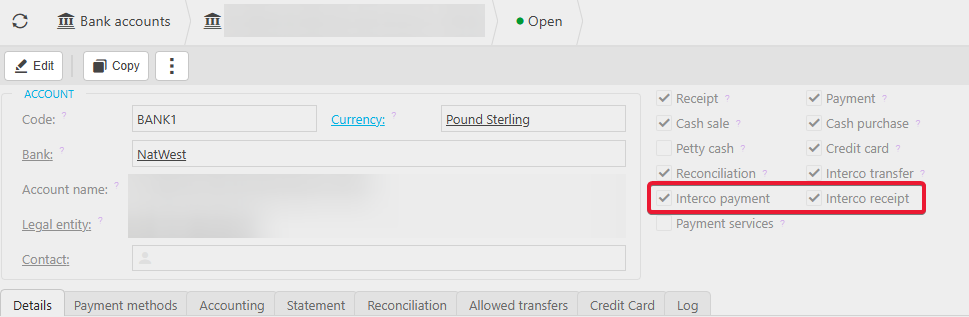
Bank accounts also need to be flagged for intercompany payments and receipts. This is per bank account, not per legal entity, and only needs to be done for accounts that will actually send or receive funds for another entity.
- Navigate to the bank account and open it
- Confirm 'Interco Payment' and 'Interco Receipt' are ticked. If not, edit and tick both
- Save the changes
- Repeat for every bank account where funds will be deposited or withdrawn on behalf of a different legal entity.
If a bank account is missed, the bulk receipt or payment will not be able to use that account for intercompany activity.
Creating an intercompany bulk template
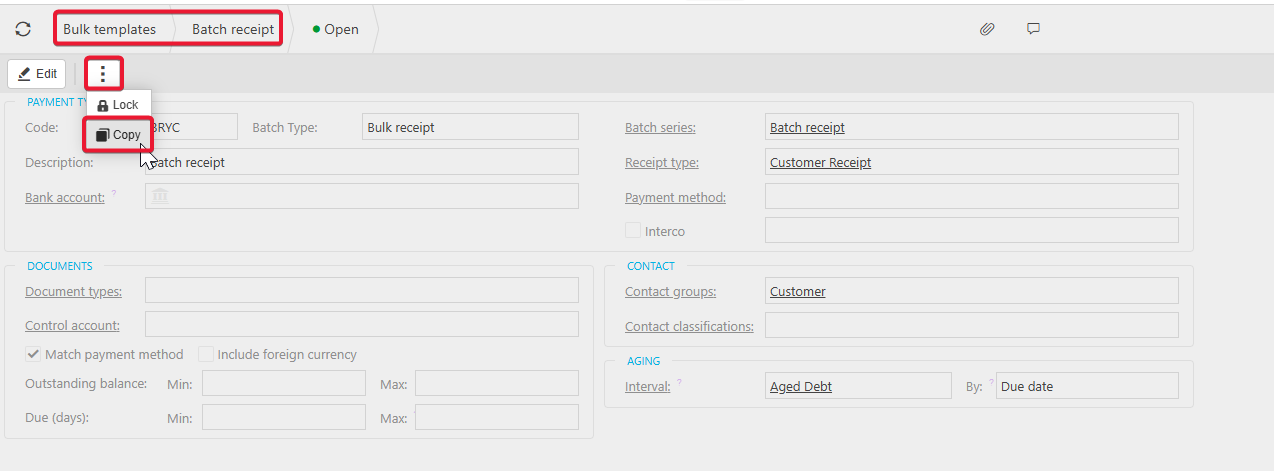
A dedicated bulk template is required for intercompany bulk receipts and payments. The easiest route is to copy an existing template and amend it for intercompany use. You will need one template for receipts and a separate one for payments.
- Navigate to Bulk Templates
- Drill into the existing Batch Receipt template
- Select the ellipsis and choose 'Copy'
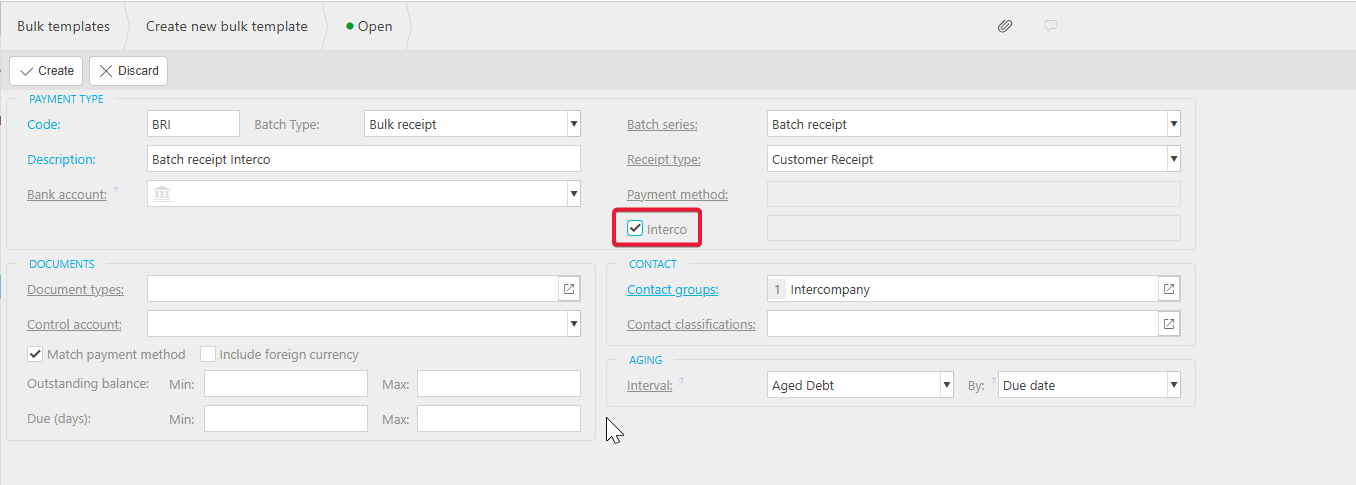
- Enter the code and description for the new template (for example, Batch Receipt Interco)
- Tick the 'Interco' option
- In the contact groups, remove 'Customer' and select 'Intercompany'
- Select 'Create' to save the new template
- Repeat the process for the Batch Payment template, naming it appropriately (for example, Batch Payment Interco) and applying the same Interco and contact group changes.
You now have intercompany versions of your bulk receipt and bulk payment templates, ready to use.
Creating an intercompany bulk receipt
With setup complete, intercompany bulk receipts work much like standard bulk receipts, with the addition of selecting which legal entity's invoices you want to allocate against.
- Navigate to Bulk Receipts and create a new bulk receipt
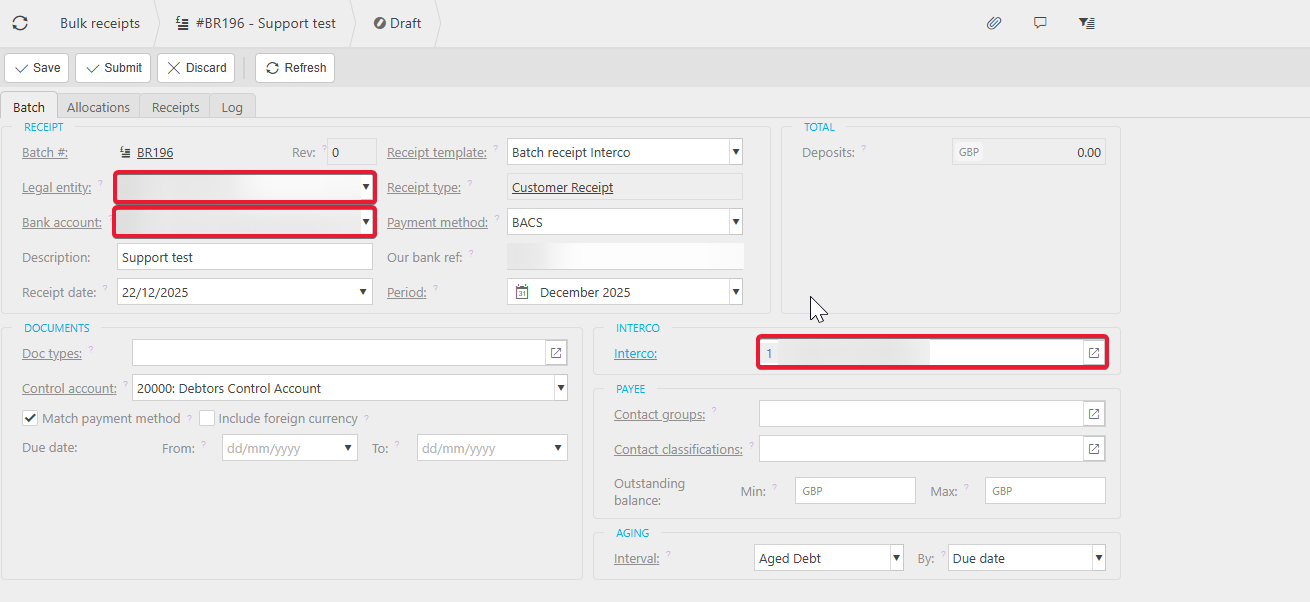
- In the receipt template, select Batch Receipt Interco (or whichever name you used) from the dropdown
- The receipt type will be Customer Receipt – this is correct, and is why the document types needed to be unlocked and configured to allow intercompany
- Select the legal entity and bank account the funds were deposited into
- Enter the other relevant details (date, amount, reference)
- In the Interco section, select the legal entity whose invoices you want to pay
- Open the Allocations tab. All invoices available for allocation will be listed, including invoices raised under the other legal entity
- Select the invoices to allocate against and apply the allocation
- Save and post the bulk receipt as normal.
The receipt now sits against the bank account of the receiving entity, with the allocation correctly applied to the invoice in the other entity.
Creating an intercompany bulk payment
Intercompany bulk payments mirror the receipt process. The setup steps above apply equally - the same document types, environment defaults, legal entity flags, bank account flags, and a separate Batch Payment Interco template are all needed.
- Navigate to Bulk Payments and create a new bulk payment
- In the payment template, select Batch Payment Interco from the dropdown
- Select the legal entity and bank account the funds will be paid from
- Enter the other relevant details
- In the Interco section, select the legal entity whose supplier invoices you want to pay
- Open the Allocations tab. All supplier invoices available for allocation will be listed, including invoices raised under the other legal entity
- Select the invoices to allocate against and apply the allocation
- Save and post the bulk payment as normal.
Why a transaction might not be available for intercompany allocation
If an expected invoice does not appear in the Allocations tab, the most common causes are configuration gaps from the setup steps above.
- One of the five intercompany document types is still locked
- The intercompany document types have not been selected in environment defaults
- The legal entity holding the invoice does not have 'Payment' and 'Receipt' ticked on its Interco tab
- The bank account being used does not have 'Interco Payment' and 'Interco Receipt' ticked
- The bulk template being used is not the intercompany version (Interco unticked, or contact group still set to Customer rather than Intercompany)
- Your user permissions or Data Access Control settings restrict visibility of one of the legal entities involved.
Work back through the setup sections above to identify which step has not been completed for the entity, bank account, or document type involved.
Intercompany bulk receipt
Intercompany bulk payment
Interco bulk setup
Receive money from one entity to another