

This article explains how to match a requisition to a purchase order that is already in draft within the Purchase Ledger module in iplicit. This is not the same as raising a new purchase order - this process links a requisition to an existing draft purchase order so the two documents are connected. For guidance on creating a new purchase order, please refer to our user guide.
How to match a requisition to a draft purchase order in iplicit
To match a requisition to a purchase order already in draft in iplicit:
- Create the requisition and complete the header information as usual
- Open the 'Lines' tab on the requisition
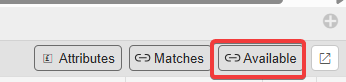
- Select the 'Available' button - this displays all draft purchase orders currently available for matching
- Double-click the purchase order lines you want to match to this requisition
- Select 'Submit'
If a workflow is in place, the requisition may move to 'Pending Authorisations' for approval before the match is finalised.
What happens after the requisition is authorised
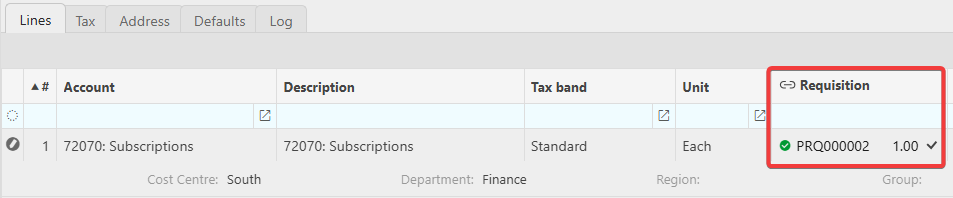
Once the requisition has been authorised, the matched purchase order displays a link to the requisition. This confirms that the two documents are connected within the Purchase Ledger in iplicit.
Match REQ to PO
Link requisition to purchase order
Matching requisition to purchase order