

The method you use to correct a bank transfer depends on whether it has already been matched in a submitted bank reconciliation. This article covers both correction methods within the Bank Transfer module: unposting a transfer that hasn't been reconciled, and reversing one that has.
How to correct a bank transfer that has not been reconciled
If the bank transfer hasn't been matched in a submitted bank reconciliation, you can unpost it and make changes directly. You need the relevant user permissions to access corrections.
- Open the bank transfer
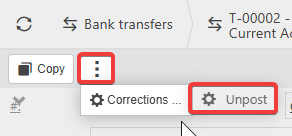
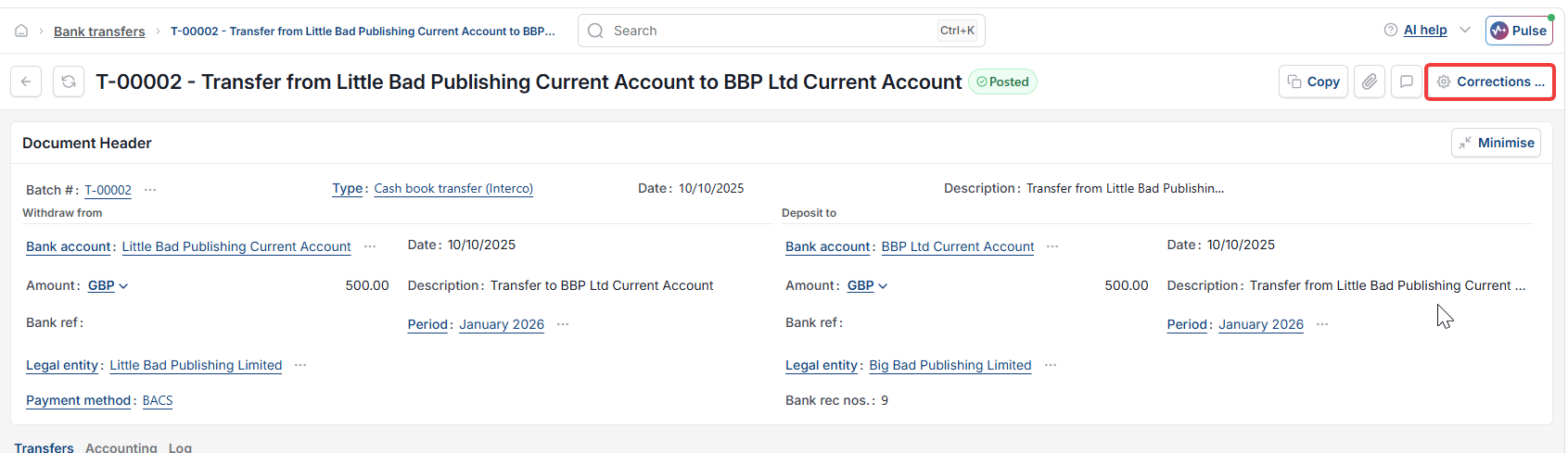
- If you see a three-dot menu select it, then select 'Corrections'. If you see a 'Corrections' button directly instead, select that
- Select 'Unpost'
- Confirm by selecting 'Unpost' again.
The bank transfer returns to draft status. From here you can edit it – including the period – or abandon it entirely. Once corrected, repost the transfer.
How to correct a bank transfer that has already been reconciled
If the bank transfer has already been matched in a submitted bank reconciliation, you cannot unpost it. Instead, create a new bank transfer with the opposite effect to cancel out the original, then post the correct transfer.
- Post a new bank transfer for the same amount and period as the original, but with the 'from' and 'to' accounts swapped – this cancels out the original transfer
- Post a second new bank transfer with the correct details – correct period, accounts and amount
- Match all three transactions in your next bank reconciliation:
- The original transfer – the initial money movement
- The cancelling transfer – offsets the original
- The corrected transfer – reflects the accurate transaction.
All three documents must be reconciled together to keep the bank reconciliation balanced.
Correct a bank transfer
Unpost a bank transfer
Reverse a bank transfer
Fix bank transfer period
Bank transfer already reconciled