

This article covers how to credit note a supplier prepayment in the Purchase Ledger when a refund has been received and the remaining prepayment release schedule needs to be cancelled. Use this method when the original prepayment invoice has already been paid in full and you need to preserve the original invoice and its history.
When to use a credit note instead of reversing the prepayment
If the original prepayment invoice has not yet been paid, you have simpler options in the Purchase Ledger:
- reverse the original prepayment invoice
- amend and resubmit the invoice
- run the prepayment automation for only the months required.
Once the original prepayment invoice has been paid in full and a refund has been issued by the supplier, reversal is no longer appropriate. A Purchase Ledger credit note keeps the original invoice intact and offsets the remaining release schedule so the two balance out over the remaining periods.
Before you start
Confirm the following in the Purchase Ledger before raising the credit note:
- the credit note document type has prepayment enabled in its settings
- the prepayment automation is configured to include the credit note document type - open the automation, select edit, and add the credit note to the 'doc from' section
- you know the GL account code used on the original prepayment invoice
- the refund payment has been received and is ready to be recorded
- you know how many releases remain on the original prepayment schedule.
If the credit note document type is missing from the prepayment automation, the releases will not post automatically alongside the original invoice schedule.
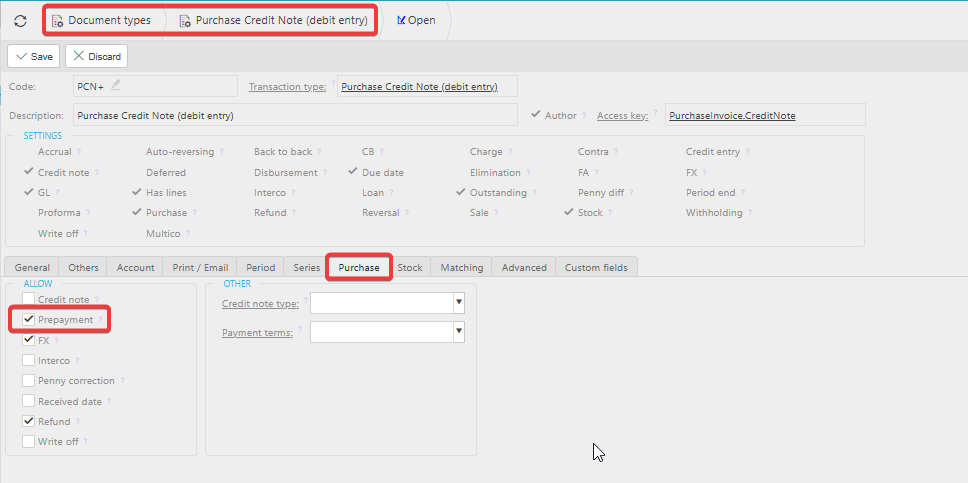
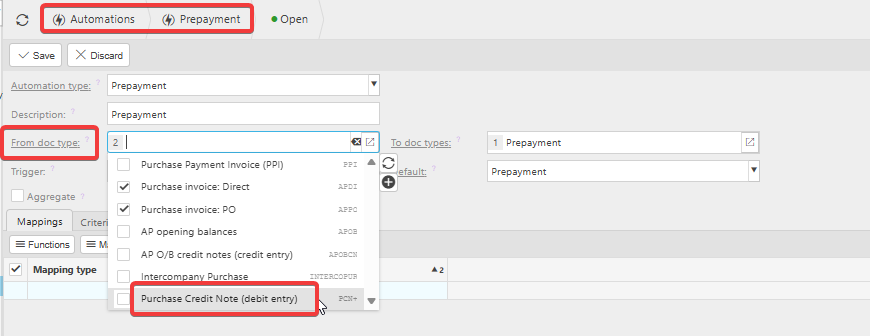
Raising the prepayment credit note in the Purchase Ledger
Follow these steps to raise the credit note:
- Create a new credit note using a document type that has prepayment enabled
- Use the same GL account code as the original prepayment invoice - this enables the prepayment options on the credit note
- Enter the refunded amount as the credit note value
- Set up a new prepayment release schedule on the credit note that mirrors the remaining releases on the original invoice - the schedule should cover the same periods so each release offsets cleanly
- Post the credit note
The credit note will now release in line with the original prepayment invoice, balancing each other out for the remainder of the schedule.
Purchase invoice example: 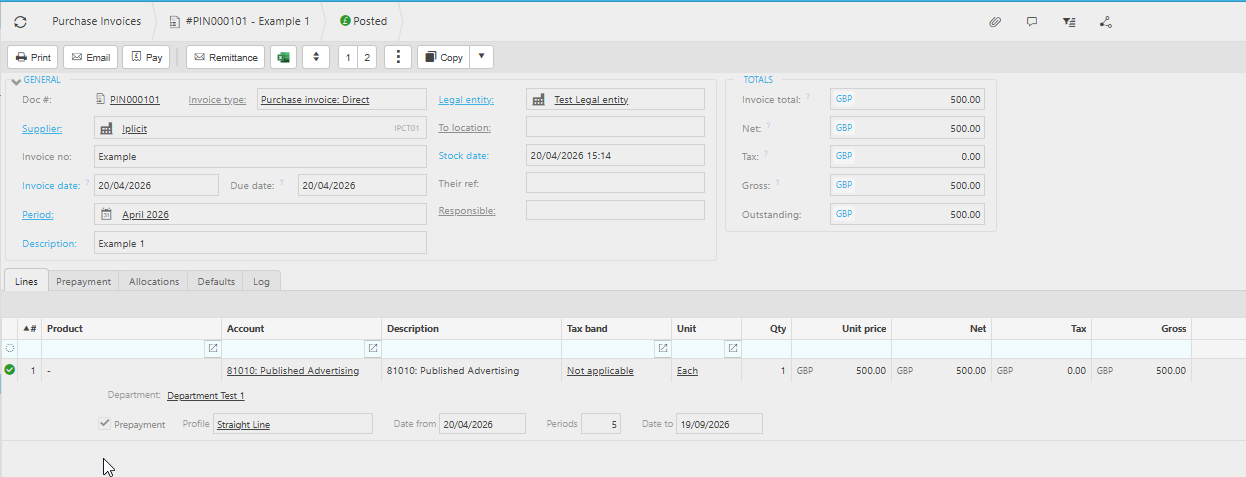
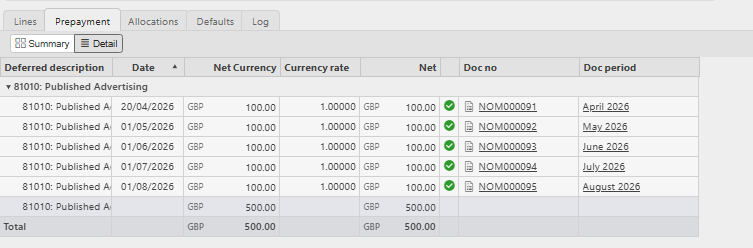
Credit note example:
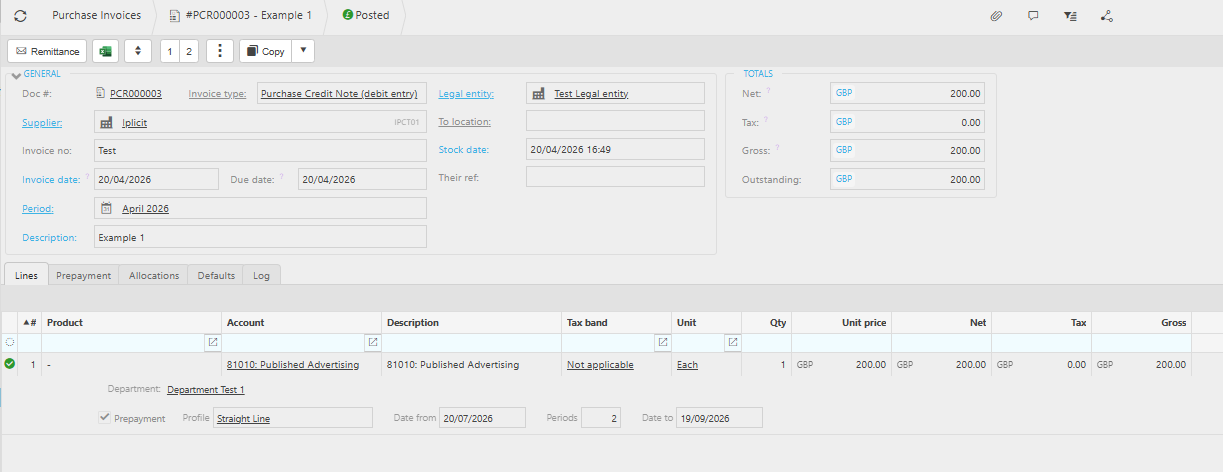
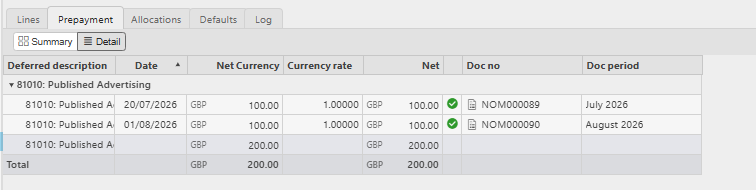
Allocating the credit note and refund in the Purchase Ledger
Allocation for a prepayment credit note works differently to a standard credit note. Keep the original transactions paired and the refund transactions paired:
- allocate the original prepayment invoice against the original payment
- allocate the prepayment credit note against the refund payment
This keeps the original invoice history clean and ensures the refund is matched directly to the credit note that cancels the remaining schedule.
Cancel prepayment schedule
Credit prepayment
Refund prepayment
Stop prepayment release