

This article covers allocating a refund document against an existing overpayment on an account. The process works the same way in both the Sales Ledger and the Purchase Ledger. Allocate when raising the refund document, or use 'Reallocate' after the refund has already been posted.
Allocating when raising the refund document
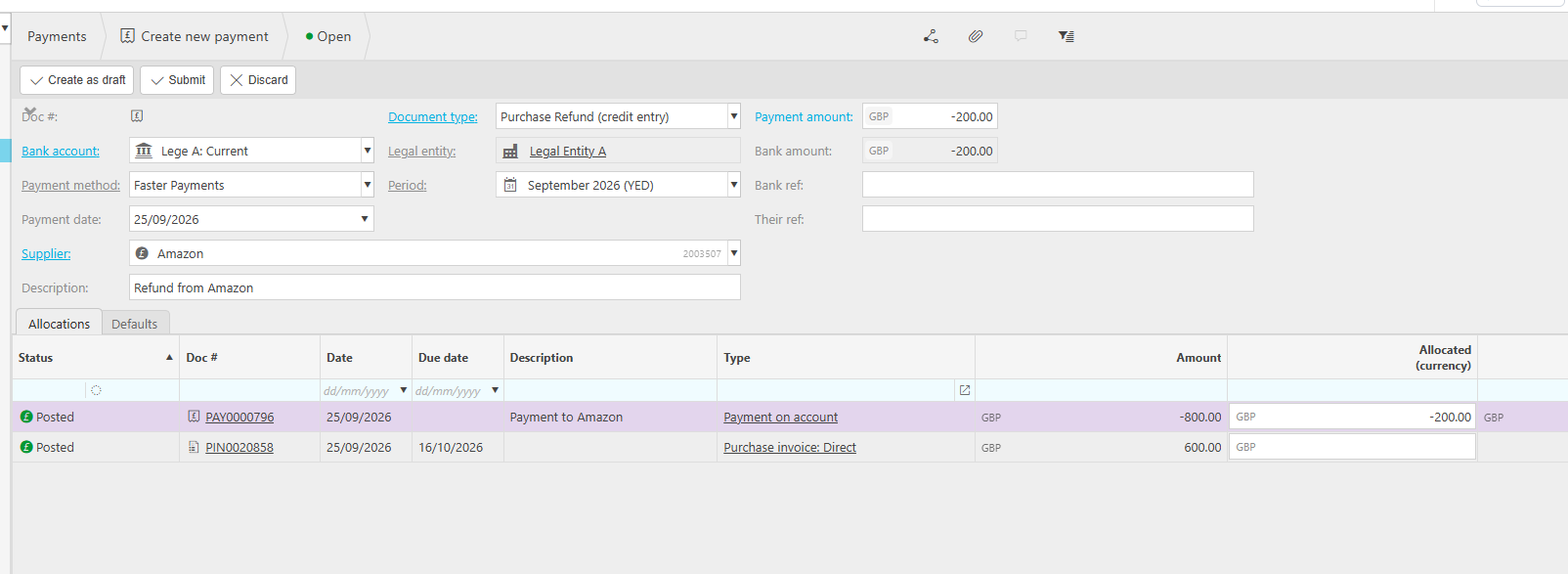
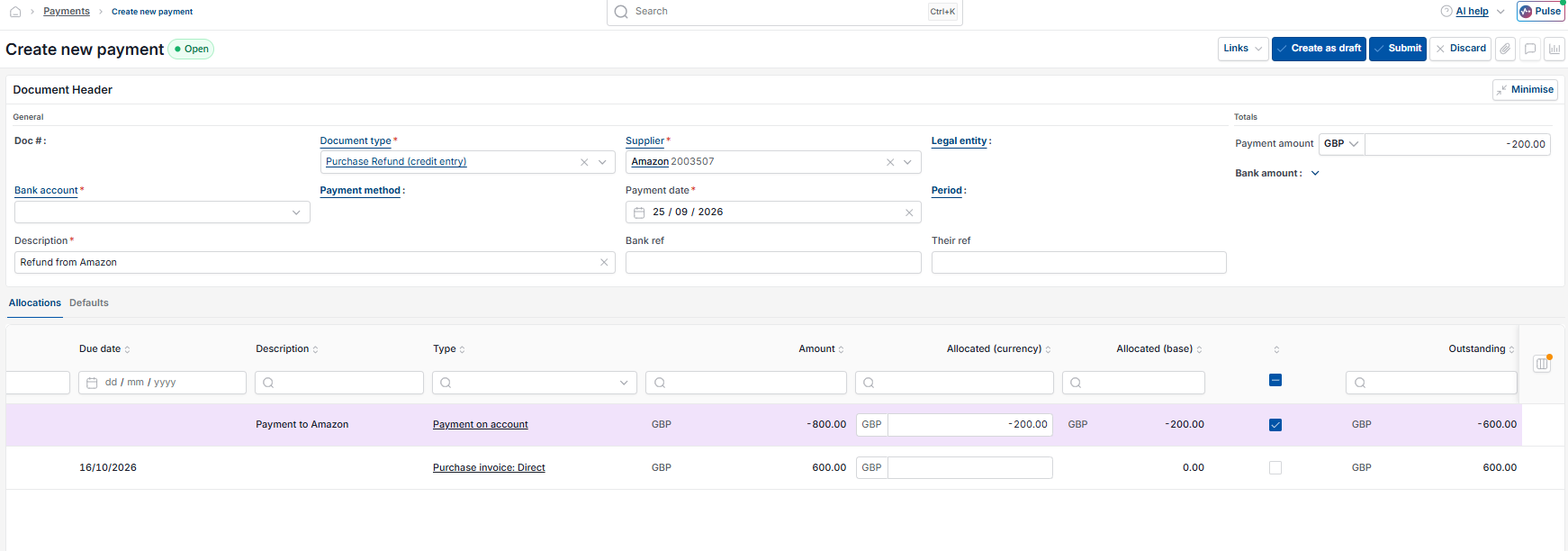
When raising a refund document, any unallocated payment on that account – including an overpayment – can be selected for allocation directly on the 'Allocations' tab.
- Navigate to the relevant ledger – Sales Ledger or Purchase Ledger – and create the refund document
- Complete the header details, including the supplier or customer and the payment amount
- On the 'Allocations' tab, find the overpayment in the list of available documents
- Enter the amount to allocate against it in the 'Allocated (currency)' column and tick to confirm
- Submit the refund document.
The refund and the overpayment are now matched, and the account balance updates accordingly.
Allocating an already-posted refund using Reallocate
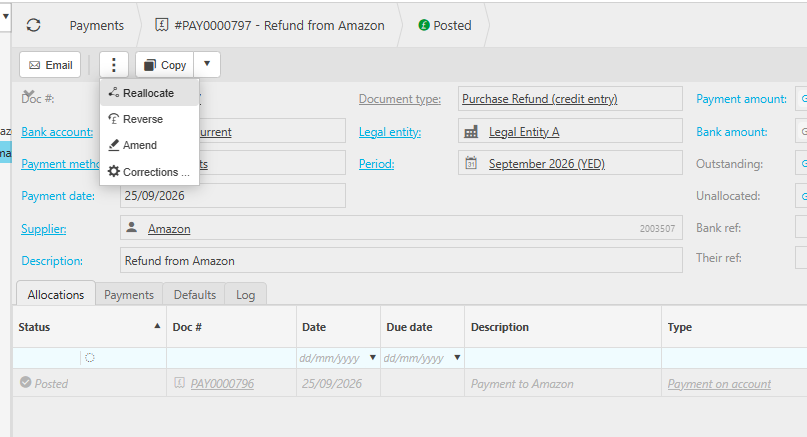
Use this method when a refund document has already been posted and needs matching to an overpayment afterwards.
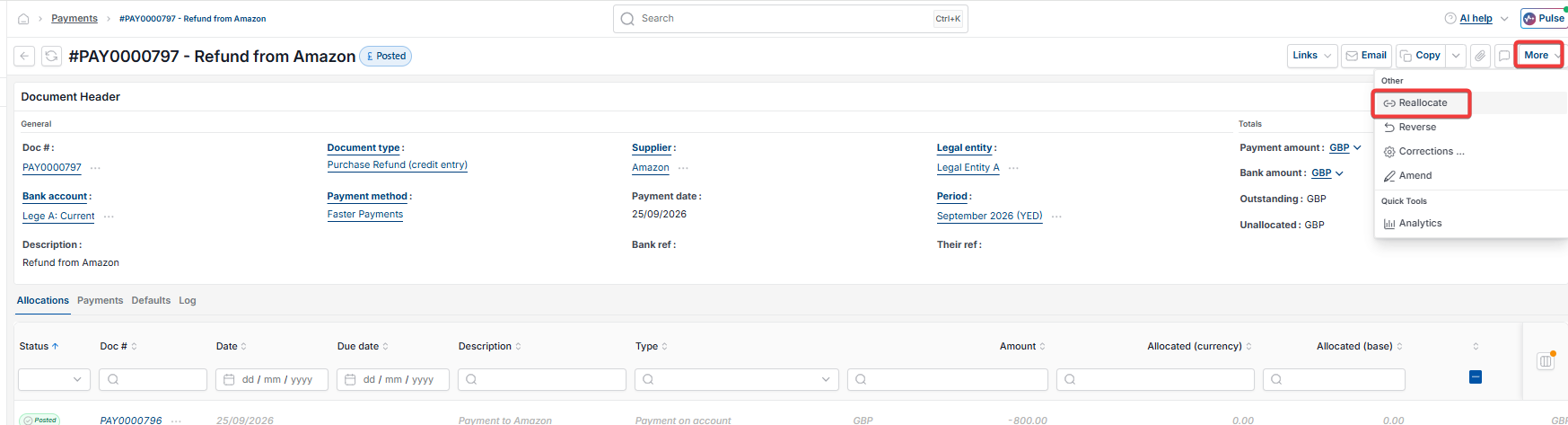
- Navigate to the relevant ledger and open the posted refund document
- Open the additional actions menu – shown as a three-dot icon or as the 'More' dropdown, depending on your screen – and select 'Reallocate'
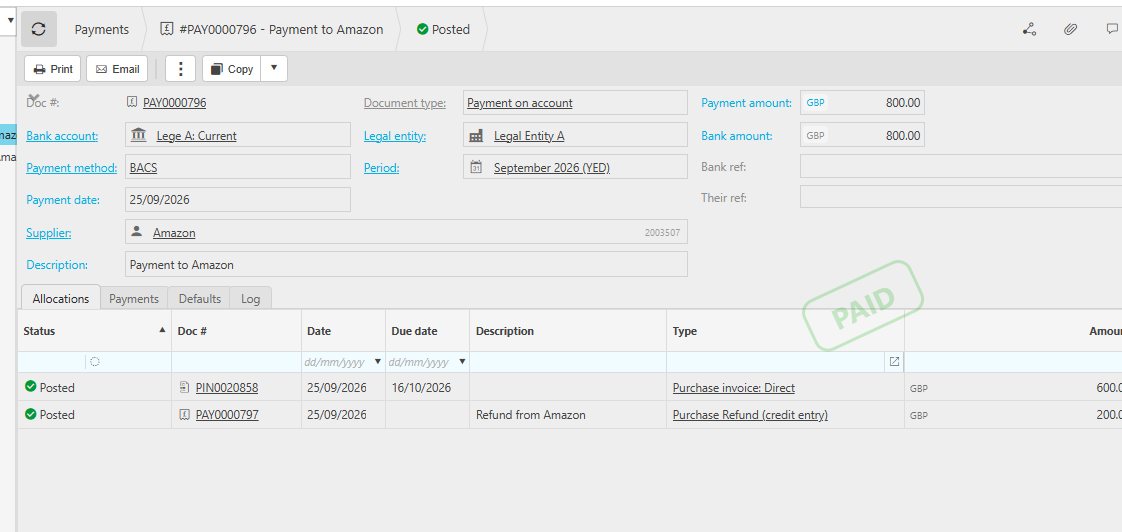
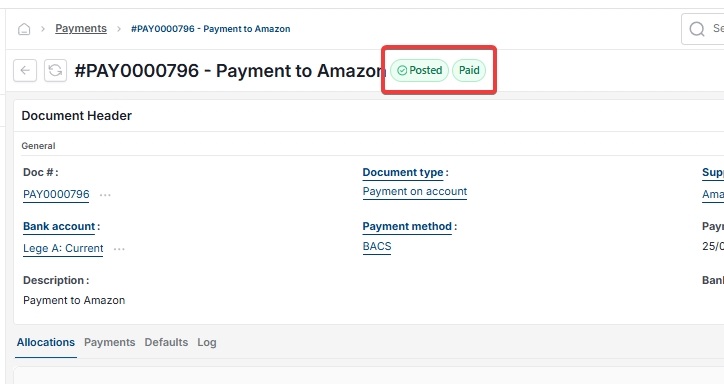
- On the 'Allocations' tab, find the overpayment among the available documents for that account
- Enter the amount to allocate and confirm
- Save the changes.
The refund document is now allocated against the overpayment, and both documents show the updated allocation status.
Overpayment
Allocate refund to payment
Match refund and payment
Offset overpayment with refund
Reallocate a payment
Unallocated overpayment