

This article covers how to cancel an authorisation on a document, including requisitions, expenses, and any other document type that goes through an authorisation workflow. There are two ways to cancel an authorisation, depending on who needs to do it.
Who can cancel an authorisation?
A document that has been submitted for authorisation can be cancelled by:
- The user who submitted the document
- An admin user, from the pending authorisations screen
The route is different for each, so follow the section that applies to you.
Cancelling an authorisation as the submitting user
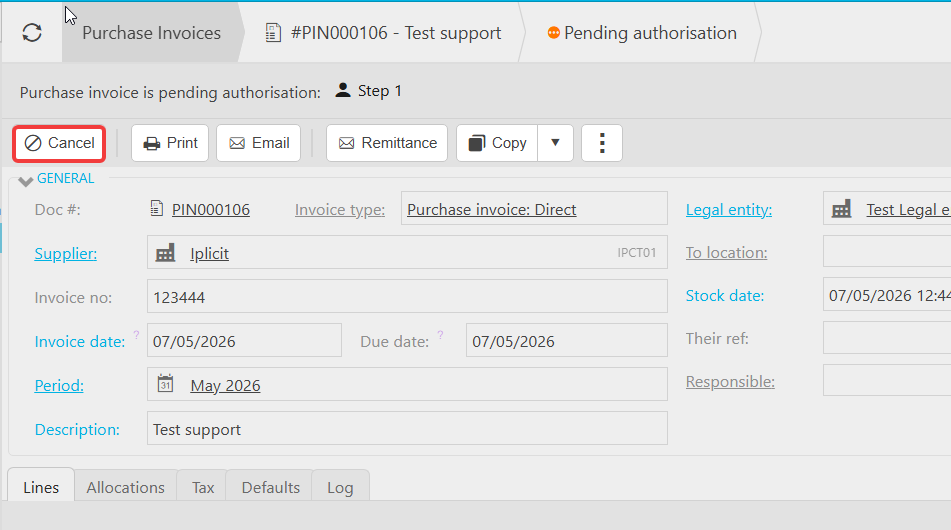
If you submitted the document yourself (for example, a requisition or an expense), you can cancel the authorisation directly from the document.
- Open the document you submitted
- Select 'Cancel' on the document
- Confirm the cancellation
The document is removed from the authorisation workflow and returned to a state where you can amend or abandon it.
Cancelling an authorisation as an admin user
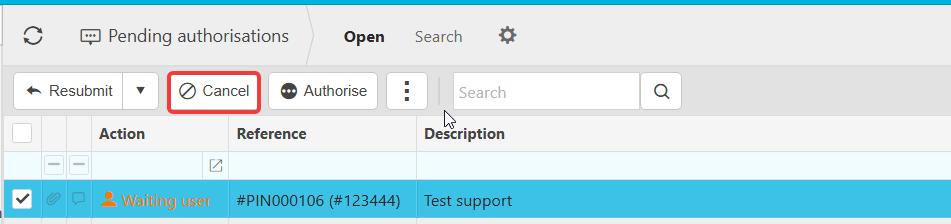
An admin user can cancel any pending authorisation from the pending authorisations screen, regardless of who submitted the document.
- Open the pending authorisations screen
- Locate the document you need to cancel
- Cancel the authorisation from this screen
This is useful when the original submitter is unavailable or when an authorisation needs to be stopped on their behalf.
Cancel authorisation
Stop authorisation
Cancel approval
Withdraw authorisation
Pending authorisation
Delete a pending document