

This article walks you through updating the logo used across your environment, including the steps to upload the image, assign it to your legal entity, and test that it appears correctly. It also covers when to raise a support ticket for more complex changes.
Before you start
You'll need:
- Your logo image file in .svg, .jpg, or .png format
- A separate, smaller version of your logo for emails if you want a different style or footer-friendly layout
- Access to the Images screen and Legal Entity settings (if you can't see these, contact your system administrator)
File size limits:
- Main logos: up to 5MB
- Email logos: up to 1MB
Upload your logo to the Images screen
- Navigate to the Images screen.
- Add your main logo and save it under a clear description.
- If you have a reduced version or a different layout for emails, upload this as a separate image and save it under its own description.
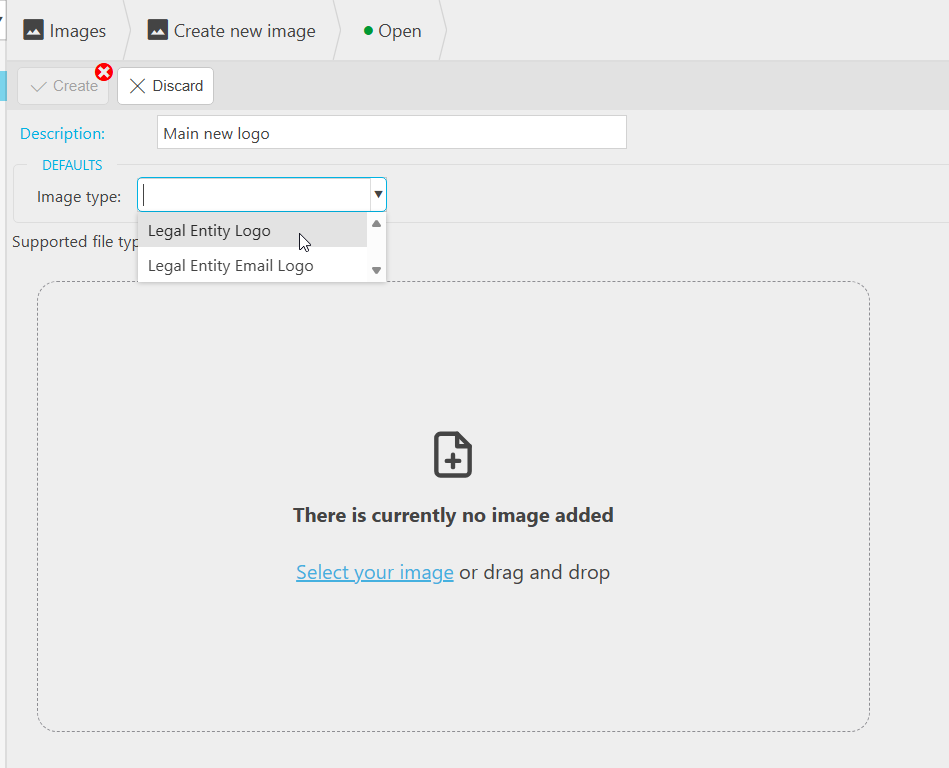
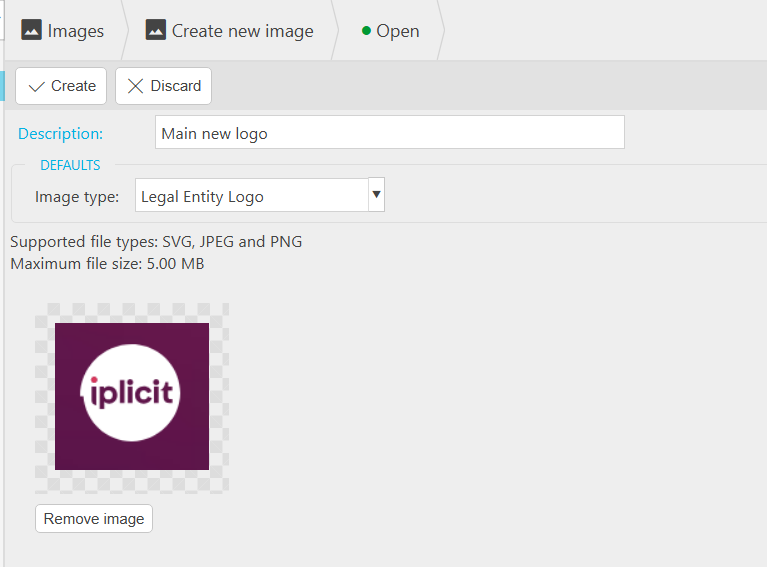
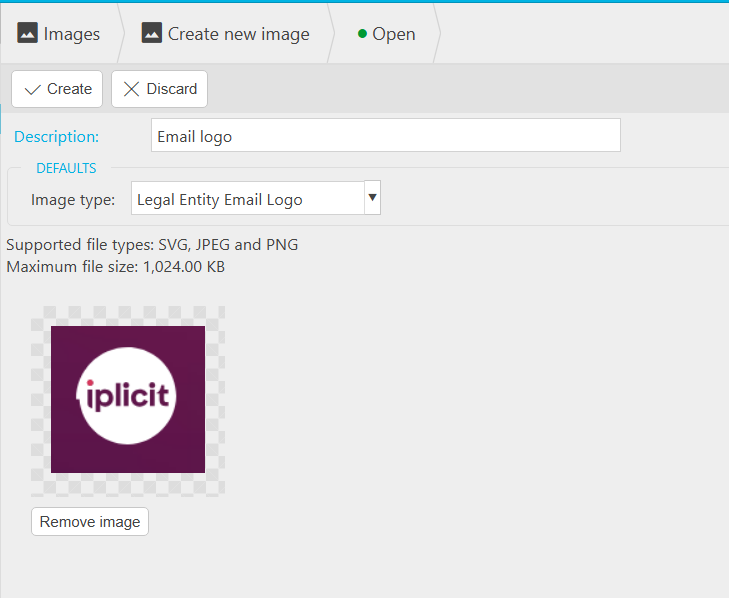
Assign the logo to your legal entity
- Open your Legal Entity record.
- Go to the Stationery and Images tab.
- Select the icon to add or create an image, then choose the logo you uploaded in Step 1.
- Repeat for the email logo if you've uploaded one separately.
- Save your changes.
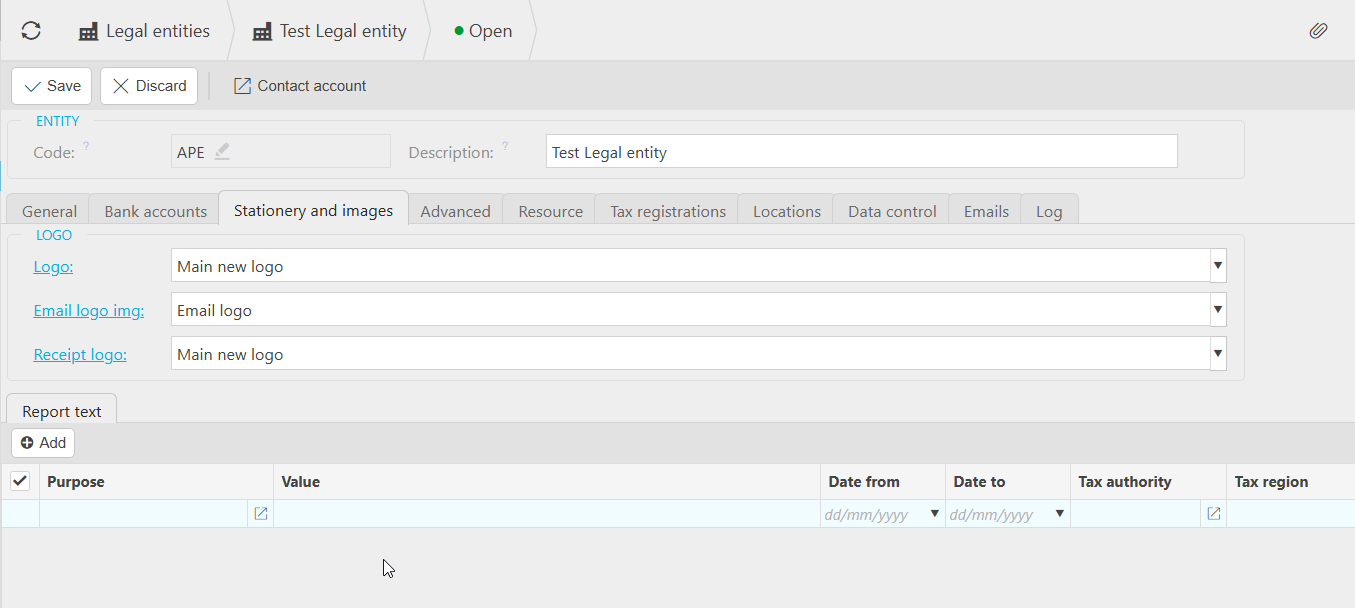
Test the logo
To check the logo is pulling through correctly:
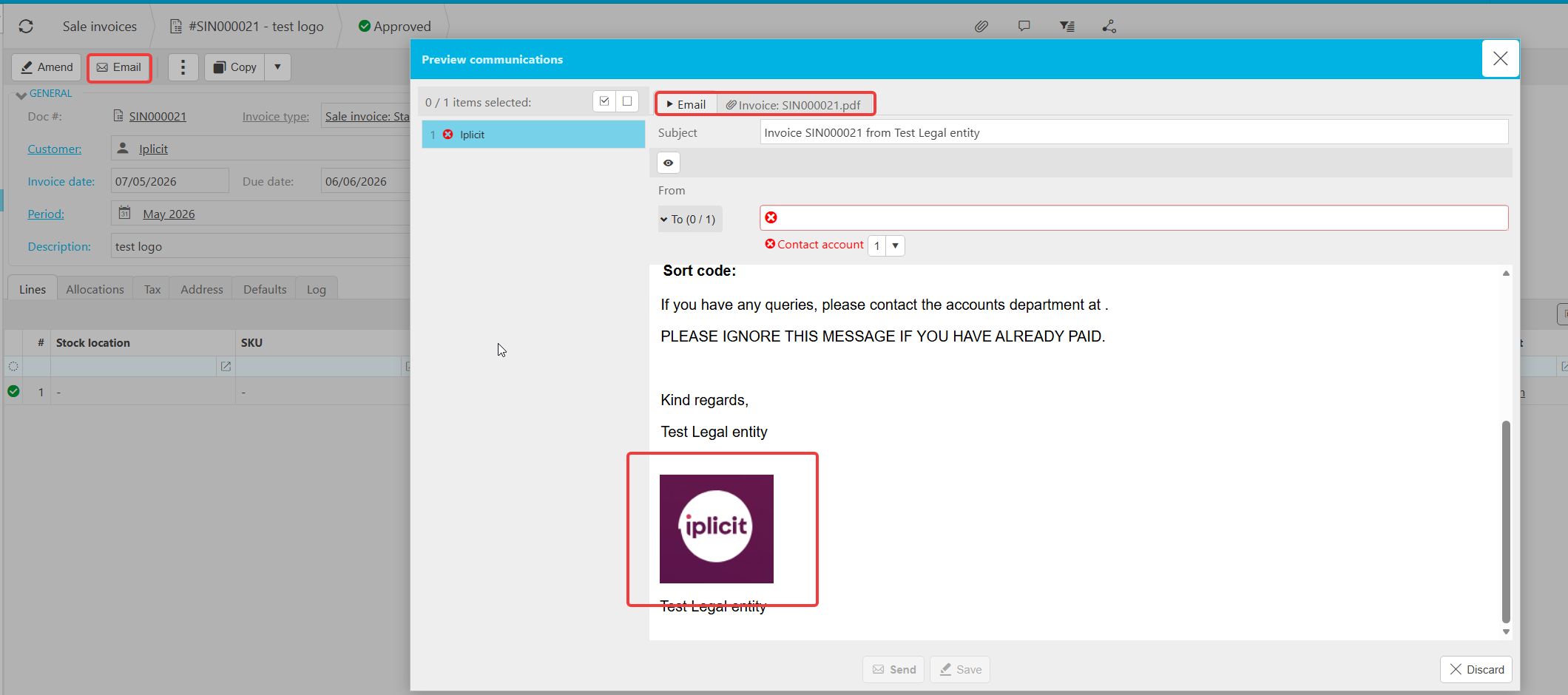
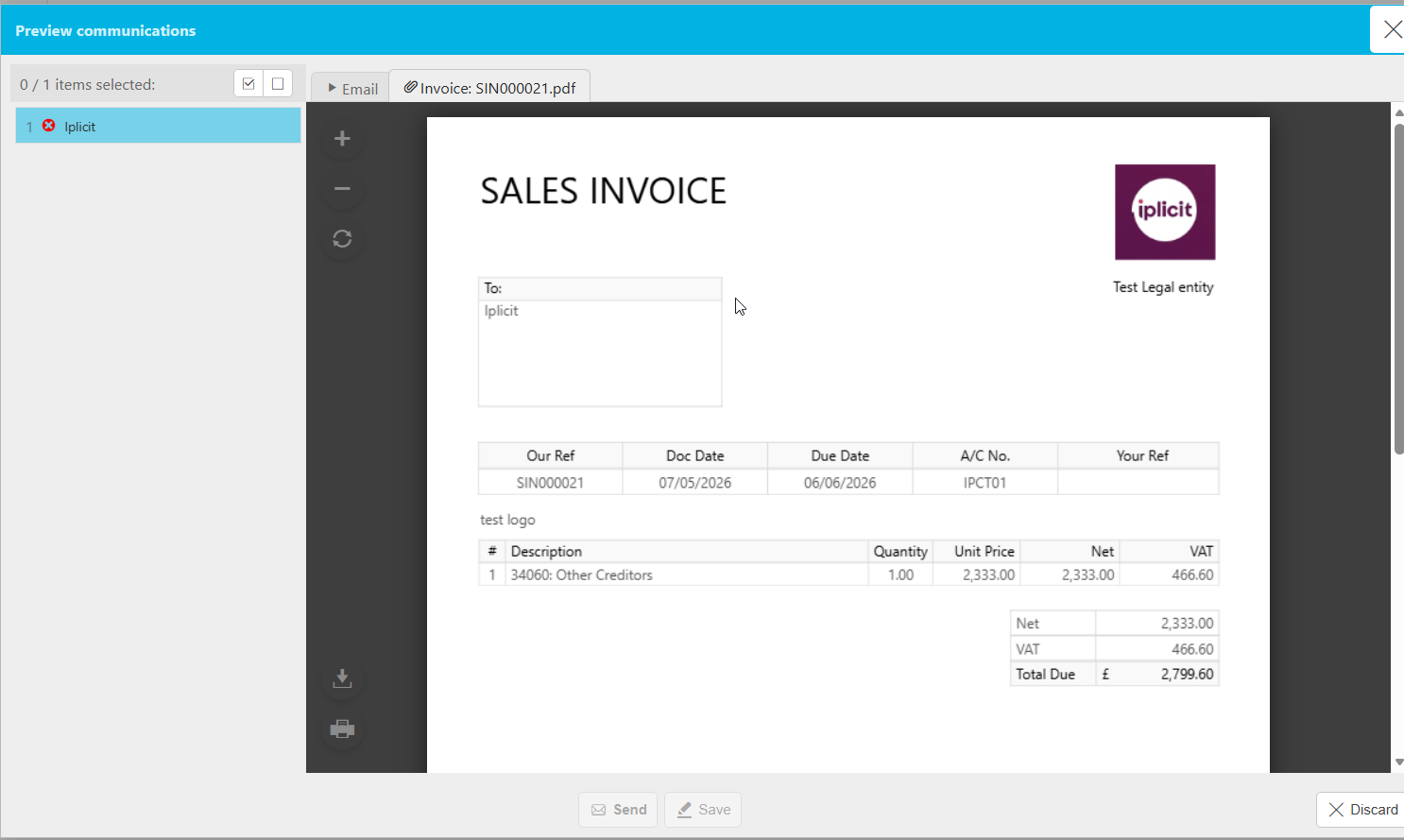
- Open a document that uses the logo, such as a sales invoice.
- Use the email preview options to see how the logo appears on both the PDF and the email template.
If the logo doesn't appear as expected, this may be due to additional configuration in your environment that needs to be reviewed. Please raise a support ticket and our analytics team will look into this for you.
When to raise a support ticket
There are a few scenarios where you'll need our analytics team to make the change for you:
- You want to change the logo used across your environment. Only support can update the live environment logo, so please raise a ticket with the image you'd like to use.
- You have multiple legal entities and want each one to use a different logo. If your entities currently share a single report (PDF) for sending documents to customers and you now want each entity to use its own logo, we'll need to create separate reports for each entity. Please raise a support ticket with the logos and the entities they should apply to, and we'll set this up for you.
- The logo isn't appearing correctly after following the steps above. This usually points to deeper report or template configuration that needs investigating.
Customer search terms
Change my logo
Entity logo change
Update the logo for comms