

Custom VAT rates are added to a tax authority in iplicit and applied to documents through the 'Custom' tax band. You can have one custom rate for purchases and one custom rate for sales per tax authority.
Before you start
You need access to Tax Authorities in iplicit. Decide whether the custom rate is for sales documents, purchase documents, or both - you add a separate rate for each.
iplicit supports one custom purchases rate and one custom sales rate per tax authority. If you need more than one custom rate of the same type at the same time, the custom tax band will not cover that scenario.
Add the custom VAT rate to the Tax Authority
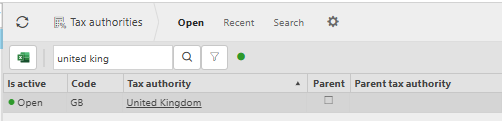
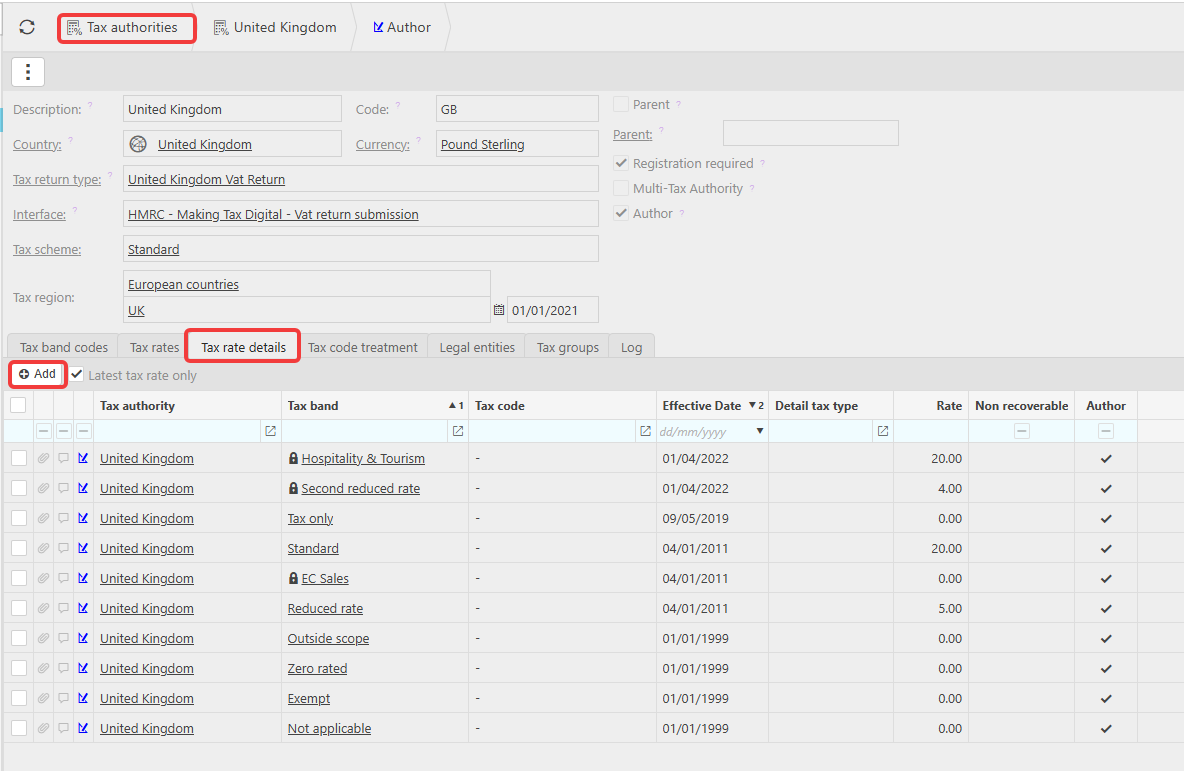
- Navigate to Tax Authorities and open it
- Open the tax authority you want to add the custom rate to
- Select the 'Tax Rates details' tab, then select '+Add'
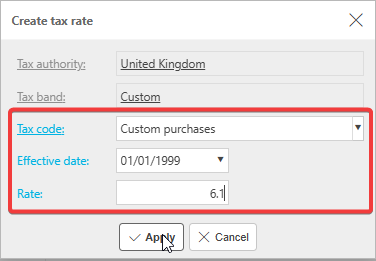
- In the 'Tax Code' field, select either 'Custom Purchases' or 'Custom Sales'
- Enter the 'Effective Date' - the date from which this rate will apply
- Enter the 'Tax Rate' - the percentage value
- Select 'Add'
To add a custom rate for the other type, repeat the steps above and select the alternative tax code. If the Tax Band & Tax Code for Custom is unavailable you may need to go and unlock these first.
Navigate to both the Tax Band & Tax Code screens and search for the Custom rate while locked items are exposed, highlight and unlock.
Apply the custom VAT rate on a document
The custom rate is selected on the document line, not the header.
- Open the sales or purchase document
- On the document line, set the tax band to 'Custom'
- Select the tax code that matches the rate you created - 'Custom Purchases' or 'Custom Sales'
- Save the document
iplicit applies the custom rate to that line based on the tax code selected.
Custom tax rate
Bespoke rate for VAT
Non-standard VAT rate
Custom sales rate
Custom purchase rate