

This article covers the 'Failed to send email: Graph error' message that appears in the Email log when iplicit attempts to send an email through a Microsoft 365 (Graph API) email account. The error originates in Microsoft 365, not in iplicit, and almost always points to a missing mailbox permission for the user who authorised the email account.
For general setup of email accounts in iplicit, see the Email accounts user guide.
What the 'Graph error' means
The full message in the Email log usually reads:
'Failed to send email: Graph error. Status Code: Forbidden Message: The user account which was used to submit this request does not have the right to send mail on behalf of the specified sending account., Cannot submit message. Code: ErrorSendAsDenied, RequestId: , ClientRequestId: Headers: Cache-Control: private'
Microsoft 365 is rejecting the send request because the user who authorised the email account in iplicit (sometimes called the 'authorising user' or 'consenting user') does not have 'Send As' or 'Send on behalf' permission for the mailbox listed in the 'Send from' field. iplicit passes the request through correctly – Microsoft 365 declines it.
Choosing the right user to authorise a Microsoft 365 email account
When the Microsoft 365 sign-in pop-up appears during authorisation, the user who signs in must be one of the following:
- the same mailbox as the 'Send from' address, or
- a user with 'Send As' permission for the 'Send from' mailbox, or
- a user with 'Send on behalf' permission for the 'Send from' mailbox
Signing in with any other account will reproduce the 'Graph error' on the next send attempt. The fix is either to use a user who already has the right permissions, or to grant those permissions in Microsoft 365 first and then re-authorise.
How to grant 'Send As' permission in the Exchange admin centre
The steps below grant 'Send As' permission to the user who will authorise the iplicit email account. Only Microsoft 365 administrators can complete this task.
- Sign in to your Microsoft 365 account and open the Exchange admin centre at https://admin.cloud.microsoft/exchange#/homepage
- In the left-hand menu, select 'Recipients', then 'Mailboxes'
- Find and select the mailbox listed in the 'Send from' field of the affected iplicit email account
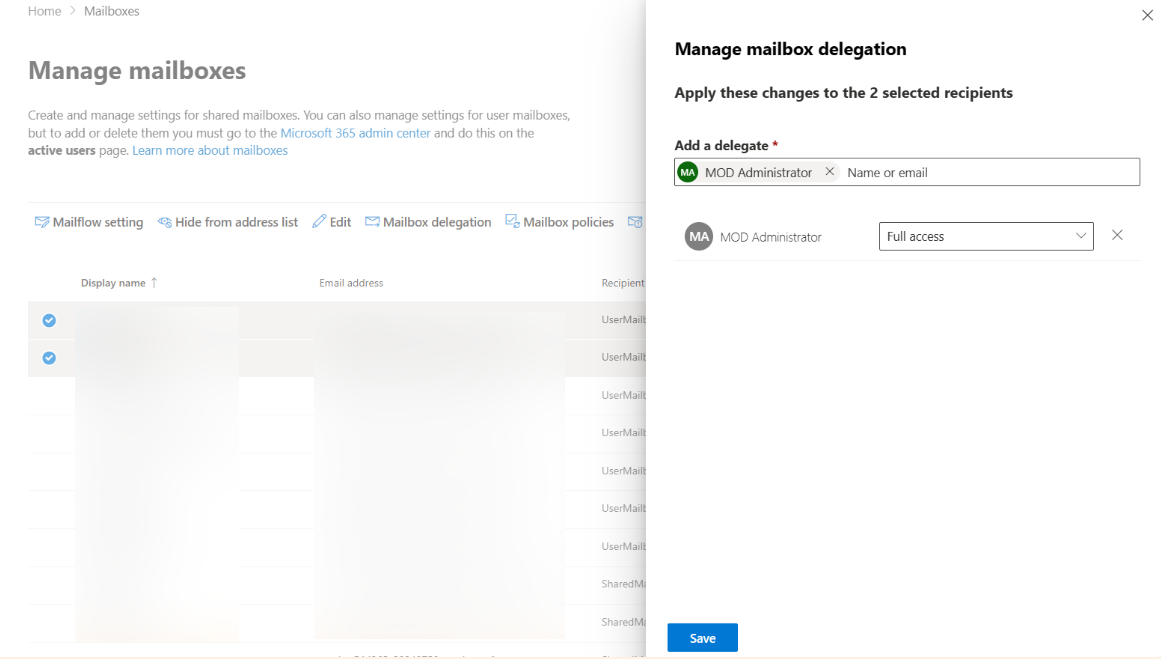
- Select 'Mailbox delegation'. You will see sections for 'Read and manage' (Full Access), 'Send As', and 'Send on Behalf'
- Under 'Send As', select 'Add', then search for and select the user who will authorise the iplicit email account
- Select 'Add', then 'Save' to apply the change.
Microsoft's full reference for these permissions is available at Manage permissions for recipients in Exchange Online.
How to re-authorise the email account in iplicit after fixing permissions
Once the 'Send As' or 'Send on behalf' permission has been granted in the Exchange admin centre, return to iplicit and re-authorise the email account:
- Navigate to Email accounts and open the affected account
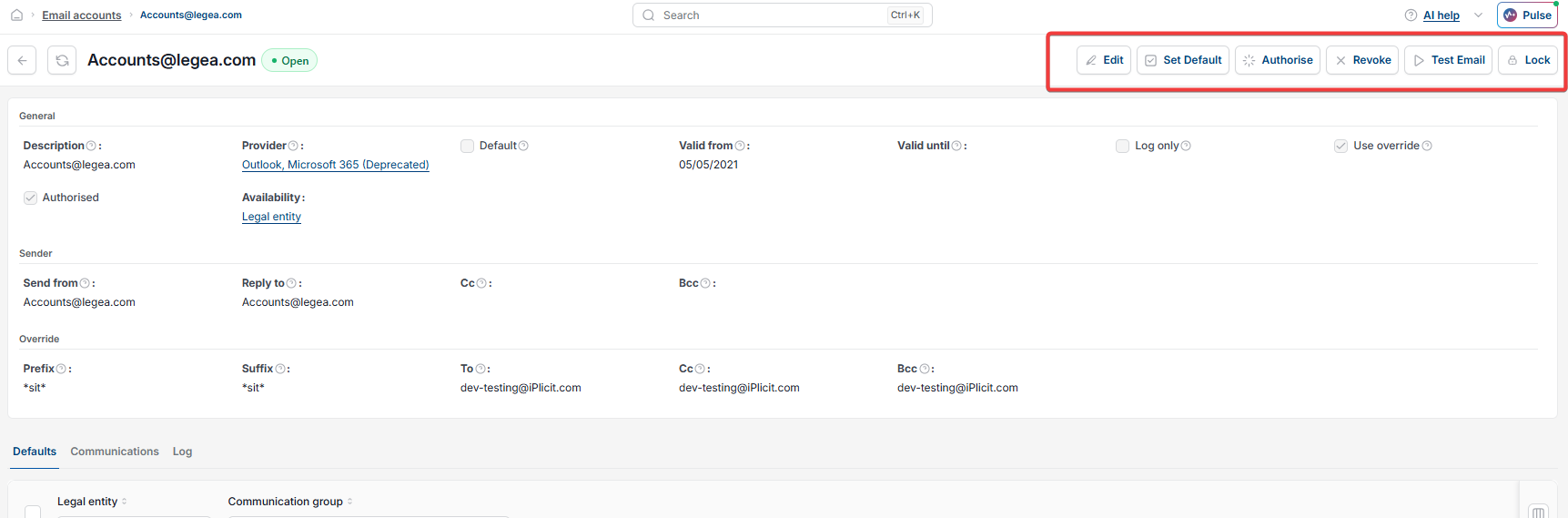
- Select 'Revoke' to remove the existing authorisation
- Select 'Authorise' and complete the Microsoft 365 sign-in pop-up using the user you just added to the mailbox delegation
- Select 'Test Email' at the top of the email account to send a test message
- Open the Email log and confirm the test email shows a status of 'Sent'.

If the 'Graph error' persists after re-authorisation
If the email account is still returning a 'Graph error' after granting permissions and re-authorising, check the following in Microsoft 365:
- the 'iplicit for Outlook Mail' enterprise application has admin consent in your Entra ID tenant
- the authorising user is assigned to the 'iplicit for Outlook Mail' application (required if 'Assignment required' is set to Yes)
- the authorising user has a valid licence that permits sending email, such as an Exchange Online licence
- the mailbox in the 'Send from' field is active and not blocked from sending
- spelling of the email address is the same on both sides in iplicit and Microsoft setup.
Full setup steps for the Graph API provider, including admin consent and user assignment, are covered in the Email accounts user guide.
Graph error
Failing emails
Send on behalf error
Send as denied
Email authorisation failed
Microsoft 365
GraphAPI