

This article covers enabling automatic update checks within the iplicit desktop app (electron app) - the locally installed version that runs on Windows and Mac. Browser users do not need to do anything.
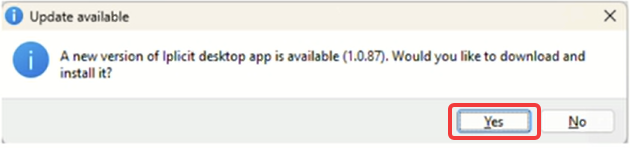
Turning this setting on means the desktop app checks for new versions on its own and prompts you to install them. If it is switched off, you will not receive new updates until you check for them manually.
Who this applies to
Anyone who opens iplicit through the desktop app icon on their computer rather than through a web browser. The desktop app opens in its own window without a browser address bar at the top. The browser version opens inside Chrome, Edge, Safari or Firefox.
If you only ever use iplicit in a browser, you can stop reading - no action is needed.
Enable automatic updates on Windows
Follow these steps in the iplicit desktop app on a Windows computer:
- Log in to the iplicit desktop app
- Press the 'Alt' key on your keyboard to show the menu bar at the top of the window
- Select 'Help' from the top left
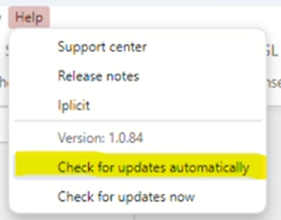
- Tick 'Check for updates automatically' so it shows as enabled
The app will now check for new versions in the background and prompt you to install them when they are released.
Enable automatic updates on Mac
Follow these steps in the iplicit desktop app on a Mac:
- Log in to the iplicit desktop app
- Go to the menu bar at the top of your screen
- Select 'Help'
- Tick 'Check for updates automatically' so it shows as enabled
The app will now check for new versions in the background and prompt you to install them when they are released.
How to check for an update right now
If you would rather check immediately, select 'Help' and then 'Check for updates now' from the same menu. This works the same way on Windows and Mac.
How to see which version you are on
In the same 'Help' menu, the version number is shown near the top - for example, 'Version: 1.0.84'. Support may ask for this if you raise a ticket about the desktop app.
What happens if I do not enable this?
The desktop app will keep working, but it will not pull in new updates on its own. You will need to check manually using the steps above.
If the setting will not enable
This commonly occurs when your computer's permissions restrict changes to installed applications. Speak to your IT team if the tick box will not stay enabled or appears greyed out. They may need to allow the iplicit desktop app to update on your machine.
Desktop app updates
Electron updates
Check for updates
Action needed update for app
locally installed updates
enable automatic updates