

This article covers the four icons shown in the top-right corner of any document toolbar in iplicit, including purchase invoices, sales invoices, journals and credit notes. Each icon opens a panel or window relating to the document you're currently viewing – attachments, notes, analytics enquiries or linked documents.
Attachments icon on a document toolbar
The attachments icon (paperclip) opens the attachments panel for the document. Upload and view files associated with that document directly from here.
For full guidance on adding files, see 'Adding attachments to documents in iplicit'.


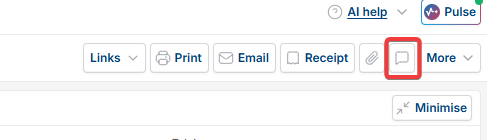
Notes icon on a document toolbar
The notes icon (speech bubble) lets you add or view internal notes on a document. Notes are useful for recording context, queries or updates against a specific transaction – for example, flagging a purchase invoice awaiting approval, or adding a reminder for your team.
Notes are visible to other users within your organisation who have access to that document.

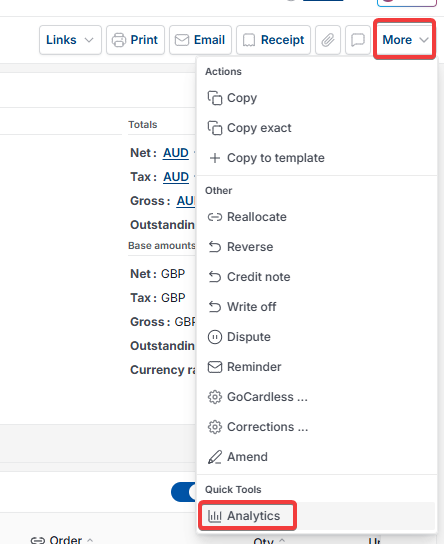
Analytics icon on a document toolbar
The analytics icon or analytics button found in the more options button, opens a pop-up showing saved enquiries associated with that document type. Select an enquiry and select 'Open' to run it in the context of the document you're viewing – for example, opening a purchase invoice history enquiry directly from a purchase invoice.
The enquiries available here are configured for your organisation and will vary depending on your setup.

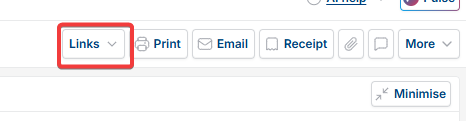
Links icon on a document toolbar
The links icon opens a panel showing all documents linked to the one you're currently viewing. Linked documents vary by transaction type and can include:
- Prepayment invoices linked to a purchase invoice
- Intercompany documents created from or related to the current document
- Deferred income or expenditure journals associated with the transaction
- Other system-generated documents related to the current record.
Each linked document in the panel is clickable – select one to navigate directly to it.

Document icons
Notes on invoices
Attachments to header
Toolbar icons
Linked documents
Document analytics icon