

By default, the iplicit Trial Balance report only displays accounts with transaction data for the selected period. To include zero-balance accounts and see your full chart of accounts, you need to enable 'Show tree items with no data' in the Rows configuration panel. This setting is also available in other analytical reports such as Balance Sheet and P&L – the steps are identical.
How to include zero-balance accounts in the Trial Balance report
- Go to 'GL' then 'Trial Balance' in the top navigation bar
- Select your 'Financial year', 'Legal entity' and 'Currency' filters at the top of the report
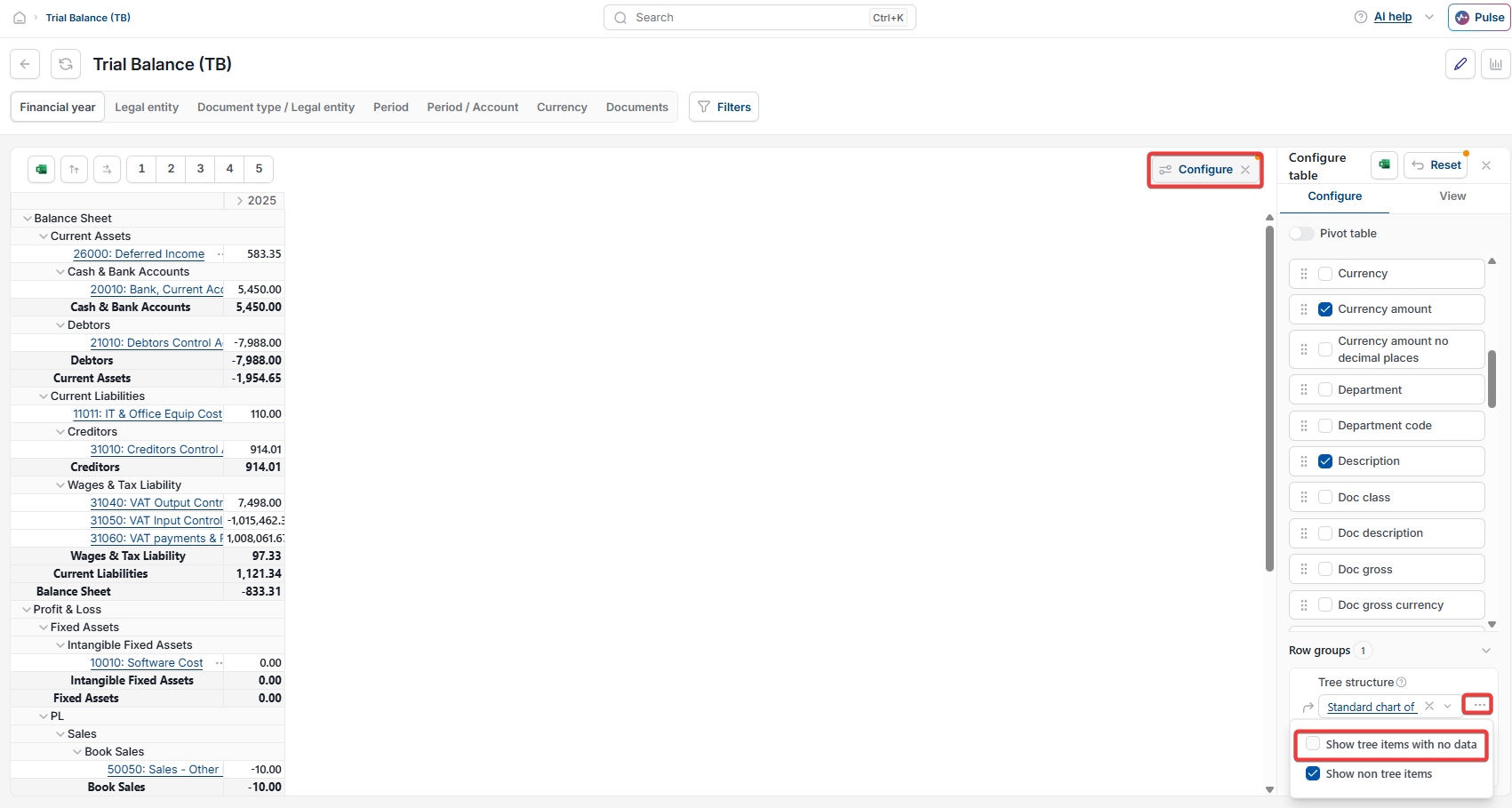
- Select the cog icon or 'Configure' button, depending on your version of iplicit, to open the configuration options
- Select 'Show tree items with no data' from the options that appear. Hovering over this option displays the tooltip 'Include any items in the tree that have no data'
- The report updates immediately to include all accounts from your chart of accounts, including those with a zero balance.
This setting is saved automatically. It will remain active the next time you open the Trial Balance report.

Zero-balance accounts in Balance Sheet, P&L and other analytical reports
The same 'Show tree items with no data' option is available in the Rows configuration panel for each of those reports. The setting saves per report, so enabling it in the Trial Balance does not automatically apply it elsewhere.
Filter zero balanced accounts
Show all accounts TB
Chart of accounts trial balance
Zero balance accounts