

This article covers how to create a fixed asset record manually in iplicit's Fixed Assets module. Manual creation is used when an asset was not generated from a purchase invoice – for example, when migrating existing assets from another system, or adding an asset that was purchased outside the normal purchase ledger process. Once created and submitted, the asset is ready to capitalise.
Before creating a fixed asset manually
Asset groups must be configured before you can create an asset manually. The asset group determines the depreciation method and default GL accounts. See 'What are asset groups and how should they be structured in iplicit' if these are not yet in place.
Creating a fixed asset record manually
- Select 'Assets' from the pulse menu or main menu, or enter 'Assets' in the quick search (Ctrl + K)
- Select 'New'
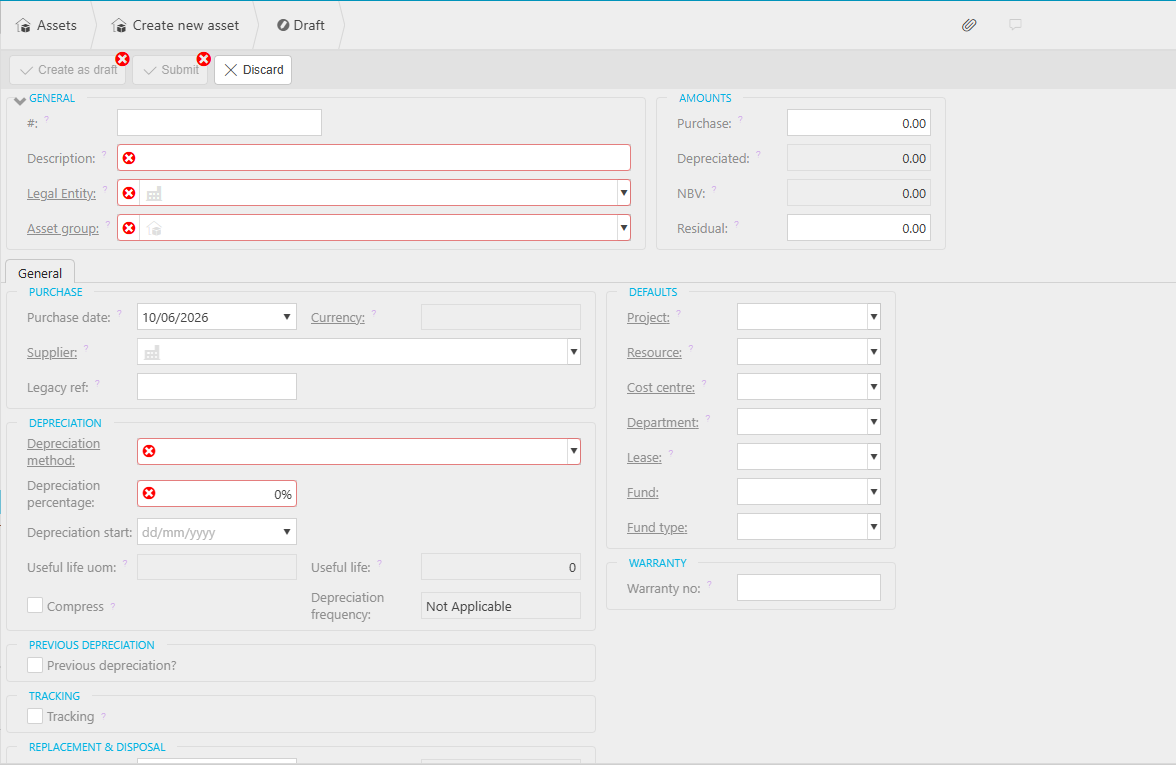
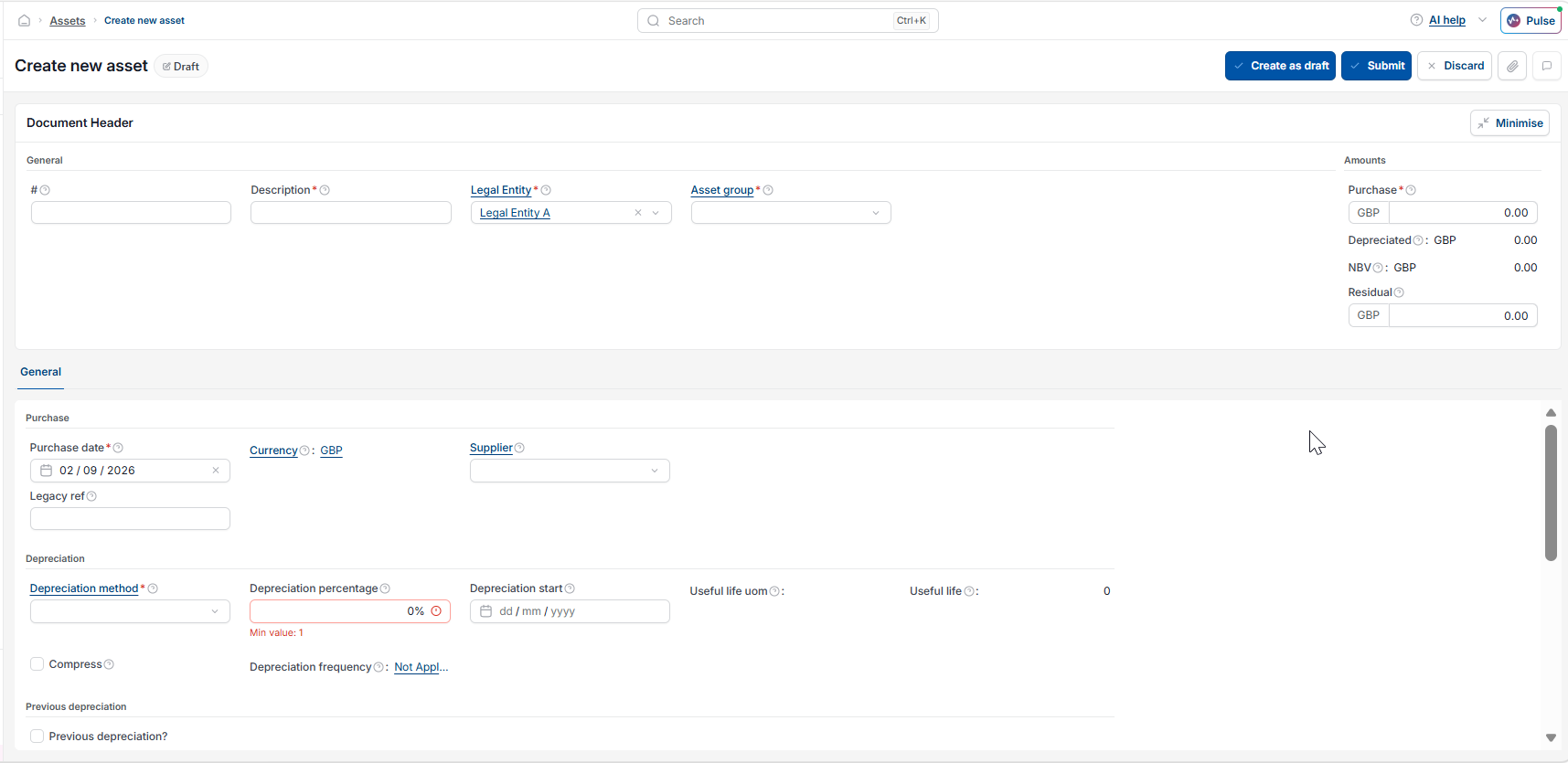
- In the 'General' section, enter:
- Asset ID – enter a unique code
- Description – a clear description of the asset
- Legal Entity – the Legal Entity that owns the asset
- Asset Group – the group the asset belongs to; this controls depreciation method and default accounts.
- In the 'Amounts' section, enter:
- Purchase Cost – the original cost of the asset
- Residual Value – the expected value at the end of the asset's useful life (also called salvage value); enter zero if none.
- Under the 'General' tab, in the 'Purchase' section, enter:
- Purchase Date – the date the asset was purchased
- Supplier – select from the drop-down if applicable
- Legacy ref – the reference from a previous system, if migrating.
- In the 'Depreciation' section, enter:
- Depreciation method – this field only appears if the asset group does not fix the method; select the appropriate method if available
- Depreciation start date – must be on or after the purchase date; leave blank to default to the purchase date
- Useful life – enter the number of years the asset will depreciate over; this is mandatory for any depreciating asset. Without it, iplicit cannot generate a depreciation schedule and capitalisation will not complete.
- Add any tracking details, project, cost centre, department or resource assignments in the relevant sections if required
- Select 'Submit' to save and approve the asset.
The asset status will show as 'Approved'. It is now ready to capitalise. See 'How to capitalise a fixed asset in iplicit' for the next step.
Editing a fixed asset after creation
- Draft status – select 'Edit' to modify all fields, then 'Save' or 'Submit'
- Approved status – select 'Amend'; this returns the asset to draft so all fields can be edited; resubmit when done
- Capitalised status – select 'Amend' to edit a limited set of fields only; for full corrections, use 'Uncapitalise' to reverse all journals and return the asset to draft.
Manual creation for assets
New asset
Add asset to register
Fixed asset record
Create asset record