

This article covers bulk payments for iplicitPay. If you open a bulk payment and no invoices appear in the allocation list, the bulk payment template you have selected is likely filtering results by payment method. This article explains what causes this, how to resolve it, and how to set up a dedicated bulk payment template to avoid the issue in future.
Why no invoices are showing in a bulk payment for iplicitPay
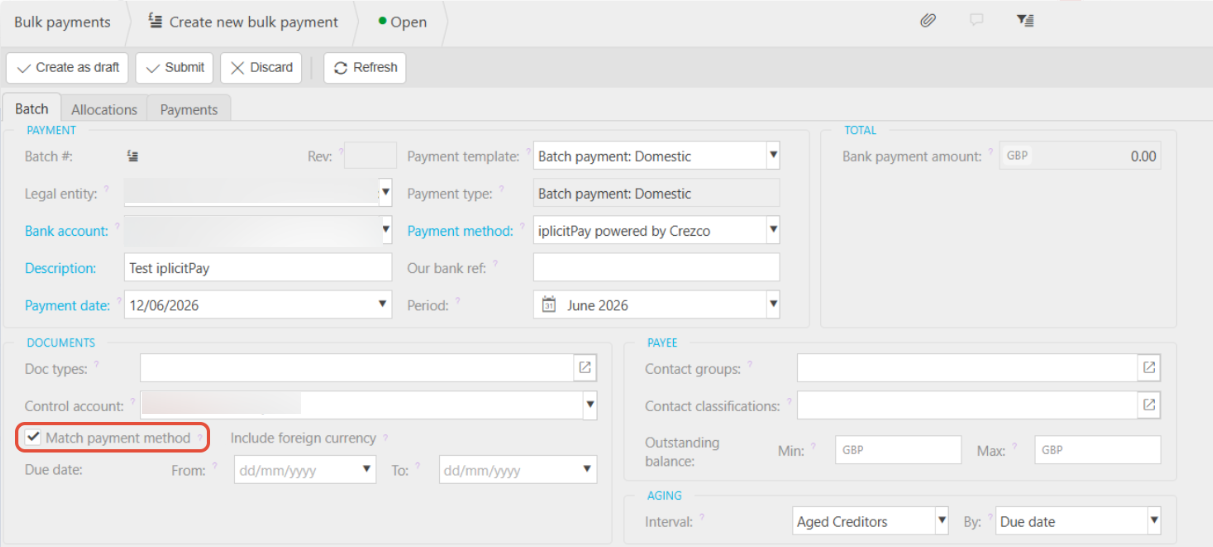
When you run a bulk payment for iplicitPay, the system uses a bulk payment template to control which invoices appear in the allocation list. One setting on that template - 'Match payment method' - tells the system to only show invoices whose payment method matches the one set on the template. If your invoices use a different payment method, or if the template's payment method does not match, no invoices will appear.
This is working as intended - but it is easy to set up a template where this filter is more restrictive than you need.
How to resolve no invoices showing in a bulk payment for iplicitPay
Before you proceed: Unticking 'Match payment method' will show all outstanding invoices that fall within the other filters on the screen - due date and control account. This includes invoices and expenses assigned to any payment method, not just the one you intended to use. Review the allocation list carefully before confirming payment to avoid paying items you did not intend to include.
- Open the bulk payment and select your bulk payment template
- Locate the 'Match payment method' setting
- Untick 'Match payment method'
- The allocation list will now show all outstanding invoices within your due date and control account parameters
- Review the list and deselect any invoices or expenses you do not intend to pay
- Proceed with the bulk payment as normal.
Setting up a dedicated bulk payment template for iplicitPay
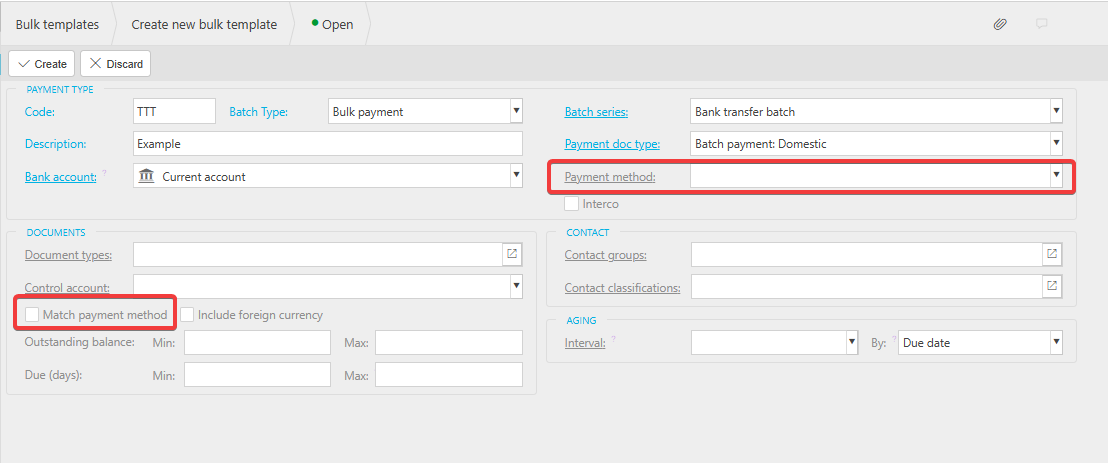
To avoid this issue in future, you can create a bulk payment template with 'Match payment method' unticked and pre-configured with the bank account and payment method you use for bulk payments. This means the allocation list will show the right invoices automatically each time, without needing to adjust the setting manually.
- Navigate to the bulk templates screen
- Create a new template
- Leave 'Match payment method' unticked
- Select the bank account you use for bulk payments
- Select the payment method
- Save the template.
When running future bulk payments, select this template and the allocation list will reflect your intended scope from the start.
iplicitPay no allocations showing
iplicitPay nothing available
Nothing appearing for selection on iplicitPay