

This article covers how asset capitalisation rules work within the Fixed Assets module in iplicit. Capitalisation rules define when a purchase invoice should trigger the creation of a fixed asset – either automatically or by routing it for review. Configuring these rules correctly is what allows iplicit to build your asset register from your purchase invoices without manual data entry.
Before you set up capitalisation rules in Fixed Assets
Three things must be in place before a capitalisation rule can process invoices and create fixed assets in iplicit.
Asset groups and account defaults
Each asset created by a capitalisation rule is assigned to an asset group. That group must exist and have GL account defaults configured for capitalisation before any asset can be created or posted. See 'What are asset groups and how should they be structured in iplicit' and 'How to configure account defaults for fixed assets in iplicit'.
Document types and series
The 'Asset Capitalise' (ASSCAP) document type must be unlocked and a document series must be active, unlocked and dated before your earliest asset. Without both in place, iplicit cannot post the capitalisation journal even if the rule matches correctly. See 'How to set up document types and series for fixed assets in iplicit'.
What a capitalisation rule does
When a purchase invoice is posted in iplicit, the system checks whether it matches any active capitalisation rules. If it does, iplicit either creates the fixed asset record immediately or flags the invoice as a capitalisation candidate for review.
Think of a capitalisation rule as a filter: you define the criteria, and iplicit does the matching.
How iplicit matches invoices to capitalisation rules
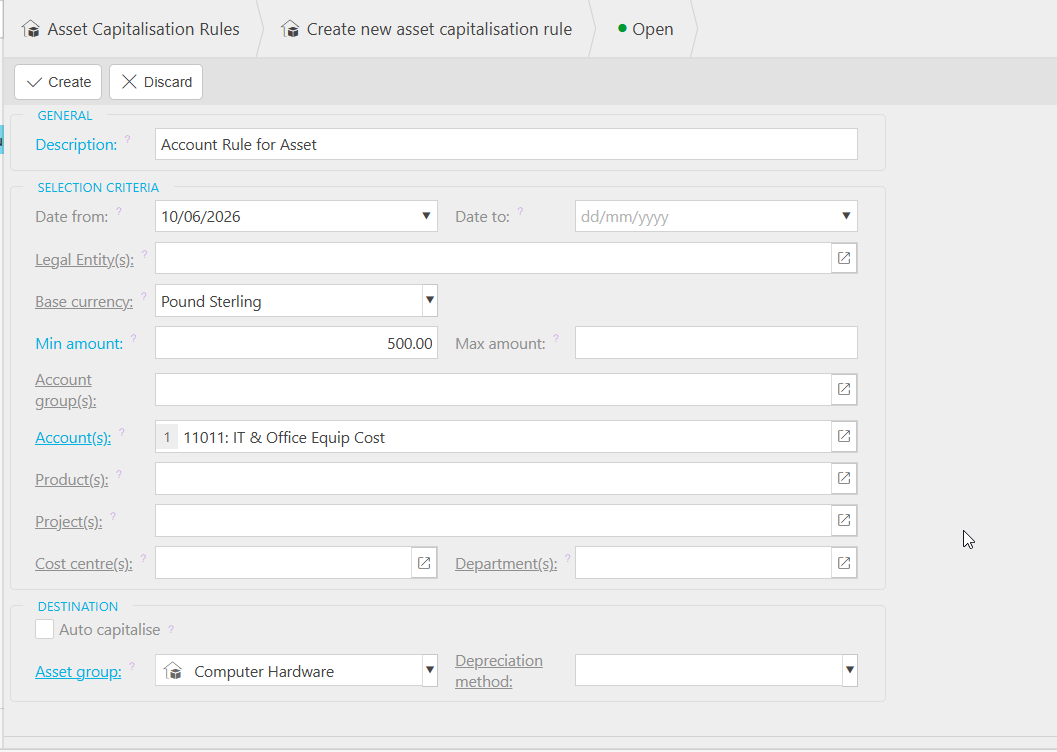
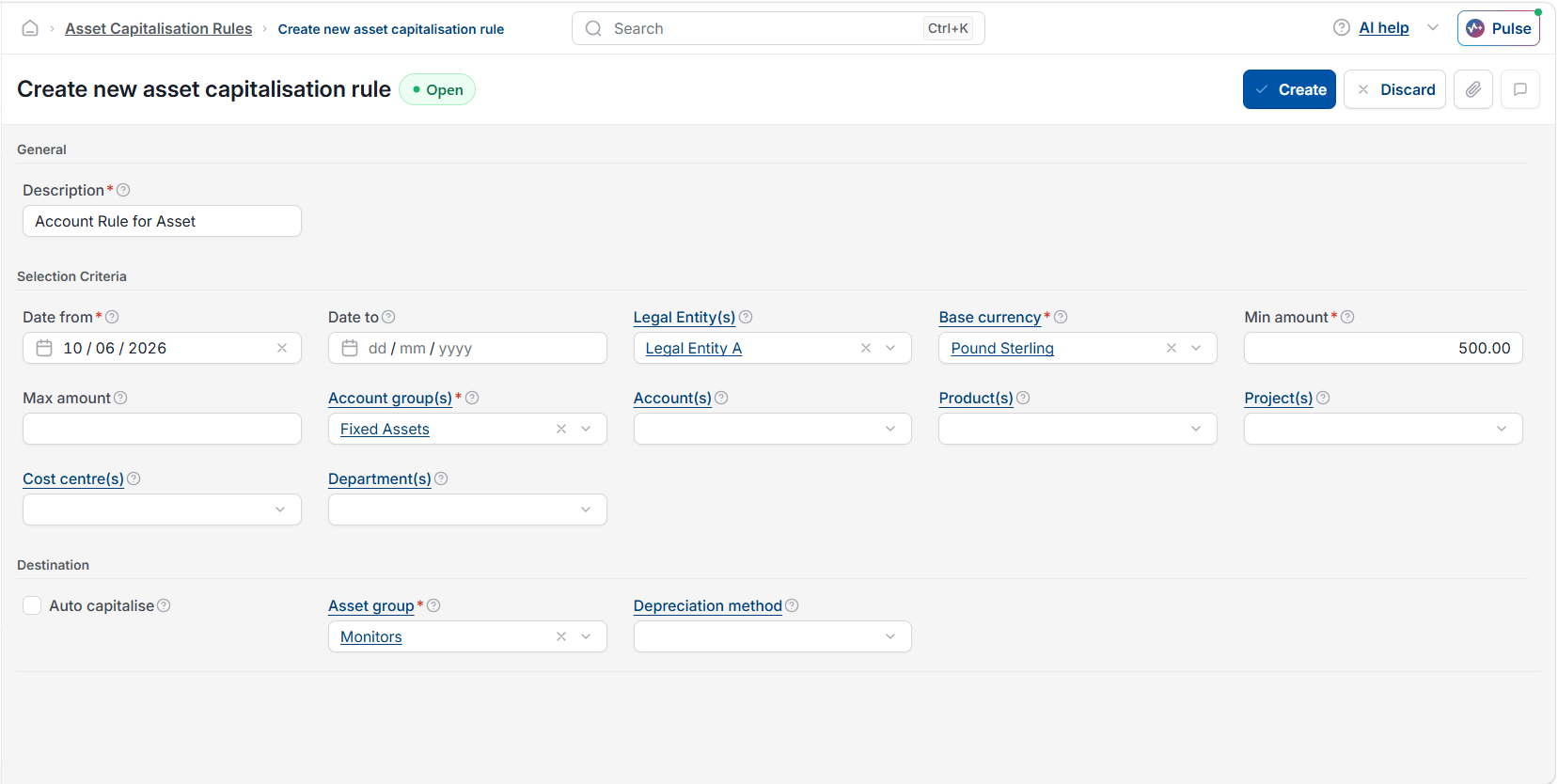
Two matching methods are available in the Fixed Assets module:
- Chart of Accounts (COA) code – the rule matches invoices posted to specific nominal accounts, such as a capital expenditure account
- Product – the rule matches invoices containing specific products that have been flagged for capitalisation in the product settings.
You can use either method or both, depending on how your purchase invoices are structured.
Setting a minimum capitalisation threshold
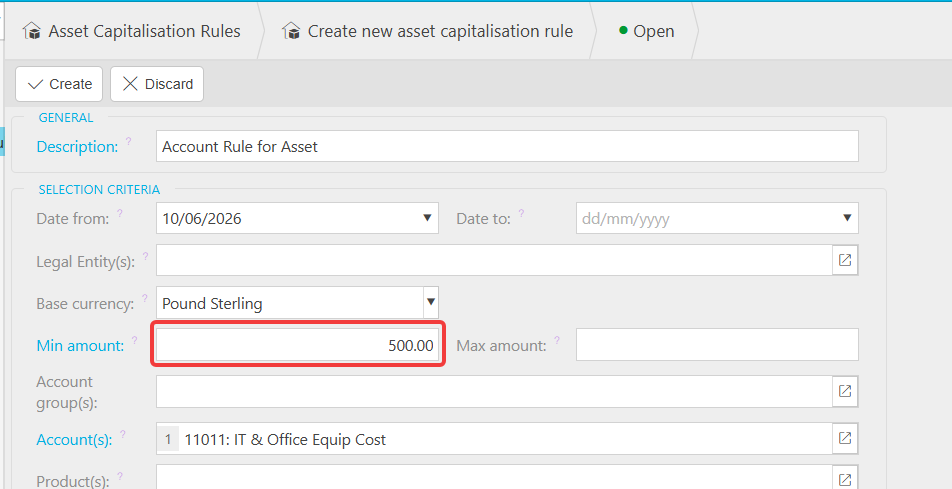
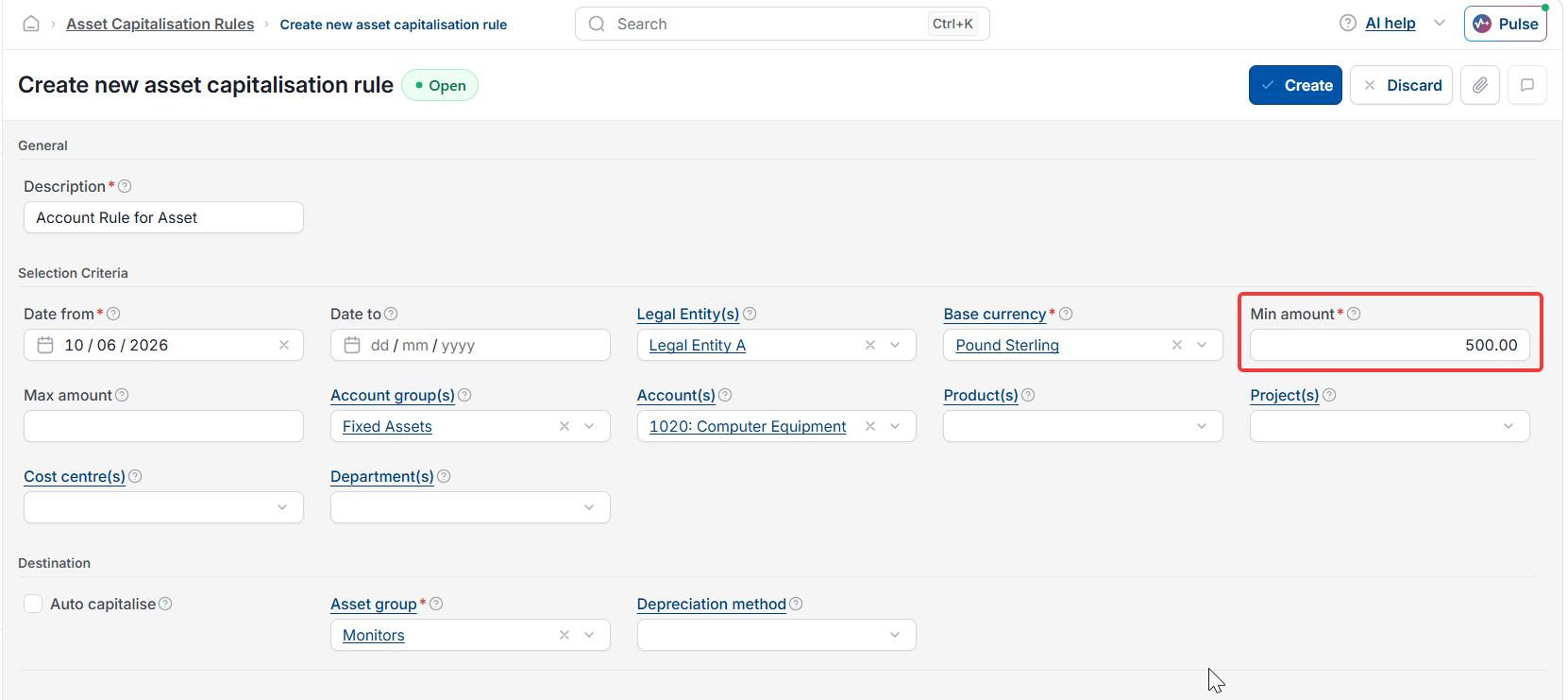
Each capitalisation rule can include a minimum value. Invoices below this amount are excluded from capitalisation, even if they match the COA code or product criteria.
This prevents low-value items from being added to the asset register when they should simply be expensed. For example, a threshold of £500 means only purchases at or above that value will trigger asset creation.
Automatic capitalisation versus approval routing
Each rule offers two processing modes:
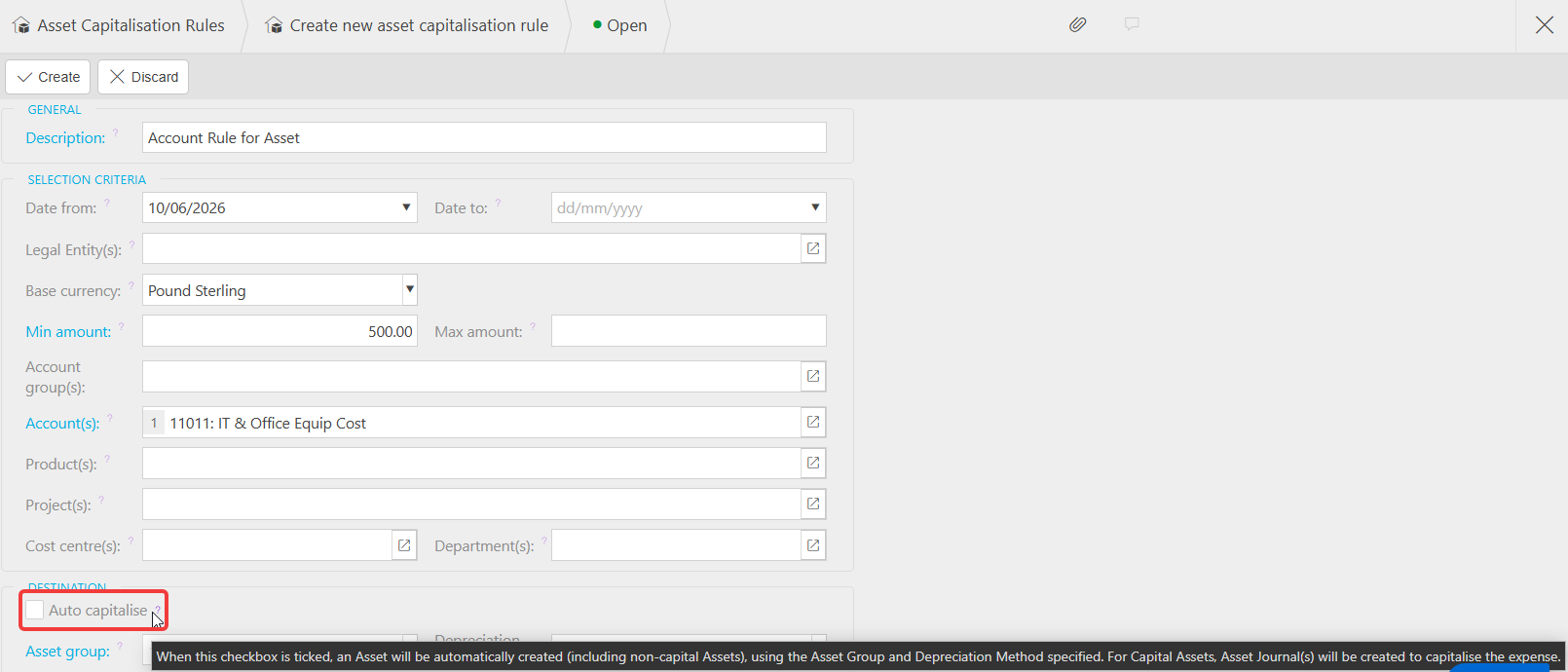
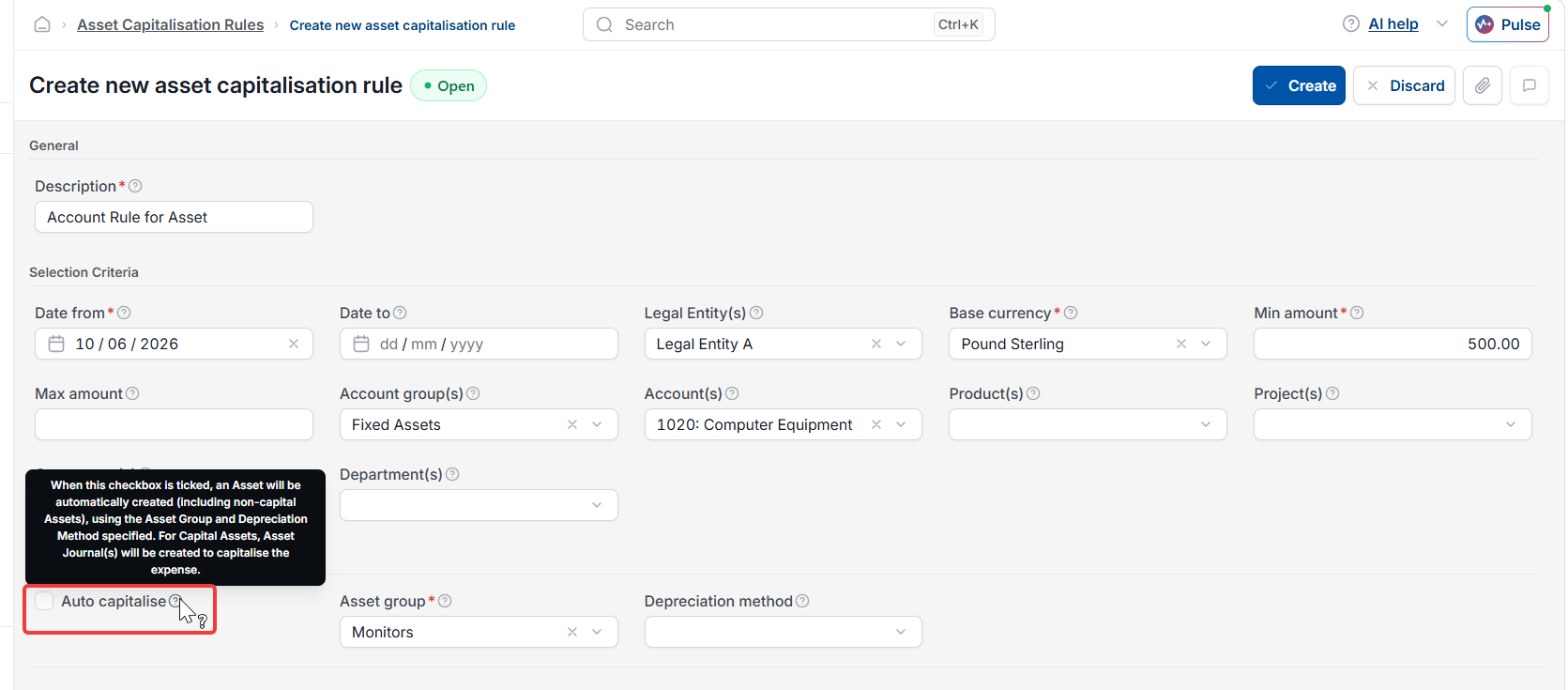
- Automatic capitalisation – iplicit creates the asset record as soon as the qualifying invoice is posted, with no further action needed
- Approval routing – iplicit flags the invoice as a capitalisation candidate and routes it to the Asset Capitalisation screen, where a user must review the details and choose to either capitalise or exclude the item before the asset is created. Excluded items can be reinstated from the 'Excluded' tab if needed.
Use automatic capitalisation for straightforward purchases where the asset category and details are predictable. Use approval routing when your finance team needs to review, categorise or assign asset details before the record goes into the register. See 'How to create a fixed asset from a purchase invoice in iplicit' for detail on how to process items from the Asset Capitalisation screen.
Why the capitalisation rule start date matters
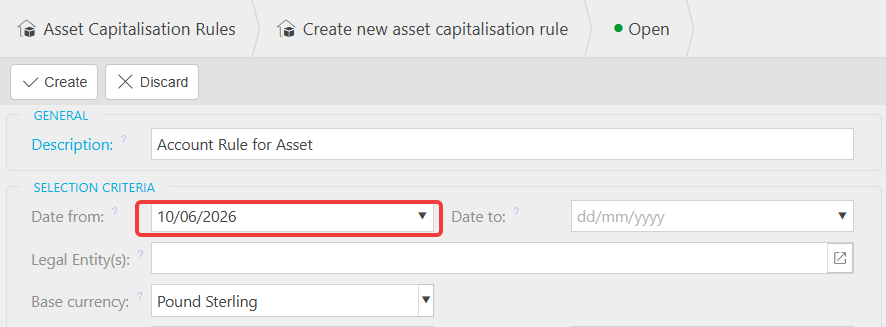
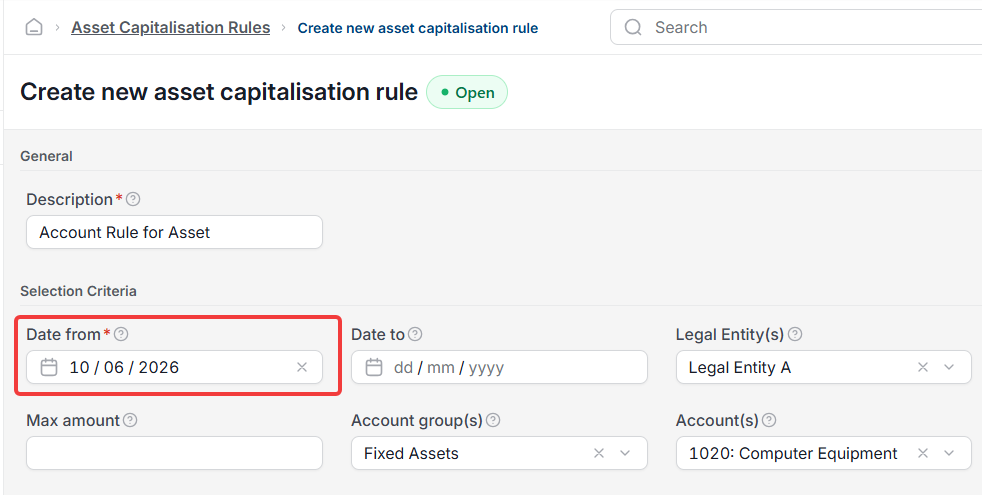
Each capitalisation rule has a start date. iplicit only processes invoices that fall on or after this date against the rule. If assets are appearing as pending or failing to capitalise, check that the rule's start date is set to a date earlier than the oldest asset you need to process. This is one of the most common causes of assets getting stuck. See 'Why is my fixed asset stuck in pending' for more detail.
Running the auto-capitalisation automation in Fixed Assets
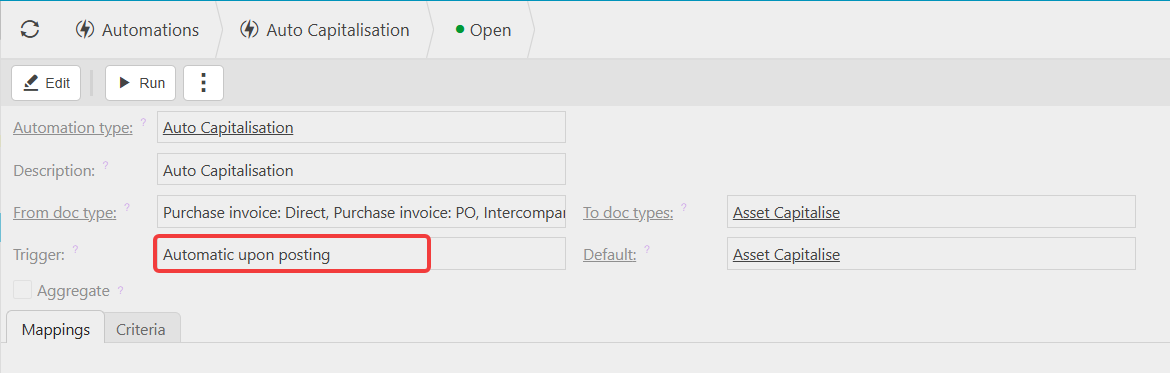
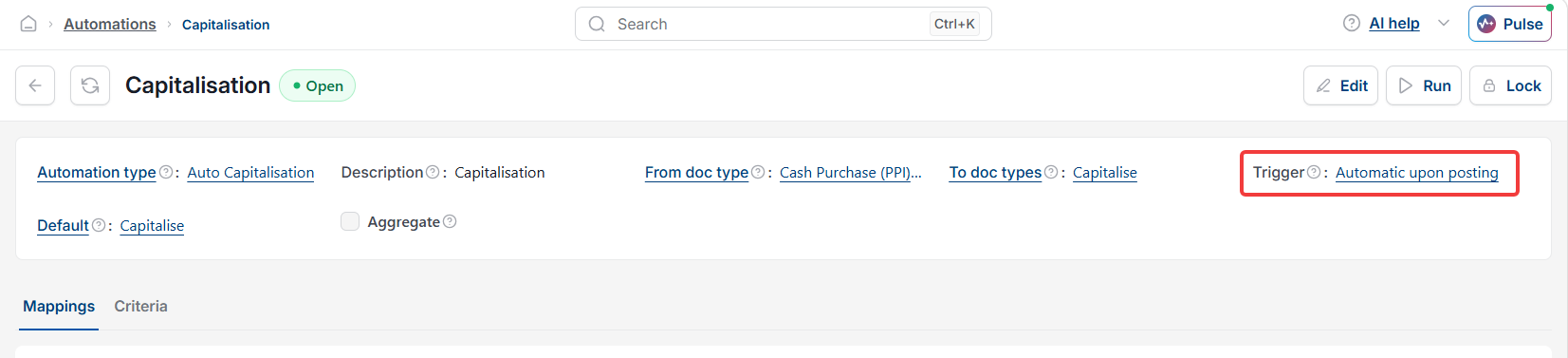
For automatic capitalisation to run without manual intervention, the auto-capitalisation automation must be active. Even if it was not running at the time the invoice was posted, you can run it manually afterwards to pick up any assets that were missed. Navigate to the Auto Capitalisation Automation to run or schedule this automation.
Automatic capitalisation
Auto asset creation
Auto capitalise an asset
Fixed asset rules
PINs for assets