

This article covers changing which columns are shown on iplicit finders and documents – for example the Purchase Invoices list or an individual purchase invoice. It does not cover enquiries such as the Trial Balance, which work differently – see 'How to configure rows, columns and pivot tables in iplicit enquiries'.
Finding the icon
A finder is a list view, such as the Purchase Invoices screen showing all your invoices. A document is a single record, such as one open purchase invoice and the lines within it.
Look for a small icon in the top right corner of the table or detail section. It may appear as a cog or as a 'Configure' icon, depending on your screen.
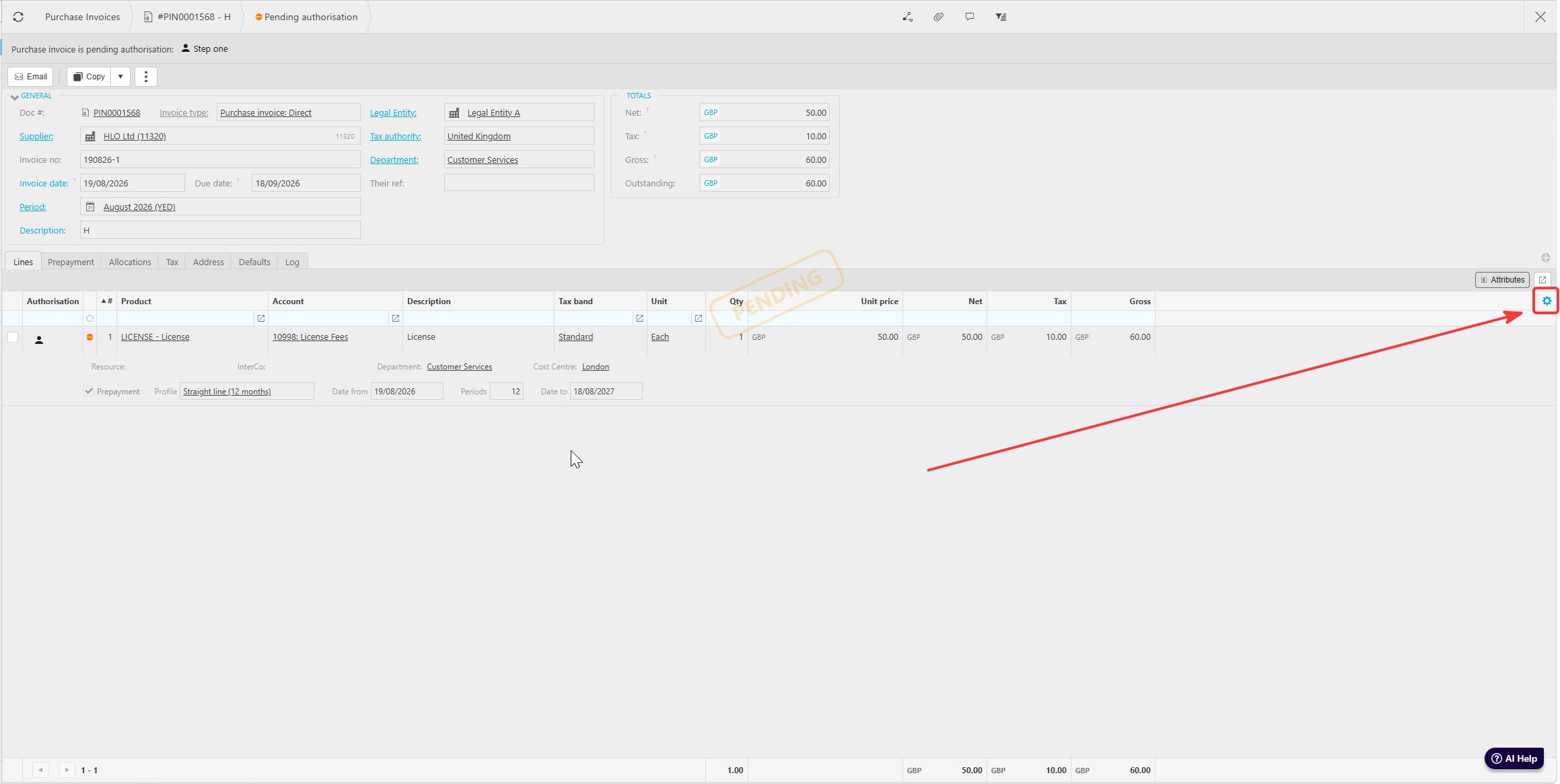
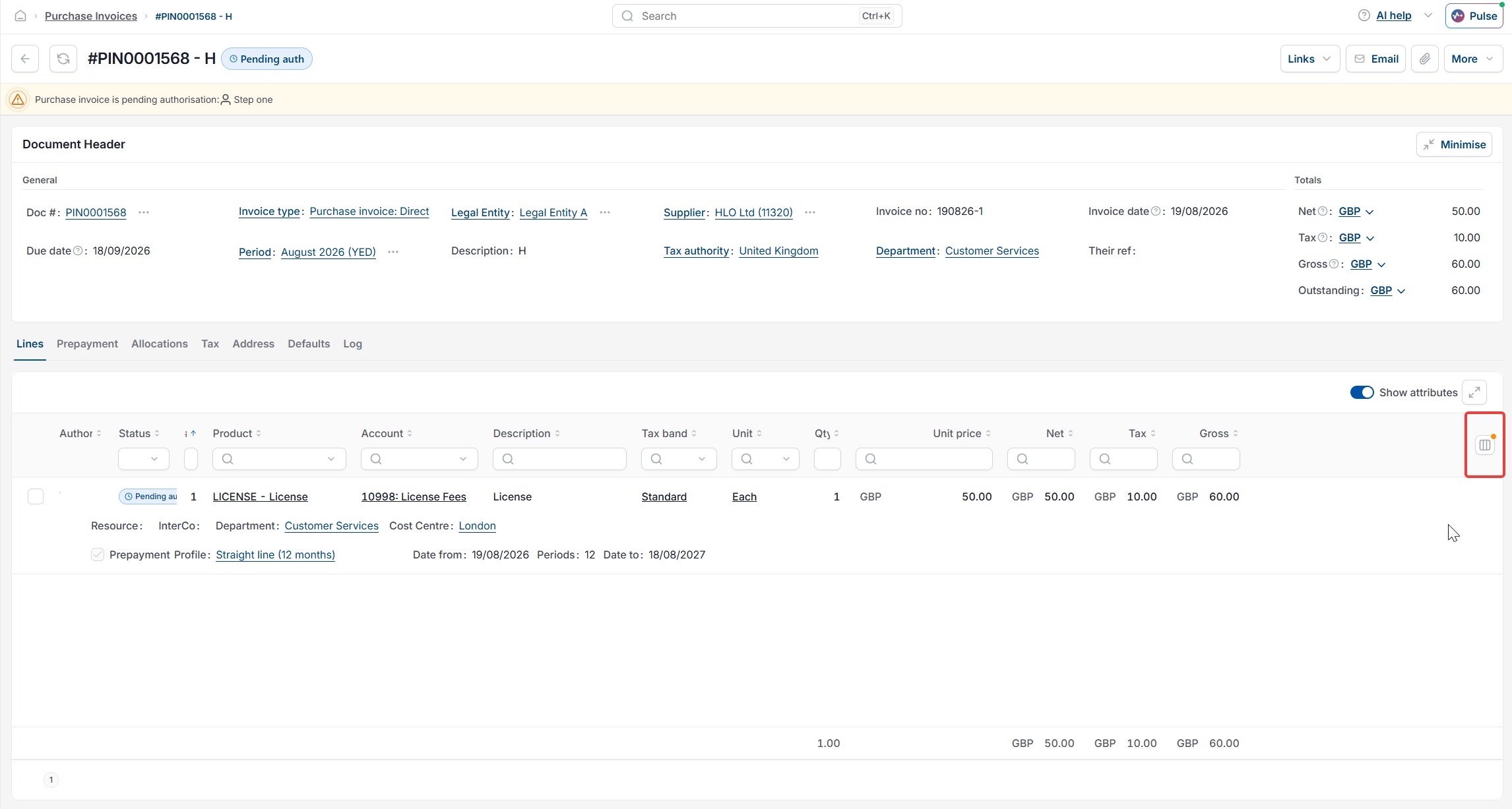
Adding or removing columns
Selecting a column adds it to the table; deselecting it removes it. This does not filter or change the underlying data, it only changes what is shown on screen.
- Open the finder or document you want to change
- Select the icon in the top right corner of the table
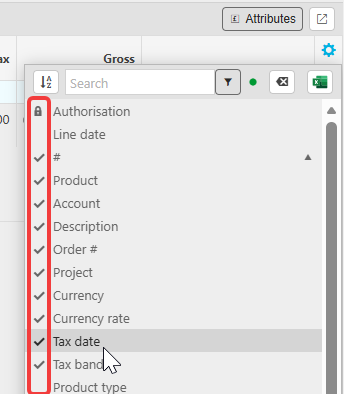
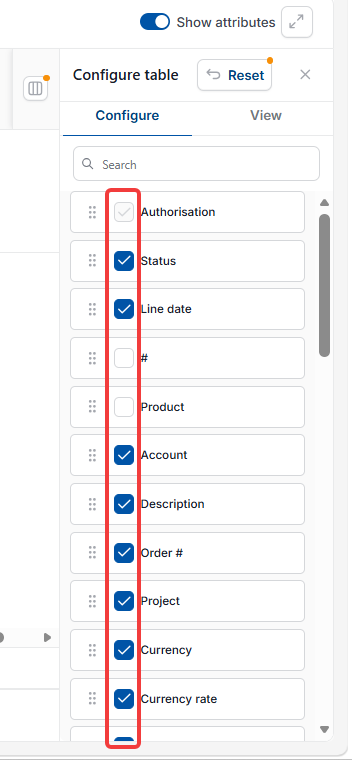
- A list of available columns appears, each with a tick or checkbox showing whether it is already visible
- Select an unticked column to add it to the table
- Select a ticked column to remove it from the table
- Close the panel by clicking away or selecting 'X'.
Reordering columns
- Click and hold the column header you want to move
- Drag it left or right to the position you want
- Release to drop it in place.
Resetting your changes
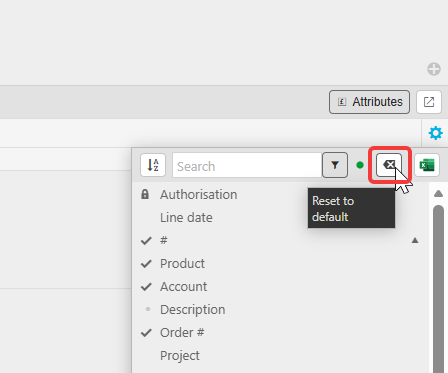
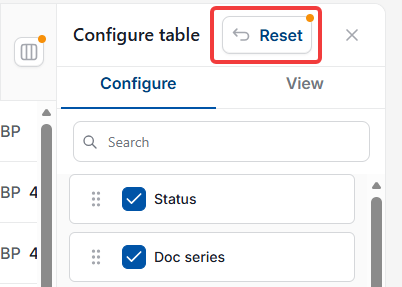
Select the reset icon or button within the panel to return the table to its default columns and layout. It may be labelled 'Reset' or shown as an icon with a 'Reset to default' tooltip. This cannot be undone.
Changing table density and totals
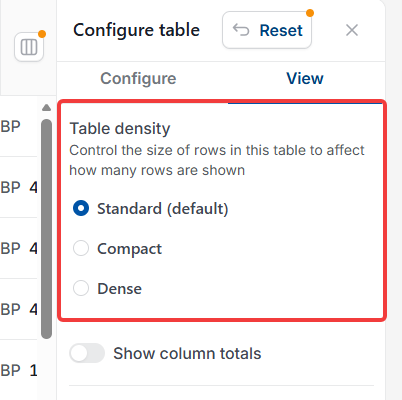
If your panel has a 'View' tab, select it to change how the table looks. 'Table density' controls how many rows fit on screen – choose 'Standard', 'Compact' or 'Dense'. A 'Show column totals' toggle adds or removes a totals row at the bottom of the table. If you do not see a 'View' tab, this option is not available on your screen.
Cog icon
Configure icon
Add columns
Hide columns
Reorder columns
Change table columns
Table settings
Column settings